

Don't Let iPhone Glitches Ruin Your Day - Fix Them in Minutes

Why is my iPhone 16 Pro Max screen glitching after just one year of use? Why does it sometimes show weird lines, freeze on the Apple logo constantly or keep restarting? These frustrating issues can disrupt your daily use, but don't worry! In this guide, we'll explore the common reasons behind iPhone glitches and show you various ways to fix them safely and quickly!
PAGE CONTENT:
Part 1: Why is My iPhone Glitching?
iPhone are known for its smooth performance, but over time, even the most reliable device can become glitchy. Common problems - such as frozen screen, app crashes, or screen glitches - are usually caused by software issues, hardware damage, or external factors.
Software Issues
- System update bugs: Using an outdated iOS version can affect system stability, causing iPhone screen glitches, frame drops, or app crashes.
- Memory issues: Too many apps running in the background or insufficient storage can slow down your iPhone, resulting in delayed responses or unresponsive touch.
- Incompatible apps: Some third-party apps may not be fully compatible with your iOS version. As a result, your iPhone screen may temporarily glitch, freeze, or become unresponsive when you open the app.
Hardware Damage
- Battery issues: As battery health declines, the battery percentage may suddenly drop from 30% to 5%, apps may open more slowly, and the iPhone may restart or shut down unexpectedly.
- Heavy Falls: Dropping your iPhone can cause internal components to loosen or become damaged. After a heavy fall, you may notice the iPhone screen flickering, color distortion, or Face ID/Touch ID not working.
External Factors
- Overheating: Using your iPhone for heavy tasks, in hot environments, or while charging will introduce iPhone glitches, shutdowns, or slow performance.
- Water damage: This is one of the leading causes of iPhone screen glitches. Water that seeps into your iPhone can corrode its internal components and metal parts.
Part 2: Quick Fixes on iPhone Glitching
If your iPhone is glitching, you don't need to rush to a repair shop. Many common iPhone glitches can be fixed in minutes using simple methods. Try the following quick fixes, they can resolve 80% of iPhone glitches.
Force Restart Your iPhone
Restarting is the most effective troubleshooting method. If your iPhone freezes on the Apple logo or gets stuck on an app screen, you can force start your device using the steps below:
For iPhone 8 and later models:
Press and release the Volume Up button > Press and release the Volume Down button > Press and hold the Side button until the Apple logo appears.
For iPhone 7/7 Plus:
Press and hold the Volume Down and Side buttons until the Apple logo appears.
For iPhone 6 and older models:
Press and hold the Home button and the Sleep/Wake button together until the Apple logo appears.
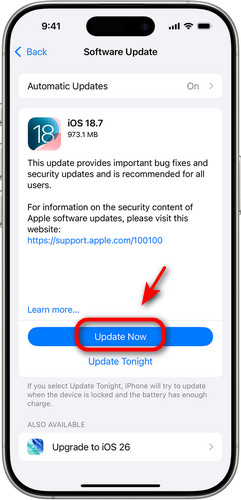
Update iOS to the Latest Version
Apple regularly pushes out new iOS versions. If you keep using an outdated iOS version, your iPhone will easily run into various compatibility issues. Updating iOS to the latest version can resolve iPhone glitches, fix system bugs, and optimize performance.
Step 1. Open Settings and select General.
Step 2. Tap Software Update and tap Download and Install.
Replace the Old Battery
If your iPhone is 2-3 years old, drains battery quickly, and lags when running games, the aging battery is very likely the cause. Check Settings > Battery > Battery Health & Charging. If the maximum capacity is below 80%, Apple recommends replacing the battery to restore performance and fix iPhone glitching issues.
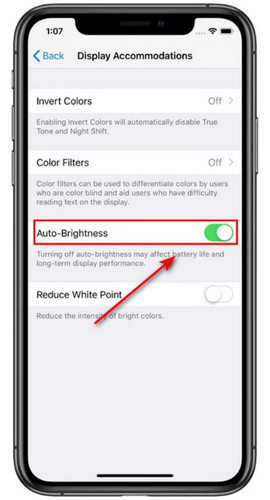
Turn Off Auto Brightness
If you find your iPhone screen glitching, you can lower the brightness to reduce power consumption and turn off the auto-brightness feature to reduce glitching.
Step 1. Open Settings and tap Accessibility.
Step 2. Tap Display & Text Size. Find the Auto-brightness switch and turn it off.
Free Up iPhone Storage Space
Low storage space can cause iPhone lagging and app crashes. When storage usage exceeds 85%, iOS performance drops significantly. Check Settings > General > iPhone Storage and free up storage space by deleting unused apps, cache and old backups.
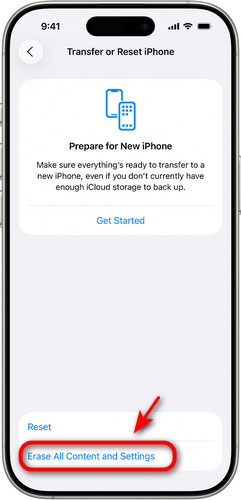
Reset Your iPhone to Factory Settings
If none of the above methods work, resetting your iPhone to factory settings can resolve serious software issues. This method can fix system corruption and persistent app conflicts that other fixes can't, but it will erase all data on your device. Make sure you have a backup, so you can restore your iPhone from a backup after resetting.
Step 1. Go to Settings and tap General.
Step 2. Select Transfer or Reset iPhone and choose Erase All Content and Settings.
Step 3. Tap Continue and follow the on-screen instructions.
Part 3: How to Fix iPhone Glitches via iOS System Recovery
If all the quick fixes fail, your iPhone is likely experiencing a deeper iOS system issue. In this case, using a professional iOS system recovery tool can be more effective. Apeaksoft iOS System Recovery is designed to repair iOS system glitches and can resolve various issues, including being stuck on the Apple logo, app crashes, blue/red/white/black screens, boot loops, and frozen screens. It supports all iOS devices and works on both Windows and Mac.
Fix All System Glitches & Errors on Your iPhone
- Repair 150+ iOS system errors in all scenarios.
- Provide a quick fix on iOS issues without data loss.
- Rescue your disabled/frozen/stuck iOS devices safely.
- Support all iPhone/iPad/iPad models, including iOS 26/iPadOS 26.
Secure Download
Secure Download

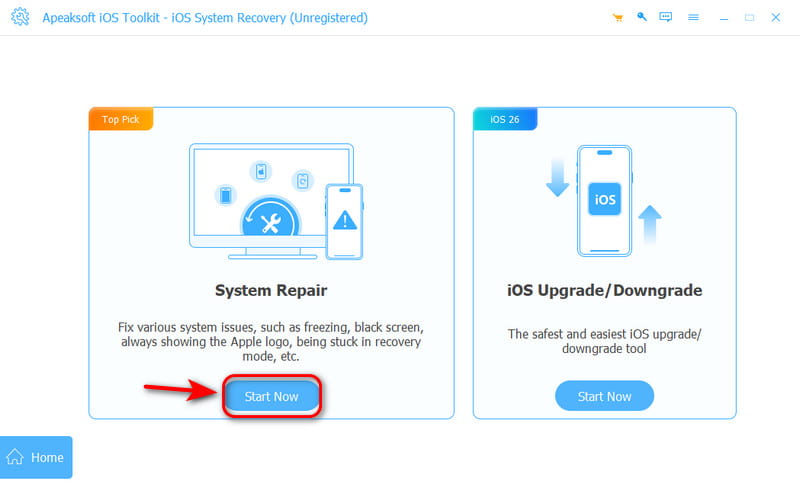
Step 1. Launch iOS System Recovery on your computer. Click the iOS System Recovery mode in the main interface.
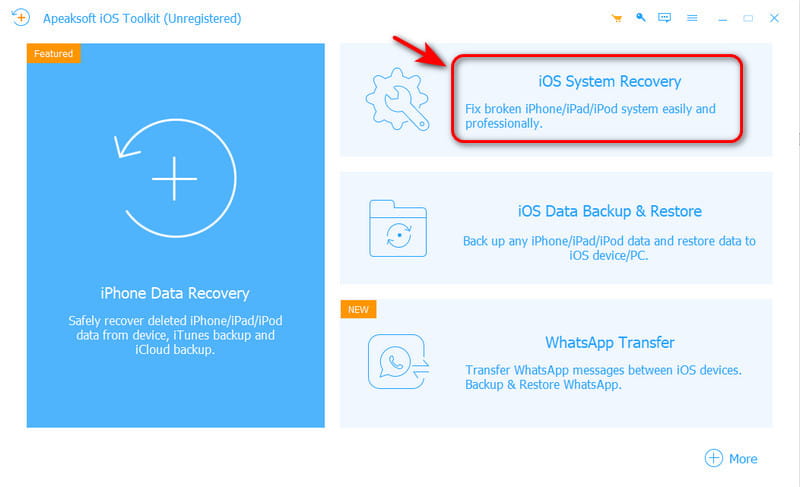
Step 2. Hit Start Now under the System Repair tab.
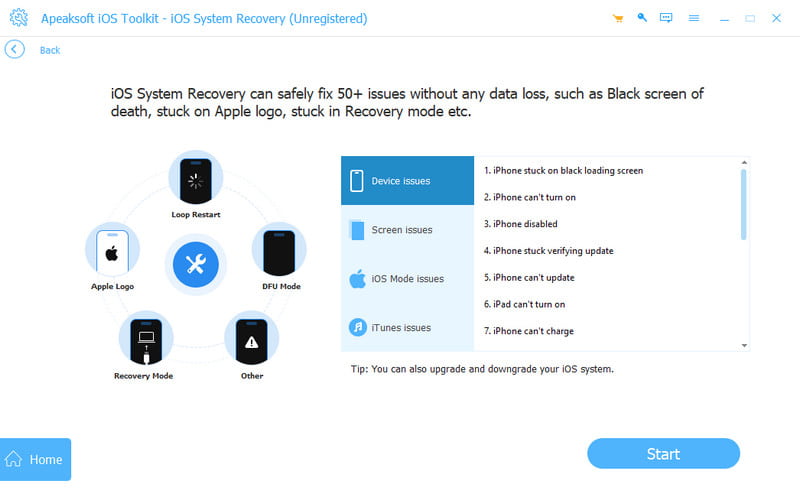
Step 3. Connect your iPhone to the computer using a USB cable, then click Start.
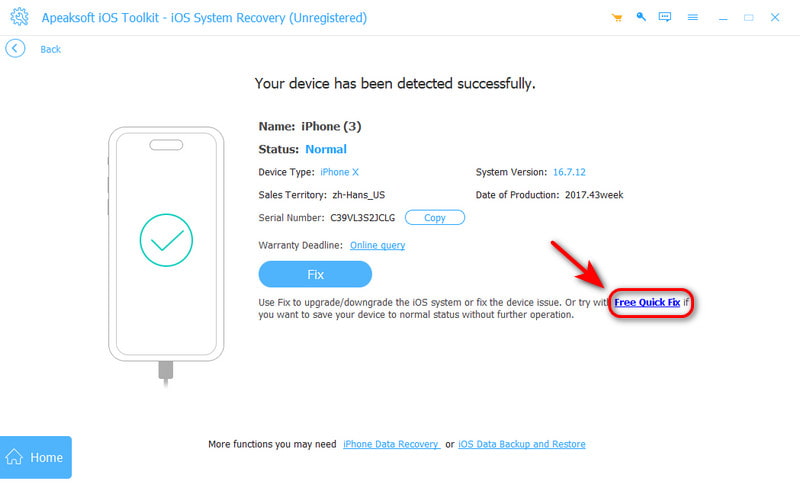
Step 4. Click Free Quick Fix to solve normal problems.
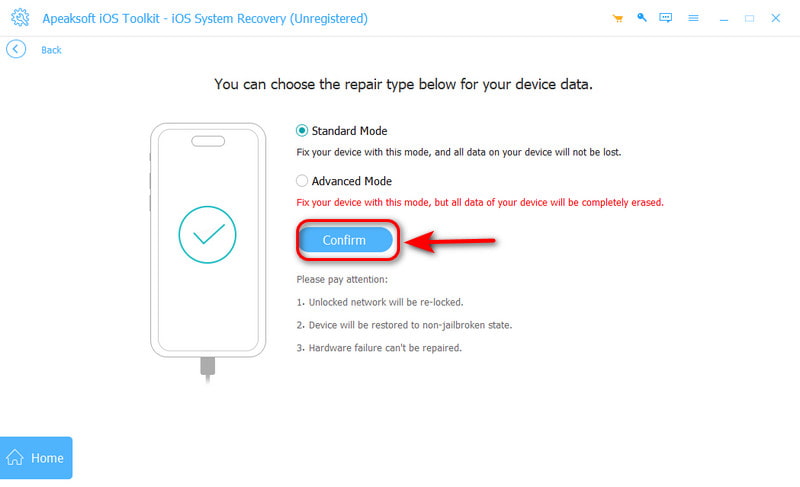
Step 5. If the Free Quick Fix doesn't work, click Fix to enter the advanced mode, choose Confirm to proceed. The advanced mode can solve all the system problems, but it will erase all your data on your iPhone.
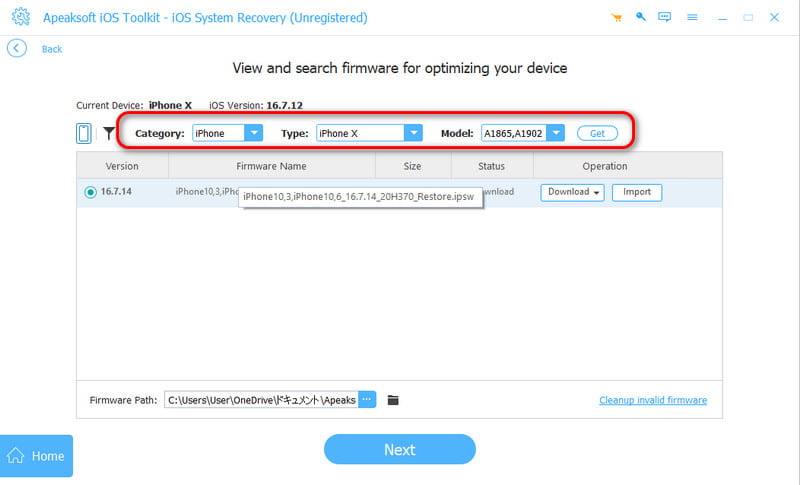
Step 6. Choose the category, the type and the iOS model of your iPhone.
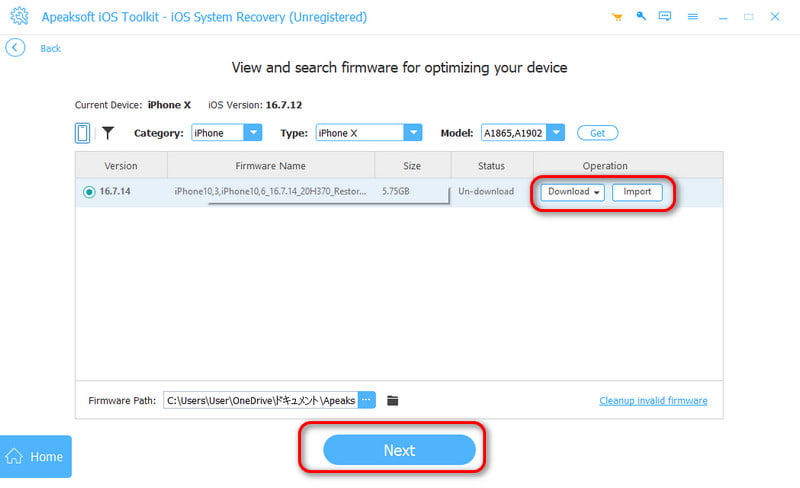
Step 7. If you don't have the version on your PC, click Download. If you have, click Import to input the firmware. Then click Next to start recovering.
Part 4: FAQs on iPhone Glitching
Will a factory reset fix all iPhone glitches?
Not always! A factory reset can fix iPhone glitches caused by software, but it won't solve hardware issues. If glitches persist after a reset, the problem is likely hardware-related and requires professional repair.
Why is my iPhone so glitchy now?
Over time, your iPhone may start glitching due to software bugs, insufficient storage, an aging battery, hardware issues, or running too many apps in the background.
How can I prevent my iPhone from glitching?
To prevent your iPhone from glitching, you need to regularly update iOS versions, delete downloads on iPhone, monitor battery health, and protect it from hardware damage.
Conclusion
Glitches for iPhone can be frustrating, but most issues can be fixed quickly. Paying attention to your iPhone's performance and addressing small signs of glitches can prevent them from escalating. Have you noticed anything unusual on your iPhone lately? Catching them early can save you a lot of trouble!
Related Articles
If your iPod is stuck on the Apple logo, it means the system can't boot. Come and learn how to use a more direct method to get the device back to normal!
Many users feel helpless when their iPhone freezes, but with a few simple steps, it's easy to fix the problem and restore normal use of the device.
What is the safe mode on Android phone? Your Samsung phone stuck in safe mode? This post shows how to fix phone freeze on safe mode.
If your iPhone gets stuck in Recovery Mode, don’t panic! Follow our verified solutions to fix the problem and regain access.



