


Why Apple ID Verification Failed and How to Fix It

"I recovered my Apple Account, and everything seems to be working just fine until I tried to update apps. Whenever I tried to do it, I got the message Verification Failed: Your Apple ID or password is incorrect. How can I fix this problem?" Generally, this error occurs when you try to access Apple services, such as App Store, iCloud, or iTunes. This article shares a proven solution to get rid of the error.
PAGE CONTENT:
Part 1: Why Does It Say Verification Failed on Apple ID
As the alert message itself implies, it could be related to some issue with your Apple Account. There are many potential causes for the error. Some of the probable causes why it says Verification Failed on Apple ID are briefly explained below:
- 1.Incorrect Apple ID email or password.
- 2.You have changed your Apple ID password and forgotten to update it on your device.
- 3.Apple server issues.
- 4.Your Apple ID is disabled or locked.
- 5.Verification timeout.
- 6.Two-factor authentication issues.
- 7.Network errors.
- 8.Software glitches.
Part 2: How to Fix Apple ID Verification Failed
Solution 1: Check Apple Servers
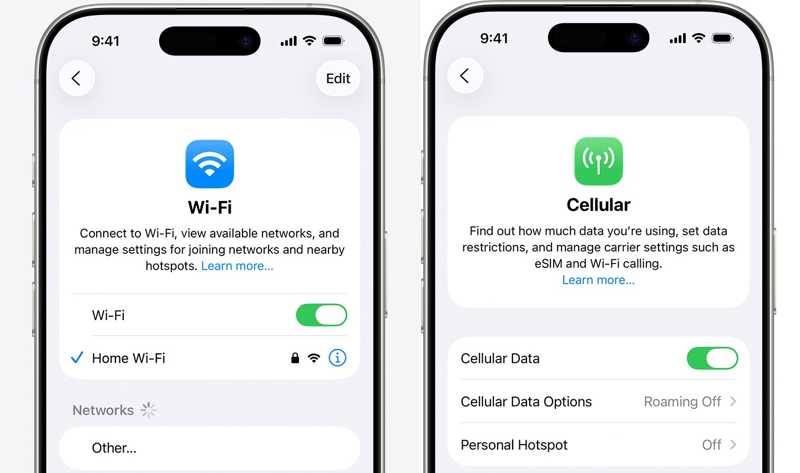
When you use your Apple Account, your iPhone must be connected to a stable internet connection. Otherwise, Apple ID verification will fail even if the password is correct. If you are using Wi-Fi, make sure that it is in good condition. If it is poor, switch to cellular data.
Solution 2: Sign out of the Apple Store and Sign Back in
If you see Apple ID verification failed, an unknown error occurred when installing or updating apps, chances are that your account is working abnormally. The solution is simple: re-sign in to your Apple Account.
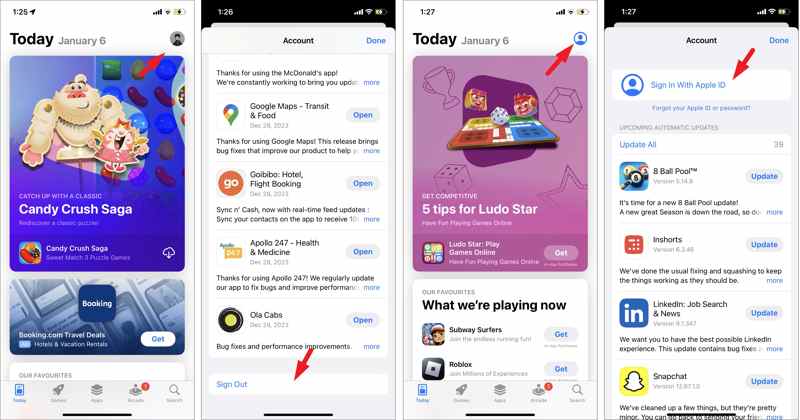
Step 1. Open the App Store app.
Step 2. Tap on your profile at the top-right corner.
Step 3. Scroll down and tap the Sign Out button.
Step 4. Enter the Apple ID password.
Step 5. Next, restart your device.
Step 6. Tap on the profile button and choose Sign In With Apple ID.
Step 7. Enter your Apple ID and password.
Solution 3: Correct Date and Time
The wrong date and time may cause Apple ID verification to fail, resulting in an unknown error. In fact, you can quickly correct the date and time on your iPhone, and all you need is the right settings.
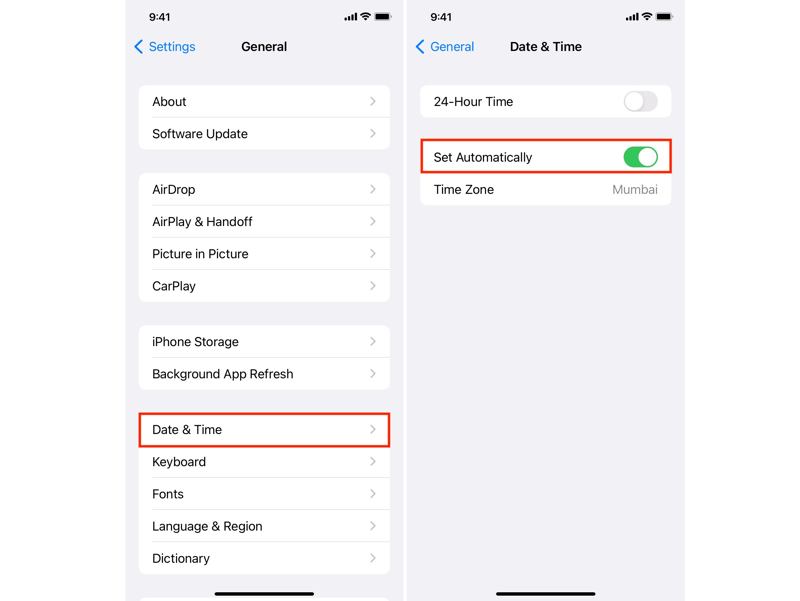
Step 1. Run your Settings app.
Step 2. Go to General and Date & Time.
Step 3. Toggle on the Set Automatically option.
Step 4. Make sure your iPhone is connected to the internet.
Solution 4: Restart Your iPhone
While restarting the iPhone is a simple solution, it can address a variety of basic software glitches, including Apple ID verification failing. This method works with the physical buttons on your device.
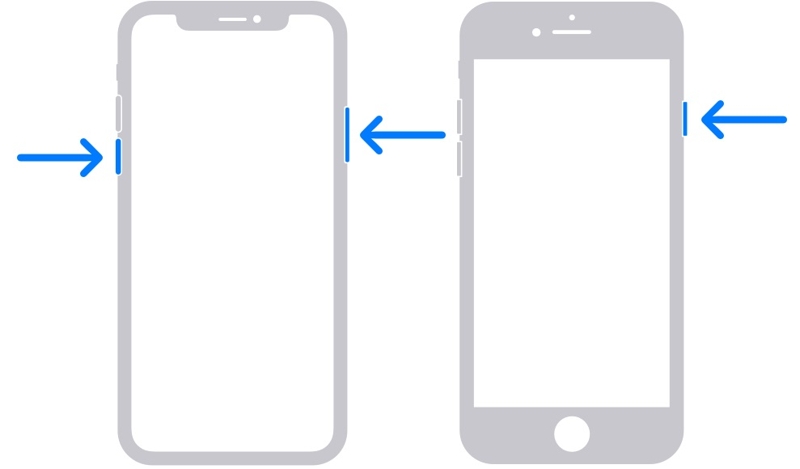
Step 1. On an iPhone with Face ID, hold down one of the Volume buttons + the Side button together.
On an iPhone without Face ID, press and hold the Side or Power button.
Step 2. When the power-off screen appears, release the buttons or button.
Step 3. Move the slider to shut down your iPhone.
Step 4. A few minutes later, hold down the Side or Power button until the Apple logo pops up.
Solution 5: Reset Your Apple ID Password
One factor that leads to verification failure and an unknown error with Apple ID is that your Apple ID is locked or disabled due to security reasons. According to Apple, you can unlock your account by resetting the password.
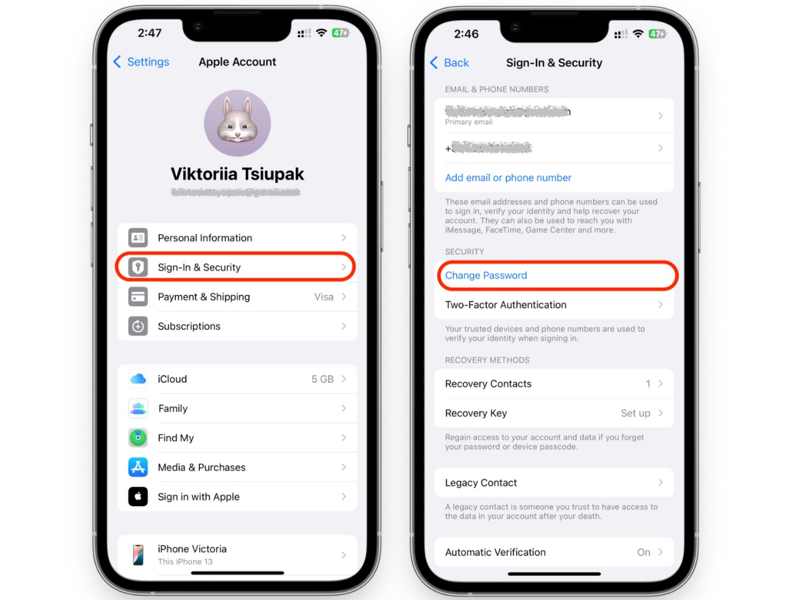
Step 1. Tap on your profile in the Settings app.
Step 2. Choose Sign-In & Security.
Step 3. Tap the Change Password button.
Step 4. Enter your iPhone passcode.
Step 5. Next, input a new password and verify it.
Solution 6: Enter the Verification Code
Apple allows users to manually generate a verification code on their trusted device and use it to sign in to their account. That can fix the verification of Apple ID failed issue. Here are the steps below:
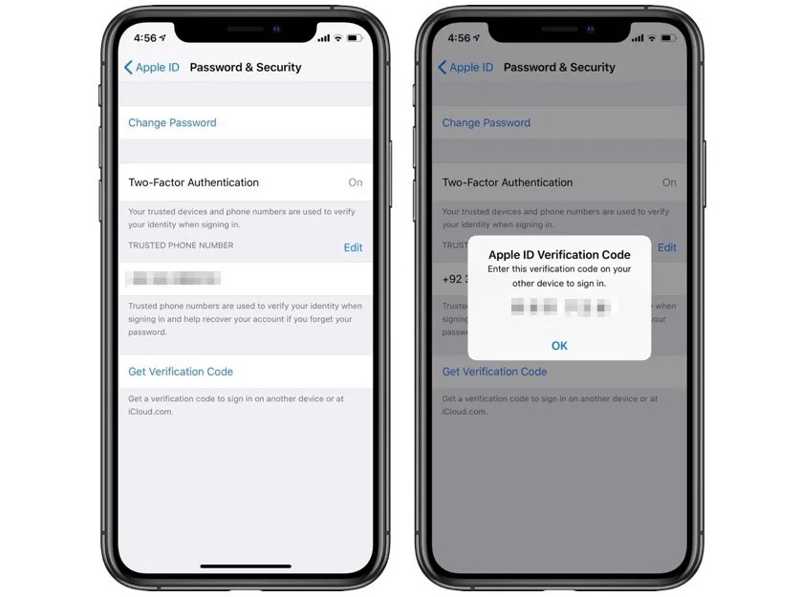
Step 1. Make sure that you have turned on Two-factor Authentication.
Step 2. Tap on your profile in the Settings app.
Step 3. Choose Password & Security or Sign-In & Security.
Step 4. Tap the Get Verification Code button.
Step 5. Then, log in to your account with the code.
Part 3: A Fast Solution to Fix Apple ID Verification Failed
If the common solutions are unavailable, we suggest removing the malfunctioning Apple Account. Apeaksoft iFoneKit iOS Unlocker can help you get rid of all Apple IDs from your iPhone or iPad without a password or other restrictions.

Downloaded by over 1,000,000 users
- Remove a malfunctioning Apple ID without a password.
- Don’t require your iPhone passcode.
- Easy to use without technical skills.
- Support a wide range of iPhone and iPad models.
Secure Download
Secure Download

How to Fix Apple ID Verification Failed on Your iPhone
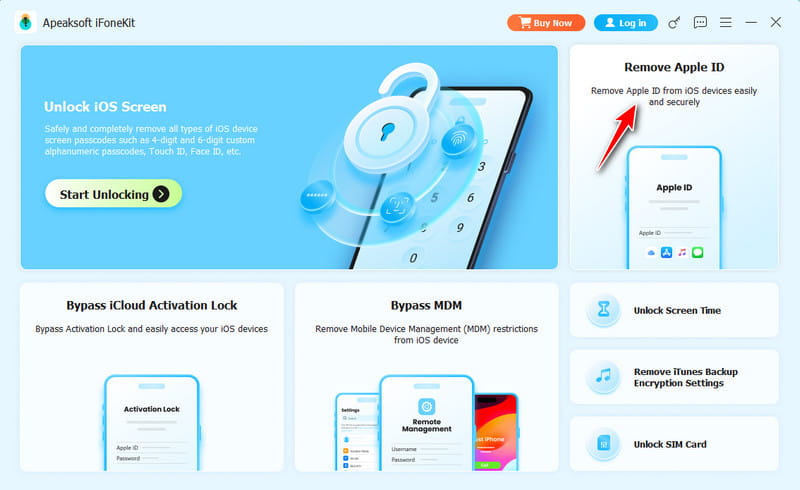
Step 1. Install iFoneKit
Start the Apple ID removal software once you install it on your PC. There is another version for Mac. Choose the Remove Apple ID mode to proceed.
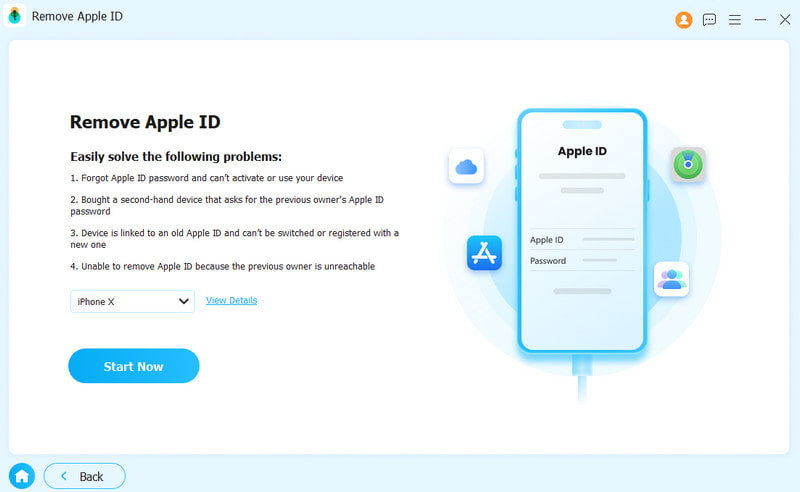
Step 2. Connect to your iPhone
Hook up your iPhone to your PC with a Lightning cable. After the software detects your device, click the Start Now button.
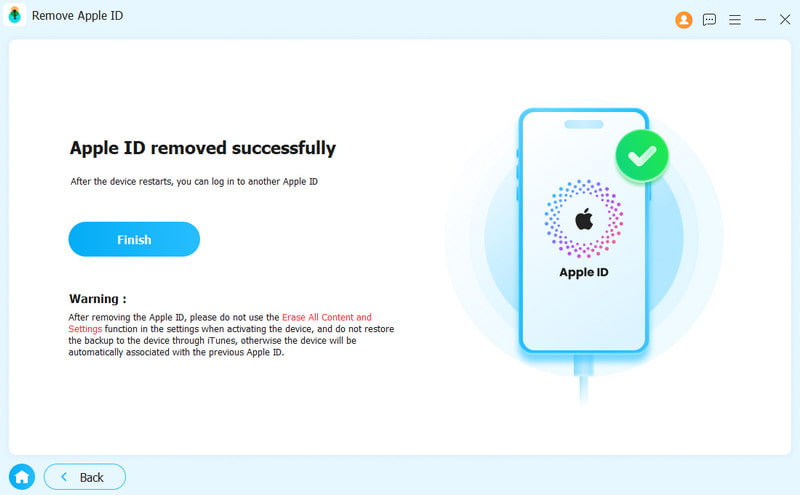
Step 3. Remove your Apple Account
If Find My iPhone is enabled, follow the onscreen instructions to reset all settings on your device. Then, click the OK button and hit Confirm Again to initiate the process. If Find My is disabled, the software will automatically start removing the Apple ID.
Conclusion
After following our solutions, you should get rid of the verification failed Apple ID error. We discussed the main causes of this error. More importantly, we listed the proven solutions to help you use your Apple Account effectively. You can pick the right solution for your situation and perform troubleshooting. Apeaksoft iFoneKit iOS Unlocker is a fast solution for removing the malfunctioning Apple ID from your iPhone without a password. Moreover, it simplifies the workflow with advanced technology. That makes it a good option for beginners.
Related Articles




