


How to Turn off iPhone Lock Screen With or Without Passcode

The lock screen is the first interface on iPhones. It is designed to display images, notifications, widgets, and other useful information when you stop using your device. Screen locks, on the other hand, are a significant security measure. For iPhone users, it can be a 4-digit passcode, a 6-digit passcode, Face ID, or Touch ID. It is used to prevent unauthorized access. This guide explains how to turn off the lock screen or screen locks on your iPhone.
PAGE CONTENT:
Part 1: How to Turn off Lock Screen on iPhone
After activating your iPhone, you can set Auto-Lock to display the lock screen. Once you turn off the lock screen on your iPhone, the lock screen won’t appear even if you don’t touch your screen.
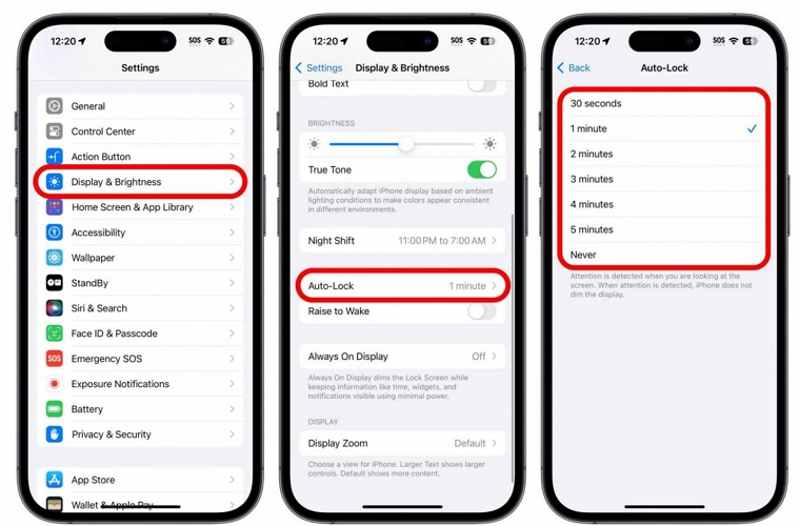
Step 1. Open the Settings app from your home screen.
Step 2. Go to the Display & Brightness option.
Step 3. Choose the Auto-Lock option.
Step 4. Tap the Never button to turn off the iPhone lock screen.
Part 2: How to Turn off Screen Lock on iPhone
If you just don’t want to enter your passcode to unlock your handset repeatedly, you can turn off the screen locks on your iPhone. The precondition is that you still remember your iPhone passcode.
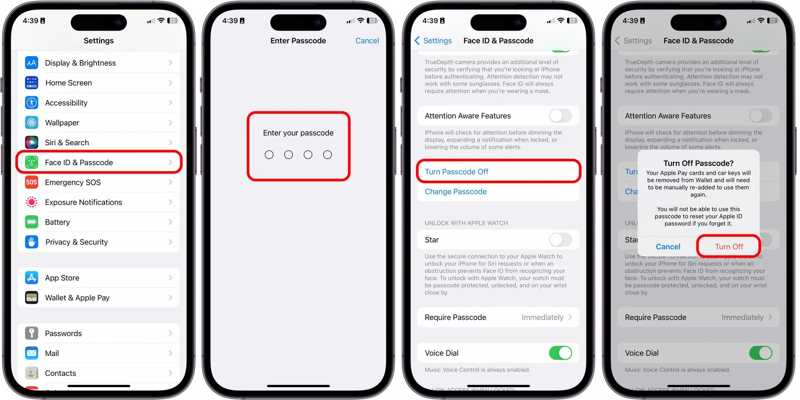
Step 1. Unlock your iPhone and run the Settings app.
Step 2. Go to Face ID & Passcode or Touch ID & Passcode.
Step 3. Type in your iPhone passcode to authenticate.
Step 4. Tap the Turn Passcode Off button.
Step 5. Read the alert and tap Turn Off again.
Part 3: What to Do If Auto-Lock or Screen Lock Is Grayed out
Some users reported that the Auto-Lock or Turn Passcode Off button turns grayed out on their iPhone. That is usually because the feature is blocked and restricted. You can try the solutions below to fix this problem.
Solution 1: Restart Your iPhone
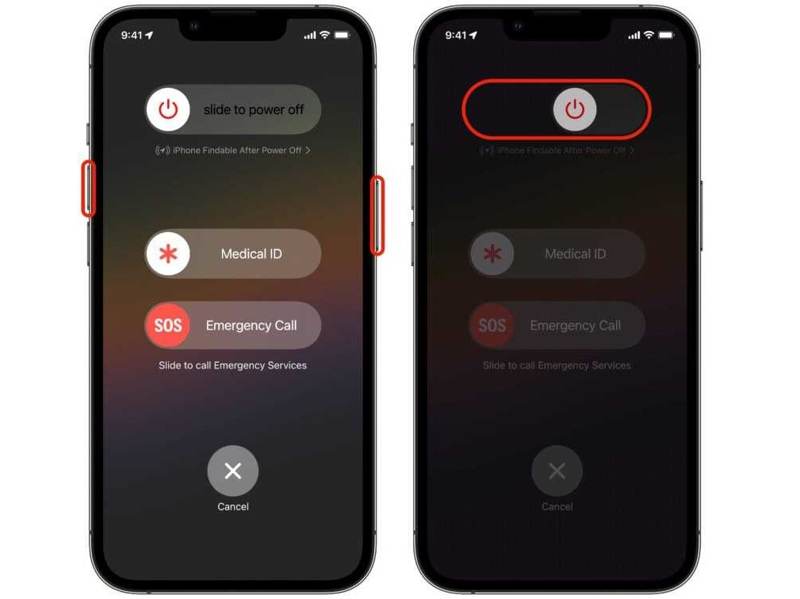
Step 1. On an iPhone with Face ID, hold down one of the volume buttons while pressing the Side button.
On an old iPhone, hold down the Side or Sleep/Wake button.
Step 2. When you see the power-off screen, release the buttons or button.
Step 3. Move the slider to shut down your iPhone.
Step 4. A few minutes later, hold down the Side or Sleep/Wake button until you see the Apple logo.
Step 5. Then, try turning off the lock screen again.
Solution 2: Turn off Low Power Mode
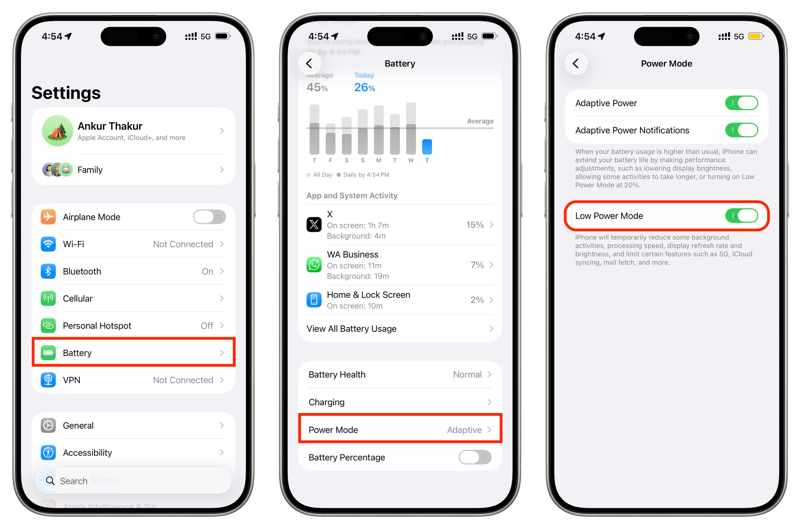
Step 1. Go to the Settings app.
Step 2. Choose the Battery option.
Step 3. Tap the Power Mode option.
Step 4. Toggle off Low Power Mode.
Step 5. Back to the Settings app, and go to Display & Brightness.
Step 6. Choose Auto-Lock and tap Never to turn off the lock screen on iPhone.
Solution 3: Allow Passcode Change
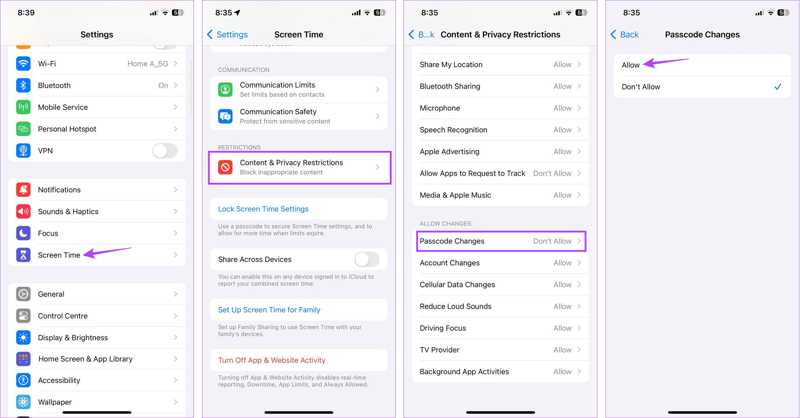
Step 1. Navigate to Settings and Screen Time.
Step 2. Enter your Screen Time passcode if prompted.
Step 3. Choose the Content & Privacy Restrictions option.
Step 4. Tap the Passcode Changes option under the Allow Changes section.
Step 5. Switch to Allow.
Step 6. Now, you can turn off screen locks on your iPhone.
Solution 4: Remove MDM
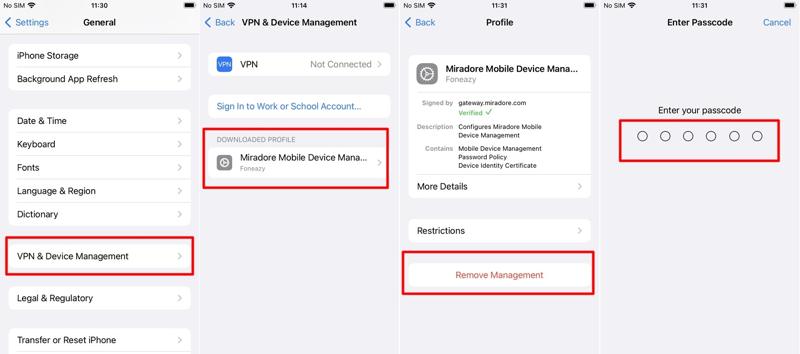
Step 1. Head to Settings and General on your device.
Step 2. Choose the VPN & Device Management option.
Step 3. Tap the MDM profile.
Step 4. Press the Remove Management button.
Step 5. Enter the password when prompted to remove the MDM.
Step 6. Then, you can turn off the screen lock on your iPhone again.
Solution 5: Update iOS
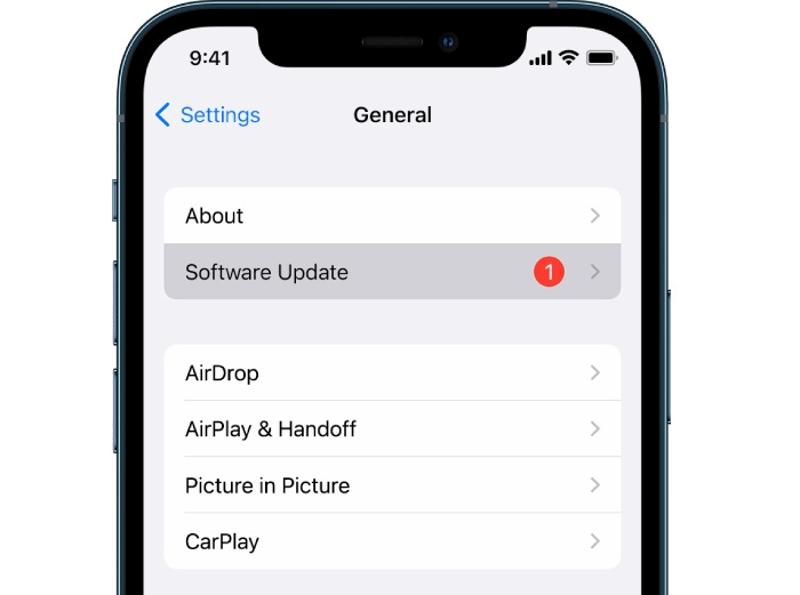
Step 1. Go to your Settings app.
Step 2. Navigate to General and Software Update.
Step 3. If an update is available, tap the Download and Install button.
Step 4. Follow the onscreen instructions to update iOS.
Step 5. Next, turn off Auto-Lock or screen lock on your iPhone.
Solution 6: Reset All Settings
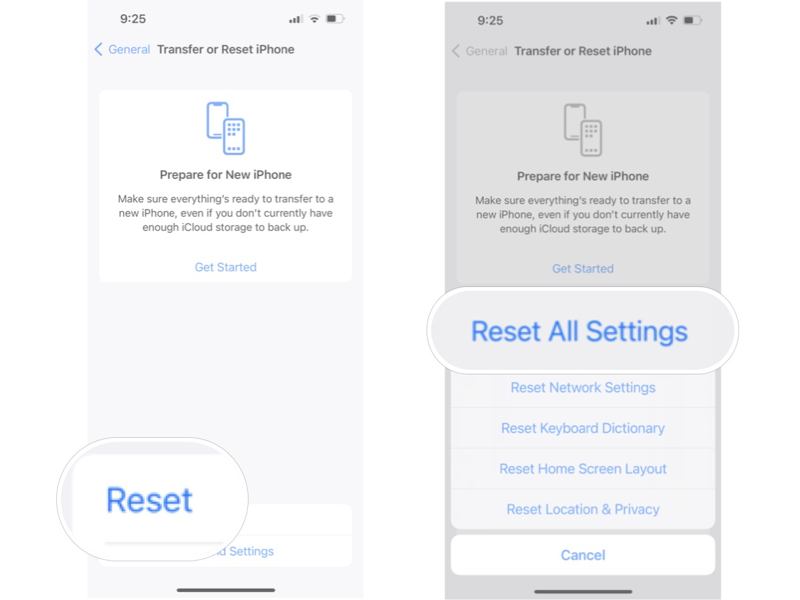
Step 1. Open your Settings app.
Step 2. Navigate to General, and Transfer or Reset iPhone.
Step 3. Tap the Reset button.
Step 4. Choose the Reset All Settings option.
Step 5. Enter your iPhone passcode or Apple Account password.
Step 6. When it is done, your iPhone will restart.
Step 7. Now, set Auto-Lock again to turn off the lock screen on the iPhone.
Further Reading
Part 4: A Quick Way to Turn off iPhone Screen Lock Without a Passcode
If you still cannot turn off the iPhone screen lock, try Apeaksoft iFoneKit iOS Unlocker. It is able to remove all screen locks from your iPhone without any restrictions. Plus, the well design makes it available for beginners.

Downloaded by over 1,000,000 users
- Unlock your iPhone without the passcode.
- Remove digit passcodes, Face IDs, or Touch IDs.
- Offer bonus features, like removing the Apple ID.
- Support the latest version of iOS and iPhone models.
Secure Download
Secure Download

How to Turn off Screen Lock on Your iPhone Without a Passcode
Step 1. Install iPhone unlocker
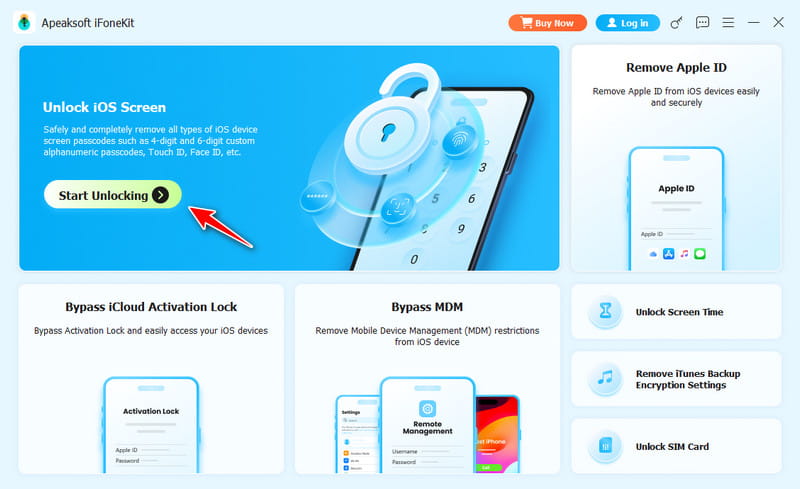
Launch the iPhone unlock software once you install it on your PC. There is another version for Mac. Choose the Unlock iOS Screen mode to move on.
Step 2. Connect to your iPhone
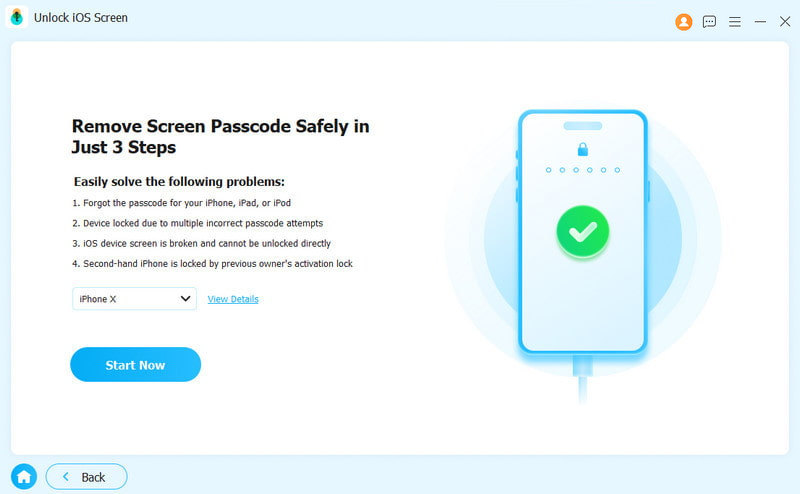
Link your iPhone to your computer with a Lightning cable and make sure to trust this PC. Once the software loads your iPhone information, check it and click the Start Now button to begin downloading the firmware.
Step 3. Turn off screen locks
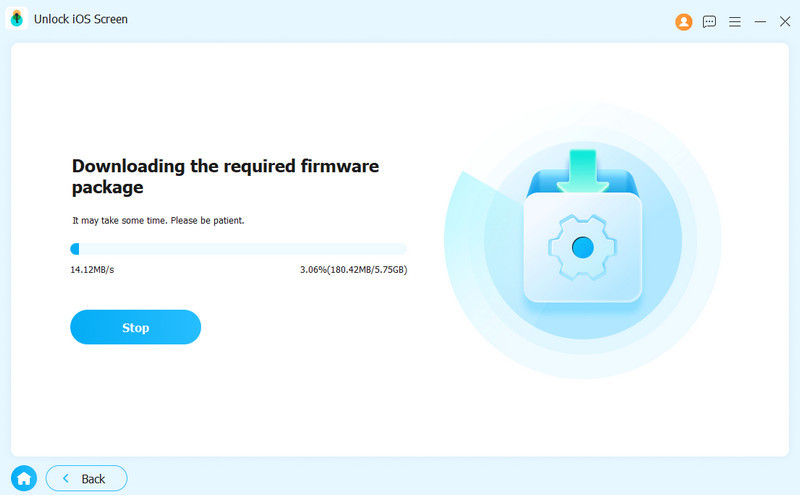
When the download finishes, click the OK button on the confirmation dialog. Next, press the Confirm Again button to verify the firmware. As long as the verification is complete, the software will turn off screen locks on your iPhone automatically.
Note: The process will erase all data on your device, so you’d better back up your iPhone first.
Conclusion
This guide explained how to turn off the lock screen on your iPhone and how to disable screen locks. You can follow our detailed steps to remove the blocks from your handset. If the Auto-Lock or Turn Passcode Off button turns grayed out, follow our solutions to fix this problem. Apeaksoft iFoneKit iOS Unlocker is the ultimate way to get rid of the lock screen on your iPhone or iPad when you forgot your passcode.
 Apeaksoft iFoneKit
 Unlock all types of iOS passwords from iPhone, iPad and iPod.
Secure Download
Secure Download
Related Articles




