


How to Remove AirPods from Your Apple Account Quickly

AirPods are wireless earbuds and headphones released by Apple. They integrate with Apple devices seamlessly. Due to the active noise cancellation and other advanced features, Apple AirPods are popular among iPhone, iPad, and Mac users. Once you pair your AirPods to an iOS or Mac device, the linked Apple Account will be added to the earbuds. Thus, you can track them through Find My. Before you sell, give away, return, or recycle your earbuds, follow our guide to remove AirPods from Apple ID.
PAGE CONTENT:
Part 1: How to Remove AirPods from Apple ID on iPhone/Mac
According to Apple, you can remove AirPods from your Apple ID in the Find My app on an Apple device. Otherwise, you cannot pair AirPods to an iPhone linked with another Apple Account. The process requires your Apple Account and password.
How to Remove AirPods from Apple ID on iPhone
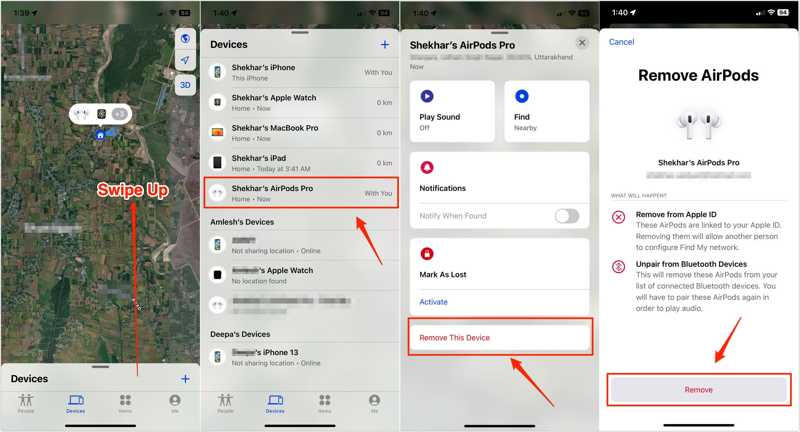
Step 1. Open the Find My app on your iPhone.
Tips: If you use a different Apple Account on the iPhone, log in with the account linked to your AirPods in Find My.
Step 2. Go to the Devices tab at the bottom.
Step 3. Choose your AirPods from the list to track them on the map.
Step 4. Swipe upward from the bottom to expand the toolbar and tap Remove This Device.
Step 5. Then, tap Remove again to confirm it.
How to Remove AirPods from Apple ID on Mac
Step 1. Run the Find My app on your Mac. You can install it from the App Store for free.
Step 2. Head to the Devices tab and choose your AirPods.
Step 3. Click the More Info button on the map.
Step 4. Click the Remove This Device button.
Note: Simply factory resetting the AirPods won’t remove it from Apple ID.
Part 2: How to Remove AirPods from Apple ID on Web
According to Apple, you cannot remove the Apple ID from AirPods without the previous owner. If you have a used pair of AirPods, you can ask the previous owner to complete the job remotely on the Find My portal.
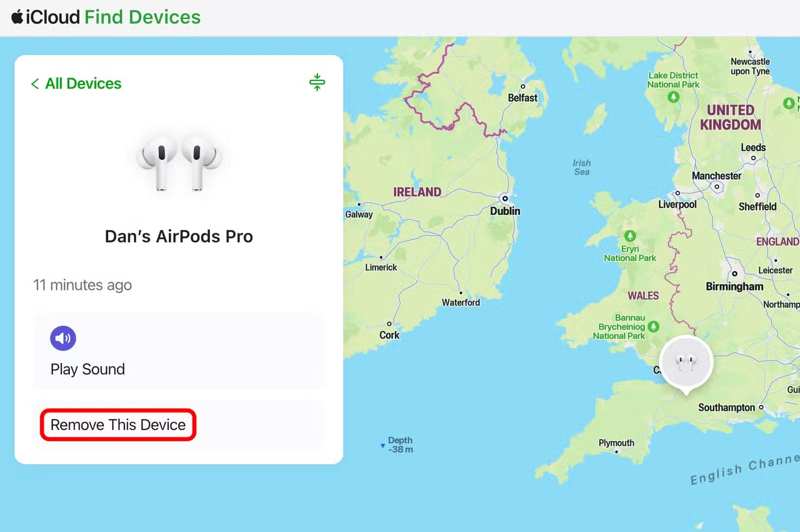
Step 1. Go to www.icloud.com in a browser.
Step 2. Log in to the linked Apple Account and password.
Step 3. Access Find My to continue.
Tips: Or visit www.icloud.com/find in your browser and sign in to the linked Apple Account.
Step 4. Find and choose your AirPods from the All Devices list.
Step 5. Click the Remove This Device button after AirPods are tracked.
Step 6. Choose Remove on the confirmation dialog.
Part 3: What to Do If You Cannot Remove AirPods from Apple ID
Removing AirPods from the previous Apple Account is crucial. Failing to do so could cause problems for the new owner, as the earbuds will remain connected to the old account. If you cannot remove AirPods from Apple ID, try the solutions below to fix this problem.
Solution 1: Factory Reset AirPods
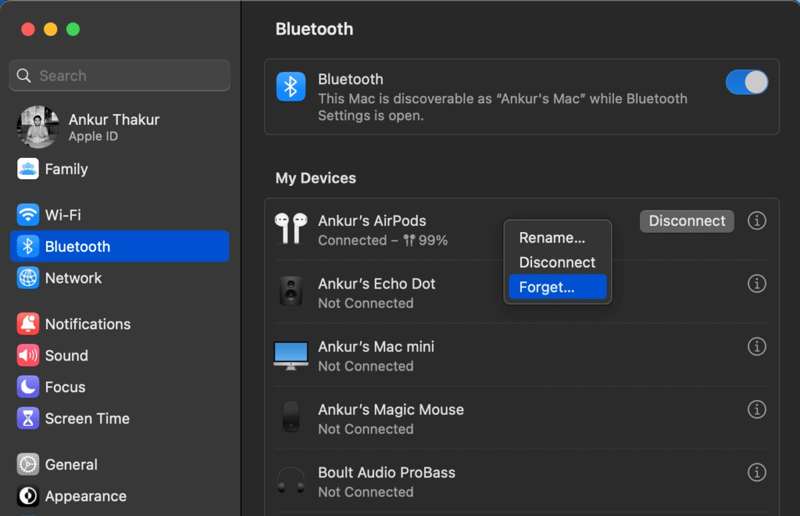
Step 1. With AirPods connected, run the Settings or System Settings app.
Step 2. Choose your AirPods under your Apple Account.
Step 3. Scroll down and hit the Forgot This Device button.
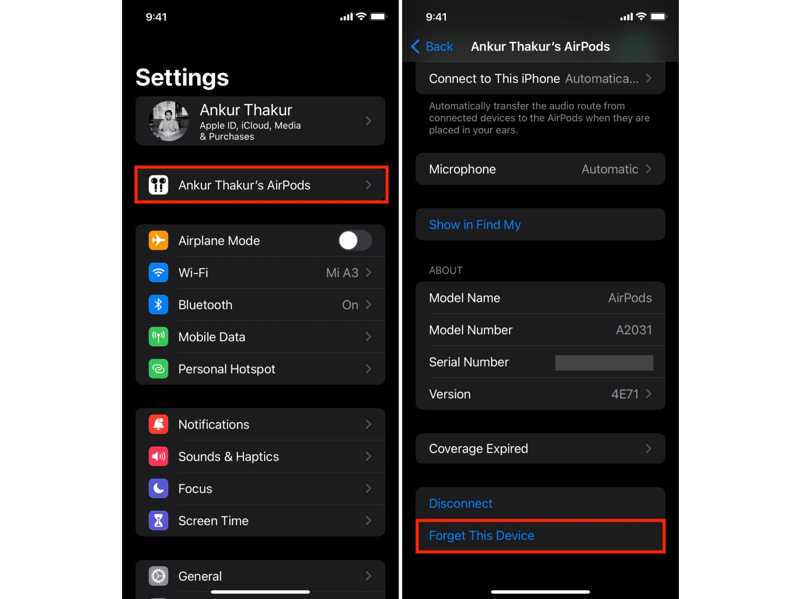
Step 4. Press Forgot Device and choose Forget Device.
Step 5. AirPods should play a tone to indicate they are no longer paired.
Step 6. Put them in the charging case and keep the lip open.
Step 7. For AirPods 4 and AirPods Pro 3 or later, double-tap the front portion of the case when the status light is on. Double-tap the same area again when the light flashes white. Finally, double-tap it when the light flashes faster. If the light flashes amber and then white, resetting AirPods is successful.
For old AirPods, hold down the setup button on the back of the case for 15 seconds until the tiny status light starts flashing amber and white.
Solution 2: Charge Your AirPods
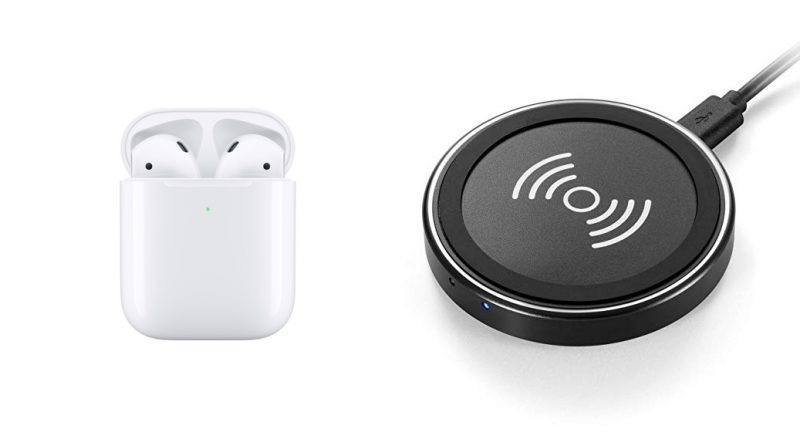
If you cannot remove AirPods from an Apple ID, charge your earbuds first. Place them in the charging case and connect it to a power source with a compatible cable, or put it on a wireless charger. Typically, it may take 50 to 60 minutes to charge fully.
Further Reading
Solution 3: Check Apple Servers
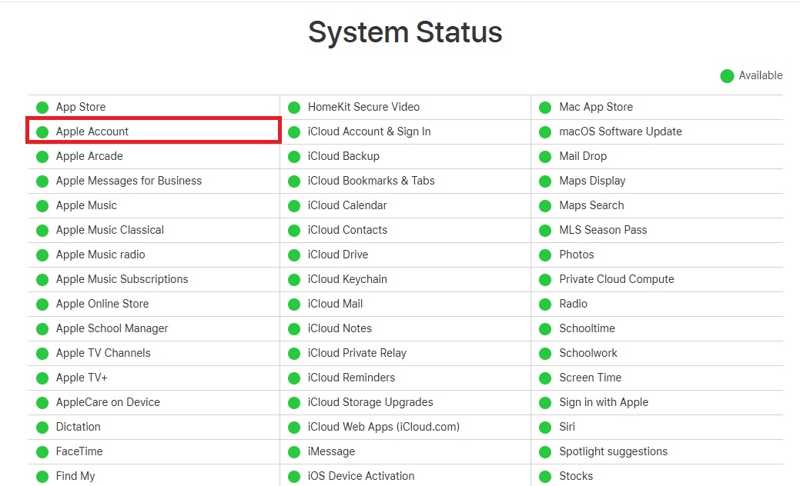
Another solution is checking the status of Apple servers. Go to https://www.apple.com/support/systemstatus/ in a browser and look at the relevant servers. If any item is marked with a yellow or red icon, wait for it to work again and then remove AirPods from Apple ID again.
Part 4: Bonus Tip: How to Remove Apple ID from iPhone Without Password
In addition to remove AirPods from Apple ID, you may need to get rid of Apple Account from your iPhone or iPad. From this point, we recommend Apeaksoft iFoneKit iOS Unlocker. It is able to remove accounts from your iOS device without restrictions.

Downloaded by over 1,000,000 users
- Remove Apple ID from an iPhone or iPad in three steps.
- Don't require your passcode or password.
- Offer bonus features, like MDM removal.
- Compatible with a wide range of iOS and iPadOS.
Secure Download
Secure Download

How to Remove Apple ID from Your iPhone Without a Password
Step 1. Install the Apple ID removal tool
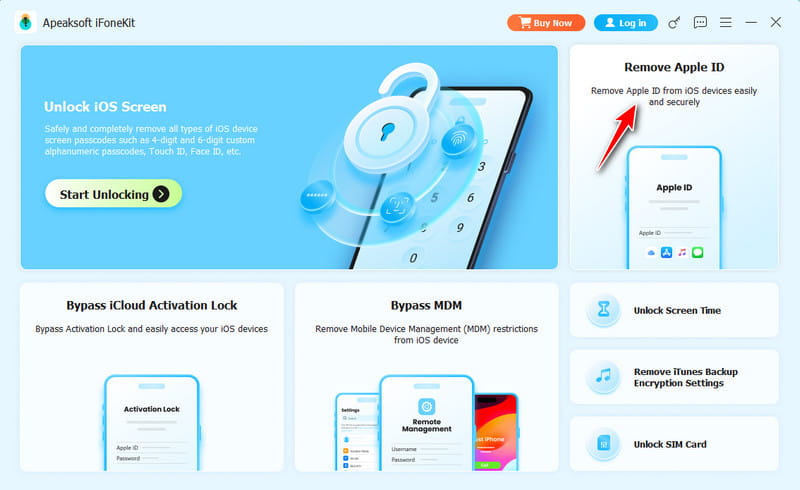
Launch the Apple ID removal software after installing it on your computer. It is available on Windows 11 to 7 and Mac OS X 10.7 or above. Choose the Remove Apple ID mode.
Step 2. Connect to your iPhone
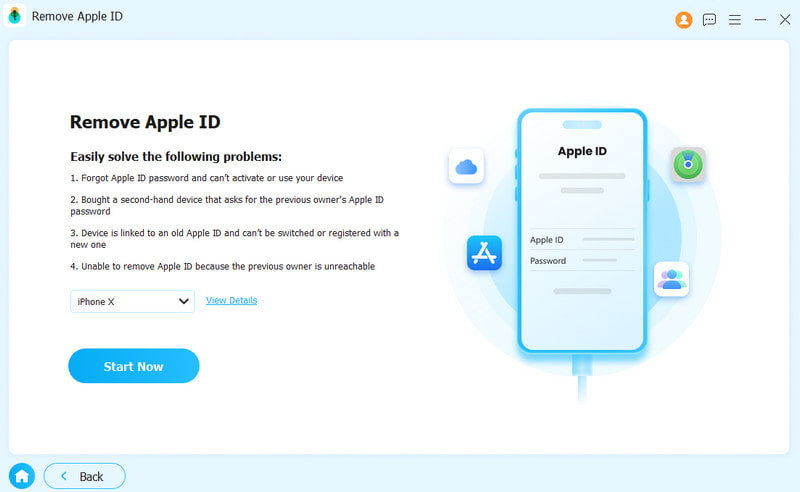
Link your iPhone to the computer with a Lightning cable. Make sure to trust this computer. Once the software detects your device, click the Start Now button.
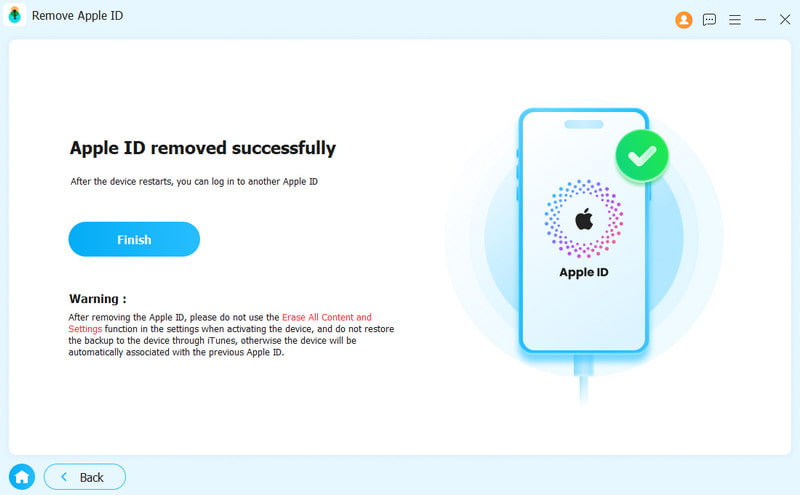
Step 3. Remove Apple ID
If Find My iPhone is disabled, the software will initiate removing the Apple ID. If Find My iPhone is enabled, reset all settings on your device. Then, click OK and hit Confirm Again to start the process.
Conclusion
This guide demonstrated how to remove AirPods from Apple ID in various situations. You can follow our detailed steps to complete the job in the Find My app or web portal. If you cannot remove them from Apple ID, try the solutions to fix it. Furthermore, we recommended Apeaksoft iFoneKit iOS Unlocker for removing the Apple ID from an iPhone or iPad without a password.
 Apeaksoft iFoneKit
 Unlock all types of iOS passwords from iPhone, iPad and iPod.
Secure Download
Secure Download
Related Articles




