


10 Best File Recovery Software Comparison for Beginners

File recovery software is a tool designed to recover lost photos, videos, audio files, documents, and other data from local hard drives or external storage devices. Losing files is a big challenge, but the right tool can pull them back without backups. This article put the top list through real-world data-loss scenarios and ranked them by what actually matters, such as success rate, speed, price, and more.
PAGE CONTENT:
Key Takeaways
| Outstanding Feature | Best for | |
| Apeaksoft Data Recovery | Recover permanently deleted files | Overall |
| Disk Drill | Byte-by-byte scan | All-in-one data recovery tool |
| Recuva | Recover recently deleted files | Cost-effective |
| EaseUS Data Recovery Wizard | Data recovery with reasonable CPU usage | Old computers |
| DMDE | Powerful scan engine | Data recovery from broken RAID |
| Wondershare Recoverit | Recover and repair corrupted videos | Beginners |
| Stellar Data Recovery | Add custom file signatures | Corrupted photo recovery |
| Windows File Recovery | Data recovery on Windows for free | Data recovery on Windows 11/10 |
| TestDisk and PhotoRec | Recover entire partitions | Photo recovery |
| R-Studio | Repair disks | Data recovery across devices |
Part 1: How We Conducted the Data Recovery Benchmark
To test the best data recovery software, we used a Windows 11 computer. We compiled a list of the most popular data recovery programs on Google to identify the top list. Moreover, the ranking is based on performance, success rate, speed, supported file formats and file systems, and other benchmarks.
The Software and Version in Our Test
- Apeaksoft Data Recovery 2026 version 3.0.32
- Disk Drill 6
- Recuva v1.55.133 Professional version
- EaseUS Data Recovery Wizard 20.5.0
- DMDE 4.4.4
- Wondershare Recoverit V14.0
- TestDisk and PhotoRec 7.3
- Stellar Data Recovery 12.0.0.0
- Windows File Recovery
Test Hardware and System
Unlike other simple posts that list basic features of data recovery software, this review relies on hands-on testing. A total of 10 data recovery tools were tested under the same hardware benchmark platform:
- OS: Windows 11/10/7 (on different PCs) and macOS 26
- CPU: AMD Ryzen 5 5600, Intel Core i5-4570, and Apple M5
- GPU: AMD Radeon RX 6700 XT and NVIDIA GeForce GTX 750 Ti
- RAM: 8GB, 16GB, and 48GB
Our Test Process
1. Prepare a Controlled Test Environment
We first prepared test computers running Windows and macOS, along with storage devices representing common data-loss situations. Each program was tested according to its supported operating system and recovery methods.
2. Create Known Data-Loss Scenarios
We deliberately deleted some videos. We can also check if the program can retrieve files that were randomly deleted in the past on our PC and Mac.
3. Run the Scan
We first used the default or recommended scan settings to represent a typical user's experience. If a data recovery program offered both quick and deep scans, we tested both when appropriate.
During each scan, we recorded:
- Scan time
- Number of files detected
- File categories detected
- Whether deleted files were identified
- Whether original file names and folder structures were preserved
- Whether the software could identify the original file location
We also checked whether the software could distinguish between existing files and potentially recoverable deleted data.
4. Preview the Detected Files
A scan result alone does not prove that a file can be recovered. We therefore used the preview function (if the data recovery software has one) to check whether detected files contained meaningful and usable data. For different file types, we checked whether:
- Photos and videos could be viewed correctly
- Audio files could be played
- Documents contained the expected content
- Folders could be opened
- File metadata could be preserved
- The program has file type organization and folder path features
This step helped us distinguish between files that were merely detected and files that were actually recoverable.
5. Recover Files to a Separate Location
We need to ensure that the selected files can be easily retrieved and stored in a specific folder or path on the hard drive.
6. Measure Recovery Performance
We used the same test dataset and evaluation criteria to compare the recovery performance of each program. We opened those recovered files and wanted to see that videos and photos could be opened with clear visual quality, and document files could be opened with the original structure and format.
Tests Benchmarks
Our testing focused on the criteria that matter to ordinary customers the most when it comes to recovering data:
Benchmark 1 (10%): The ability to recover recently lost files, permanently deleted files, overwritten files, formatted hard drives, partition loss, or system crash. Where applicable, we also tested partially overwritten data to determine whether the software could recover any usable content. Since truly overwritten data may no longer be recoverable, we did not treat complete recovery of overwritten files as a standard requirement.
Benchmark 2 (10%): Data recovery speed. Recovery speed can be important when scanning a large HDD, SSD, USB drive, or memory card. We measured how long each program took to complete its scans and recovery tasks under comparable conditions.
Benchmark 3 (10%): The quality of output files. Finding a file does not necessarily mean successfully recovering it. We therefore checked the quality and usability of the recovered files. We compared recovered files with the original test files to determine whether they could be opened, played, or used normally.
Benchmark 4 (10%): The supported file systems. Depending on the software and test environment, we evaluated support for file systems such as NTFS, FAT32, exFAT, APFS, HFS+, and other file systems.
Benchmark 5 (10%): The supported hard drives, like HDD, SSD, USB, SD card, memory card, etc. Users can lose data from many different types of storage media, so we evaluated how broadly each program could work with common storage devices.
Benchmark 6 (10%): The stability of the data recovery process. Data recovery can involve long scans and large amounts of data. A data recovery program that crashes, freezes, disconnects from the storage device, or fails during recovery can make an otherwise successful scan less useful.
Benchmark 7 (10%): The success rate of data recovery. Recovery success rate is one of the most important benchmarks in our testing. We used test datasets containing a known number of files so that we could compare the original data with the final recovery results.
Benchmark 8 (10%): Features and format compatibility. Beyond basic file recovery, we evaluated the additional features that can make a recovery program more useful in real-world situations.
Benchmark 9 (10%): Prices and interface. Price and usability are important when choosing data recovery software, particularly because users may only need the software for a single recovery situation.
Benchmark 10 (10%): CPU/RAM Usage. Data recovery scans can place a significant load on a computer, especially during deep scans of large storage devices. We therefore monitored CPU and RAM usage during scanning and recovery.
Note: In addition to our own benchmark testing, we reviewed evaluation criteria from tech giants such as TechRadar to compare top data recovery software. To eliminate any possible bias, we rated all the data recovery tools using a rigorous, mathematically weighted scoring model(0-10) along the benchmarks mentioned above.
How to Choose a Good Data Recovery Program as a User
Choosing data recovery software is different from choosing a regular utility. When files are lost, the most important question is not how many features a program has, but whether it can recover your specific data without making the situation worse. If you are a user, you can consider the following factors before choosing a data recovery program.
- 1.Check whether the software supports your device OS.
- 2.Look for the recovery scenario you need.
- 3.Consider quick scan or deep scan features.
- 4.Consider actual recovery quality.
- 5.Check the preview and filtering features.
- 6.Consider the ease of use.
- 7.Consider the factors above, and then you can device to use the free version or the full version with a payment.
Part 2: Core Performance and Benchmark Results
Based on our test results, we present a complete data recovery software comparison. The benchmarks can help you make the best decision when you lose important files on your Windows or Mac computer.
| Software | Prices | Supported Drives | File System Support | Free Recovery | Recovery Rate |
| Apeaksoft Data Recovery | $22.45 per month, $55.96 per year, $71.96 lifetime; $99, $149, and $199 lifetime | SSD, HHD, USB, SD card, digital camera, and more | NTFS, FAT16, FAT32, exFAT, and EXT | 200MB | 99.70% |
| Disk Drill | $89 per year, $149 lifetime | SSD, HHD, USB, SD card, and memory card | FAT16/FAT32/exFAT, NTFS, NTFS5, ReFS, HFS, HFS+, APFS, EXT2/EXT3/EXT4, BTRFS, and any RAW disk | 100MB | 97% |
| Stellar Data Recovery | $59.99, $89.99, and $99.99 per year | SSD, USB, and memory card | NTFS, exFAT, and FAT16/32 | 1GB | 85% |
| EaseUS Data Recovery Wizard | $69.95 per month, $99.95 per year, $149.95 lifetime | Hard drive, USB, and SD card | NTFS, exFAT, FAT (FAT12, FAT16, FAT32), ext2, ext3, HFS+, and ReFS | No | 76% |
| DMDE | Free, $20 per year, $48 lifetime, and $95 for family | SSD, SMR disk, memory card, digital camera, and phone | FAT12/16/32, exFAT, NTFS, HFS+, HFSX, Ext2/3/4 | No | 89%-91% |
| Wondershare Recoverit | $64.99 per month, $74.99 per year, and $134.99 lifetime | HDD, SD card, and memory card | HFS+, APFS, FAT32, exFAT, and NTFS | 100MB | 95% |
| Windows File Recovery | Free | Hard drive | FAT, exFAT, and NTFS | No | 75% |
| TestDisk and PhotoRec | Free | Hard drive, memory card, and USB | NTFS, exFAT, FAT, and ext2/3/4 | No | 89% |
| R-Studio | Free, $79.99 and above | Hard drive, USB, and SD card | FAT12/16/32, exFAT, NTFS, NTFS5, HFS/HFS+, APFS, and Ext2/3/4 FS | 256KB | 87% |
| Recuva | Free, $24.95, and $39.95 | Hard drive, USB, memory card, and MP3 player | FAT, exFAT, and NTFS | 2GB | 30% |
Part 3: Final Verdict of Data Recovery Software Tested
Top 1: Apeaksoft Data Recovery
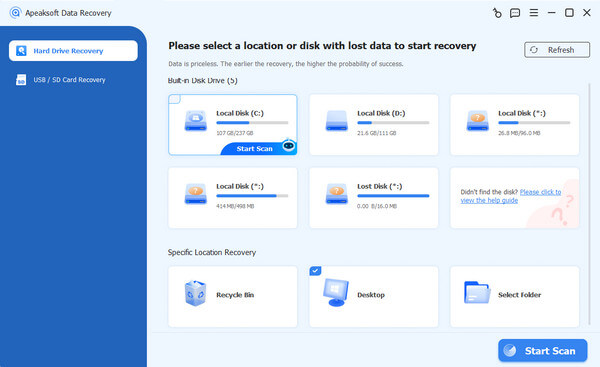
Final Score: 9.67/10
User Experience: Choosing the best data recovery software is easy now that Apeaksoft Data Recovery is available. The best hard drive data recovery software is available for Windows and macOS, offering unlimited preview capabilities. In our test, it successfully recovered almost all the tested files by their signatures. The scanning speed improves by at least 25% compared to competitors while using 20% less memory.
Secure Download
Secure Download
- Recover up to 200MB for free.
- Deliver a high success rate.
- Unlimited previews for free.
- Save scanning results.
- Unlock all features with one license.
- It takes time if your hard drive includes too many files.
Top 2: Disk Drill
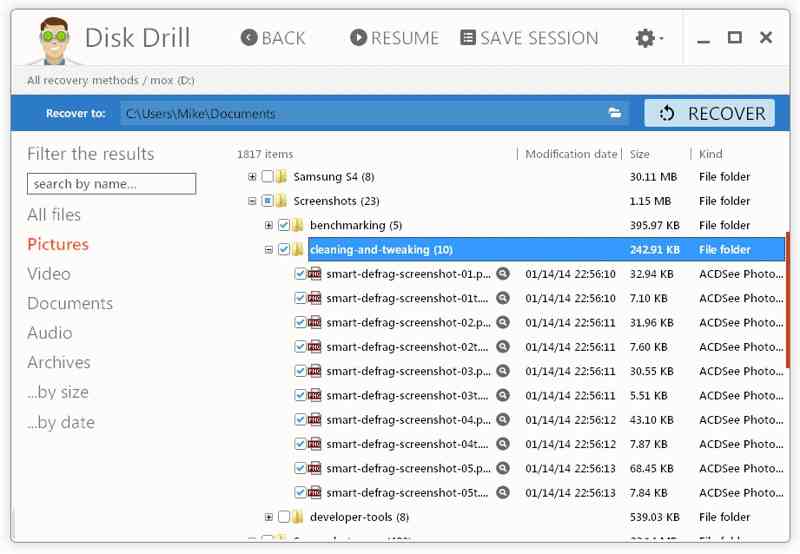
Final Score: 9.54/10
User Experience: Disk Drill is a leading data recovery software program available on Windows and macOS. The installation is straightforward. It comes with advanced features, such as byte-to-byte backup, S.M.A.R.T., and Advanced Camera Recovery. During our test, this best HDD data recovery software can scan entire disks. Plus, browsing scan results was intuitive. It can recover most of the missing data.
- Intuitive and user-friendly.
- Save scan sessions across platforms.
- Integrate sophisticated scanning algorithms.
- Recover fragmented videos from cameras.
- Photo repair is not supported.
- Lack of phone customer support.
Top 3: Stellar Data Recovery
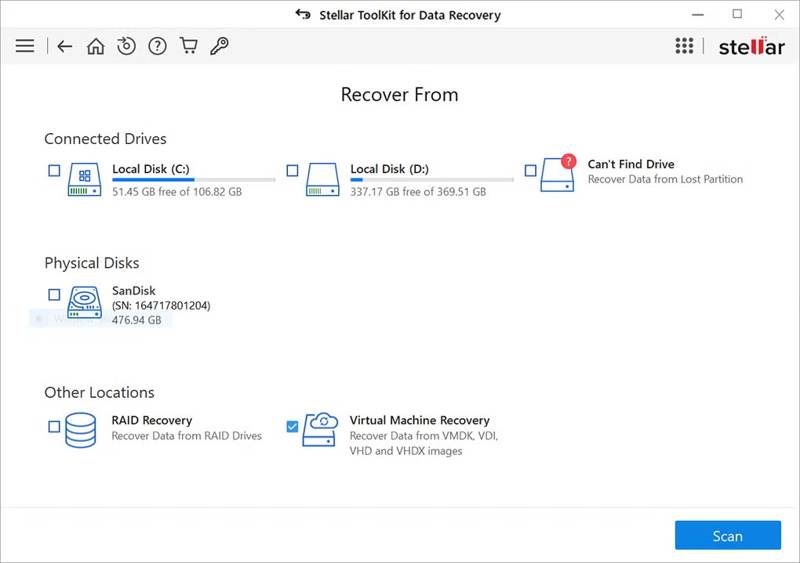
Final Score: 9.38/10
User Experience: Stellar Data Recovery software excels at lost photo and video recovery. It can repair damaged photo and video files and save corrupted content. The signature scanning shows mediocre results. However, the Windows and Mac versions are inconsistent. For example, the Windows version lacks dark mode.
- Repair and recover images and videos.
- Create backup image files.
- Deliver fast scanning performance.
- Support byte-to-byte disk backup.
- Only preview 100MB of data.
- Lack bonus features.
Top 4: EaseUS Data Recovery Wizard
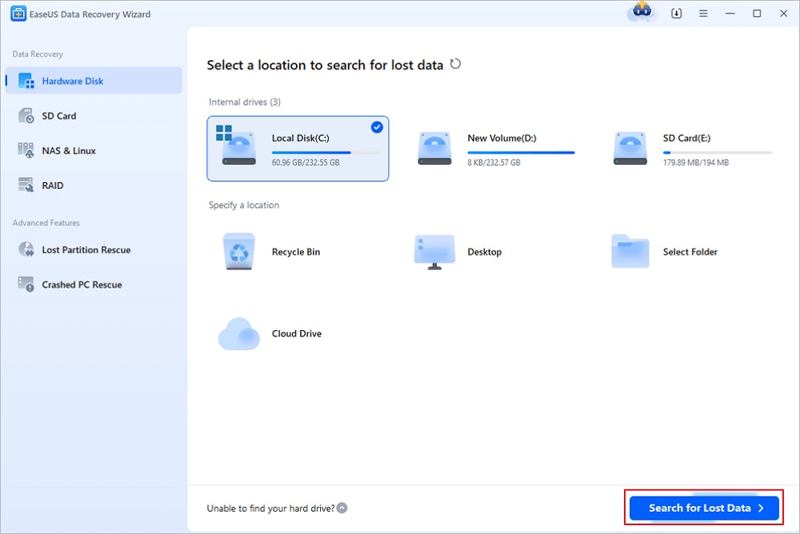
Final Score: 8.86/10
User Experience: EaseUS Data Recovery Wizard software can recover up to 2GB of data for free. However, the free version includes pop-up ads, which compromise the overall user experience. In our real testing, its signature-based recovery performance is only better than average. The software features a well-designed user interface and support for dark mode.
- Refine scan results easily.
- Work well for beginners.
- Recover data during the scan.
- Offer great customer support.
- Include pop-up ads.
- Preview only 100MB of data.
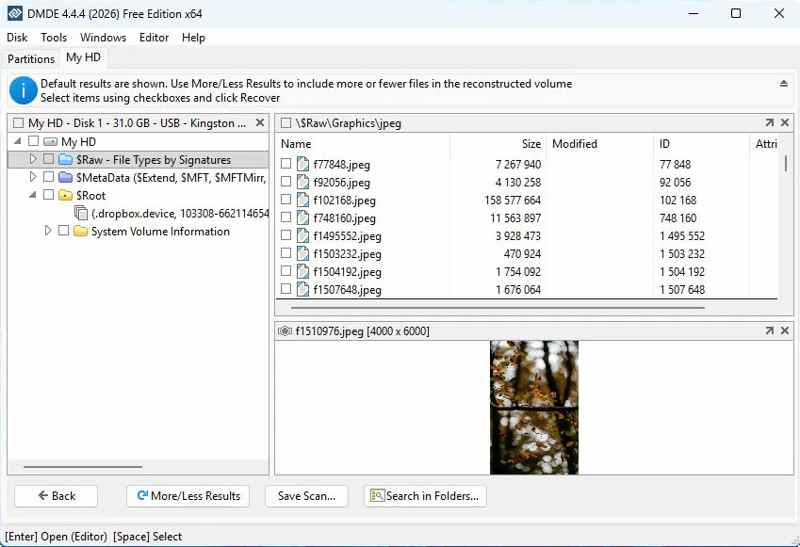
Top 5: DMDE
Final Score: 8.61/10
User Experience: DMDE is the fastest data recovery software application. The free trial can recover up to 4,000 files per operation. According to our test, the data recovery performance is slightly above average. However, the results on EXT4 partitions are unimpressive. During our test, it worked very well when detecting and restoring lost partitions.
- Offer affordable plans.
- Recover lost partitions.
- Recognize custom file signatures.
- Reconstruct RAID.
- Integrate an outdated interface.
- Steep learning curve.
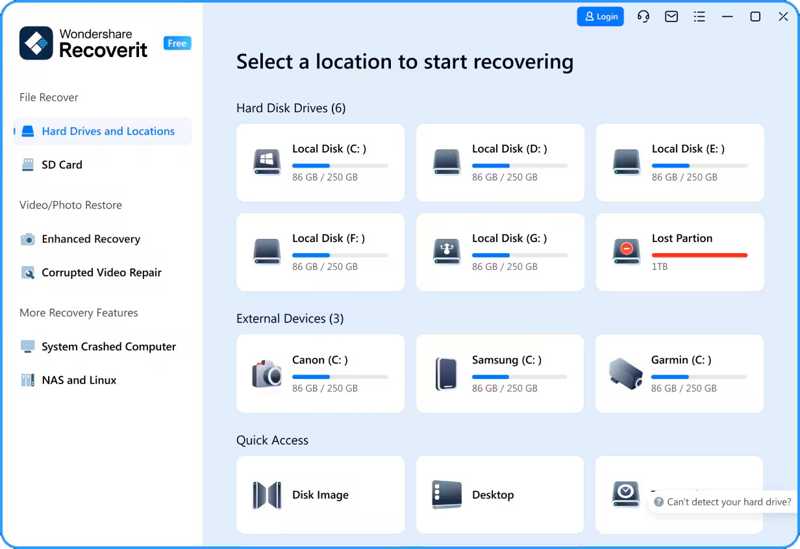
Top 6: Wondershare Recoverit
Final Score: 8.07/10
User Experience: Wondershare Recoverit data recovery software can recover up to 100MB of data. Then, you have to subscribe to a plan. The video repair capability is excellent; however, the overall recovery results based on file signatures are decent. According to our test, the Quick Scan delivered decent results on all partitions, but the Deep Scan only worked well on NTFS.
- Support many file formats.
- Offer solid recovery rates.
- Create bootable USB drives for crashed PCs.
- Make disk scan images.
- Preview is limited to a few formats.
- Too many duplicates in scan results.
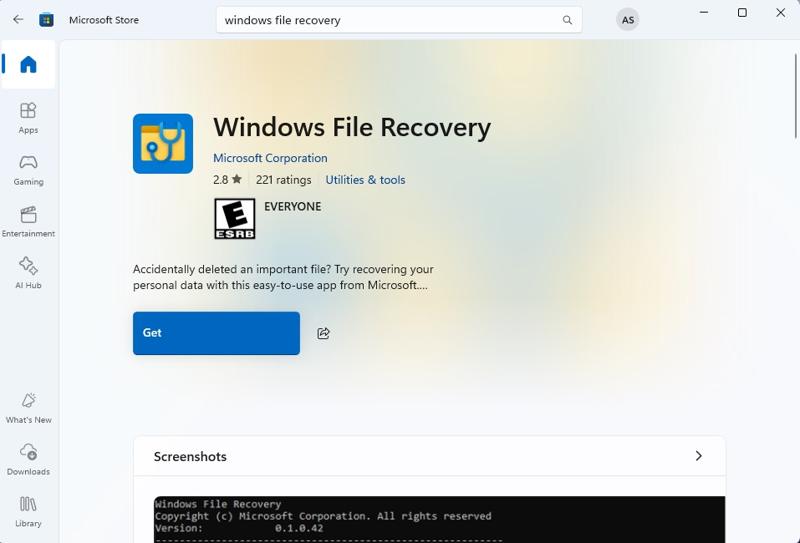
Top 7: Windows File Recovery
Final Score: 8.05/10
User Experience: Windows File Recovery is one of the best data recovery software programs for Windows released by Microsoft. We tested recovery on a system drive and a formatted USB flash drive. The results were mixed. It struggled with recently deleted media files on the system drive under ideal conditions, but it successfully recovered files from the Recycle Bin. The results on USB were weaker.
- Completely free.
- Include three different modes.
- Filter specific file types.
- Run fast.
- Recover data with command lines.
- Cannot scan entire disks.
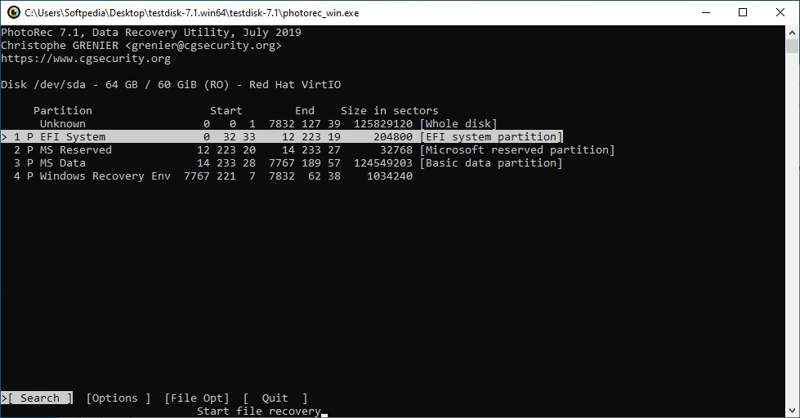
Top 8: TestDisk & PhotoRec
Final Score: 8.02/10
User Experience: TestDisk & PhotoRec is one of the best free data recovery software for Mac, Linux, and Windows. In addition to images, it can recover more than 480 file formats from both internal and external hard drives. According to our research, it can match premium data recovery tools.
- Work on all major operating systems.
- Open source and free.
- Lightweight and fast.
- Restore partitions.
- Lack a GUI.
- Cannot restore file structure.
Top 9: R-Studio
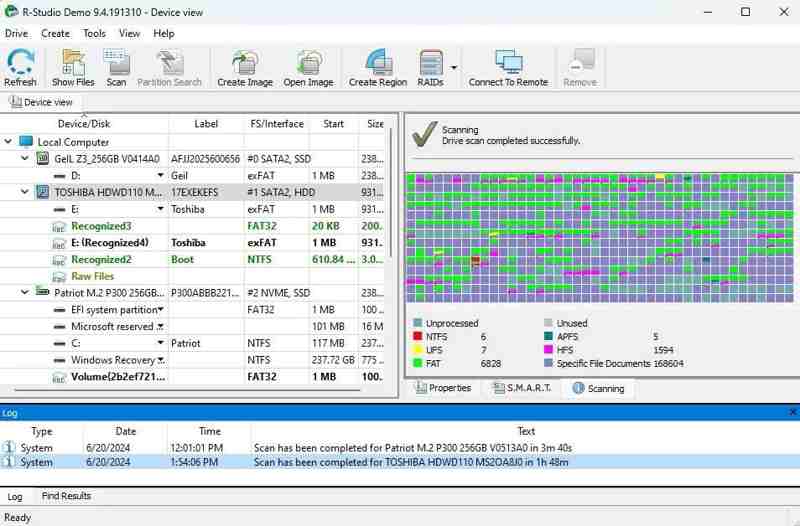
Final Score: 7.88/10
User Experience: R-Studio is one of the best freemium data recovery software on Windows, macOS, and Linux. It found over 200,000 files during our test. However, it struggled with RAW photos and videos for signature-based recovery.
- Across platforms.
- Automatically reconstruct broken RAIDs.
- Offer great scanning performance.
- Network-capable data recovery.
- More expensive than competitors.
- The interface can be confusing.
Top 10: Recuva
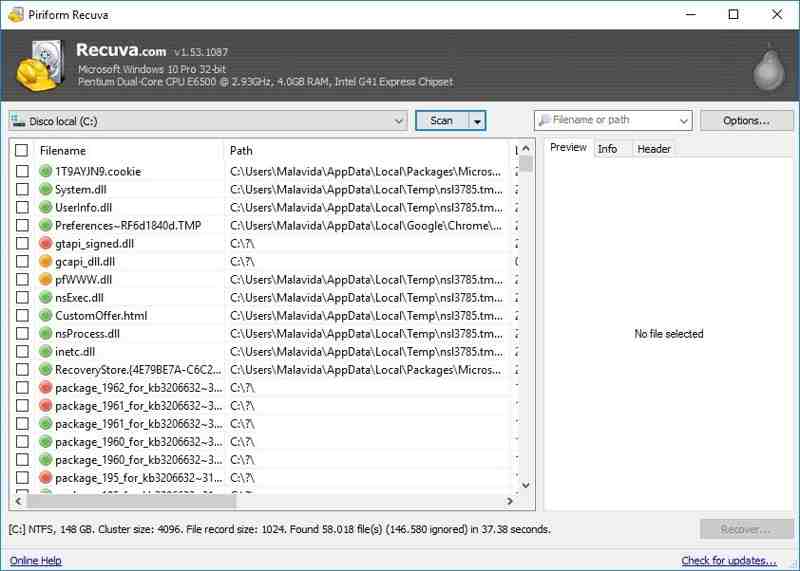
Final Score: 7.04/10
User Experience: Recuva Data Recovery is a freemium option that lets you recover an unlimited number of music files, videos, photos, documents, emails, and more. However, the performance should be improved. According to our test, only about 25% of photos and videos were successfully recovered.
- Fast and effective.
- Use little power.
- Preview scan results.
- Offer two operating modes.
- Only scan partitions.
- It takes a long time to run deep scans.
Disclaimer: Apeaksoft Studio doesn’t advocate recovering private data on others’ computers for any commercial purpose and suggests referring to the data recovery regulations in your country before doing so.
Part 4: FAQs About Data Recovery Benchmark
What is the best SD card data recovery software?
Most of the data recovery software programs above can recover data from SD cards, including formatted ones.
Does Windows 10 have a data recovery tool?
While Microsoft released Windows File Recovery for Windows 11/10, you have to install it manually from the Microsoft Store.
What are the four types of data recovery?
There are four main types of data recovery solutions targeting distinct failure scenarios and recovery objectives:
Physical data recovery
Logical data recovery
Cloud data recovery
Remote/Network data recovery
Conclusion
Now, you should learn the top 10 best data recovery software programs on Windows, macOS, and Linux. You can learn the review of each program based on our lab test. Some of them are completely free to use. Others require a subscription. You can pick the one that suits your situation. Apeaksoft Data Recovery, for example, is great for beginners.
Related Articles




