

How to Recover Deleted Messages on Mac (MacBook Pro, Air & iMac)

"Help! How can I recover deleted messages on Mac?"
Unlike PCs, Macs natively have a Messages app, which enables you to send and receive messages on your laptop or computer. To use it, what you need to do is sign in with your Apple ID and password. Moreover, they will automatically come up on your iOS device after synced.
However, it is still a challenge to recover deleted messages on your Mac. Therefore, this guide shows three methods to get back lost messages on Mac. Read more!
PAGE CONTENT:
| Method | Best For |
| Recently Deleted Messages | Deleted < 30 days, macOS Ventura+ |
| Time Machine | Have a Backup |
| Apeaksoft Data Recovery | Without a backup, permanently deleted > 30 days |
Part 1: See Recently Deleted Messages on Mac (macOS Ventura+)
Since macOS Ventura, Apple has added the Recently Deleted folder to the built-in Messages app. When you delete a message on a Mac, it will go to the folder and be stored there for 30 days. Before the expiration, you can restore deleted messages on a Mac easily.
Step 1. Run the Messages app on your Mac.
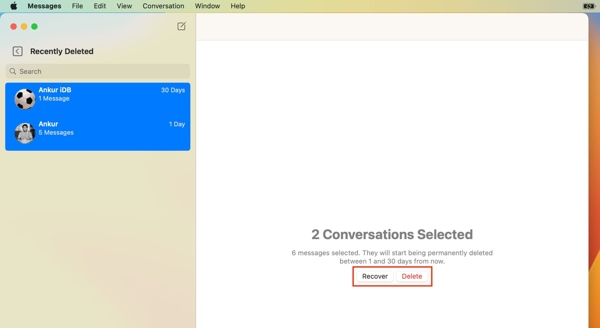
Step 2. Go to the View menu and select Recently Deleted from the macOS menu bar.
Step 3. Now you will see a list of conversation threads, but not the content. Select a desired thread, click the Recover button, and press Recover Message on the confirmation dialog. Then you can see the deleted messages on your MacBook in your inbox.
Tips: This method works only on macOS Ventura or later and for messages deleted within the last 30 days. Only full conversations can be restored. Moreover, this way is available to both text messages and iMessages.
Part 2: Recover Deleted Messages from Time Machine Backup
Time Machine is a built-in feature that comes with every Mac. It is designed specifically for backing up data. If you have configured this feature on your MacBook, it is another way to see deleted messages on your Mac. This way is available to recover old messages and iMessages on a MacBook.
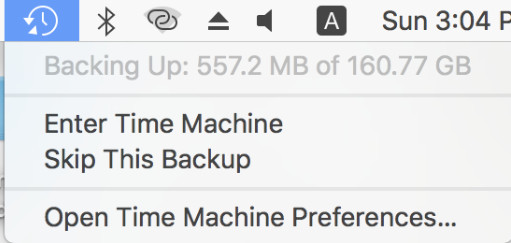
Step 1. Click the Time Machine button at the top menu on your screen, and choose Enter Time Machine.
Tips: If you back up your Mac with an external drive, connect it to your machine.
Step 2. Choose the right backup by adjusting the timeline on the right side.
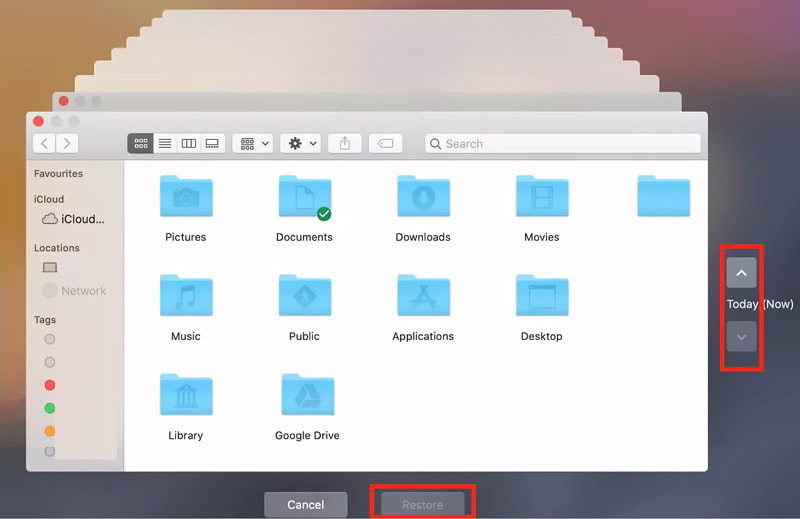
Step 3. Then click the Restore button, and the deleted messages and iMessages will go back to the original place.
Tips: Restoring from Time Machine may overwrite the Messages database. Back up the current data first to avoid conflicts. Moreover, you cannot preview before restoring your Mac from Time Machine.
Part 3: Restore Deleted Messages on Mac Without Backup [Recommended]
Is it possible to retrieve deleted messages on a Mac if you do not have a backup? The answer is yes. There are a few applications that can help you get back lost data from hard disks. Apeaksoft Data Recovery for Mac, for example, is one of the best software programs for Mac message recovery without backup.
Recover Deleted Messages on Mac Without Backup
- Restore deleted messages and iMessages on Mac without backup.
- Support both text messages and multimedia attachments.
- Recover deleted messages with their original formats.
- Preview and choose to retrieve a certain message.
- Compatible with Mac OS X 10.7 or above.
Secure Download
Secure Download

How to Retrieve Deleted Messages on Mac Without Backup
Step 1. Scan Your Mac for Deleted Messages
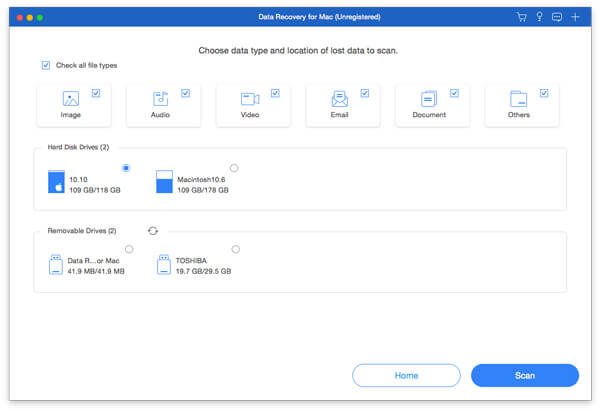
Launch the best message recovery application for Mac after you install it on your machine. Select the data types and the right disk drive under the Hard Disk Drives section that you want to retrieve. Then, click the Scan button to begin looking for deleted messages on your Mac.
Step 2. Find deleted messages on Mac
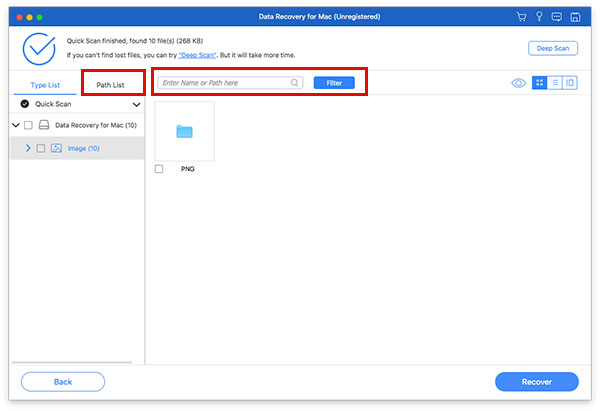
Once scanning is complete, browse the recoverable files by type or path in the left panel. Mac messages are typically stored in the chat.db file. Use the Filter box to search for it. If needed, click Deep Scan to find more deleted data.
Step 3. Recover deleted Mac messages
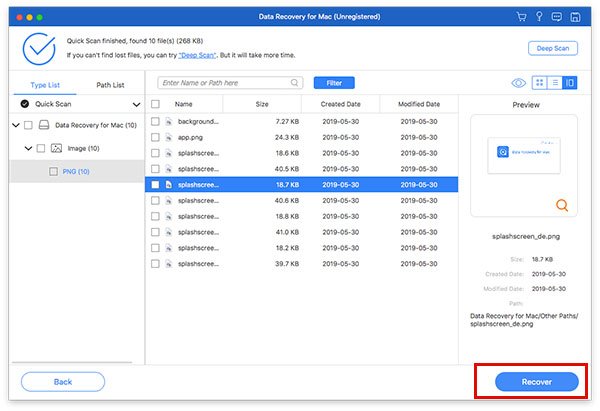
Select the messages or related files you want to restore, click Recover, and choose an output folder. After recovery, click Open Folder to view your restored messages.
Part 4: FAQs About Deleted Messages on Mac
Can You Recover Deleted Messages on Mac?
Yes. You can recover deleted messages using Recently Deleted (within 30 days), Time Machine backups, or data recovery software if no backup is available.
Can I recover messages deleted on a Mac with an iPhone?
No. Macs don’t support full iCloud backups like iPhones, but Messages can sync via iCloud if enabled.
Can I Recover Individual Messages Instead of Full Conversations?
The Messages app only allows you to restore entire conversation threads, not individual messages.
Is It Possible to Recover Permanently Deleted Messages on Mac?
If the deleted data has not been overwritten, you can try data recovery tools like Apeaksoft Data Recovery for Mac to help you.
Conclusion
Following our tutorial, you should master three ways to recover deleted messages on your MacBook Pro/Air or iMac. The built-in Recently Deleted folder is the easiest way to get back your lost messages. Moreover, the Time Machine backup is another channel to get the job done. Apeaksoft Data Recovery for Mac is available if you do not have a backup.
Related Articles




