EaseUS MobiSaver for Android: Full Review & Best Alternatives

How to recover permanently deleted photos on my Android? How to find my lost Android data? That's where EaseUS MobiSaver for Android comes in. But does it really work for Android data recovery? This review will show you the features, safety, ease of use and all you want to know about this software!
PAGE CONTENT:
Part 1: A Detailed Review of EaseUS Mobisaver
EaseUS MobiSaver for Android is professional data recovery software designed to retrieve lost or deleted files from Android devices. It supports the recovery of various data types, including photos, videos, WhatsApp business messages and more. It enables users to perform data recovery efficiently with 3 easy steps.
Ease of Use
EaseUS Mobisaver provides a clean and intuitive interface. All features and action buttons are easy to find. Users can handle it effortlessly without a tutorial.
Key Features
EaseUS Mobisaver boasts powerful features below:
- Recover lost data resulted from various scenarios, such as accidental deletion, virus attack, improper handling, SD card issues, device or system bugs and more.
- Scan, preview and recover all kinds of lost data on your Android, including Documents, Photos, Contacts, Notes, Messages, Music and more.
- Export lost files in multiple formats like CSV, HTML and VCF.
- Supports more than 6000 Android devices: Samsung, Google, Sony, HUAWEI, HTC, Motorola, LG, ZTE.
Security & Safety
Is EaseUS Mobisaver safe? Will my privacy be exposed when scanning data? Could existing files be lost during the recovery process? These are common concerns for many users. Rest assured, MobiSaver is completely safe to use and contains no malware of any kind. It protects your privacy throughout the entire process.
Part 2: Is EaseUS Mobisaver for Android Free?
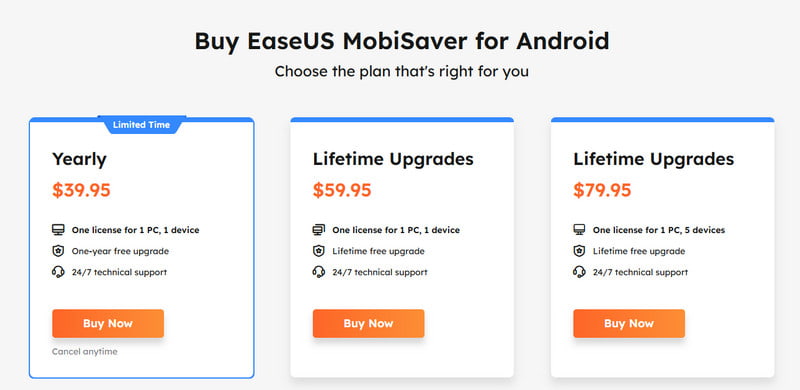
EaseUS Mobisaver for Android provides a free version, so you can download free from its official website, but the free version has its limitations. You can recover up to 2GB data only, and full-featured Android data recovery for free is not available. You need to upgrade to the premium version to unlock advanced features and remove recovery limits. Below is the pricing for each plan:
Part 3: Pros & Cons
After checking feedback and reviews from different platforms, we found that most opinions on EaseUS Mobisaver focus on the following pros and cons:
- Offers a user-friendly interface and an easy 3-step guide.
- Enables previewing deleted files before recovering.
- Send notices about recovery results in real time.
- Many listed recoverable files cannot actually be restored, especially photos and videos.
- May overwrite the data you want to recover.
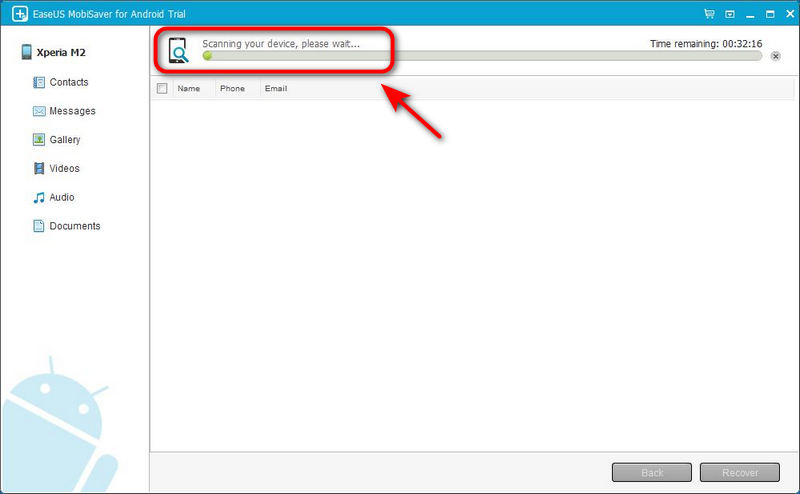
- Scanning process takes a long time, from 30 minutes to nearly 2 hours.
Part 4: How to Recover Android Data with EaseUS Mobisaver
EaseUS Mobisaver achieves fast Android data recovery in quick 3 steps.
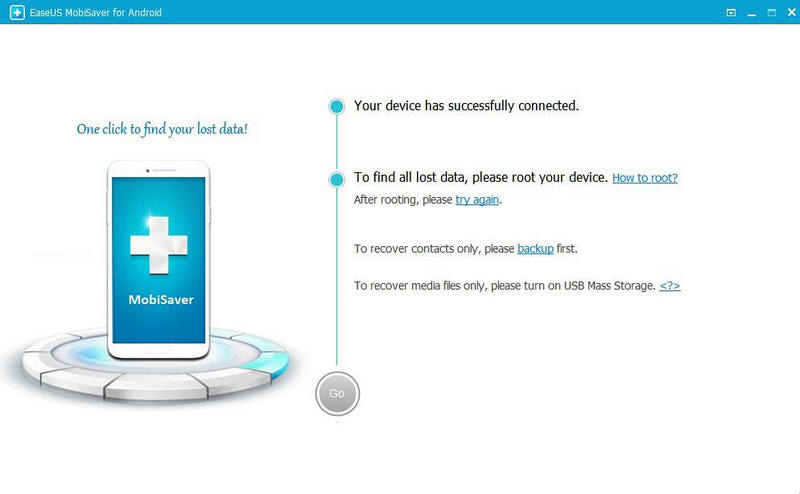
Step 1. Connect your Android device to a computer.
Step 2. Then, this software will scan your Android to find deleted files. After scanning, you can preview all the recoverable files.
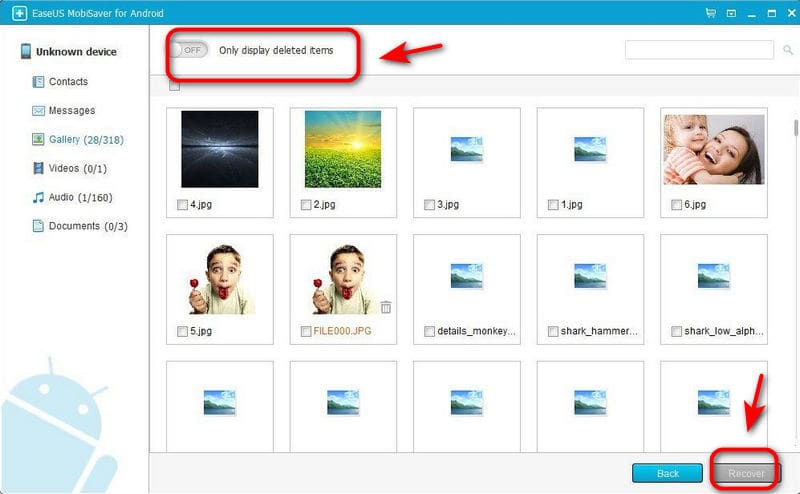
Step 3. Choose the files you want to recover, click the Recover button to find lost files back.
Part 5: Best EaseUS Mobisaver Alternatives for Android
While EaseUS MobiSaver offers a powerful solution for Android data recovery, it doesn't work perfectly for everyone. Some users are disappointed by its recovery success rate, high price, or long scanning time. Luckily, there are plenty of useful alternatives that may better match your needs.
Apeaksoft Android Data Recovery is powerful software is designed for both Windows and Mac users. You can use it to recover lost or deleted data from Android devices or tablets easily. It can recover over 500 types of files and provides a preview to make the recovery process fast and easy.
An Ultimate Alternative to EaseUS Mobisaver
- Restore the lost data from multiple situations without rooting.
- Supports scanning a large number of file formats.
- Supports over 5000 Android devices, including the latest Android 17.
- Recover selected files without overwriting existing data.
- Safeguards your privacy throughout whole progress.
Secure Download
Secure Download

Here is a step-by-step guide to using it:
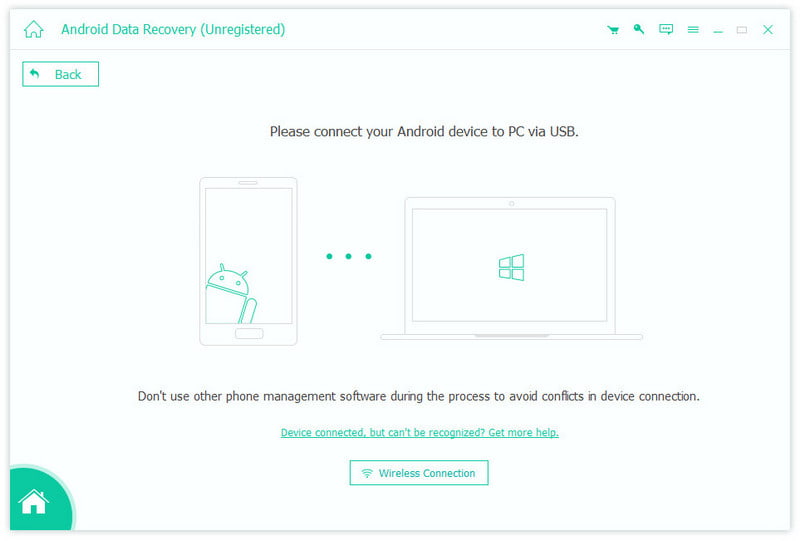
Step 1. Double-click to launch it, and choose the Android Data Recovery part. Then you need to connect your Android devices to the PC with a USB cable.
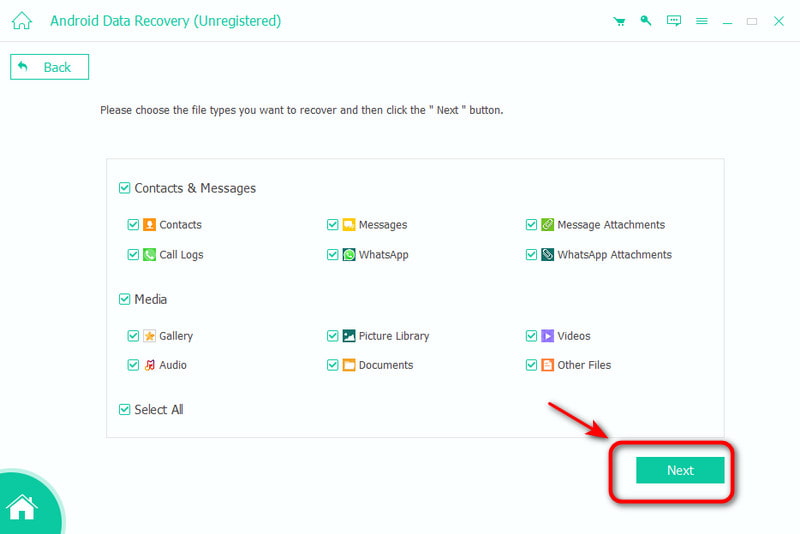
Step 2. Select the data type you want to recover and click Next. It will scan your data on your Android device.
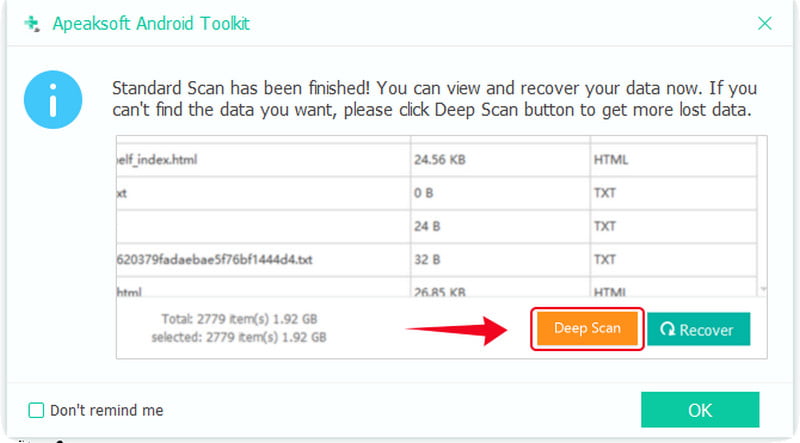
Step 3. If you can't find the data you want, you can click Deep Scan on the bottom right corner to deep scan the data again.
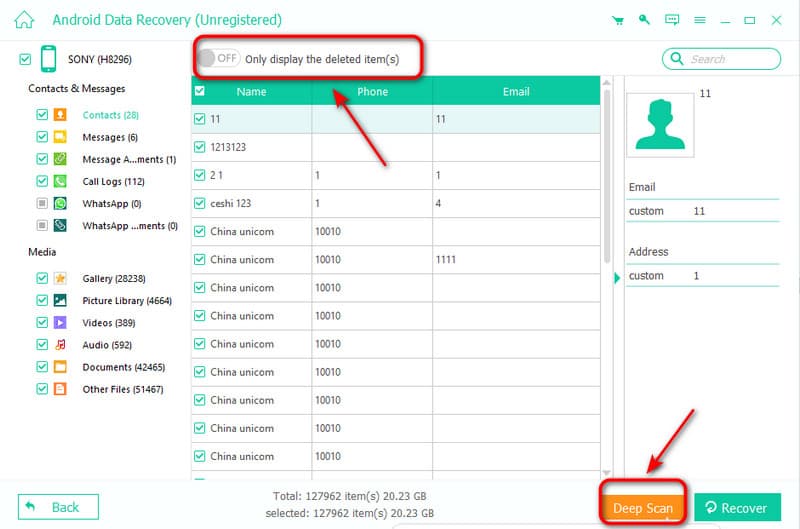
Step 4. After scanning, choose the file you want to recover, or you can also choose Only display the deleted items to recover deleted files. Then click the Recover button to start!
FonePaw Android Data Recovery
FonePaw Android Data Recovery is an efficient and easy-to-use tool for beginners. It supports over 100 data types and delivers high-speed performance to process more than 1,000 files per second. This allows users to recover large amounts of data in a short time. In addition, it offers three recovery modes: internal storage, SD card and SIM card recovery.
Step 1. Launch FonePaw Android Data Recovery. Then, connect your Android device to the computer.
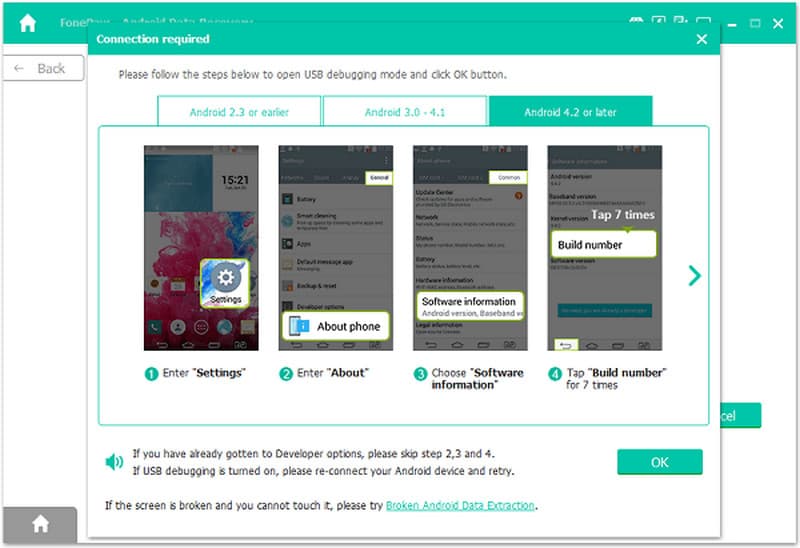
Step 2. Select the file types to scan, then hit the Next button.
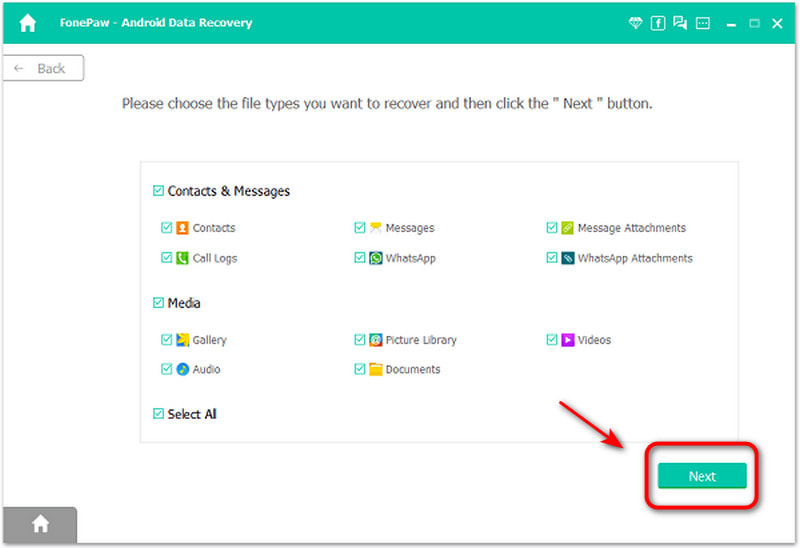
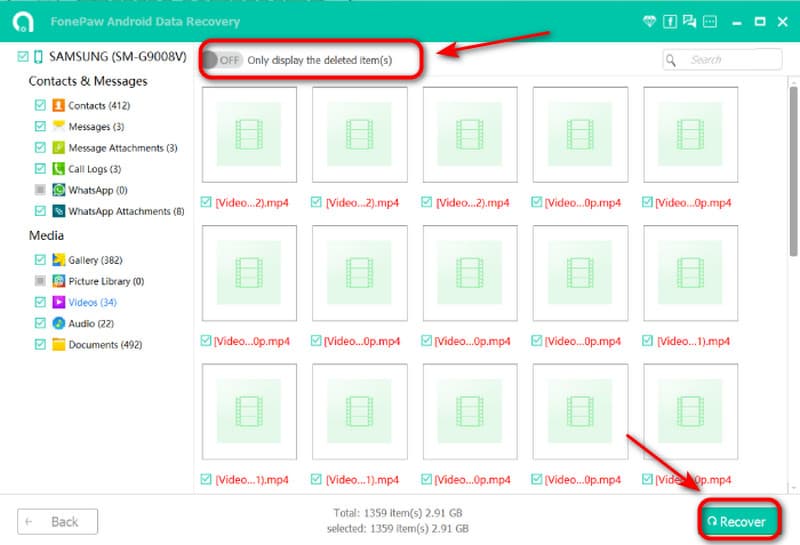
Step 3. Choose the items you desire to recover. Click Recover, and the software will start to recover the selected files.
Conclusion
Despite its relatively long scanning time, EaseUS MobiSaver for Android remains an excellent choice for data recovery. Its reliable performance, powerful recovery features, and secure operating environment have made it a preferred option for many users. If it doesn't fully meet your needs, there are also several strong software can offer efficient and easy solutions to recover deleted Android files! Come and have a try!
Related Articles