


How to Recover Deleted History on Google on PC and Mobile

When you visit websites in Google Chrome, it records the URLs and browsing data. If you revisit the website, Google will open and load it quickly. Moreover, the record allows you to view, search, and manage URLs you have visited across devices if synced through your Google account. This tutorial demonstrates the proven ways to recover deleted history on Google Chrome on a computer or mobile device and shows you the detailed steps.
PAGE CONTENT:
Part 1: A Quick Way to Recover Deleted Google History on PC/Mac
Google saves search and browsing history in the cache files on your hard drive. Even if you accidentally delete some items or clear your Chrome, Apeaksoft Data Recovery can help you recover deleted web history on Google Chrome on your desktop.

Downloaded by over 1,000,000 users
- Recover deleted Google history with three steps.
- Work for a wide range of data types and file formats.
- Preview lost data for selective recovery.
- Support Windows 11/10/8/7/XP/Vista and Mac OS X 10.7 or above.
Secure Download
Secure Download

How to Recover Deleted Google History on Your PC
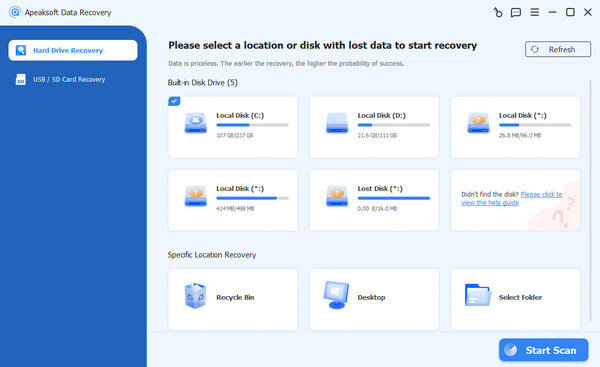
Step 1. Scan your drive
Launch the data recovery software after installing it on your PC. There is another version for Mac. Go to the Hard Drive Recovery tab. Select the drive where your Google Chrome is installed and click the Start Scan button.
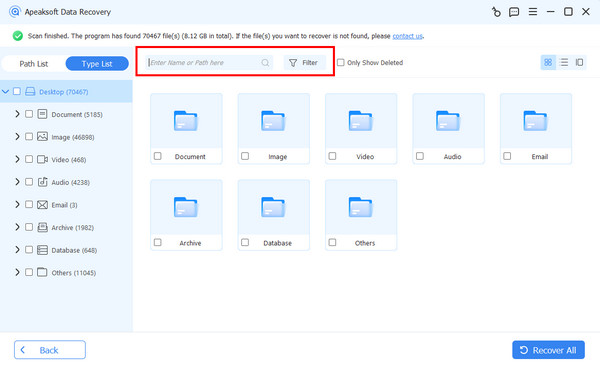
Step 2. Preview Google history
When the data scan finishes, go to the Path List tab and find the Google history files. On Windows, the path is C:Users[YourUsername]AppDataLocalGoogleChromeUser DataDefaultHistory. On macOS, the path is ~/Library/Application Support/Google/Chrome/Default/History. Then, preview the Google history.
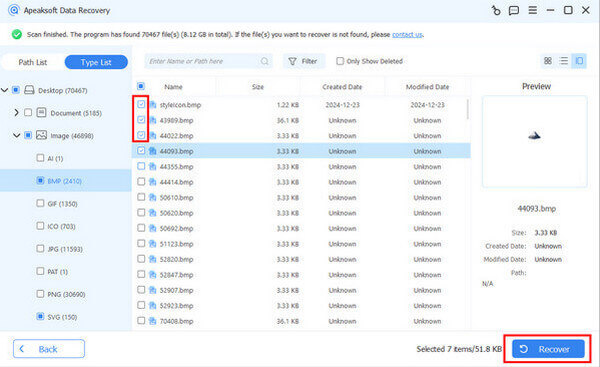
Step 3. Recover Google history
Select the Google history files you want to get back and click the Recover button. Set an output folder and confirm recovering Google history.
Part 2: Other Options to Recover Deleted History on Google on Desktop
Google stores history in an SQLite database on your local hard drive inside the Chrome user-data folder. Before it is overwritten, you can recover deleted history on a Google Chromebook, PC, and Mac.
How to Recover Deleted History on Google from My Activity
Step 1. Visit https://myactivity.google.com/ in a browser.
Step 2. Log in with the Google account associated with your Chrome.
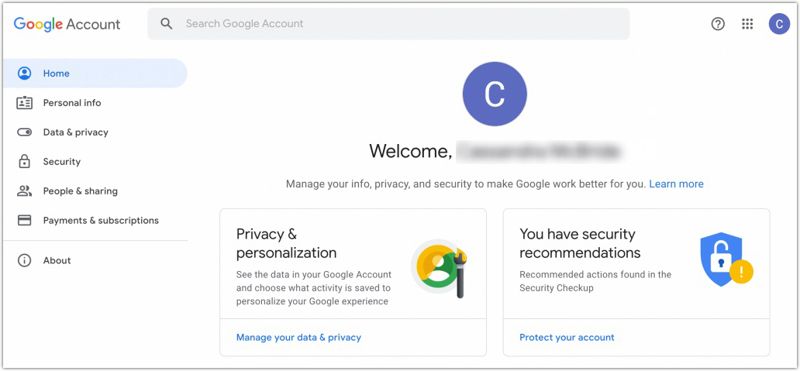
Step 3. Go to the Data & privacy tab.
Step 4. Choose the Web & App Activity option under the History settings heading.
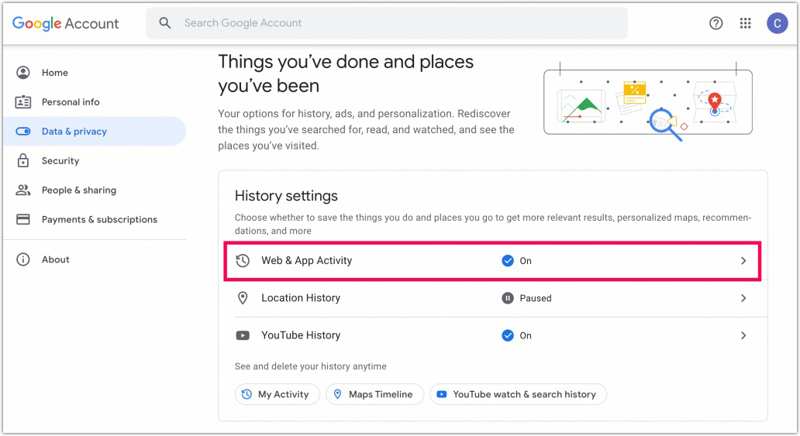
Step 5. Filter by Chrome and date.
Step 6. Next, find the lost history of Google.
How to Recover Deleted History on Google by DNS Cache
On Windows

Step 1. Go to the Start menu and search for Command Prompt.
Step 2. Right-click on it and choose Run as administrator.
Step 3. Input ipconfig /displaydns and press the Enter key on your keyboard.
Step 4. Then, check the recently visited websites.
On macOS
Step 1. Open the Terminal app from the Utilities folder in Applications.
Step 2. Type in sudo killall -INFO mDNSResponder and press the Return key on your keyboard.
Step 3. Now, you can check recent DNS lookups.
Part 3: How to Recover Deleted History on Google on Android
It is difficult to recover deleted web history on Google on a mobile phone, especially if you don’t have a backup for your device. Fortunately, Apeaksoft Android Data Recovery can help you get back as much lost data as possible from your phone memory.
Downloaded by over 1,000,000 users
- Recover Google history on Android without backups.
- Complete the process in three steps.
- Work for a wide range of data types.
- Preview lost data before recovering.
- Support almost all Android brands and device models.
Secure Download
Secure Download

How to Recover Deleted History on Google Chrome for Android
Step 1. Select data types
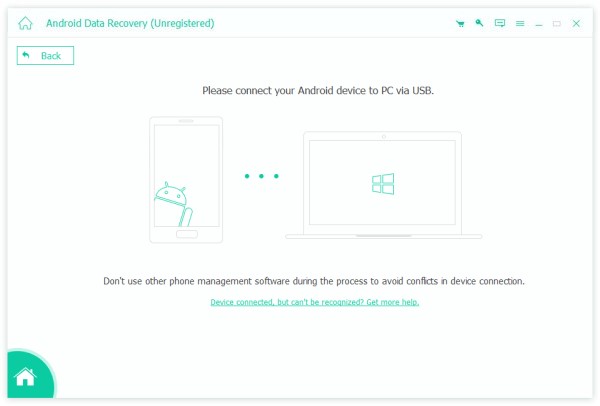
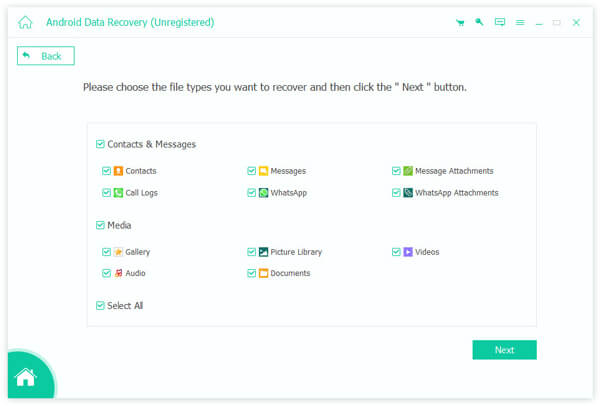
Launch the Android data recovery software after you install it on your computer. It is available on Windows 11/10/8/7/XP/Vista and Mac OS X 10.6 or above. Turn on your phone and enable USB Debugging mode in the Settings app. Next, connect your phone to your computer with a USB cable. Select the data types you want to recover and click Next. If you are not sure, check Select All instead.
Step 2. Preview Android data
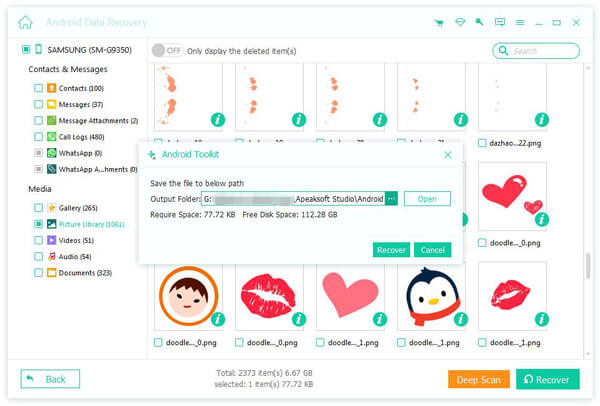
Then, you can view your data on your phone by category. If you cannot find the desired data, click the Deep Scan button to perform a deep scan.
Step 3. Recover deleted history
Select the files and items you want to get back, and click the Recover button. Set an output folder and begin history recovery.
Further Reading
Part 4: How to Recover Deleted History on Google on iPhone
For iPhone users, Apeaksoft iPhone Data Recovery is an easy option to recover deleted history on Google Chrome without a backup. The intuitive design makes it a good option for beginners.
Downloaded by over 1,000,000 users
- Retrieve deleted history on Google Chrome quickly.
- View deleted data for selective data recovery.
- Extract lost data from backups without resetting your device.
- Available to a wide array of iPhones and iPad devices.
Secure Download
Secure Download

How to Recover Deleted History on Google on iPhone
Step 1. Connect to your iPhone
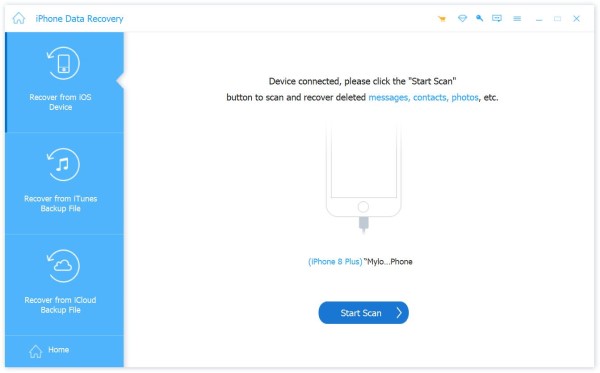
Download and install the data recovery software for iPhone on your PC. There is another version for Mac. Choose the Recover from iOS Device tab, and link your iPhone to your PC with a Lightning cable. Follow the onscreen instructions to trust and permit the connection. Then, click the Start Scan button to proceed.
Step 2. Preview lost data
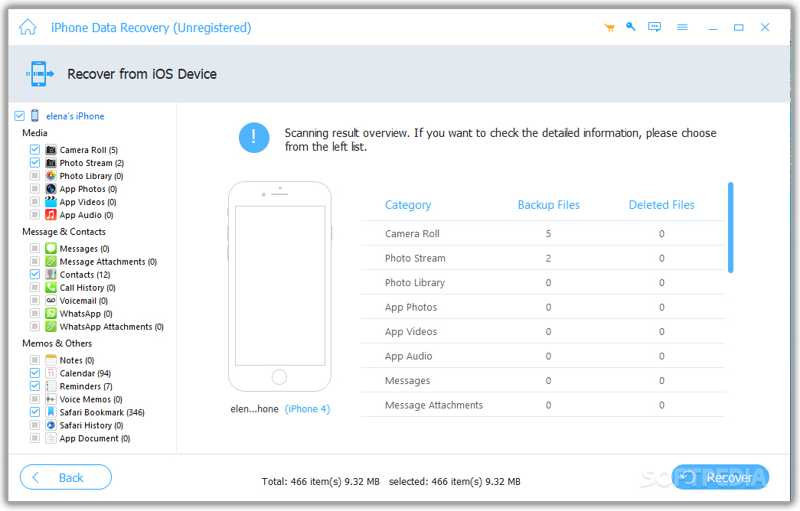
When scanning is done, select the desired data types on the sidebar. Then, you can preview the recoverable data on your iPhone.
Step 3. Recover history on iPhone
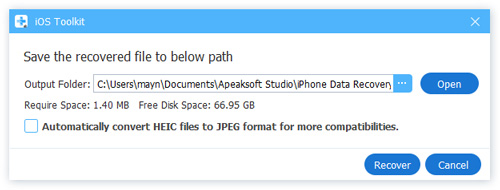
Select the history you want to retrieve and click the Recover button. Select a destination folder and hit Recover.
Conclusion
This tutorial shared six ways to recover deleted history on Google on Chromebook, Windows, Mac, Android, and iPhone. You can pick an appropriate method and follow our steps to get back your browsing history. Apeaksoft Data Recovery is a quick option to complete the job on a computer. Apeaksoft Android Data Recovery and Apeaksoft iPhone Data Recovery are effective options on Android phones and iPhones.
 Apeaksoft Data Recovery
 Recover deleted or lost data on Windows and Mac computer.
Secure Download
Secure Download
Related Articles




