


How to Recover View Once Photos from Your WhatsApp Account

Privacy concerns are still a hot topic, especially for messaging services. For instance, WhatsApp has been progressively adding features to improve privacy. It introduced the one-time photos and videos, also known as temporary or ephemeral files. These media files disappear once they are viewed by the recipient and cannot be opened again. This guide shares the proven methods to view once photos bypass for the WhatsApp website or app.
PAGE CONTENT:
- Part 1: What Is View Once Photo on WhatsApp
- Part 2: How to Recover View Once Photos on WhatsApp by Sender
- Part 3: How to Recover View Once Photos on WhatsApp via Screenshot
- Part 4: How to Recover View Once Photos on WhatsApp from Backup
- Part 5: How to Retrieve View Once Photos on WhatsApp Without Backup
Part 1: What Is View Once Photo on WhatsApp
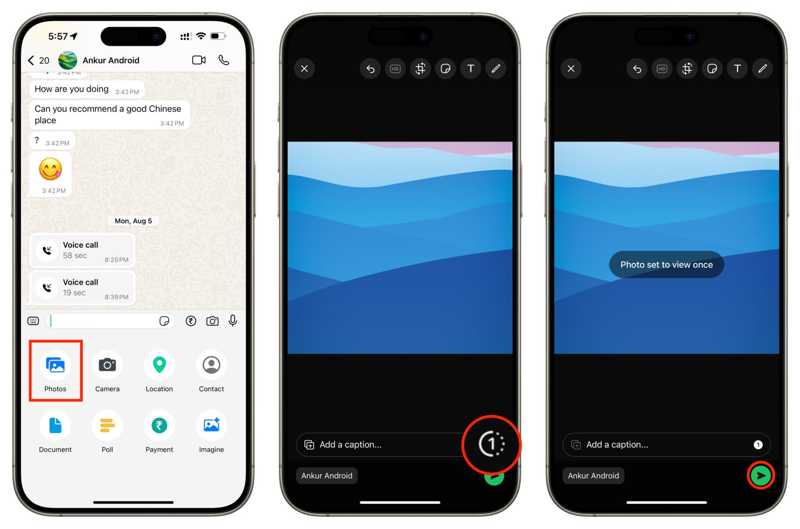
View once is a feature designed to keep shared photos and videos private and temporary. When sending a photo, video, or voice message in WhatsApp, you can select View Once. After the recipient opens it, the content is instantly removed and cannot be viewed anymore.
How long does a view-once photo on WhatsApp last? According to our research, even if the content is unopened, it will expire automatically after 14 days from the moment it was sent.
Part 2: How to Recover View Once Photos on WhatsApp by Sender
The quick way to recover the view-once photos on WhatsApp is to ask for help from the sender. In fact, both you and the sender cannot access the view once photos and videos on WhatsApp, after they are viewed or have expired. However, if the sender still has the content on his or her device, ask him or her to resend it.
Part 3: How to Recover View Once Photos on WhatsApp via Screenshot
Can you screenshot WhatsApp view-once photos? Yes. This way can help you save view-once photos locally. Since WhatsApp automatically deletes the media files, you need to prepare in advance. This way doesn't require extra software or hardware.
How to Screenshot WhatsApp View Once Photo on Android
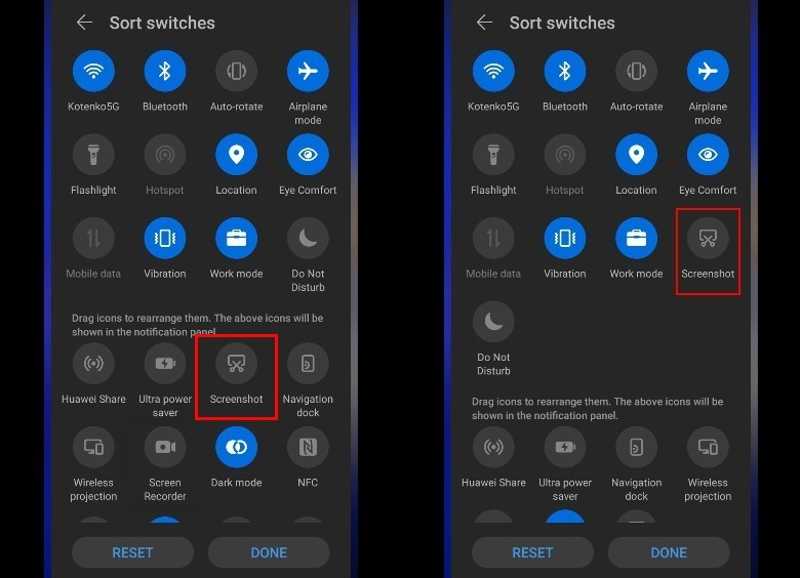
Step 1. Open the WhatsApp app on your phone.
Step 2. Find and tap the view once photo.
Step 3. Swipe downward from the top of your screen to open the Quick Settings pane.
Step 4. Tap Screenshot to screenshot the WhatsApp view-once photo.
How to Screenshot WhatsApp View Once Photo on iPhone
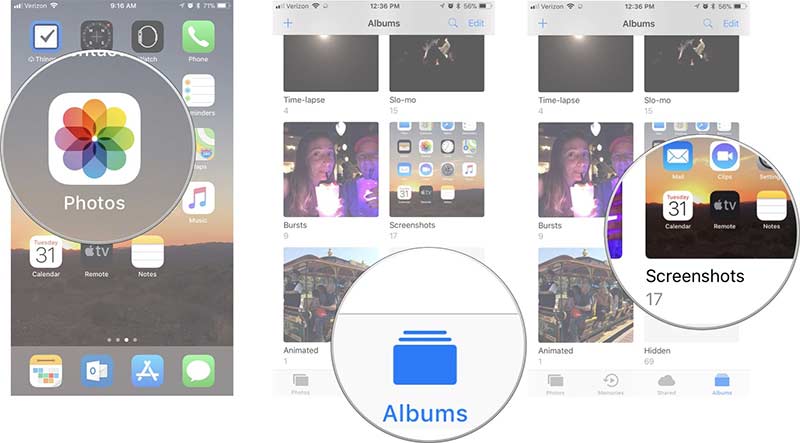
Step 1. Open the view-once photo in WhatsApp.
Step 2. Press the Side + Volume Up buttons together to take a screenshot on an iPhone with Face ID.
On old iPhone models, press the Side + Home buttons simultaneously to screenshot.
Step 3. Then, run the Photos app, and go to the Screenshots album to view the photo.
Further Reading
Part 4: How to Recover View Once Photos on WhatsApp from Backup
WhatsApp comes with a backup and restore feature. If you need to retrieve view-once photo on WhatsApp on your iPhone or Android phone, you can uninstall the app and restore your media files.
Step 1. Long-press the WhatsApp app on your screen and tap the Delete or Uninstall button.
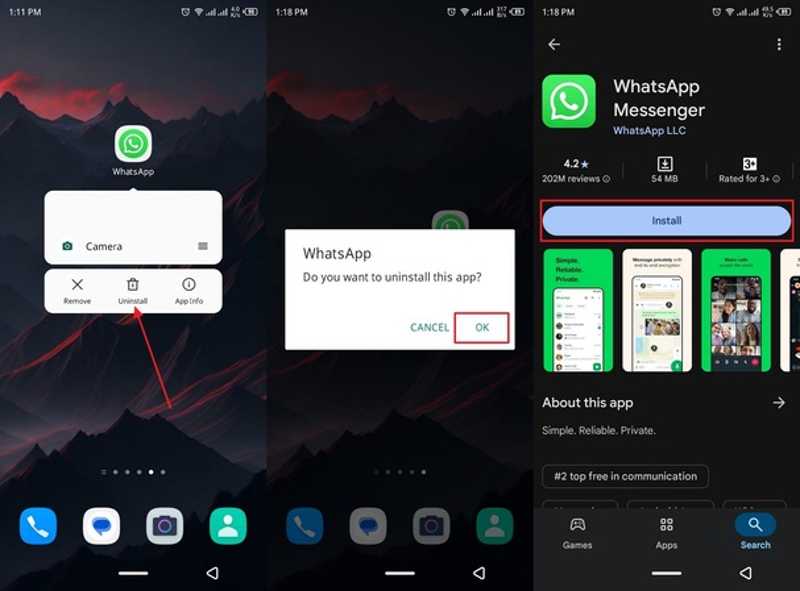
Step 2. After that, search for WhatsApp on the Play Store or App Store.
Step 3. Install the app again and open it.
Step 4. Tap the Agree and continue button.
Step 5. Log in with the same phone number.
Step 6. Tap the Restore button to restore your chats.
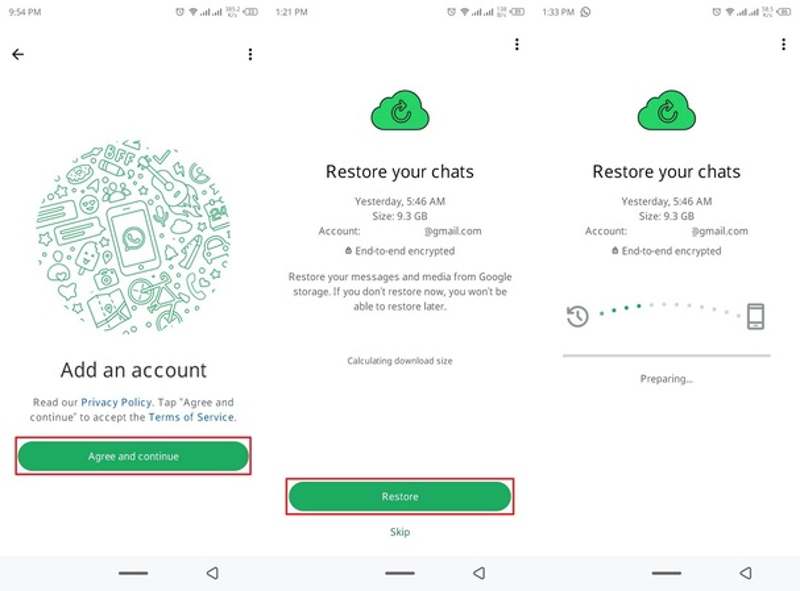
Step 7. When the process finishes, check if the view-once photos are back.
Part 5: How to Retrieve View Once Photos on WhatsApp Without Backup
Apeaksoft iPhone Data Recovery is a simple way to get a view-once photo on WhatsApp on your iPhone. It lets you recover app photos even if you don't have backups. Furthermore, the software is easy to use.

Downloaded by over 1,000,000 users
- Recover lost photos on your iPhone in 3 steps.
- Extract data from iCloud/iTunes backup without resetting the iPhone.
- Preview iPhone photos for selective recovery.
- Won't interrupt existing photos on your iPhone.
- Support the latest editions of iOS and iPadOS.
Secure Download
Secure Download

How to Retrieve View Once Photos on WhatsApp on Your iPhone
Step 1. Scan your iPhone
Launch the photo recovery software for iPhone after installing it on your computer. It is available on Windows 11 to XP, macOS 10.7 or above. Connect your iPhone to your computer with a Lightning cable. Click the Start Scan button to begin scanning your device.

Step 2. Preview photos
When data scanning finishes, choose the App Photos on the sidebar. You can view all WhatsApp photos with the thumbnails.
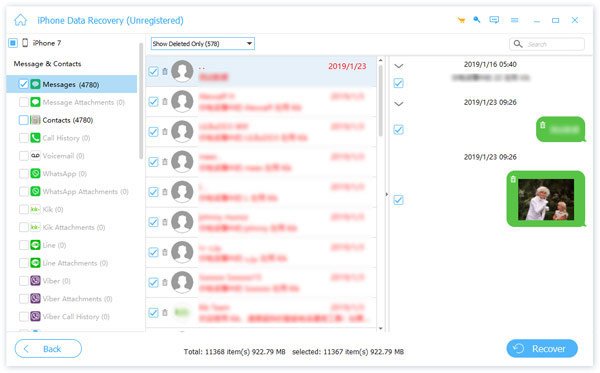
Step 3. Recover the view-once photos
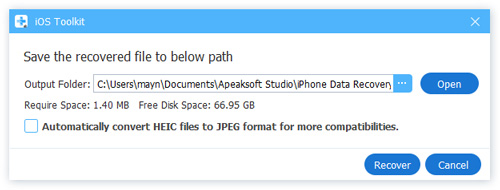
Select the view-once photos you want to recover and click the Recover button. Select an output folder and hit Recover again.
Conclusion
This guide explained whether you can screenshot a view-once photo on WhatsApp. You can save view-once photos by taking screenshots on your iPhone or Android phone. The built-in backup and restore feature lets you retrieve lost photos on WhatsApp quickly. If you haven't set up the backup feature, Apeaksoft iPhone Data Recovery is the ultimate option to recover photos.
 Apeaksoft iPhone Data Recovery
 Recover deleted or lost data from iOS Devices, iTunes, and iCloud backup.
Secure Download
Secure Download
Related Articles




