

How to Recover Recently and Permanently Deleted Notes on Mac

Thanks to the Apple Notes app, Mac users can write down and keep important information, creative ideas, and more. Moreover, it is able to sync your notes across all your Apple devices through one account. Of course, you can not only create notes but also delete them, which is where mistakes may happen. This tutorial shares five methods to help you recover deleted notes on your Mac computer or laptop.
PAGE CONTENT:
Part 1: How to Recover Recently Deleted Notes on Mac
Much like the Notes app on iOS, Apple has added the Recently Deleted folder to the Notes app on Mac. When you accidentally delete a note, it will be moved to the Recently Deleted folder and stored here for up to 30 days. Before it is permanently erased, you can quickly recover deleted notes on a Mac.
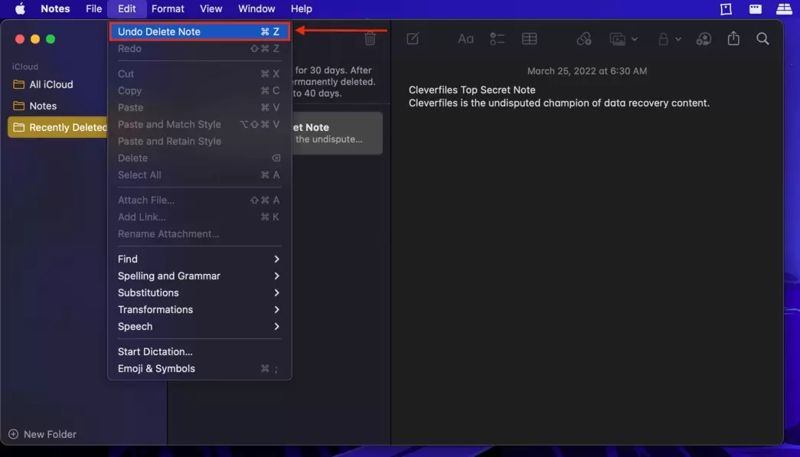
Step 1. Open the Notes app from your Dock or Applications folder.
Step 2. Click the Recently Deleted folder on the sidebar.
Step 3. Now, you can see all recently deleted notes.
Step 4. Press the Command key and select the notes you want to retrieve.
Step 5. Click the Edit menu and choose Undo Delete Note.
Note: If you want to save the notes to another folder, right-click on a selected note, choose Move to, and pick the destination.
Part 2: How to Recover Deleted Notes on Mac from iCloud
iCloud is able to sync all changes if you have configured Notes on Mac. Before your note deletion doesn't sync to iCloud, you can recover deleted notes on a Mac from iCloud. This method requires a stable internet connection.

Step 1. Make sure you have set up Notes for iCloud.
Step 2. Go to www.icloud.com in a browser, and log in with your Apple ID and password.
Tips: If you have set up Two-factor authentication, enter the verification code to verify your identity.
Step 3. Choose Notes to open the iCloud Notes page.
Step 4. Head to a folder where your notes were stored or the Recently Deleted folder.
Step 5. Run the Notes app on your Mac.
Step 6. Select a desired note, copy the content, and paste it into the Notes app.
Note: You cannot recover deleted notes from iCloud to the Notes app on macOS.
Further Reading
Part 3: How to Recover Deleted Notes from a Mac Hard Drive
Mac has a folder to store temporary files. If you accidentally delete a note, stop doing anything and access the temporary folder to recover deleted notes from the Mac. Here are the steps below:
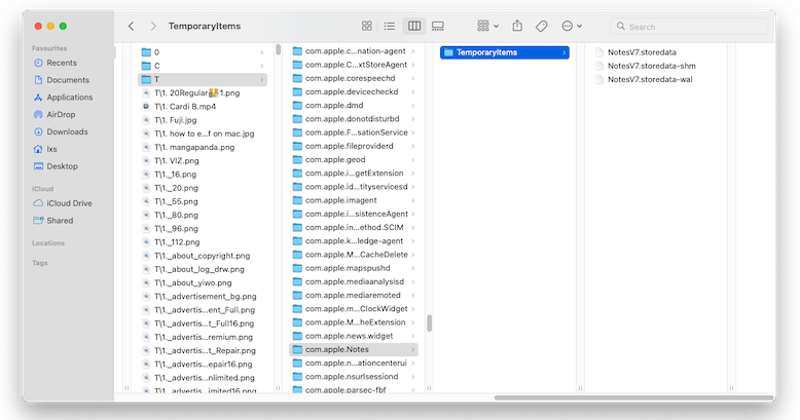
Step 1. Quit the Notes app and open the Terminal app on your Mac.
Step 2. Type in open $TMPDIR and press the Return key on your keyboard.
Step 3. Find the com.apple.Notes folder and open it.
Step 4. Choose the TemporaryItems subfolder to access temporary files.
Step 5. Run the Finder app, click the Go menu, and choose Go to Folder.
Step 6. Copy and paste the path below into the box, and press Return. ~/Library/Containers/com.apple.Notes/Data/Library/Notes/
Step 7. Next, move the files in the TemporaryItems folder to the Notes folder.
Step 8. Start the Notes app again to check if the notes are recovered on the Mac.
Part 4: How to Recover Deleted Notes from Time Machine Backup
Time Machine is the built-in backup and restore feature on Mac. If you have created a backup before deleting your notes, you can try to restore your information. Of course, you must have the right Time Machine backup.
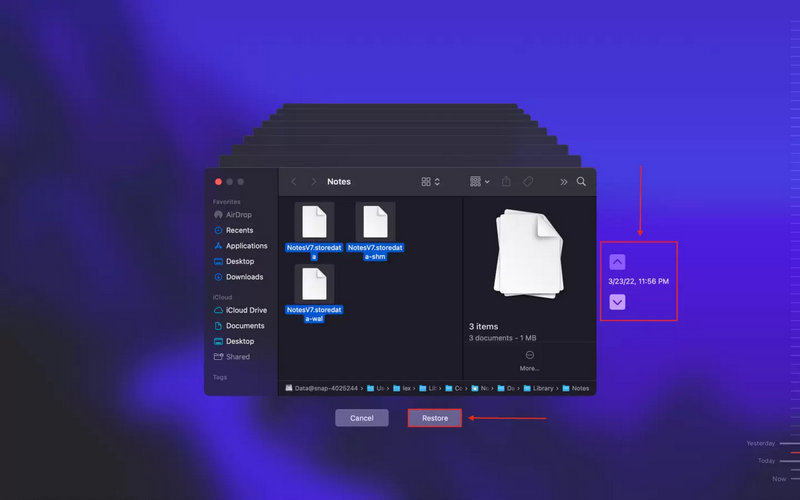
Step 1. Open your Finder app from the Dock.
Step 2. Head to the Go menu and choose Go to Folder.
Step 3. Go to ~/Library/Containers/com.apple.Notes/Data/Library/Notes/
Step 4. Click the Time Machine button on the top menu bar and choose Enter Time Machine.
Tips: If you cannot see Time Machine at the top of your screen, click the Apple menu, choose System Settings, go to Control Center, and pick Show in Menu Bar for Time Machine.
Step 5. Use the Arrow buttons to select the right version, select the temporary files, and click Restore.
Step 6. Now, re-open the Notes app, and the deleted notes should be recovered.
Part 5: How to Recover Permanently Deleted Notes on Mac
If you don't have a backup, it is difficult to recover deleted notes from a Mac. Fortunately, Apeaksoft Data Recovery can help you resolve this problem. It can scan your hard disk and retrieve lost data in a few minutes before the files are overwritten.
A Fast Way to Recover Permanently Deleted Notes on Mac
- Recover deleted notes from Mac quickly.
- Preview notes and attachments for selective recovery.
- Support a wide range of file types and formats.
- Keep the original condition of your notes.
- Available on macOS 10.7 and later, Windows 11 and earlier.
Secure Download
Secure Download

How to Recover Permanently Deleted Notes from Mac
Step 1. Install note recovery software
Run the note recovery application after you install it on your computer. Choose Mac Data Recovery to enter the main interface. Select the disk where your note files are stored and begin scanning your disk. It may take a while to complete data scanning.
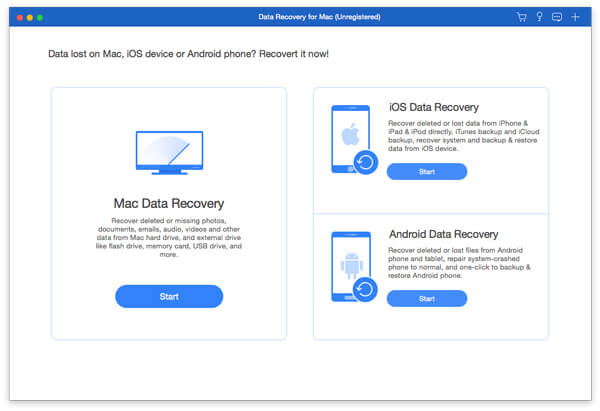
Step 2. Preview lost data
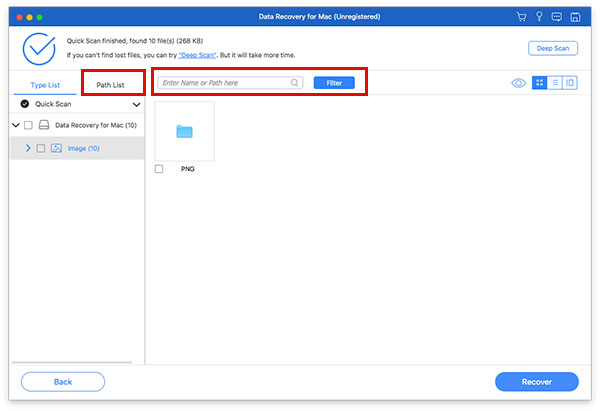
When data scanning finishes, go to the Path List tab, and navigate to the com.apple.Notes folder. Then, choose Data, Library, and Notes. If you cannot find the folder, type notes in the box above and click Filter.
Step 3. Recover notes from Mac
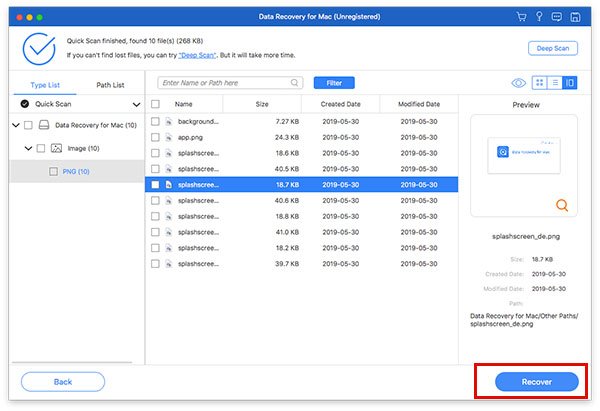
Select all desired files, and click the Recover button at the bottom right corner. Then, set an output folder and confirm file recovery. Next, reopen the Notes app, and the deleted notes should be back.
Conclusion
This guide explained how to recover deleted notes on a MacBook in various situations. The Recently Deleted folder is a quick option to get back lost notes. Or you can try the temporary folder. iCloud or Time Machine backup enables you to find lost notes if you have set it up. Apeaksoft Data Recovery is the ultimate solution to retrieve permanently deleted notes from your Mac with no technical skills.
Related Articles
If you have been backing up the data on your Mac, then you should also learn how to restore your Mac from Time Machine in case of an emergency.
Did you accidentally delete the photos you liked on your Mac? Don't worry. This article will help you recover deleted photos on a Mac.
This article shares a step-by-step guide that demonstrates how to restore your MacBook Pro to factory settings without data loss.
Recovery Mode on Mac is a build-in mode designed for recovering the Mac and repair disk problem. Here you will learn how to enter and use Recovery Mode on Mac.




