


How to Recover Deleted Notes on Your iPad Efficiently

According to our research, the native Notes app is one of the most useful apps on iPad devices. Users store tons of important stuff, from shopping lists to creative ideas, from passwords to login information. However, losing notes is a big challenge for some iPad users, such as accidentally deleting a note or clearing the Notes app. This guide shares five ways to recover deleted notes on your iPad and demonstrates the workflows.
PAGE CONTENT:
Part 1: How to Recover Recently Deleted Notes on iPad
Apple has added the Recently Deleted folder to the Notes app on iPad devices. In other words, the notes deleted within 30 days will be saved in this folder. Before they are removed, you can recover deleted notes on your iPad quickly.
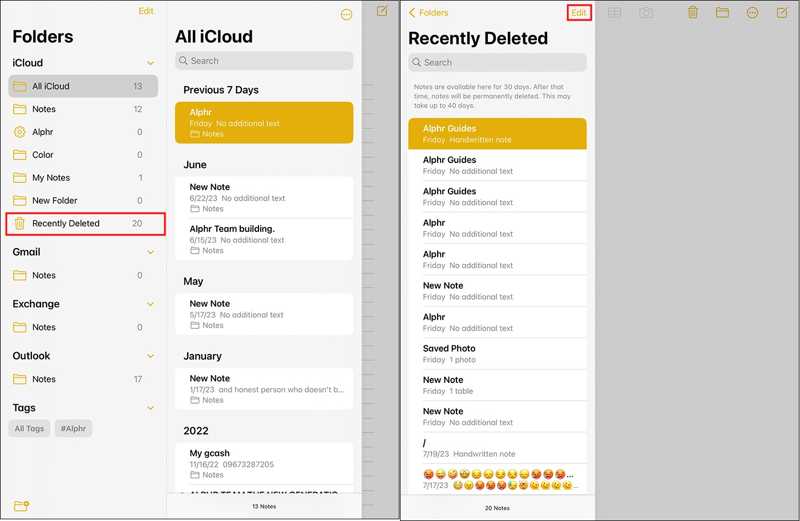
Step 1. Open your Notes app on your iPad.
Step 2. Tap the Folders menu and choose Recently Deleted.
Step 3. Here, you can view all recently deleted notes.
Step 4. Tap the Edit button at the top right corner.
Step 5. Select the notes you want to recover.
Step 6. Tap the Move button at the bottom, and choose the destination folder.
Part 2: How to Recover Deleted Notes on iPad from iCloud
As long as you sync notes to iCloud from your iPad, your notes will be saved in the cloud storage. Before the deletion syncs to iCloud, you can recover deleted notes on your iPad through the linked Apple Account.
Step 1. Turn on your iPad and open the Settings app.
Step 2. Tap on your profile, go to iCloud, and choose Notes.
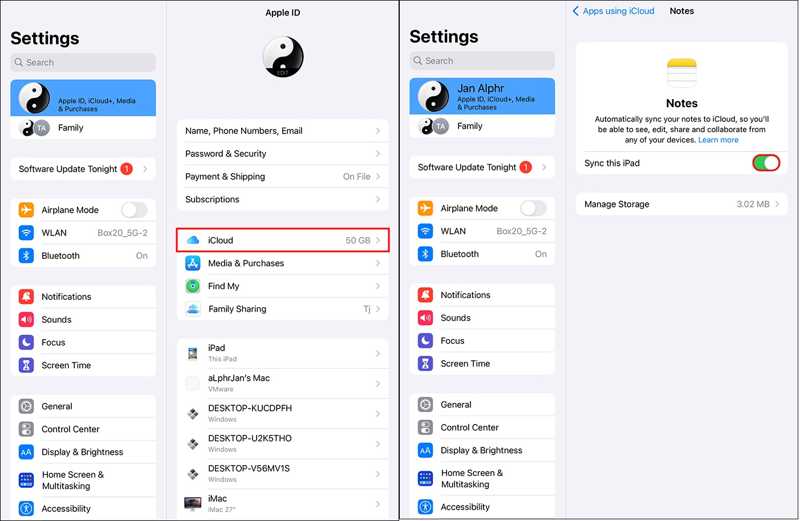
Step 3. Make sure that you have toggled on Sync this iPad.
Step 4. Visit www.icloud.com in a browser.
Step 5. Log in with the linked Apple Account and password.
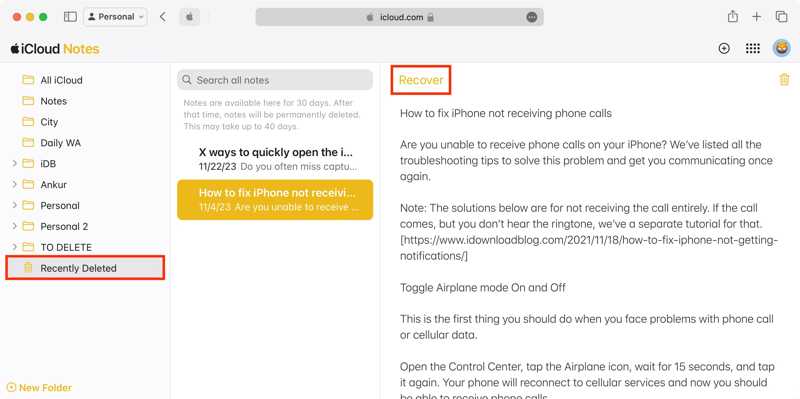
Step 6. Choose the Notes app to access iCloud Notes.
Step 7. Go to the right folder and recover the lost note.
Part 3: How to Recover Deleted Notes on iPad from Mail
If you have backed up notes to other accounts, such as Gmail, you can recover deleted notes on your iPad through an internet connection. We use Gmail as an example, but the workflow for Outlook accounts and more is similar.
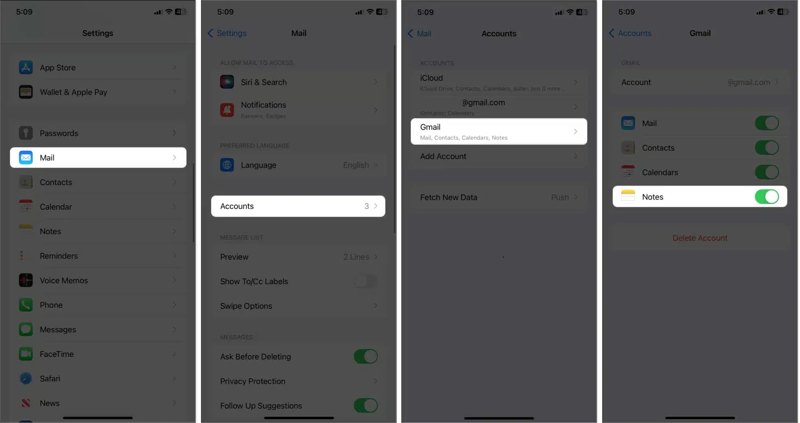
Step 1. Run the Settings app on your iPad.
Step 2. Scroll down and choose the Mail option.
Step 3. Tap Accounts and choose Gmail.
Step 4. Toggle off the Notes option if you have enabled it.
Step 5. Next, toggle on Notes again to download your notes.
Note: This way is only available if the deletion hasn’t synced to your account.
Part 4: How to Recover Deleted Notes on iPad from Backup
Another way to recover deleted notes on your iPad is to back up to your computer. Of course, the prerequisite is that you have backed up your device to your computer before deleting the notes.
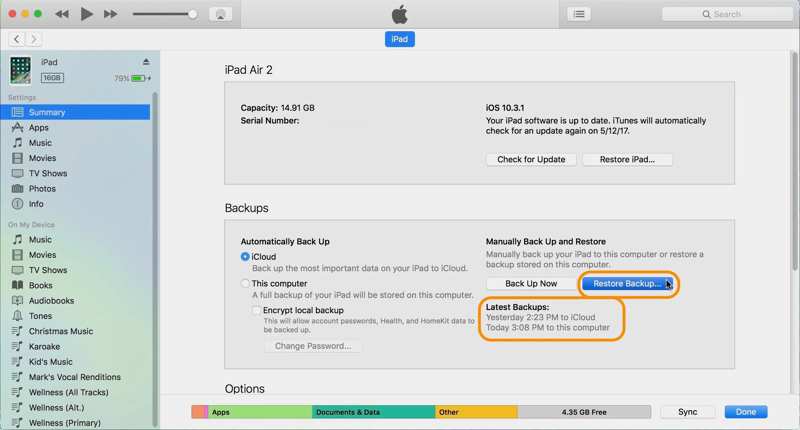
Step 1. Link your iPad to your computer with a USB cable.
Step 2. Open iTunes on Windows and macOS Mojave or earlier. On macOS Catalina or later, run Finder.
Step 3. Click the Device button in iTunes after your device is detected, and go to Summary. In Finder, click your iPad name and head to General.
Step 4. Click the Restore Backup button in the Backups section.
Step 5. Pick the right backup and click Restore.
Part 5: How to Recover Deleted Notes on iPad Without Backup

Downloaded by over 1,000,000 users
- Recover deleted notes on an iPad without backing up your iPad.
- Extract notes from iCloud or iTunes backup without resetting the iPad.
- Preview lost notes and recover selected items.
- Work on the latest editions of iPadOS.
Secure Download
Secure Download

How to Recover Deleted Notes on an iPad Without Backup
Step 1. Connect to your iPad
Install iPhone data recovery software on your PC and launch it. There is another version for Mac. Choose the Recover from iOS Device tab to continue. Connect your iPad to your PC with a Lightning cable. Trust this PC and authenticate with your iPad passcode.
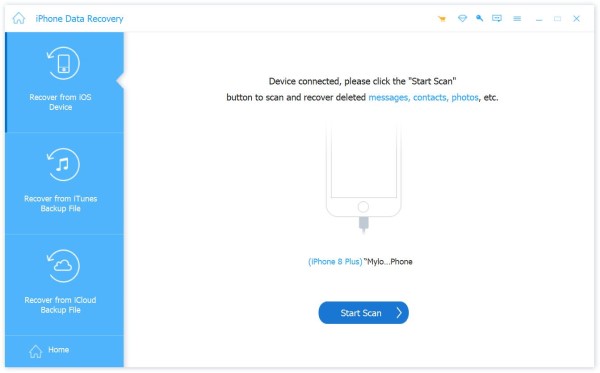
Step 2. Preview notes on your iPad
Once your device is detected, click the Start Scan button to scan lost data on your iPad. Next, select Notes under the Memos & Others heading. Now, you can preview notes on your iPad's memory.
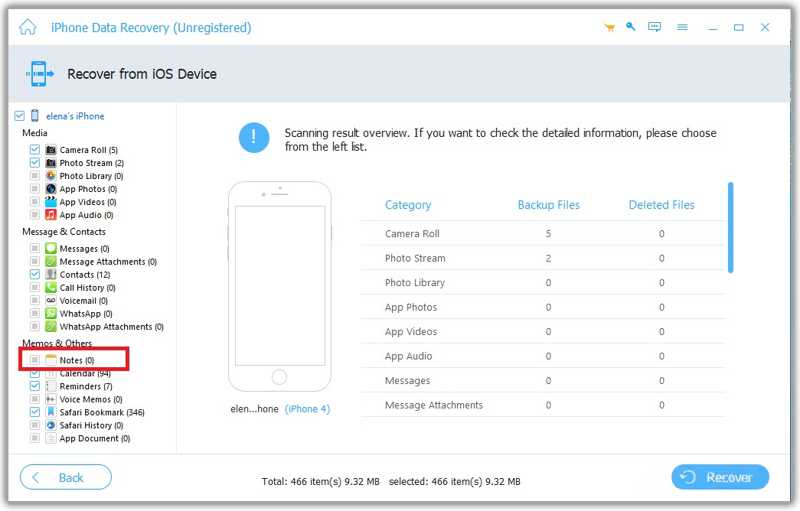
Step 3. Recover deleted notes
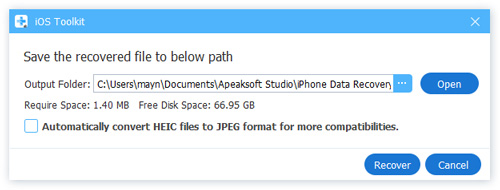
Select the desired notes and click the Recover button at the bottom. Select an output folder and hit Recover again to confirm it.
Further Reading
Conclusion
Now, you should understand how to recover deleted notes on your iPad. The Recently Deleted folder enables you to find recently deleted notes quickly. iCloud and other accounts allow you to retrieve lost notes through a network. Besides, you can try the backup file on your computer. Apeaksoft iPhone Data Recovery is the ultimate option to get back deleted notes on your iPad.
 Apeaksoft iPhone Data Recovery
 Recover deleted or lost data from iOS Devices, iTunes, and iCloud backup.
Secure Download
Secure Download
Related Articles




