

How to Get Back Deleted Reminders on iPhone or iPad

This guide explains how to recover deleted reminders on an iPhone or iPad. The Reminders app is a built-in feature on iOS 13 or later and iPadOS. It allows you to create reminders with subtasks and attachments. Plus, you can set alerts based on time and location. Users set reminders on their handsets for grocery lists, project checklists, and to-do lists. If you accidentally delete them, try our guide to get them back.
PAGE CONTENT:
Part 1: How to Recover Recently Deleted Reminders on iPhone
Apple finally addressed the Recently Deleted folder for Reminders on iOS 18 and iPadOS 18. If you have updated your device, you can retrieve reminders on your iPhone that were deleted within 30 days.
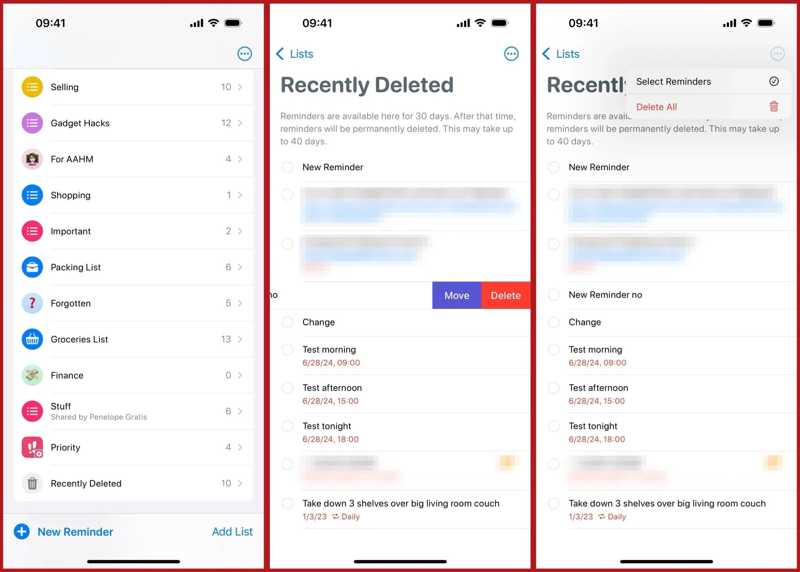
Step 1. Run your Reminders app.
Step 2. Go to the Today tab at the bottom.
Step 3. Choose the Recently Deleted folder to view all recently deleted reminders.
Step 4. Select the desired reminders and tap Recover.
Part 2: How to Restore Reminders on iPhone from iCloud
The iCloud backup feature is essential to keep your data on your iPhone or iPad. If you have automatically or manually back up reminders to your iCloud, you can restore Reminders on your iPhone quickly.
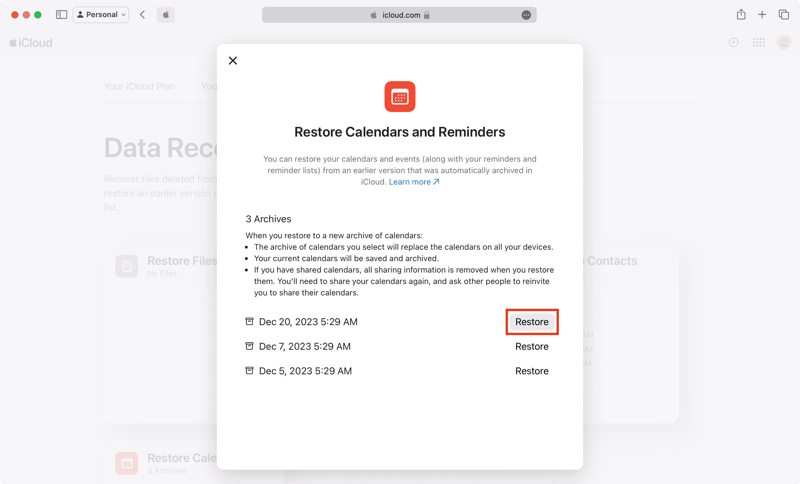
Step 1. Go to www.icloud.com/recovery in a browser, and sign in with your Apple account credentials.
Step 2. Choose Restore Calendars.
Step 3. Then, find the backup that may include the lost reminders according to date.
Step 4. Click the Restore button, and hit Restore again to confirm it.
Part 3: How to Retrieve Reminders on iPhone from iTunes Backup
If you prefer backing up your device to your computer, chances are that you can retrieve reminders on your iPhone from an iTunes backup. Remember that existing data on your device will be overwritten by the backup.
Step 1. Hook up your iPhone to your computer with a compatible cable.
Step 2. Open the latest version of iTunes. If you are using macOS Catalina or later, run Finder instead.
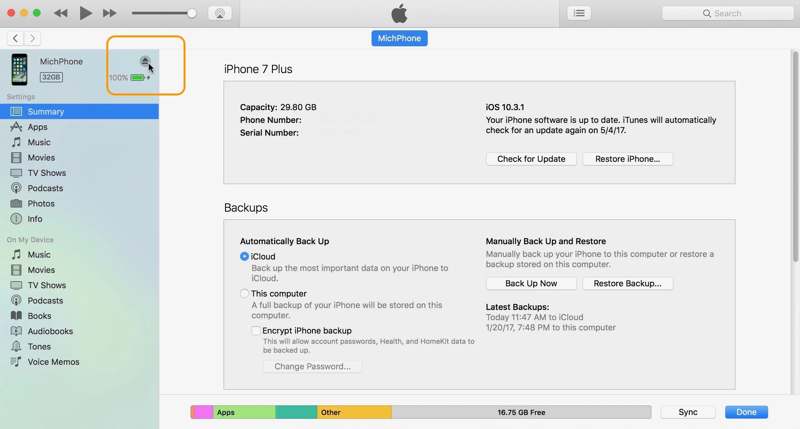
Step 3. Click your iPhone name after it is recognized.
Step 4. Locate the Backups section in the Summary tab in iTunes or the General tab in Finder.
Step 5. Click the Restore Backup button.
Step 6. Then, pick an appropriate backup and click Restore. It may ask for iTunes backup password if you have ever set it.
Part 4: How to Get Back Deleted Reminders on iPhone from Email
Some people sync their reminders to their email accounts, like Outlook, Gmail, etc. If you lose important items, you can get back deleted reminders on iPhone from your account via an internet connection.
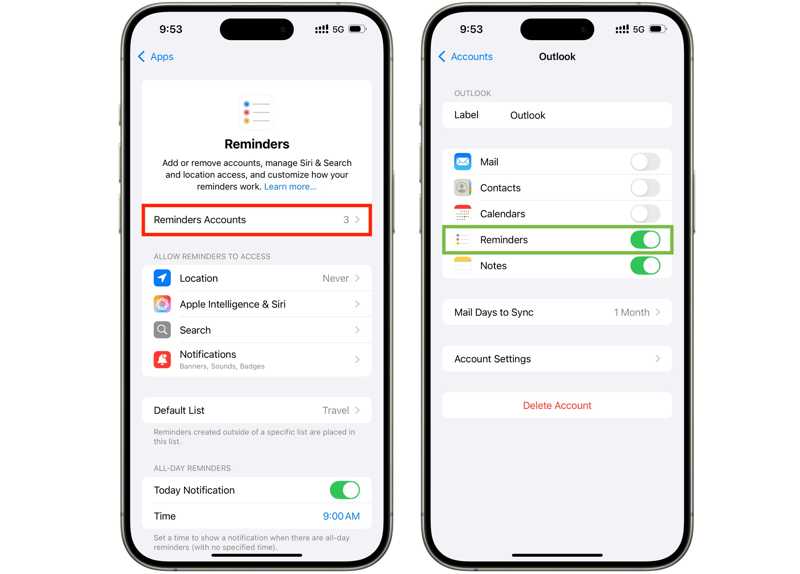
Step 1. Run your Settings app, scroll down, and tap Apps.
Step 2. Choose Reminders, and tap Reminders Accounts.
Step 3. Tap the desired account and toggle off Reminders.
Step 4. Then, turn Reminders back on to download lost reminders.
Part 5: How to Recover Reminders on iPhone Without Backup
Without a backup, it is hard to recover permanently deleted reminders on your iPhone or iPad. In fact, before they are overwritten by new data, your reminders are still in the memory. Apeaksoft iPhone Data Recovery is able to scan and discover the deleted reminders.
The Easiest Way to Recover Deleted Reminders on iPhone Without Backup
- Retrieve reminders on iOS without backup.
- Extract lost reminders from iTunes or access iCloud backup.
- Preview deleted reminders for selective recovery.
- Support almost all iPhone and iPad models.
Secure Download
Secure Download

How to Recover Reminders on iPhone Without Backup
Step 1. Scan your iPhone
Start the best data recovery software for iPhone after installing it on your computer. It is available on Windows 11/10/8/7/XP/Vista and macOS 10.7 or later. Plug your iPhone into your computer with a Lightning cable. Go to the Recover from iOS Device tab and click the Start Scan button.

Tips: To extract lost reminders from an iTunes or iCloud backup, choose Recover from iTunes Backup File or Recover from iCloud Backup File.
Step 2. Preview lost reminders
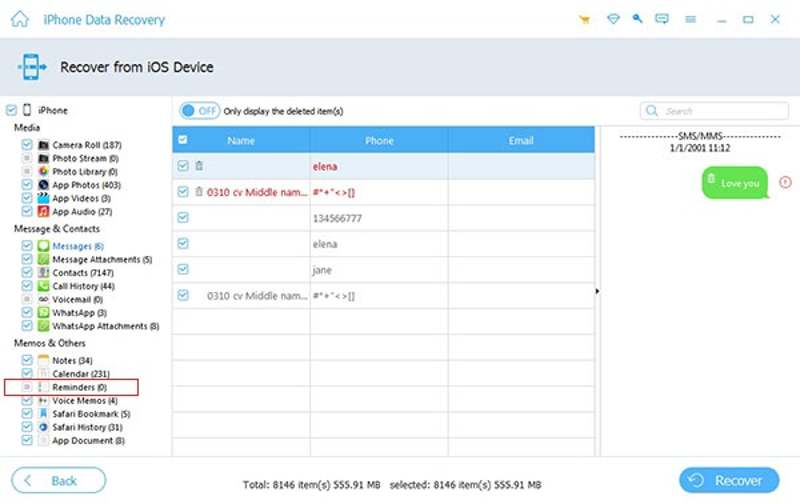
When the data scan is complete, select Reminders under the Memos & Others section on the sidebar. Here you can preview all the recoverable reminders.
Step 3. Recover deleted reminders
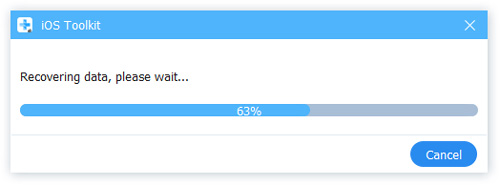
Check the reminders you want to get back and click the Recover button. Then, set an output folder and hit Recover to begin recovering deleted reminders on your iPhone. Your reminders and attachments will be saved on your hard drive. Current data on your iPhone won’t be interrupted.
Conclusion
Now, you should learn five methods to restore deleted reminders on your iPhone or iPad. Once you delete a reminder, you can quickly find it in the Recently Deleted folder on iOS 18 and above. With a backup, you can find lost reminders from iCloud or your computer. Plus, you can get back your reminders from your email account. Apeaksoft iPhone Data Recovery is the ultimate solution to discover deleted reminders on your iPhone memory.
Related Articles
How to recover notes on iPhone? Click here and follow us to explore 5 practical methods to recover deleted notes on iPhone.
Have you accidentally deleted music from your iPhone? Maybe the music is removed from the iPhone automatically. This article will solve it.
This concrete guide explains how to recover recently or permanently deleted files from your iPhone with or without backup.
This article is the ultimate guide on how to retrieve memory from a broken iPhone. Follow 4 simple methods here to recover data from a broken iPhone.



