


How to Recover Your iMessages With or Without a Backup

"I accidentally deleted some important iMessages, and I am worried I cannot get them back. These iMessages contain critical information I need for work. Does anyone have advice or tips on how to recover deleted iMessages?"
As an instant messaging service, iMessage allows you to communicate with other Apple device users for free. This guide shares five ways to get back lost iMessages with or without backup and detailed steps.
PAGE CONTENT:
Part 1: How to Recover iMessages Without Backup
While Apple users have a few ways to back up their data, it is a big problem if the latest backup doesn't cover the lost iMessages. Fortunately, Apeaksoft iPhone Data Recovery can help you recover old iMessages before new data overwrites them.

Downloaded by over 1,000,000 users
- Recover permanently deleted iMessages without a backup.
- Extract lost iMessages from iCloud/iTunes backup.
- Work for both iMessages and multimedia attachments.
- Preview deleted iMessages before recovering.
- Compatible with the latest models of iPhone and iPad.
Secure Download
Secure Download

How to Recover Old iMessages Without Backup
Step 1. Scan your iPhone
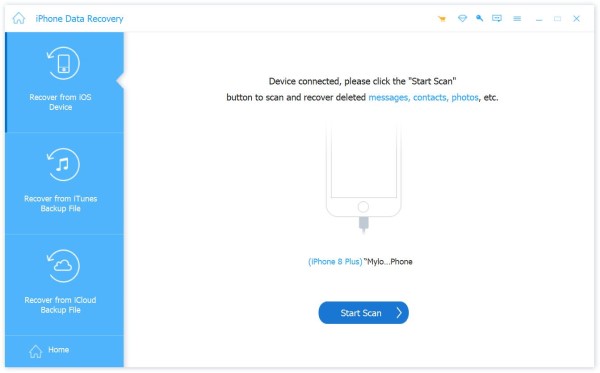
Start the iMessage recovery software once you install it on your PC. There is another version for Mac. Connect your iPhone to your PC with a Lightning cable. If prompted, tap Trust on your screen. Choose the Recover from iOS Device mode and click the Start Scan button to begin scanning your iPhone memory.
Step 2. Preview deleted iMessages
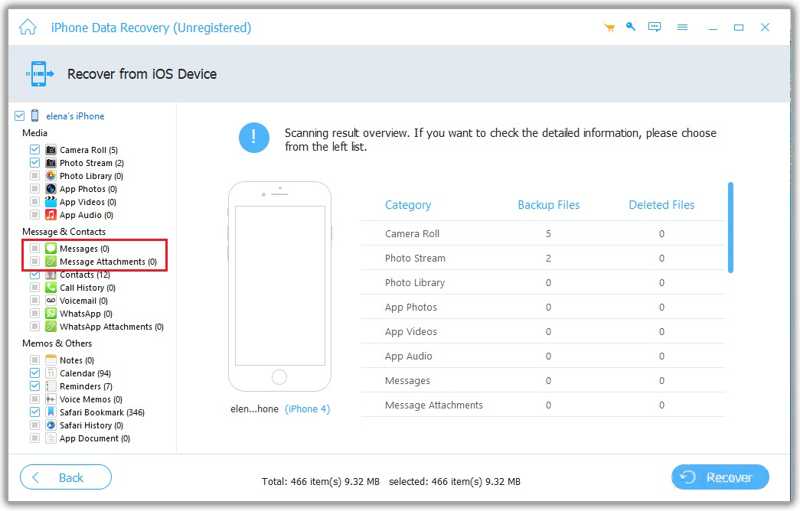
Once the data scan finishes, select Messages and Message Attachments on the sidebar. If there are too many iMessages, select Show Deleted Only from the top option. Then, preview the deleted iMessages.
Step 3. Recover deleted iMessages
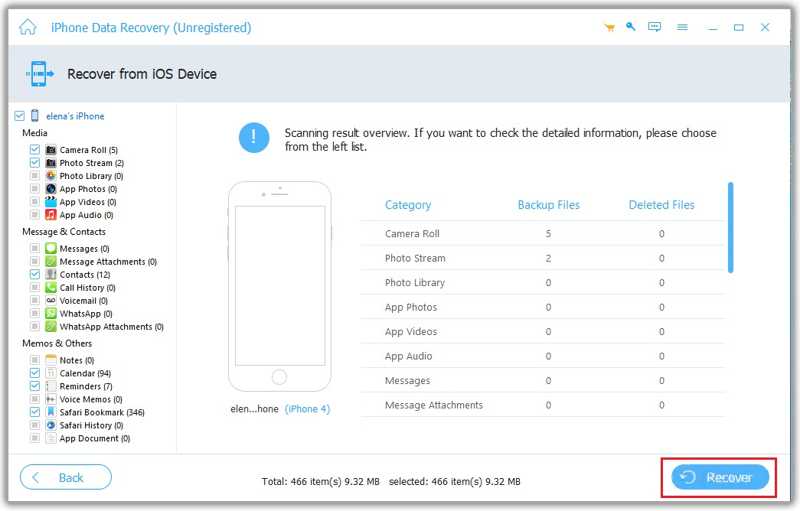
Select all iMessages and media attachments you want to recover. Click the Recover button. Set an output folder and click Recover again. When it is done, disconnect your iPhone.
Part 2: How to Recover Recently Deleted iMessages
Since iOS 16, Apple has added the Recently Deleted folder to the native Messages app. It saves the deleted iMessages within 30 days. Then, they will be permanently removed. Before that, you can recover lost iMessages on your iPhone.
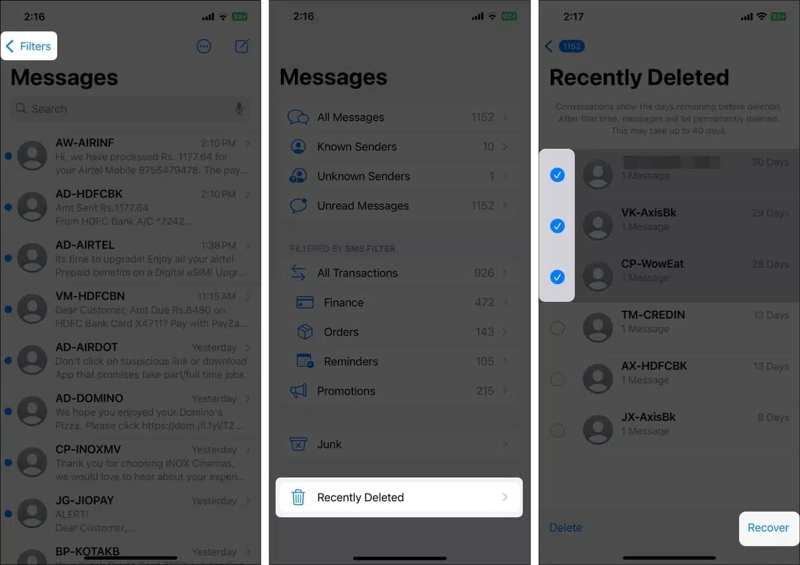
Step 1. Open the Messages app from the home screen.
Step 2. Tap the Filter button at the top left side.
Step 3. Choose the Recently Deleted folder at the bottom.
Step 4. Select the iMessages you want to retrieve.
Step 5. Tap the Recover button.
Note: If you wish to retrieve all deleted iMessages, tap Recover All in the Recently Deleted folder.
Part 3: How to Recover Deleted iMessages from iCloud Backup
If you have turned on iCloud Backup, you can recover iMessages from iCloud. Bear in mind that this way requires you to erase all current data on your device before restoring iCloud backup.
Step 1. Run your Settings app.
Step 2. Tap on your profile.
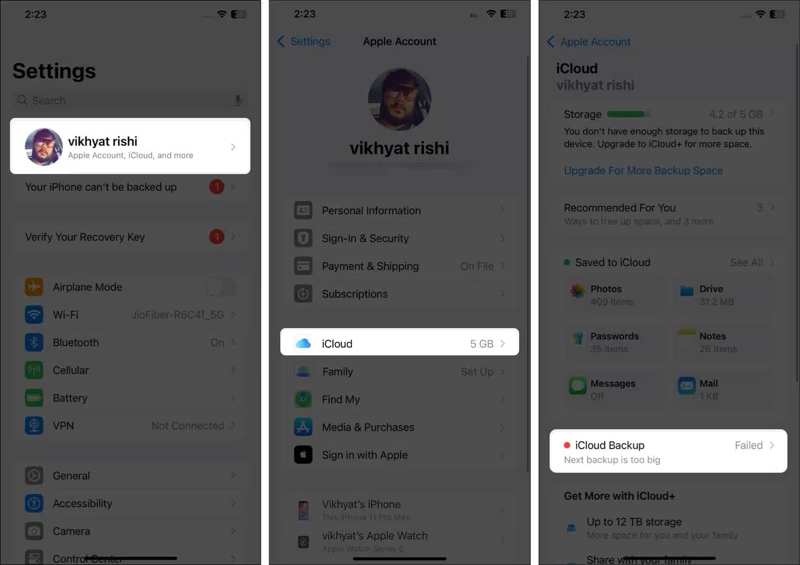
Step 3. Go to iCloud and iCloud Backup to check if you have a backup.
Step 4. If a backup is available, back to the Settings app.
Step 5. Head to General, and Transfer or Reset iPhone.
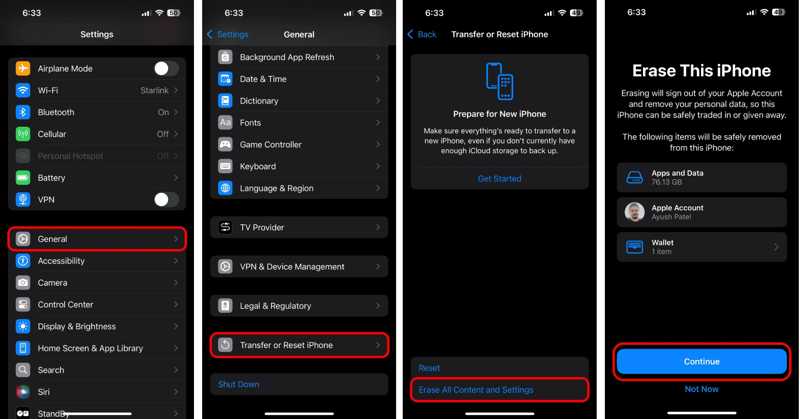
Step 6. Tap Erase All Content and Settings.
Step 7. Read the alert and tap Continue.
Step 8. Enter your iPhone passcode or Apple Account password.
Step 9. Hit the Erase iPhone button to start resetting your iPhone.
Step 10. Once your iPhone restarts, set it up as a new device.
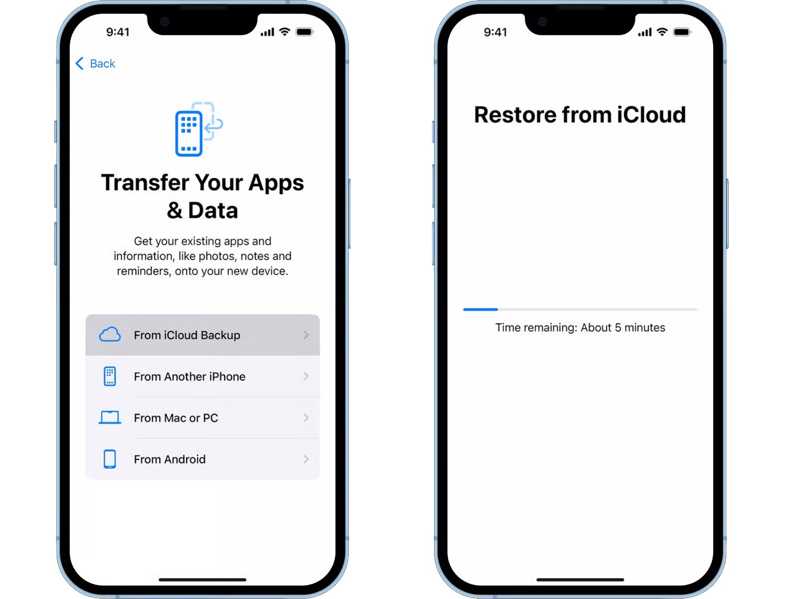
Step 11. When you reach the Transfer Your Apps & Data screen, choose From iCloud Backup.
Step 12. Input the linked Apple Account and password.
Step 13. Pick the right backup and recover all iMessages.
Further Reading
Part 4: How to Recover Deleted iMessages on Mac
If you prefer to back up your iMessages to a Mac, you can recover deleted iMessages on a Mac. This way requires a compatible USB cable. Moreover, the backup will overwrite all current data on your device.
Step 1. Plug your iPhone into your Mac computer with a USB cable.
Step 2. Open the Finder app from the Dock bar.
Step 3. Once your device is recognized, click your iPhone name on the sidebar.
Step 4. Go to the General tab and locate the Backups section.
Step 5. Click the Restore Backup button.
Step 6. Choose the right backup from the Backup option.
Step 7. If the backup is encrypted, enter the password.
Step 8. Finally, click on the Restore button to begin recovering iMessages.
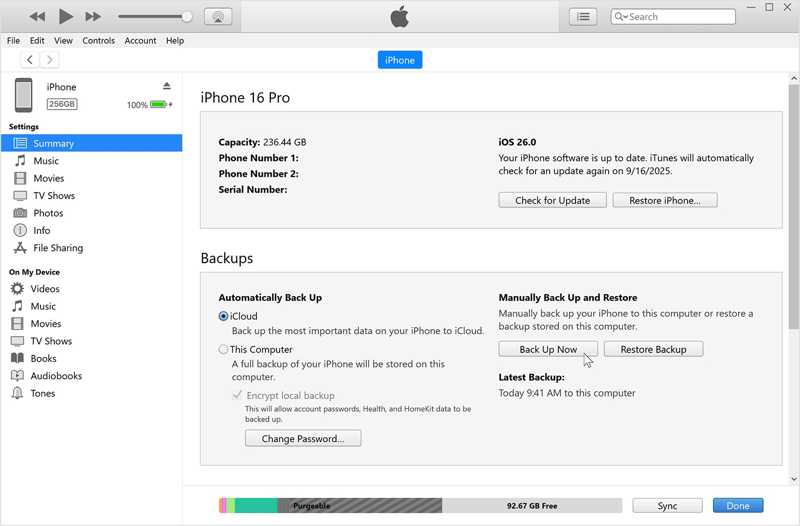
Step 9. During the process, keep your iPhone connected.
Step 10. When it is completed, disconnect your device, and run the Messages app to check the lost iMessages.
Note: On macOS Mojave and earlier, you have to restore an iTunes backup to get back deleted iMessages.
Part 5: How to Recover Deleted iMessages on PC
While Apple has stopped iTunes on macOS Catalina and above, it is still available on PCs. If you back up your iPhone to a PC regularly, you can recover deleted iMessages from an appropriate iTunes backup.
Step 1. Hook up your iPhone to your PC with a compatible cable.
Step 2. Start the latest version of iTunes from your desktop.
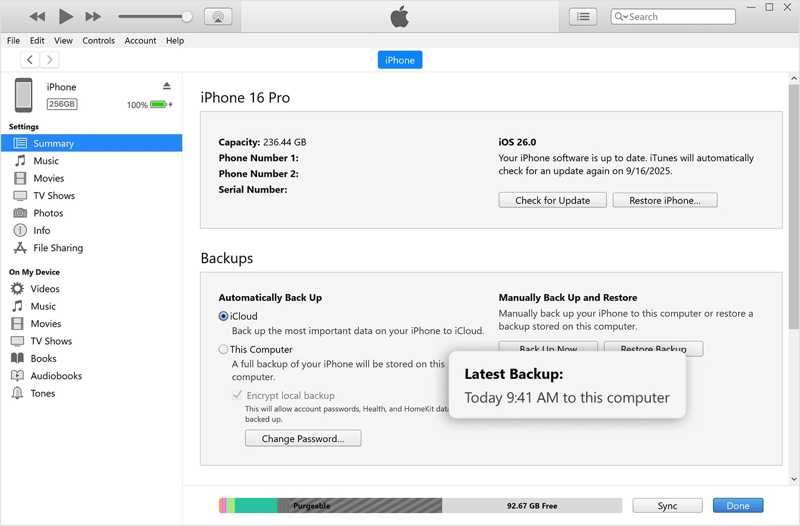
Step 3. Click the Phone menu at the top left side after your iPhone is detected.
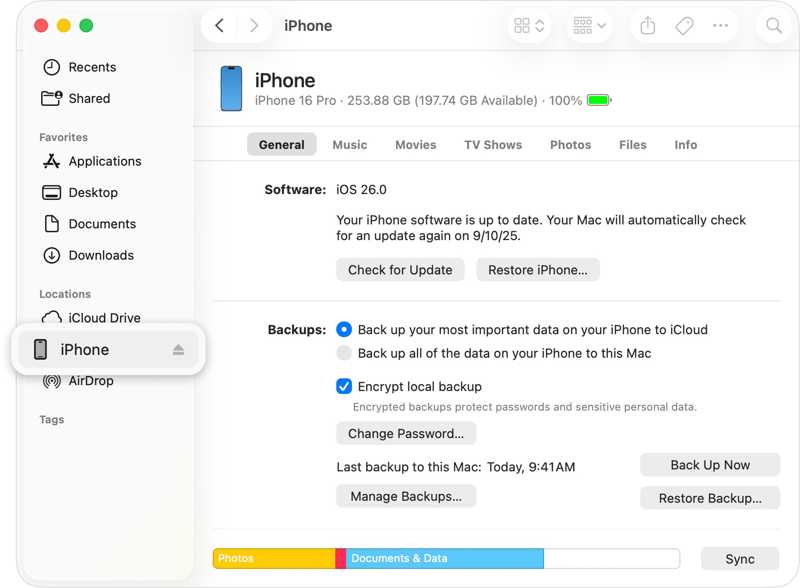
Step 4. Go to the Summary tab and move to the Backups section.
Step 5. Check if you have a backup, including the lost iMessages.
Step 6. Next, click on the Restore Backup button.
Step 7. Pick the latest backup from the Backup menu.
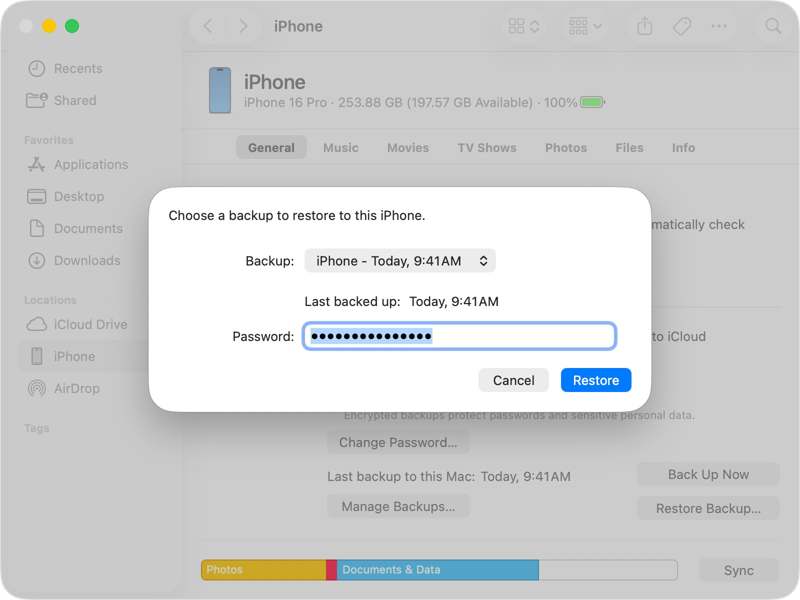
Step 8. Click on the Restore button to initiate recovering lost iMessages.
Note: If the iTunes backup is protected, type in the password. Plus, you can use the new Apple Devices to back up and restore deleted iMessages.
Conclusion
This guide shared five ways to recover deleted iMessages on your iPhone in various situations. The Recently Deleted folder works for the iMessages you deleted within 30 days. If you have backed up your iMessages, you can restore them from iCloud, Mac, or iTunes backup. If you don't have a backup, Apeaksoft iPhone Data Recovery is a great option to get back lost iMessages from your iPhone memory without technical skills.
 Apeaksoft iPhone Data Recovery
 Recover deleted or lost data from iOS Devices, iTunes, and iCloud backup.
Secure Download
Secure Download
Related Articles




