


6 Proven Solutions for External Hard Drive Data Recovery

Losing data from an external hard drive can happen anytime - an accidental deletion or formatting, a sudden file system corruption, or even a virus attack.
Fortunately, the lost files can be recovered in most cases. This guide will walk you through several ways to recover data from an external hard drive under various situations.
PAGE CONTENT:
- Method 1: [Recommended] Recover Data from an External Hard Drive with Data Recovery Software
- Method 2: Recover Deleted Files from an External Hard Drive from the Recycle Bin or Trash
- Method 3: Recover Data from an External Hard Drive from Backup (File History/Time Machine)
- Method 4: Repair an External Hard Drive to Restore Data Using CMD or First Aid
- Method 5: Recover Data from an External Hard Drive Using Previous Versions (Windows)
- Method 6: Use Professional External Hard Drive Data Recovery Service
Method 1: [Recommended] Recover Data from an External Hard Drive with Data Recovery Software
When This Method Works
- Accidental deletion.
- Accidental formatting of the hard drive (quick formatting).
- Loss of partitions, conversion to RAW format, or inability to access.
- File system corruption.
- Data is hidden or deleted due to viruses or malicious software.
- Data loss caused by software crashes.
If you are looking for an all-in-one program to recover data from an external hard drive, one reliable solution is Apeaksoft Data Recovery, which supports external hard drive recovery on both Windows and Mac. It supports multiple file systems, including NTFS, FAT16, FAT32, exFAT, and EXT. With it, you can easily restore data from external hard drives like Western Digital, Seagate, Toshiba, etc.
Best External Hard Drive Recovery Tool
- It supports external hard drive recovery from various situations, such as external hard drive failures, crashes, corruptions, or virus attacks.
- Supports images, videos, audio, docs, emails, texts, etc.
- Simple and easy-to-follow interface.
- You can preview and then select the specific files to be recovered.
Secure Download
Secure Download

How to recover files from an external hard drive
Step 1. Launch this powerful external hard drive recovery tool after you have installed it by clicking the corresponding button above.
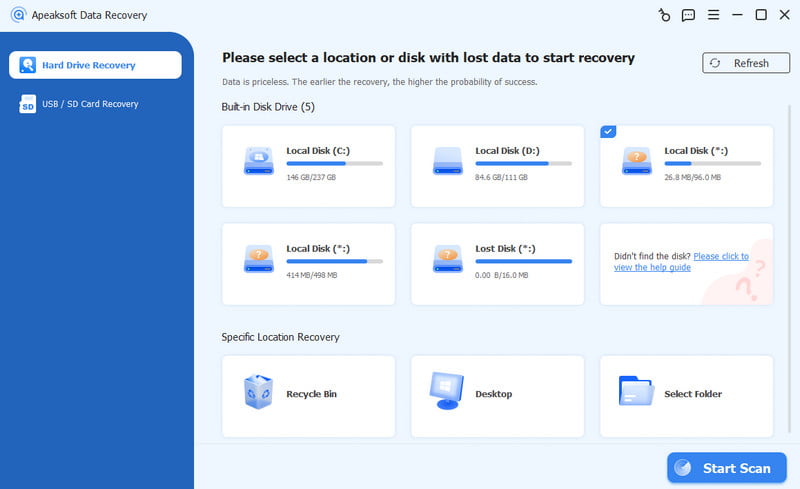
Step 2. Choose the Hard Drive Recovery option in the left panel and select your hard drive disk on the right page. Then, click the Start Scan button in the bottom-right corner.
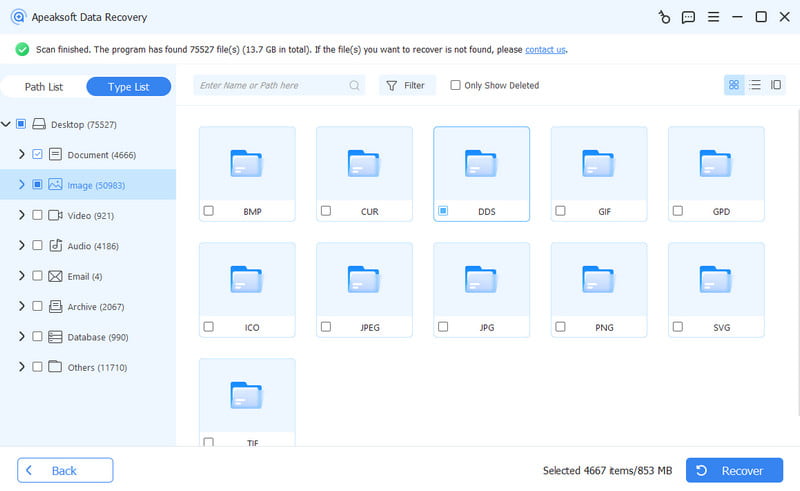
Step 3. After a deep scan of the whole external hard drive, you will see all the relevant data on the screen. Go to the left bar and choose your target data path. Click it and you will see the detailed files on the right page. You can also enter keywords in the search box to quickly locate them. Select your desired files and then click the Recover button in the bottom-right corner.
Tips:
When you find data lost on the external hard drive, please stop using the disk right away to prevent data overwriting. When you find the file you want to recover, please do not restore it to the original hard drive. Instead, export it to another safe location.
You can also try other free software to recover data from external hard disk, such as Recuva, R-Studio, etc.
Method 2: Recover Deleted Files from an External Hard Drive from the Recycle Bin or Trash
When This Method Works
- Files were removed using the Delete key instead of Shift + Delete.
- The external hard drive was connected when the files were deleted.
- The deleted files have not been permanently removed from the system yet.
If you have accidentally deleted files from an external hard drive, they were not erased permanently. You can find and restore them in the Recycle Bin (Windows) or Trash (Mac).
How to recover deleted files from an external hard drive
Windows:
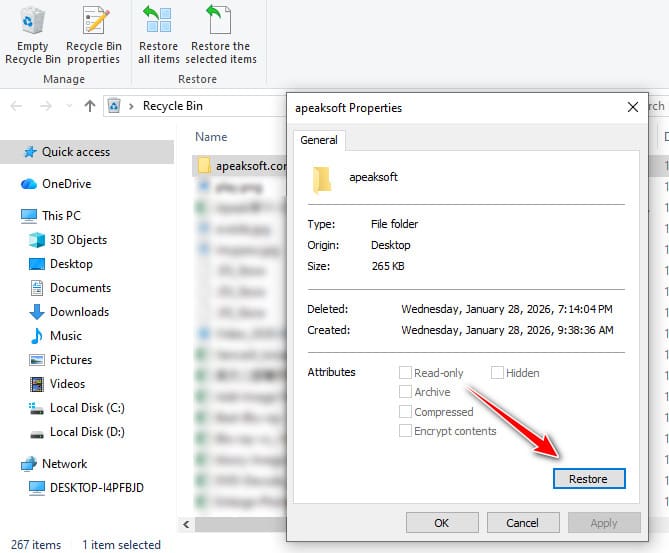
Step 1. Double-click the Recycle Bin icon on your desktop.
Step 2. Locate and double-click your target file.
Step 3. Click Restore. The file will go to its original location.
Mac:
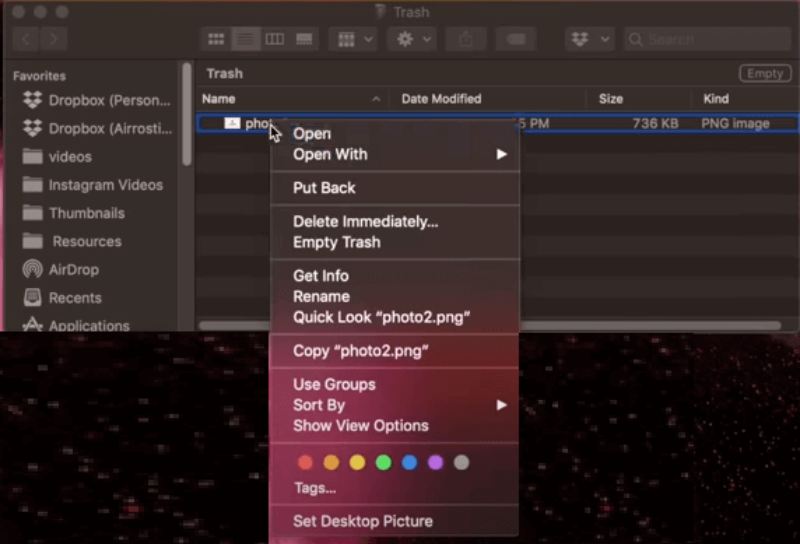
Step 1. Double-click the Trash icon at the Dock.
Step 2. Right-click your target file.
Step 3. Choose Put Back to restore it to the original location.
Method 3: Recover Data from an External Hard Drive from Backup (File History/Time Machine)
When This Method Works
- Accidental deletion.
- Accidental formatting.
- File corruption and other logical issues.
Note: This method will not work if the data loss is caused by physical damage.
If you are lucky enough to have backed up your external hard drive with File History, Time Machine, or third-party software, you can get back lost data from the backup. Below, we mainly list how to recover data from external hard drive using File History and Time Machine.
External hard drive recovery using File History (Windows):
Before we start, please make sure you've added the folder on the external hard drive to the Windows library.
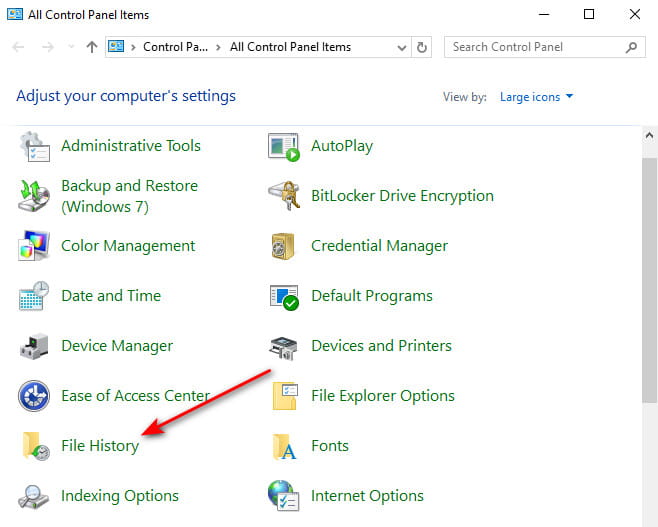
Step 1. Go to the search box on your desktop in the bottom-left corner and enter Control Panel. Then, choose File History.
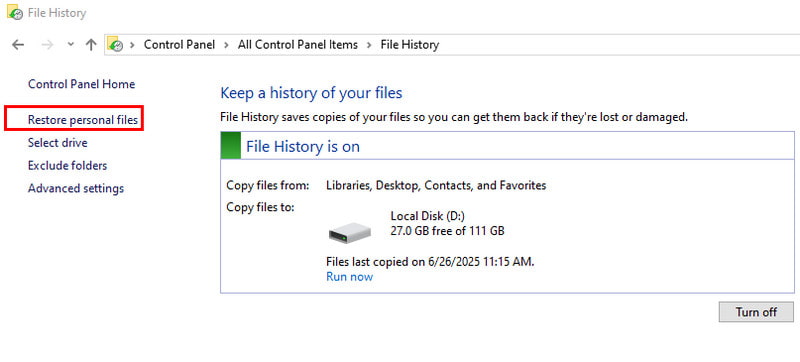
Step 2. In the File History window, click Restore Personal Files.
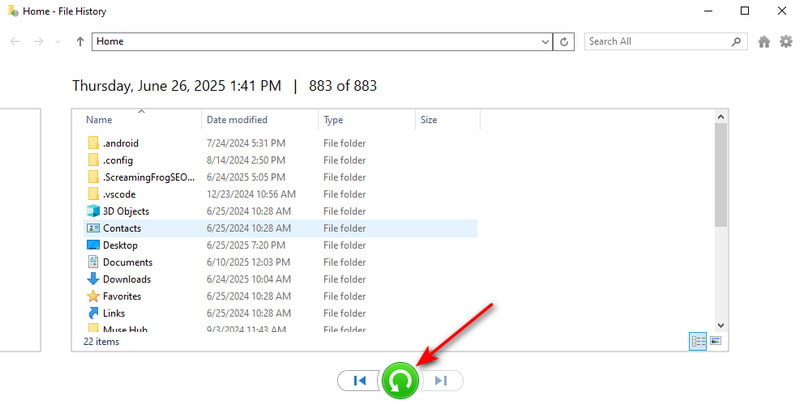
Step 3. Go through your backup and locate the desired files. Click the button in green to restore.
External hard drive recovery using Time Machine (Mac):
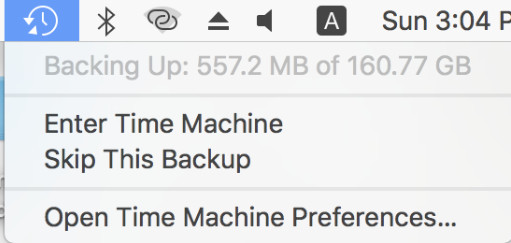
Step 1. Click the Time Machine button in the top-right corner of your screen.
Step 2. Then, you will see a Finder window, which shows the folder structure of your external hard drive. Locate your wanted files by adjusting the date through the timeline or arrows. Then, click Restore.
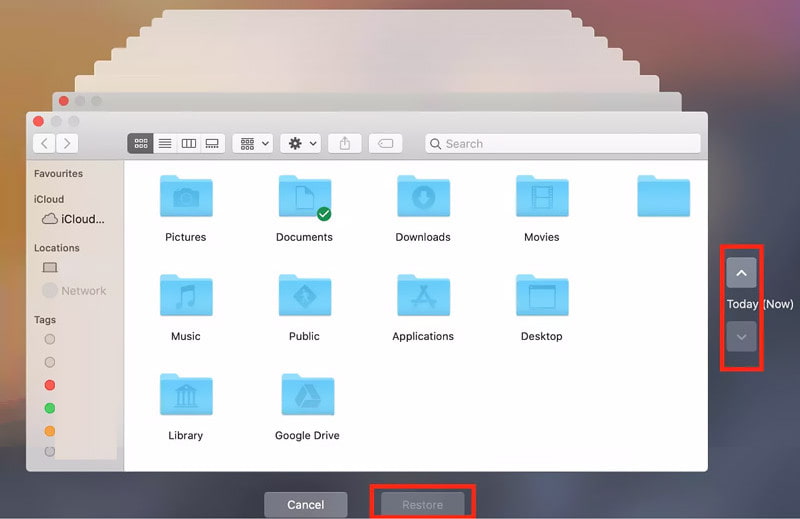
Tips: You can follow similar steps to recover deleted files from flash drive.
Method 4: Repair an External Hard Drive to Restore Data Using CMD or First Aid
When This Method Works
- Folders suddenly disappear due to misoperation, system crash or power failure.
- The file or the folder cannot be opened.
- Hidden files due to viruses or malicious software.
CMD and First Aid are essentially not true external hard drive data recovery tools. However, in some special cases, they indirectly restore data from the external HDD, mainly by fixing file system structure errors.
Recover the external hard drive using cmd (Windows):
Step 1. Press Windows + R at the same time to bring up the Run window and enter cmd.
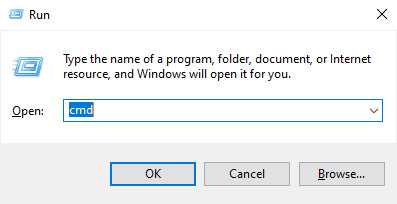
Step 2. Input chkdsk X: /f (make sure to replace X with your HDD letter) and then press Enter.
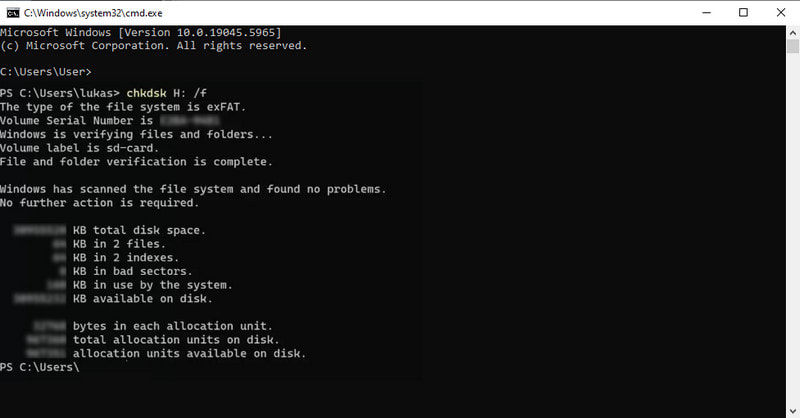
Recover the external hard drive using First Aid (Mac):
Step 1. Go to Finder - Application - Utilities to launch the Disk Utility feature.
Step 2. Select the HDD you want to recover in the left panel and press the First Aid button.
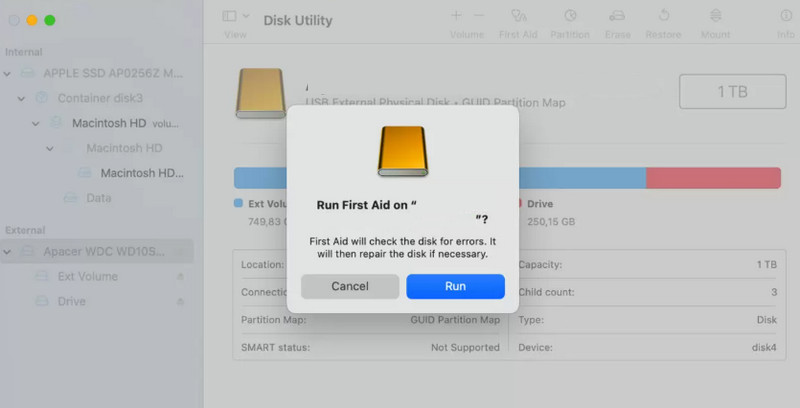
Method 5: Recover Data from an External Hard Drive Using Previous Versions (Windows)
When This Method Works
- Windows File History or System Protection was previously enabled.
- Previous versions of the folder were automatically saved by Windows.
Windows provides a built-in feature called Previous Versions, which helps users restore earlier versions of files or folders. These versions are created automatically when File History or System Protection is enabled. If your external files were accidentally deleted or modified, you can choose to restore them to a previous version.
Steps
Step 1. Connect your external hard drive to the computer and open File Explorer (Ctrl + E for shortcut) on your desktop.
Step 2. Locate the modified folder.
Step 3. Right-click the folder and choose Restore previous versions.
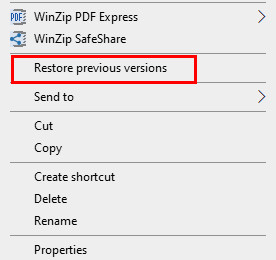
Step 4. Select a version that contains the files you want to recover.
Step 5. Click Restore.
Method 6: Use Professional External Hard Drive Data Recovery Service
Use Cases
- The motor doesn't spin.
- The hard disk is making abnormal noises (clicking, scraping, …).
- The hard disk suffers physical damage.
- The external hard disk is not detected.
- Data recovery software fails.
Introduction
If you find your external hard drive data lost due to physical reasons, you should unplug the disk power immediately to avoid further damage. Then, you should consult a professional data recovery company and describe your problems. Ask them to find out how to recover data from external hard disk that is not detected or how to recover data from damaged external hard disk.
One thing you need to pay attention to is that it is both time and money-consuming. And the success rate isn't always 100%. If your data is of great value, it is advisable.
Conclusion
Recovering data from an external hard drive is possible in many situations, especially when the data hasn’t been overwritten. You can start with data recovery software, restore from backups, or repair the file system using built-in tools. If you want a quick and reliable solution, Apeaksoft Data Recovery can help you scan and recover lost files from external hard drives in just a few clicks.
Related Articles




