

4 Ways Provided - How to Recover Sticky Notes on Windows

Knowing how to recover Sticky Notes is an essential skill for those who always use it to jot down reminders, lists, and quick thoughts. When some errors happen all of a sudden, such as accidental deletion, system updates, or unexpected crashes, it is essential not to lose important notes. Once this happens, many users worry that their information is gone for good.
Fortunately, there are reliable ways to recover Sticky Notes, even without backups. This post explores 4 effective recovery methods, from using built-in system features to professional data recovery tools, to help retrieve your lost notes and prevent future data loss.
PAGE CONTENT:
- Part 1: Tips Before Recovering Sticky Notes for Accidental Delete
- Part 2: How to Recover Sticky Notes Without Losing Contents
- Part 3: Recover Deleted Sticky Notes from the SNT Cache File
- Part 4: Outlook Solution to Recovering Sticky Notes
- Part 5: Possible Way to Recover Sticky Notes from Previous Version
Part 1: Tips Before Recovering Sticky Notes for Accidental Delete
Before starting Sticky Notes recovery, there are a few essential things to know to increase the chance of success:
Avoid creating new notes or making significant changes to the system, as this can overwrite the deleted data.
Check if your notes are synced with your Microsoft account. If syncing is enabled, you may still find them in Outlook or the Notes folder.
Lastly, ensure your system files are intact and not corrupted, which may prevent Sticky Notes from displaying correctly.
Part 2: How to Recover Sticky Notes Without Losing Contents
The easiest way to recover deleted Sticky Notes without losing any content is to use Apeaksoft Data Recovery. This professional data recovery tool can thoroughly scan your hard drive and locate deleted or lost Sticky Notes data, even if it has been removed from the recycle bin. With just a few clicks, you can preview the recoverable notes and restore them securely without risking system instability.
Step 1. Press the button below to get this software for free.
Secure Download
Secure Download
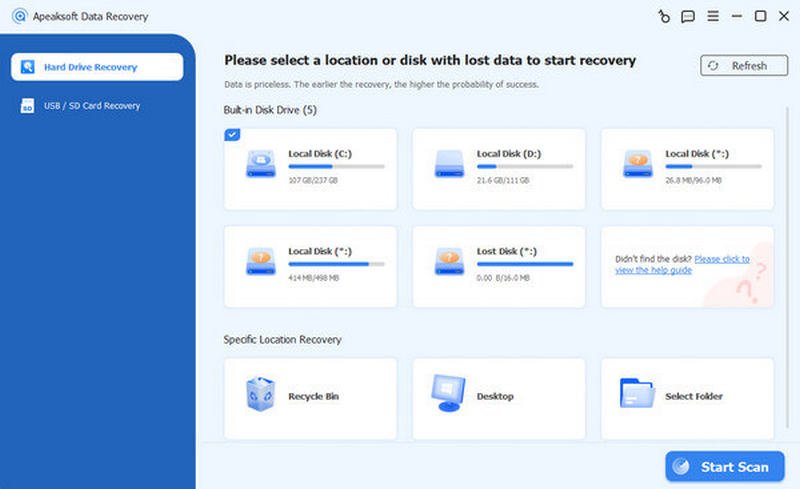
Step 2. In the main interface, click Start Scan on the main interface to deep scan all the data and folders on your computer.
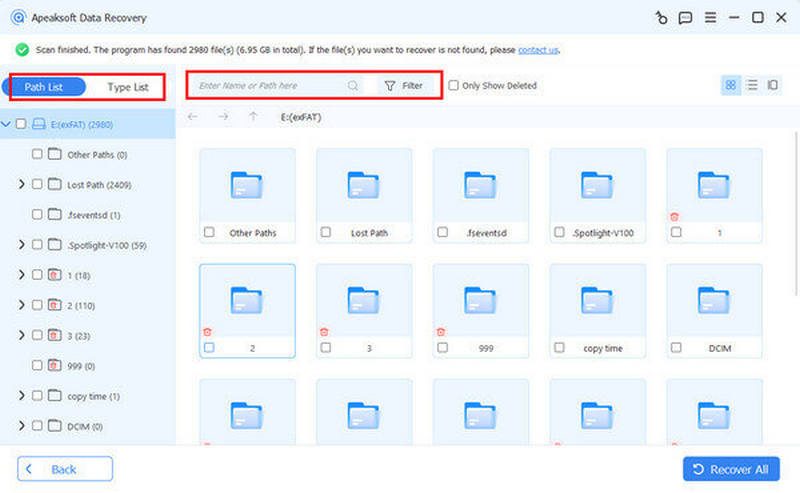
Step 3. Typically, the contents from your Sticky Notes are stored in the Local Disk (C:). Therefore, under the Path List tab, click Local Disk (C:) to check all the data saved here.
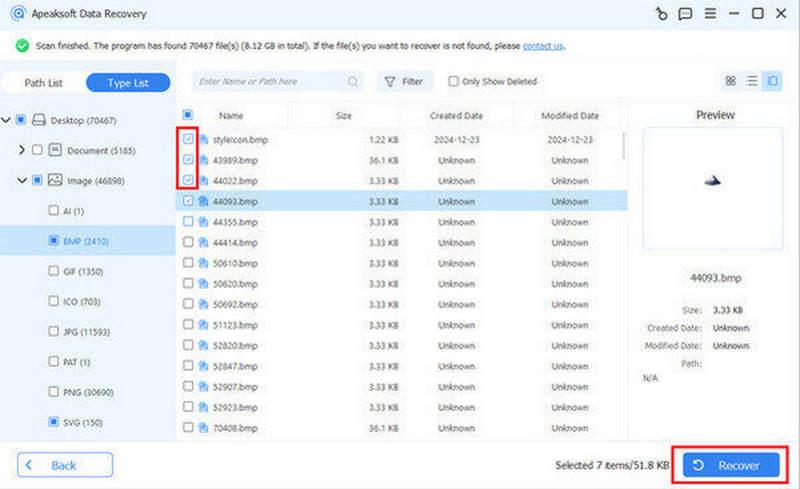
Step 4. Click to select Document and Others, as Sticky Notes are saved as these two types. Once finished, click Recover to recover the deleted Sticky Notes on your computer.
Part 3: Recover Deleted Sticky Notes from the SNT Cache File
Older versions of Sticky Notes used the .snt file format to store note data. If you're using Windows 7 or 8, or upgraded from those systems, recovering a Sticky Note from the SNT cache file may still be possible. Following the detailed steps below, you can recover deleted notes in full text format.
Step 1. On your Windows computer, press Windows + R to summon the Run command box.
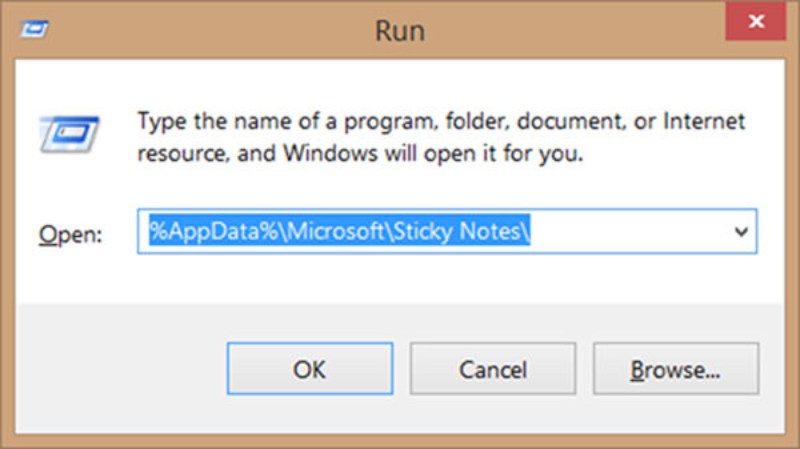
Step 2. Type %AppData%MicrosoftSticky Notes and then press Enter to proceed. This will summon the Sticky Notes window.
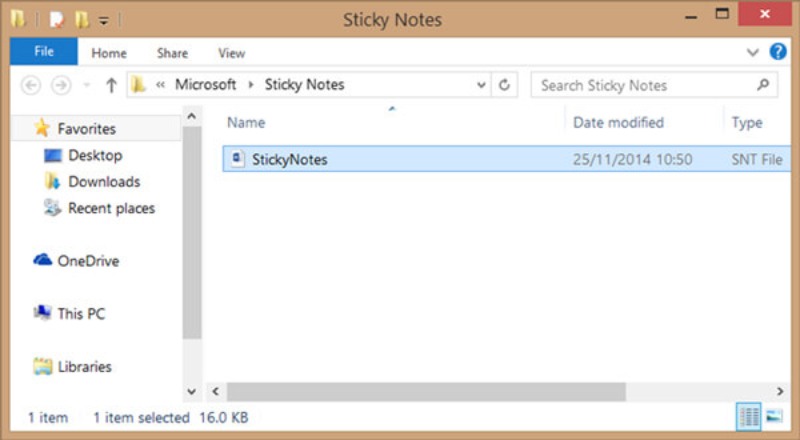
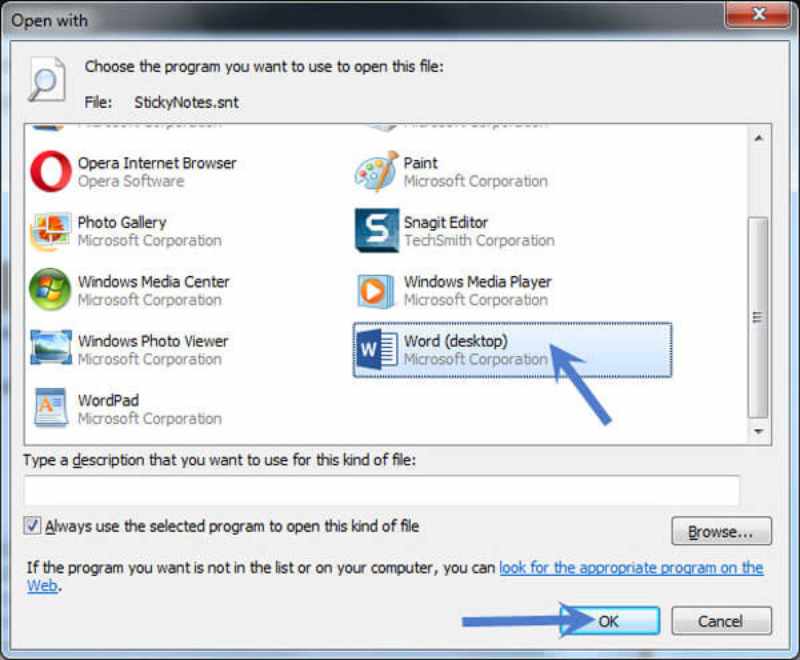
Step 3. You can find a StickyNotes (.SNT) file under the folder. Right-click the file and select Microsoft Office Word as the program to open the file.
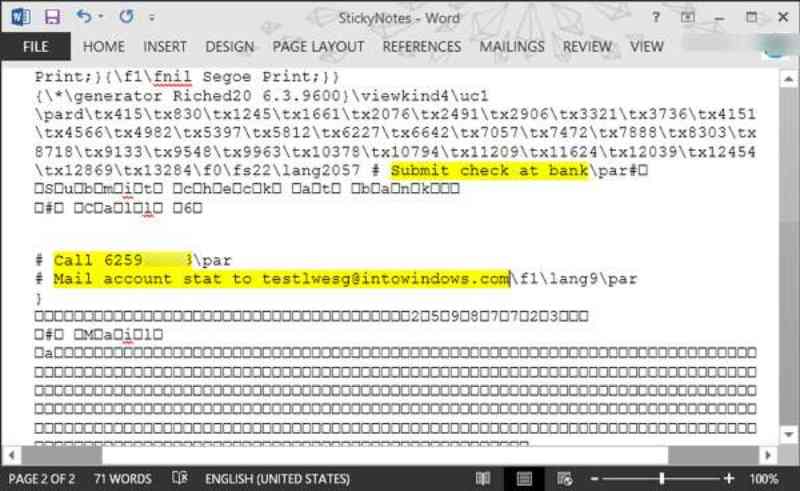
Step 4. You can check these sticky notes with Word. The actual contents of Sticky Notes will be displayed at the end of the document.
Part 4: Outlook Solution to Recovering Sticky Notes
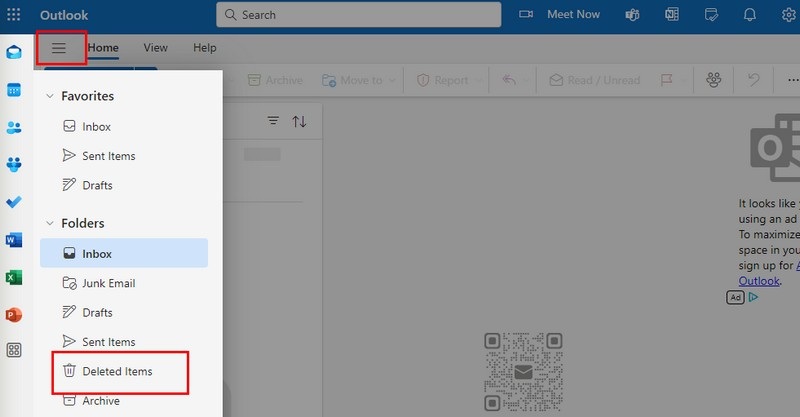
If you have synced Sticky Notes with your Microsoft account, they might be safely stored in Outlook. This method is beneficial for Windows 10 and 11 users whose Sticky Notes are automatically linked to their Microsoft accounts. You can check this by logging in to your Outlook account. There, you may find your previously deleted notes, which can be copied or exported back to your device. And you can recover deleted messages through Outlook in this way.
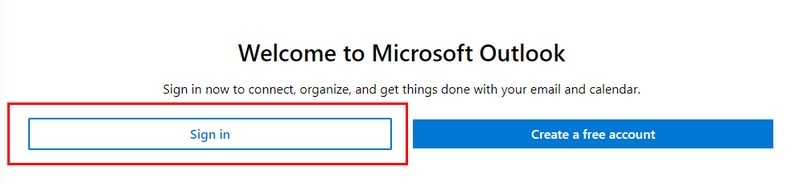
Step 1. Go to the official website of Outlook and sign in with the same account that you use on Sticky Notes.
Step 2. Click Options and then Deleted Items to search if your Sticky Notes are still there. If you do find them, you can recover a deleted Sticky Note from Outlook.
Part 5: Possible Way to Recover Sticky Notes from Previous Version
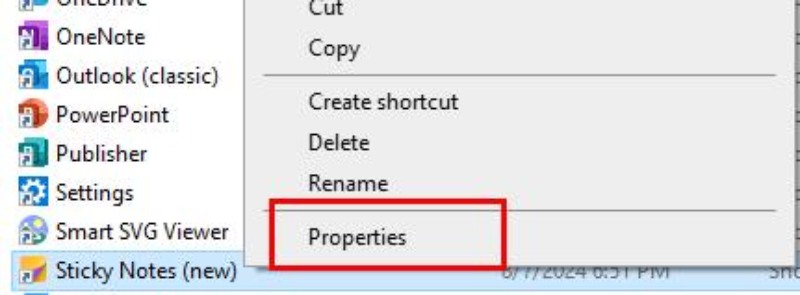
If you have enabled File History or System Restore on your Windows device, there's still a chance to recover deleted Sticky Notes from a previous version of the file or folder. Windows automatically creates restore points and backups for system files and user data, which may include your old Sticky Notes data folder. This built-in feature provides a secure and straightforward recovery option without third-party tools, handy when the loss was recent or related to a Windows update.
Step 1. In the folder page of your computer, find and right-click Stick Notes. Then, click Properties.
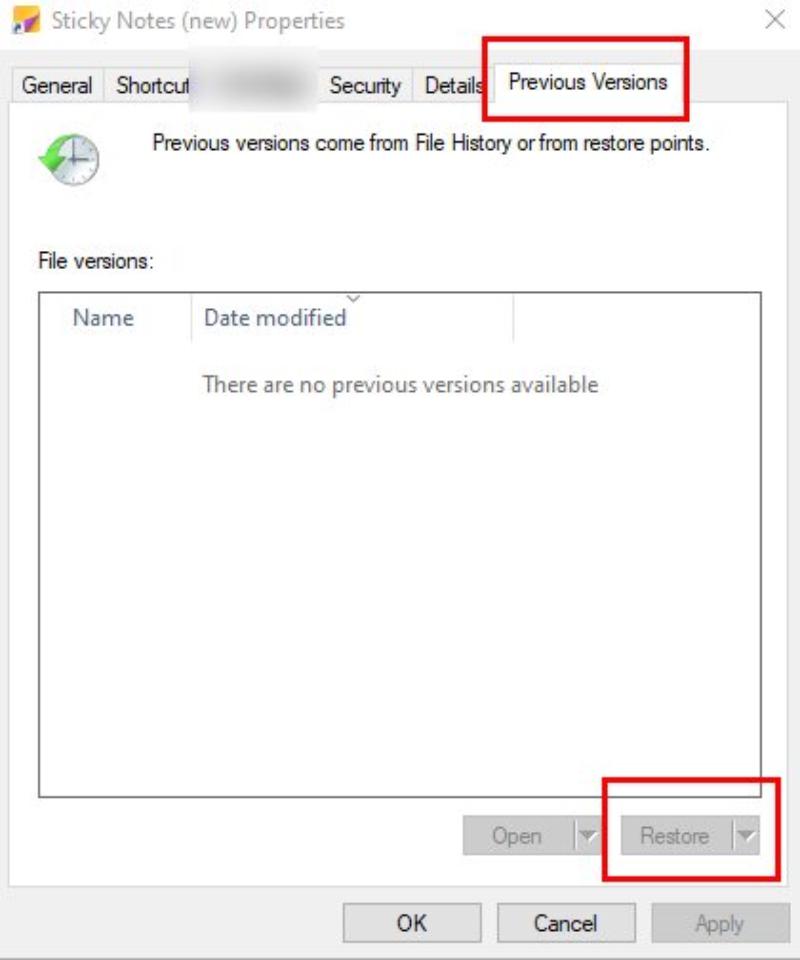
Step 2. Under the Previous Version tab, click Restore if you can see the previous version of Sticky Notes. And your Sticky Notes will be recovered in the same storage path as before.
Conclusion
To recover Sticky Notes, there are plenty of workable ways. And thanks to them, losing Sticky Notes doesn't have to mean losing your valuable information forever. Whether through the SNT cache, Outlook, or Sticky Notes itself, you have multiple reliable built-in solutions to bring your notes back. For those who want to recover their Sticky Notes wholly and quickly, Apeaksoft Data Recovery is recommended as a professional tool. By following these methods, you can not only recover your data but also better protect it from future loss.
Related Articles




