

4 Detailed Methods to Recover Corrupted ZIP Files with Ease

ZIP plays an important role in our daily lives. Whether it’s for packaging materials or transferring large files, it will bring us great trouble if the ZIP file is corrupted or damaged, cannot be decompressed, or its content is lost. Don’t worry - it can be repaired! This post is here to guide you to recover ZIP files in 4 useful ways. Read more!
PAGE CONTENT:
Part 1: Why Do ZIP Files Get Corrupted
Before exploring how to recover a corrupted ZIP file, it's important to first figure out why they are damaged. The structure of a ZIP file is relatively complex. If any part of it is affected, it may cause the entire compressed package to fail to open normally. Below are common reasons:
The transfer process is interrupted: Unstable networks or sudden interruptions during transfer can result in incomplete ZIP files, making them impossible to extract.
Storage device failure: Bad sectors, aging, or sudden power loss on USB drives, hard drives, or memory cards can corrupt the file structure.
Compression or extraction errors: Software crashes, freezes, or interrupted operations may result in damaged ZIP files.
Virus Infection: Some viruses can damage ZIP files.
Corrupted File System: System crashes, incorrect formatting, or disk damage can also corrupt ZIP archives.
Incompatible Software Versions: Using outdated compression tools may prevent ZIP files from opening correctly.
Part 2: Universal Way to Recover Corrupted ZIP Files
It is of great significance to find a universal and efficient way to recover damaged zip files. Using professional tools like Apeaksoft Data Recovery can significantly increase the success rate.
Best Universal Tool to Recover Damaged ZIP Files
- It provides a deep scan mode to locate ZIP files effectively.
- Recover ZIP files due to deletion, viruses, system crashes, etc.
- No data overwrite or damage during the process.
- User-friendly interface and 99.98% success rate.
Secure Download
Secure Download

Step 1. Press the above button to download this software for free.
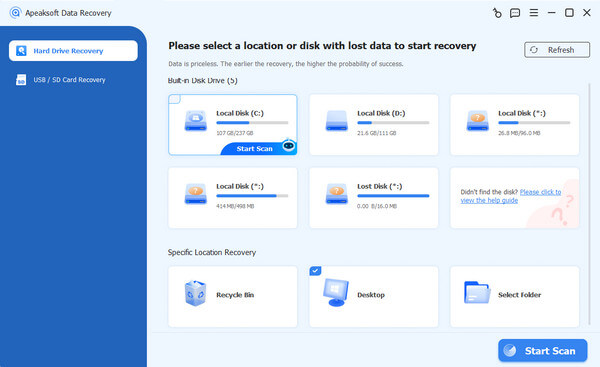
Step 2. Launch the program and choose the location of your corrupted ZIP files. Press the Start Scan button.
Step 3. Wait patiently, and you will see all the files on the interface. Go to the left panel to choose Archive.
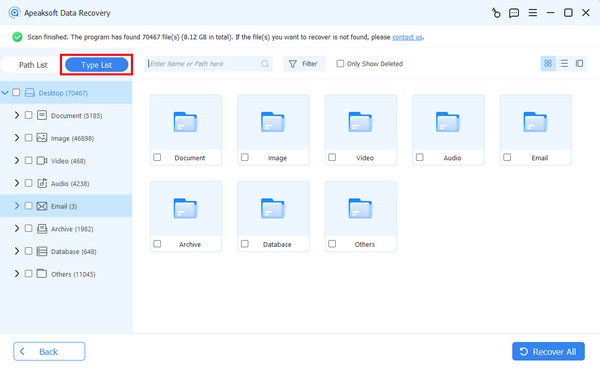
Step 4. Check the results and then press the Recover All button in the bottom right corner.
Tips: This tool also helps you recover data from a dead hard drive.
Part 3: Recover Corrupted ZIP Files by Using Alternative Decompression Tools
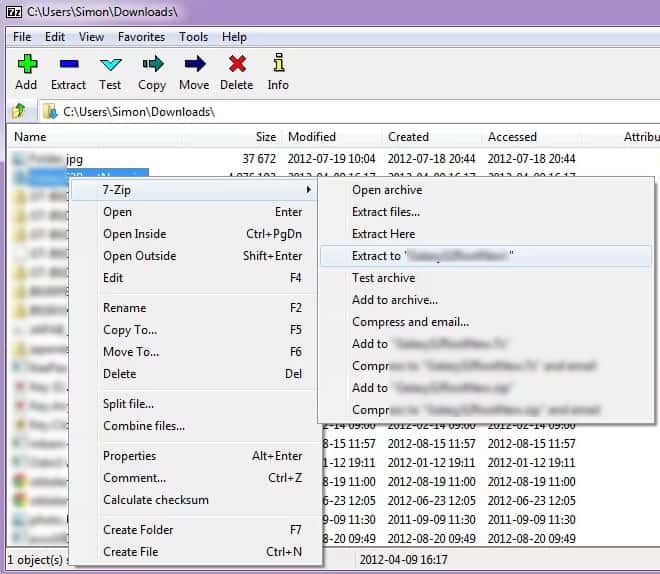
Sometimes, you can use alternative decompression tools to recover part or all of the content if the ZIP file is only slightly corrupted. Many built-in extractors stop working as soon as they detect errors, but third-party tools often have better tolerance for minor damage. Here, we take 7-Zip as an example to show you how to recover deleted ZIP files for free.
Step 1. Download and install 7-Zip.
Step 2. Locate the corrupted ZIP file and right-click on it.
Step 3. Click Open archive first to see whether 7-Zip can read the file structure.
Step 4. Check the files and click Extract. Sometimes 7-Zip can still extract usable content when there are errors.
Part 4: Recover Damaged ZIP Files with Professional Repair Utilities
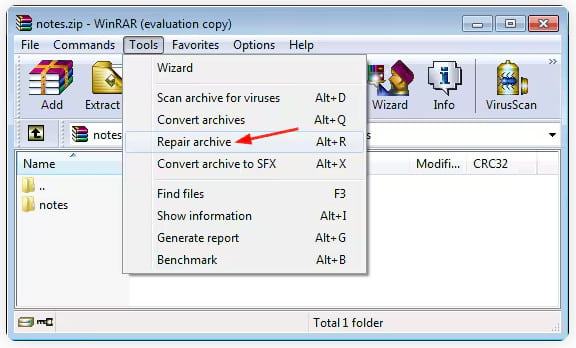
When a ZIP file is severely damaged, regular decompression tools may no longer be able to read its content. In such cases, it is necessary to use a professional repair utility. WinRAR Repair is one of the most commonly used ones. It offers a built-in Repair archive feature that can rebuild the structure of a corrupted ZIP.
Step 1. Download WinRAR onto your computer and launch it.
Step 2. Navigate to the corrupted ZIP files and click Tools at the top.
Step 3. Choose Repair archive and click OK to start the repairing process.
Part 5: Recover a Corrupted ZIP File from Backup
If none of the repair methods work, you can try to restore the ZIP file from a backup. There may be an intact version of the ZIP files, whether it’s a system backup, cloud storage version history, or a manually saved copy.
Follow the steps below to restore deleted ZIP files from the previous version.
Here, we take a Windows computer as an example.
Step 1. Locate the corrupted ZIP file.
Step 2. Right-click it and choose Properties.
Step 3. Go to the Previous Versions tab. Windows automatically saves copies if File History or System Restore is enabled.
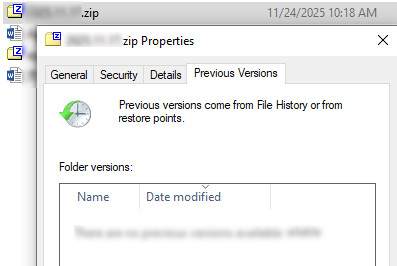
Step 4. Select a version that you think contains an intact ZIP file.
Step 5. Press the Restore button.
Step 6. Check whether the ZIP files are recovered.
Tips: You can also use this method to restore deleted PDF files.
Conclusion
As for how to recover damaged ZIP files, you may have an answer in your mind. Whether you use professional software like Apeaksoft Data Recovery, alternative decompression tools, repair utilities, or backups, we hope you can recover your corrupted/deleted ZIP files successfully!
Related Articles
Why can't I zip a file on my Mac? How to create a zip file on Mac for free? How to open Mac zip files? Here you can learn how to compress or zip Mac files.
If you encounter the missing DLL files error, don't panic. You can learn multiple ways to find and recover deleted DLL files.
Whether you emptied your Recycle Bin, you can recover files from Recycle Bin on Windows and Mac following our concrete guide.
You can learn five effective methods to recover lost photos from an SD card, including corrupted, crashed, or damaged SD cards.



