

3 Ways to Restore Apps from iCloud – Step-by-step Guide

If you accidentally uninstall apps on your iPhone or iPad, all the data related to them will be erased. Reinstalling the apps is easy, but it will be tricky to get the erased data back. In this article, we will show you how to restore apps from iCloud to iPhone/iPad.
PAGE CONTENT:
Method 1. Restore Apps from iCloud Backup
If you want to restore all apps from iCloud to iPhone or iPad, and you have an iCloud backup, you can use this method to restore apps from an iCloud backup. However, you should always know that to restore all apps means erase all data after the iCloud backup creation date, and restore your iPhone to the status of that date, not only the apps, but also your iPhone settings and other data. So if that is exactly what you want, please follow the steps:
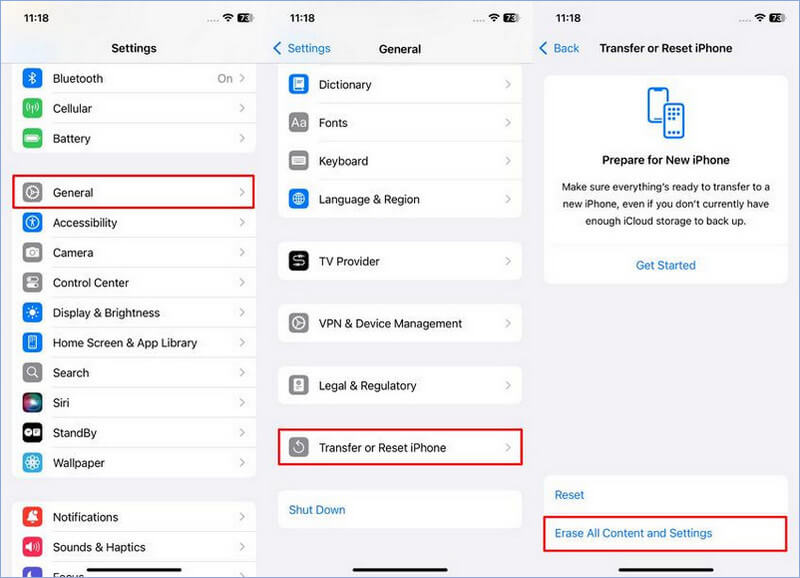
Step 1. Go to the Settings app on your device. Then, scroll down and tap General.
Step 2. Scroll down to the very bottom of the General screen, and then tap Transfer or Reset iPhone. Confirm erasing iPhone and tap Erase All Content and Settings.
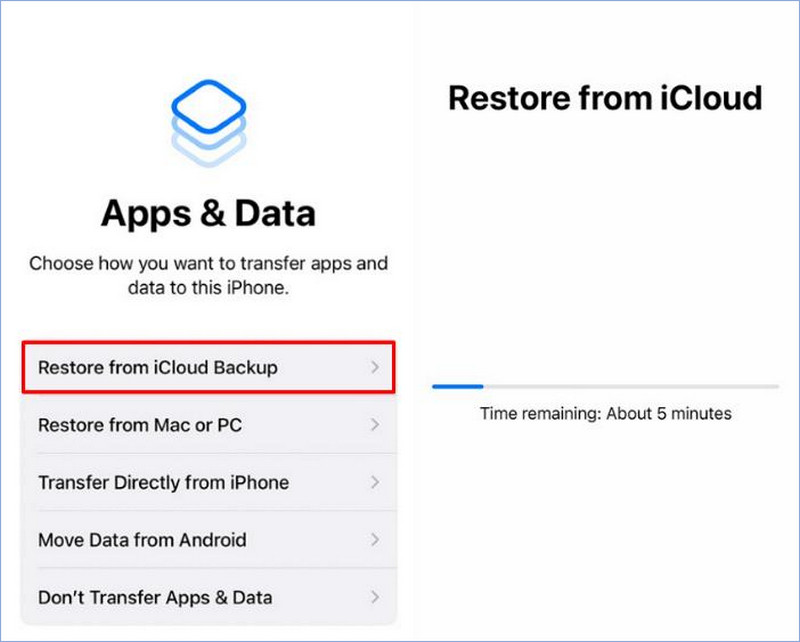
Step 3. Follow the on-screen guide and reset your iPhone. When it shows the Apps & Data screen, choose Restore from iCloud Backup.
Step 4. All the apps will be restored to your iPhone from iCloud. It usually takes 1-10 minutes according to the backup size.
Method 2. Restore Apps from iCloud on App Store
If you turned on iCloud sync, you can see the deleted apps list on the App Store and reinstall them. This method allows you to restore an app or several apps without erasing the current iPhone without a backup. However, it has drawbacks: the deleted app data can't be restored.
If you only want to restore an app from iCloud without erasing the device, you can use this method first. It is easy to operate, so it won't take a long time. Just follow the steps below. After that, try using an iPhone data recovery tool to restore iPhone app data.
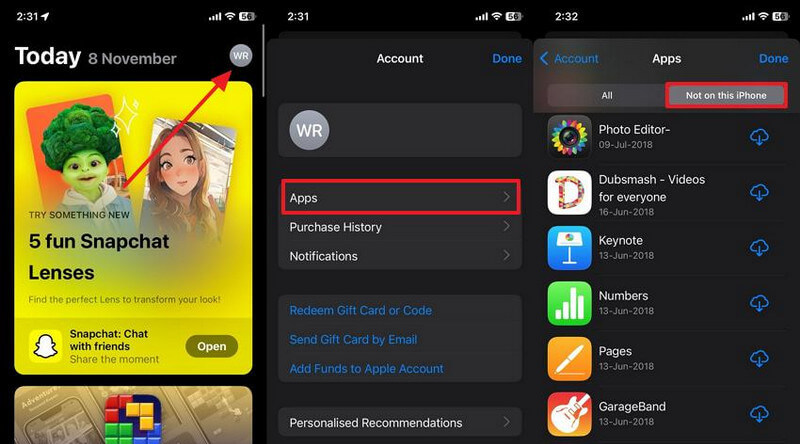
Step 1. Open the App Store on your iPhone/iPad.
Step 2. Tap the profile button at the top. And then choose Apps in the middle of the screen.
Step 3. Beside the All tab, you can see the Not on this iPhone tab. That means they are the apps that you once installed. Find the app you want to restore and re-download it. Now, you can use the iPhone recovery software we mentioned to restore the app's data.
Method 3. Restore an App from iCloud Backup Separately
Do you wonder how to restore an app from iCloud backup separately? Method 1 restores the apps and their data, but you need to erase the current data. Method 2 can restore apps from iCloud individually, but can't restore the app data. Fortunately, method 3 is the perfect solution.
It allows you to restore apps from iCloud backups and restore the app data, and it doesn't erase your device, but only restores the apps you want to restore. That is Apeaksoft iPhone Data Recovery software. See its main features
The Best Alternative to iTunes for Restoring iPhone
- Restore apps from iCloud backup without erasing the current iPhone.
- Preview and extract any data from iCloud backup.
- Restore apps' data from iCloud backup.
- Support the latest iPhone 17 and iOS 26.
Secure Download
Secure Download

See the steps to restore apps from iCloud backup:
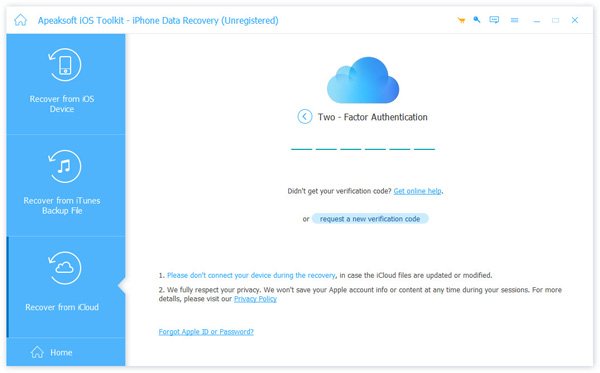
Step 1. Launch Apeaksoft iPhone Data Recovery on your Windows or Mac computer. Click the Recover from iCloud tab. Log in to your Apple ID. You may need to enter the two-factor authentication code.
Step 2. After logging in successfully, click the iCloud Backup button. You will be led to a screen that lets you choose a backup according to the name and date.
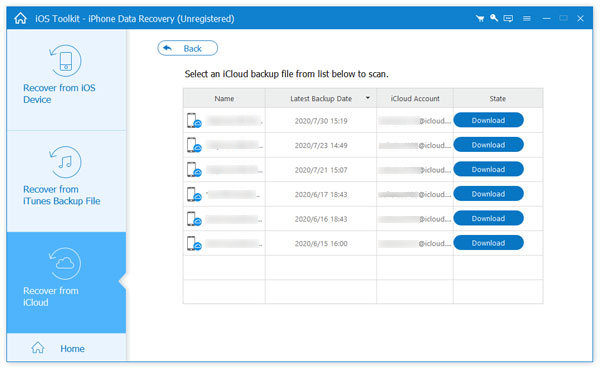
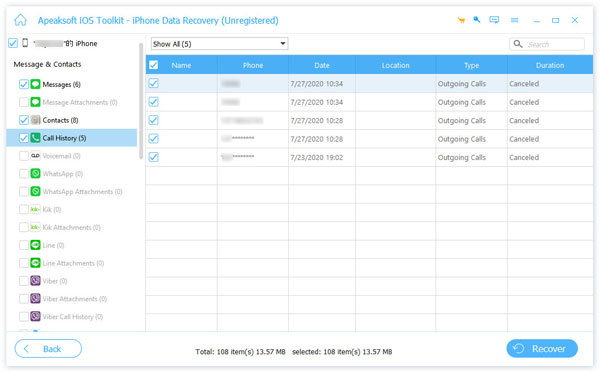
Step 3. On the left side, choose the app data you want to restore from this backup. Check the boxes before each piece of data and click the Recover button.
Conclusion
How to restore apps from iCloud? This article introduces 3 ways. To sum up, every method has its advantages and drawbacks. You can choose one way that suits your needs the most.
To restore all apps, data, and settings from iCloud backup, choose method 1. To reinstall one app and recover the app data manually, choose method 2. And if you want to restore apps from an iCloud backup, but you don't want to wipe the current iPhone, method 3 and the Apeaksoft iPhone Data Recovery software is the best choice.
Related Articles




