

How to Restore WhatsApp from iCloud on iPhone - Detailed Guide

Losing files is gut-wrenching, especially when you have some important WhatsApp documents or pictures from your friends. The instant messaging app offers a default way to restore messages from iCloud if you have ever backed up the WhatsApp files. But the process of restoring WhatsApp from iCloud is convoluted; you can learn more details about the process and the best alternative from the article.
PAGE CONTENT:
Part 1: How to Restore WhatsApp Chats from iCloud Backup
Compared with backing up WhatsApp files to iCloud on your iPhone, it should be difficult to restore WhatsApp from iCloud. You need to reinstall WhatsApp on your iPhone beforehand, which might bring a risk of data loss. Here is the detailed process you should follow.
Check if You Have an iCloud Backup
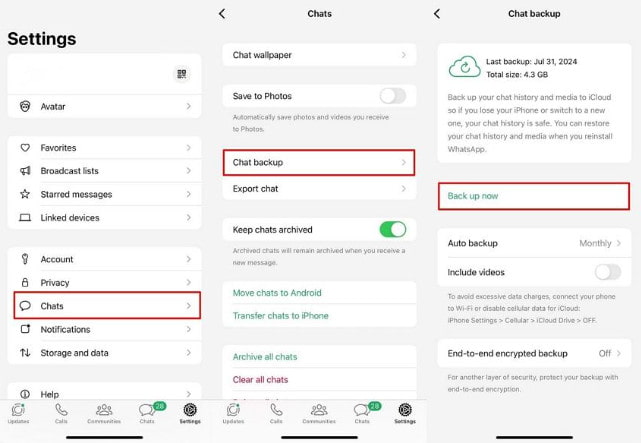
Step 1. Launch WhatsApp and go to Settings.
Step 2. Click Chats - Chat Backup.
Step 3. Check whether there is a backup and the corresponding data.
Make Sure Your iCloud Settings Are Correct
Step 1. Go to Settings and click your Apple ID.
Step 2. Press iCloud and check whether the iCloud Drive toggle is on.
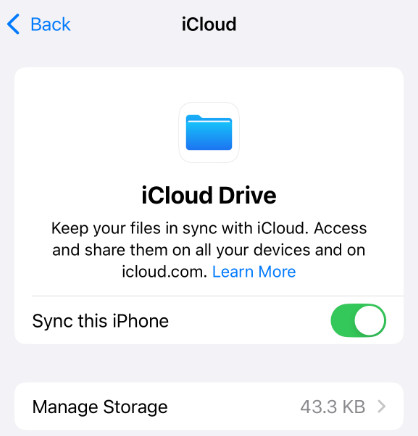
Step 3. Scroll down to make sure WhatsApp is enabled for iCloud access.
Restore WhatsApp Backup from iCloud
Step 1. Launch the WhatsApp app on your iPhone and back up important WhatsApp messages to other places or export important chats to Email. It is important to back up existing messages beforehand.
Step 2. Long-press the app until it starts shaking and tap the Delete button.
Step 3. Go to the App Store on your iPhone, search for WhatsApp and install it on your iPhone again.
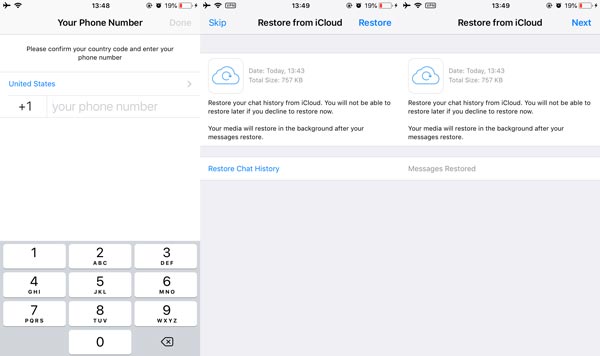
Step 4. Open the app again and verify the same phone number.
Step 5. Follow the onscreen instructions and tap the Restore option when prompted. Then you will reach the restore screen.
Step 6. Tap the Restore Chat History button and then tap the Next button. Then enter your display name and begin restoring WhatsApp from iCloud.
Tips: Since the process works through a wireless connection, you have to make sure a good Internet connection.
Part 2: How to Restore WhatsApp on iPhone Without iCloud Backup
We have already introduced how to restore WhatsApp backup from iCloud. However, many users may encounter a difficult situation when there is no recoverable backup in iCloud, or the iCloud backup has never been performed at all. Don’t worry! This section will guide you through how to restore WhatsApp without iCloud backup using Apeaksoft iPhone Data Recovery.
Reliable Tool to Restore WhatsApp Data
- Restore WhatsApp chats from iPhone without backup.
- Preview the deleted WhatsApp files and select the desired one.
- Support text messages, photos, voice, videos, notes, etc.
- Compatible with iPhones and iPads running iOS 26 or earlier versions.
Secure Download
Secure Download

Step 1. Connect your iPhone to the computer with a Lightning cable. Open the WhatsApp restore tool and select the Recover from iOS Device option instead.
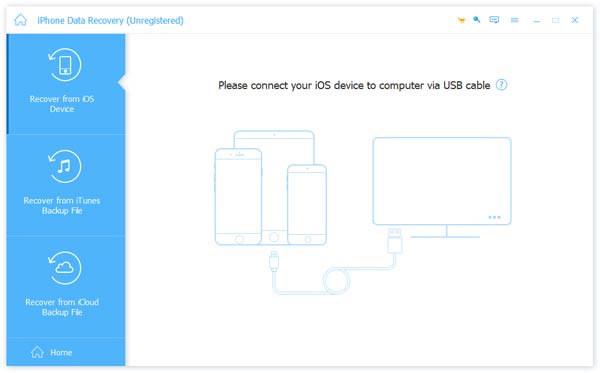
Step 2. Unlock your iPhone and trust the computer. Turn to the software and click the Start Scan button to begin scanning the lost WhatsApp messages and chats on your iPhone.
Step 3. Go to the Message & Contacts section to select the WhatsApp chats to restore without iCloud backup.
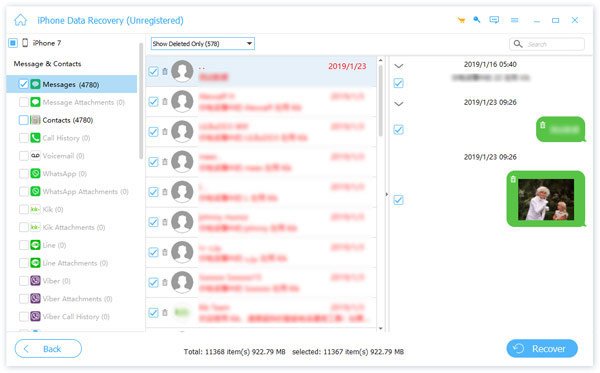
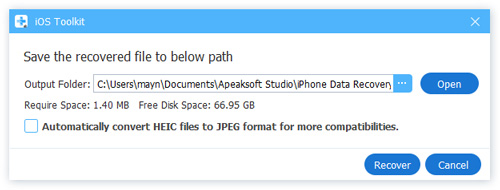
Step 4. Click on the Recover button and choose the Open button to select the location folder in the pop-up dialog. Then click the Recover button to restore WhatsApp files.
Part 3: FAQs about Restoring WhatsApp from iCloud Backup
How to restore WhatsApp backup from iCloud to Android?
There is no official way to restore a WhatsApp backup from iCloud to Android directly. You can restore it to iPhone and then use a dedicated WhatsApp Transfer tool to move WhatsApp data from iPhone to Android.
Why WhatsApp Backup to iCloud Fails?
When you fail to back up the WhatsApp files to iCloud, you should make sure the built-in backup feature works via a network, have enough storage space, and make sure the iCloud server works. You can have another backup with iTunes or a 3rd party tool instead.
Can I Restore Specific WhatsApp Chats from iCloud?
No. You can only restore the entire WhatsApp backup from iCloud to your iPhone. But before that, you cannot open or preview your iCloud backup. Of course, you can also use the professional WhatsApp data recovery tool to preview and restore the desired files.
Conclusion
Here you can learn more details about how to restore WhatsApp from iCloud on iPhone. You might prefer to back up WhatsApp messages to iCloud with the Auto Backup feature. But it is difficult to restore them to your iPhone. Hope you can successfully restore WhatsApp from iCloud backup with ease.
Related Articles
Have you lost messages, photos, and videos on WhatsApp and want to recover them? This article will introduce 3 Android WhatsApp Recovery software.
This article shows you how to download photos from iCloud. You can also learn how to manage the photos to optimize the iCloud storage.
Looking for how to recover deleted photos from WhatsApp? This article shares the easiest methods to get your WhatsApp images back from iPhone or Android.
When you switch to a new iPhone, this guide helps you move WhatsApp messages and media easily using iCloud, iTunes, or transfer software.



