

How to Retrieve Archived Messages on Your Android Phone

Archiving a message refers to moving it out of the Message inbox without deleting it. This process helps keep your inbox organized while still enabling you to retain information for future reference. When you archive a message, it is typically stored in a specific folder. It is not deleted and can be accessed at any time. Our tutorial explains how to retrieve archived text messages on your Android phone quickly.
PAGE CONTENT:
Part 1: Can You Retrieve Archived Text Messages
In fact, the archived messages are not deleted. They have just moved from the inbox screen to the Archived folder. You can access them at any time. You can archive any message and conversation to the Archived folder. When you receive a reply in an archived conversation, it reappears in the Messages inbox.
In short, archived messages are still stored on your phone's internal memory. Plus, the way of access may be different, depending on the version of your Android OS.
Part 2: Retrieve Archived Messages on Android
If you cannot find your messages in the Inbox folder, chances are that your messages are archived. The good news is that you can recover archived messages on your Android device quickly. Here are the steps:
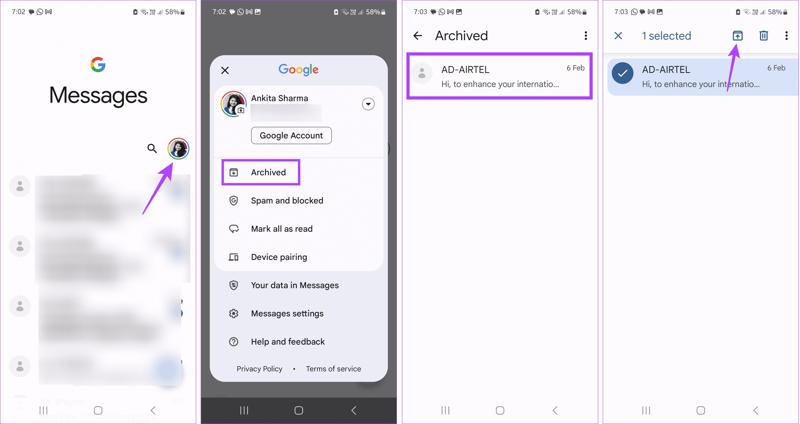
Step 1. Run the Google Messages app on your Android phone.
Step 2. Tap on your profile picture and choose Archived.
Step 3. Locate the conversation or text message you wish to retrieve.
Step 4. Long-press the desired item and tap the Unarchive button at the top of your screen.
Step 5. Now, you can access your messages in the Inbox.
Part 3: Recover Archived Messages from Google One Backup
If you cannot find the archived messages from the Archived folder, you have to try a backup. To recover archived messages from Google One, you must factory reset your phone or use a new device.
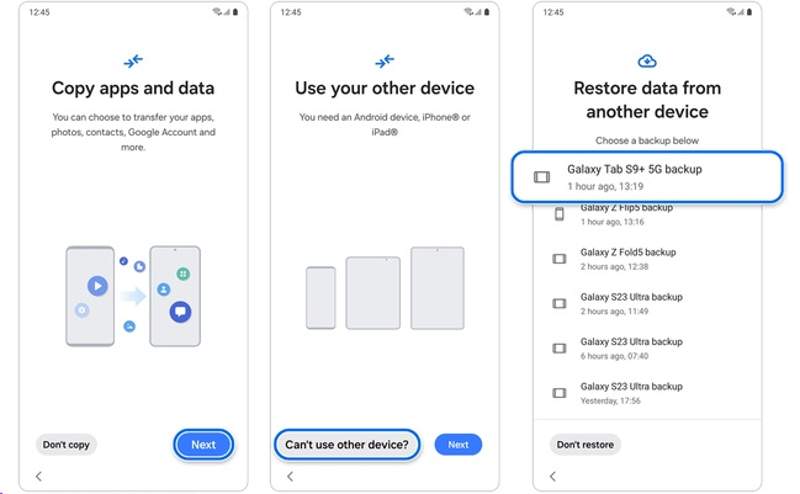
Step 1. Turn on your phone after a factory reset.
Step 2. Follow the onscreen instructions to set it up.
Step 3. Tap the Next button on the Copy apps and data screen.
Step 4. Press Can't use other device.
Step 5. Sign in with your Google account and password.
Step 6. Next, choose a proper Google phone backup.
Step 7. Make sure to select messages and other data types you wish to recover.
Step 8. Tap Restore to begin retrieving archived messages on Android.
Part 4: Retrieve Archived Messages Without Backup
While the Archived feature allows you to manage messages and organize your inbox easily, it is difficult to get them back if you permanently delete them. The good news is that these archived messages are still in your memory before they are overwritten by new data. However, you need a powerful tool to read these deleted archived messages, such as Apeaksoft Android Data Recovery. It can scan your phone memory and discover lost SMS and MMS.
The Best Archived Message Recovery Tool for Android Devices
- Recover any messages from your phone memory.
- Preview lost messages for selective recovery.
- Won't overwrite or erase your device.
- Available to SMS, MMS, and multimedia attachments.
- Support almost all Android phone brands, like Samsung, Google, LG, etc.
Secure Download
Secure Download

How to Retrieve Archived Messages on Android Without Backup
Step 1. Scan your phone
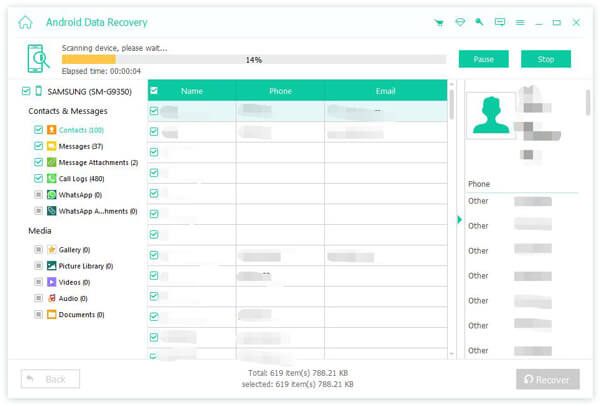
Launch the best message recovery software once you install it on your computer. It works on Windows 11/10/8/7/XP/Vista and macOS 10.6 or above. Next, plug your phone into your computer with a USB cable. Make sure to turn on USB Debugging mode on your phone or follow the onscreen instructions to enable this mode. If prompted, select Transfer files. Once your phone is detected, select Messages and Message Attachments. Click the Next button to proceed.

Step 2. Preview messages
When prompted, authorize the FoneGo app and permit it to access your data. After scanning, you can preview lost archived messages on your phone. If there are too many messages, toggle on Only display the deleted items. If you cannot find the desired items, click Deep Scan to perform a deep scan.

Step 3. Recover archived messages
When you are ready, check the box next to each message you want to retrieve, and click the Recover button at the bottom. Then, set an output folder and confirm recovering archived messages. They won't interrupt existing data on your device.
Conclusion
Now, you should understand how to retrieve archived messages on your Android phone or tablet. When you archive a message, you actually move it to the Archived folder but do not delete it from your memory. In other words, you can find and access your messages in the Archived folder directly. If you deleted archived messages, you can restore them from a Google One backup. Apeaksoft Android Data Recovery is the best option to get back your messages even if you don't have a backup.
Related Articles
Don’t know where to find the Trash on your Android to recover deleted photos or files? This post will show you in detail how to restore trash from Android.
Come and explore how to do SD card recovery for Android using a desktop software - Apeaksoft Data Recovery or an Android mobile SD card recovery app.
Voicemails can keep your important voice messages. If you have lost them, check this article to retrieve deleted voicemail on Android.
Here you can learn six effective approaches for Android SMS recovery on smartphones, even if you don’t have a backup file.



