

How to Fix an Unallocated Hard Drive and Recover Files

"I had a disk failure, which is 1TB. Then, I was prompted for 931GB of unallocated space on the hard disk. I cannot use unallocated space on the hard drive. How can I fix this problem?" When Windows displays a drive as having unallocated space, many people don’t understand what that exactly means. This guide explains the error, shares effective solutions to reuse the space, and recovers lost data from the unallocated space.
PAGE CONTENT:
Part 1: What an Unallocated Hard Drive Is
What is unallocated space on a hard drive? It refers to a portion of a storage device, like HDD, SSD, or an external hard drive, which is not assigned to any partition or volume. The space is not formatted with a file system, so the operating system cannot use it for data storage until it is allocated and formatted.
An unallocated internal or external hard drive can occur due to various causes, including:
1. Damaged or corrupted partition table.
2. Disk errors or bad sectors.
3. Malware or virus infection.
4. Incorrect disk initialization or formatting.
5. Unexpected power failure.
6. Accidental deletion.
Part 2: How to Fix an Unallocated Hard Drive
To fix an unallocated hard drive means to allocate the space. You can assign a new volume to the space or extend an existing volume to cover the unallocated space. Plus, you should update the hard drive driver.
How to Fix an Unallocated Hard Drive by Updating the Driver
Step 1. Run Disk Management.
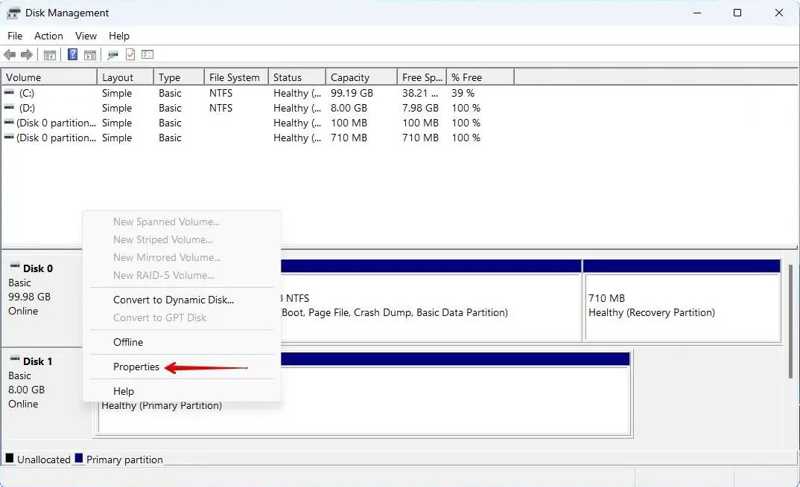
Step 2. Right-click the unallocated space and choose Properties.
Step 3. Switch to the Driver tab, and click Update Driver.
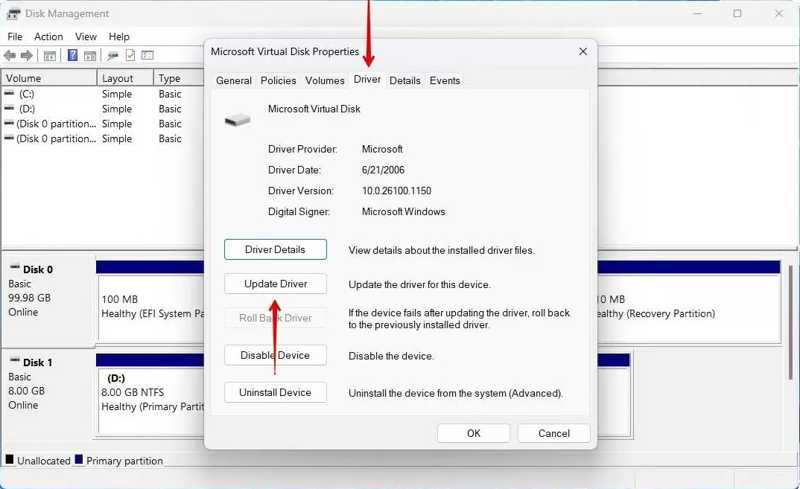
Step 4. Click the Search automatically for drivers link to update the driver.
Step 5. Next, reboot your computer.
How to Allocate Unallocated Space on a Hard Drive
Step 1. Right-click the Start menu and choose Disk Management.
Tips: To fix the external hard drive's unallocated space, connect it to your computer.
Step 2. Right-click the unallocated space and choose New Simple Volume.
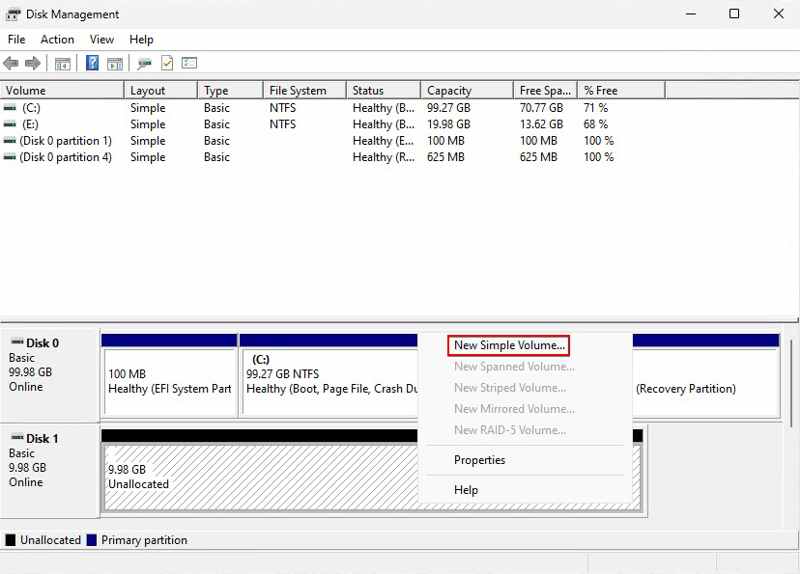
Step 3. Click Next on the Wizard dialog. Specify the volume size, and hit Next.
Step 4. Leave a drive letter and click Next.
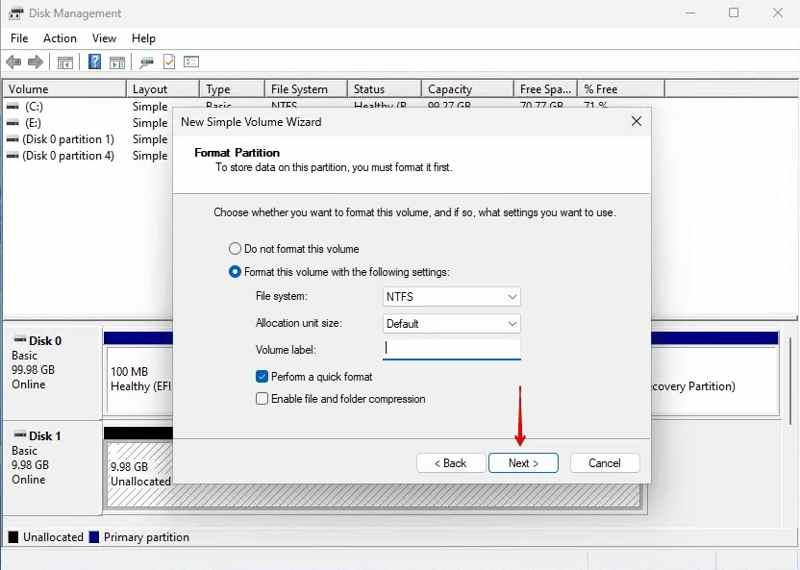
Step 5. Check Perform a quick format, choose NTFS from File System, and hit Next.
Step 6. Click Finish to confirm fixing the unallocated hard drive.
How to Add Unallocated Space to an Existing Partition
Step 1. Open Disk Management.
Step 2. Right-click an existing partition and choose Extend Volume.
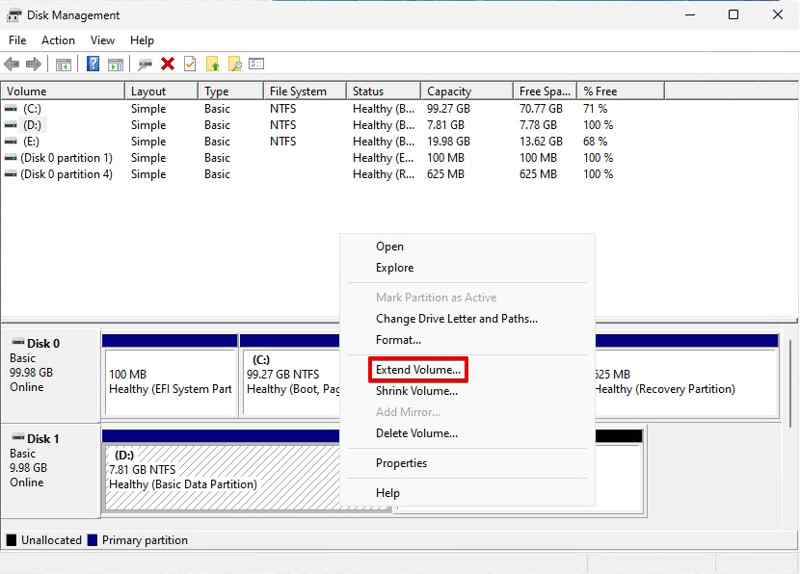
Step 3. Click Next to proceed.
Step 4. Make sure to select the unallocated space and click Next.
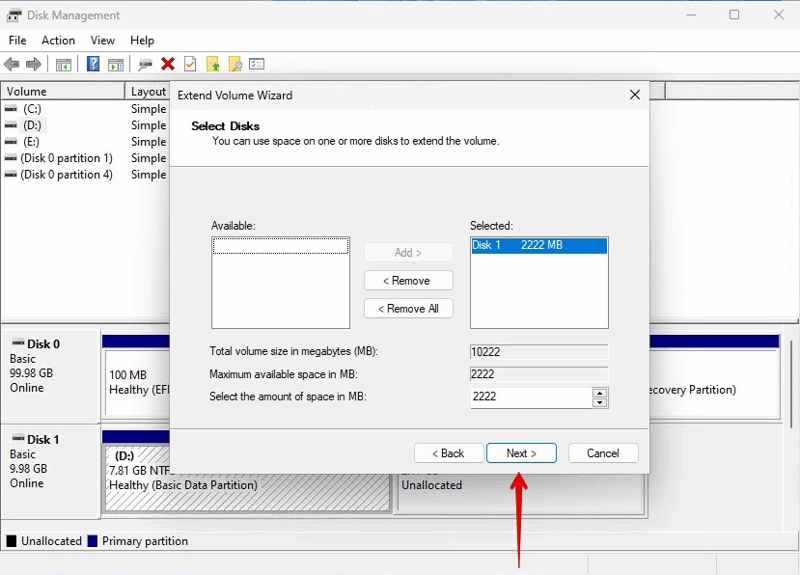
Step 5. Click Finish to add unallocated space to the existing partition on the hard drive.
Part 3: How to Recover Files from an Unallocated Hard Drive
How to Recover an Unallocated Hard Drive with TestDisk
If you wish to recover data from an unallocated hard drive, TestDisk is a free option. It is able to repair errors and bugs as well as retrieve lost files from the unallocated space. While it is free, the workflow is complicated.
Step 1. Download TestDisk, open the archive, and run testdisk_win.exe.
Step 2. Select Create and press the Enter key on your keyboard.
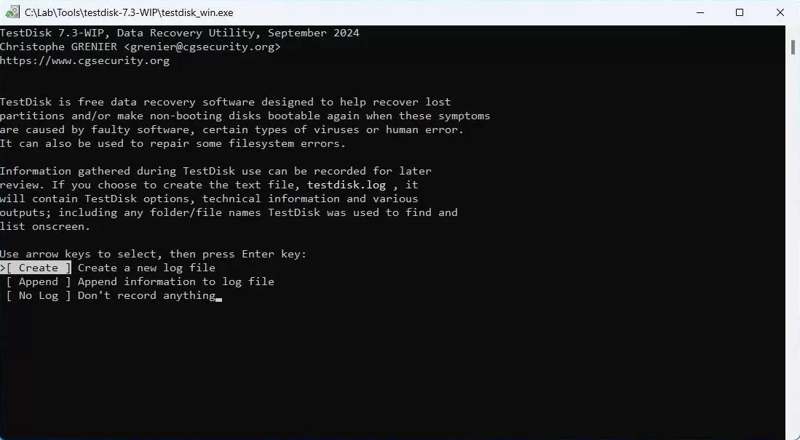
Step 3. Select the drive where the unallocated space belongs with the Arrow keys, and press Enter.
Step 4. Next, choose the partition type and hit Enter.
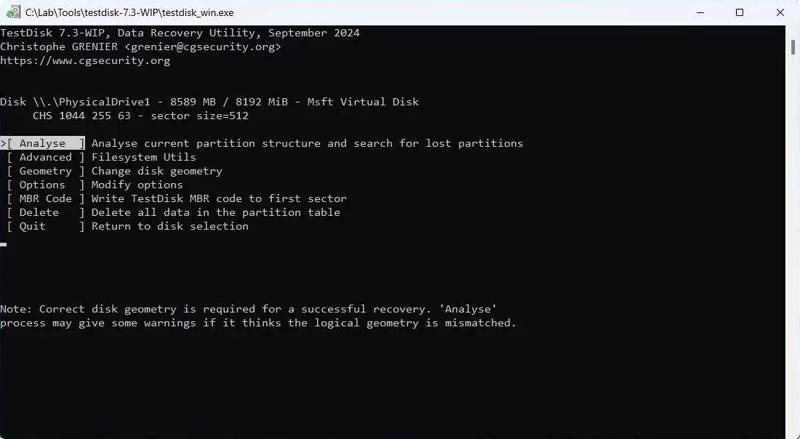
Step 5. Select Analyse and hit Enter.
Step 6. Next, select Quick Search and press Enter.
Step 7. Pick the lost partition and press Enter to get data recovery from the unallocated hard drive.
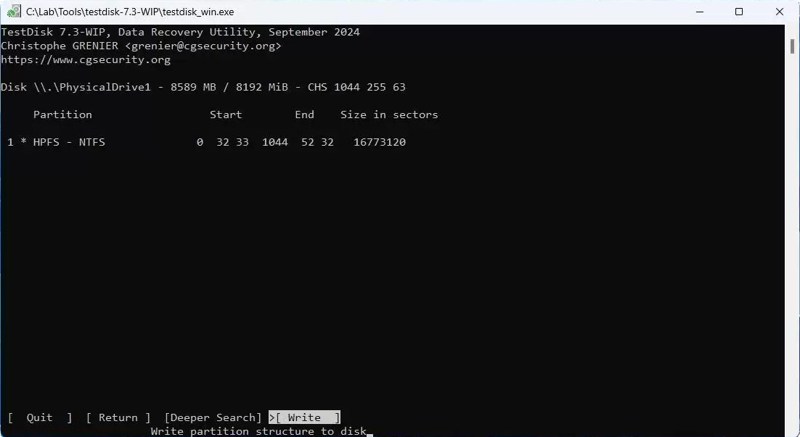
Step 8. Choose Write and press Enter to write the partition back.
Further Reading
How to Recover Data from an Unallocated Hard Drive with Data Recovery
Apeaksoft Data Recovery is an intuitive way to recover an unallocated partition in an external hard drive or internal hard drive. The user-friendly interface simplifies the workflow and retrieves as much data as possible.
A Quick Way to Recover Data from an Unallocated Hard Drive
- Recover data from an unallocated hard drive.
- Preview lost data for selectively recovering.
- Compatible with a wide range of file types.
- Support Windows 11 to XP, macOS 10.7 and later.
Secure Download
Secure Download

How to Recover Data from an Unallocated Hard Drive
Step 1. Scan unallocated drive
Install Data Recovery and launch it. Go to the Hard Drive Recovery tab, select the drive that includes unallocated space, and click Start Scan. To recover an unallocated external hard drive, connect it to your computer, and go to USB / SD Card Recovery instead.

Step 2. Preview lost files
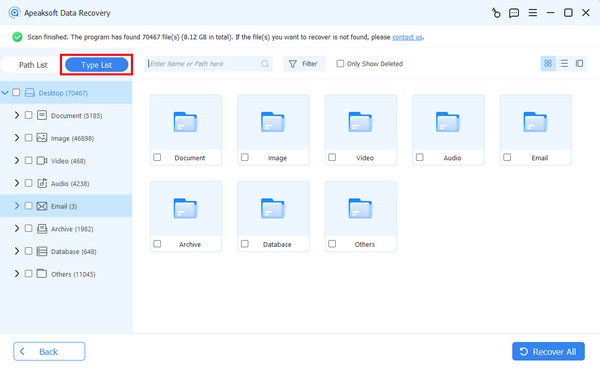
Wait for the data scan to finish. Choose Type List, select the desired data types, and preview the found files. Or go to Path List and locate files according directory.
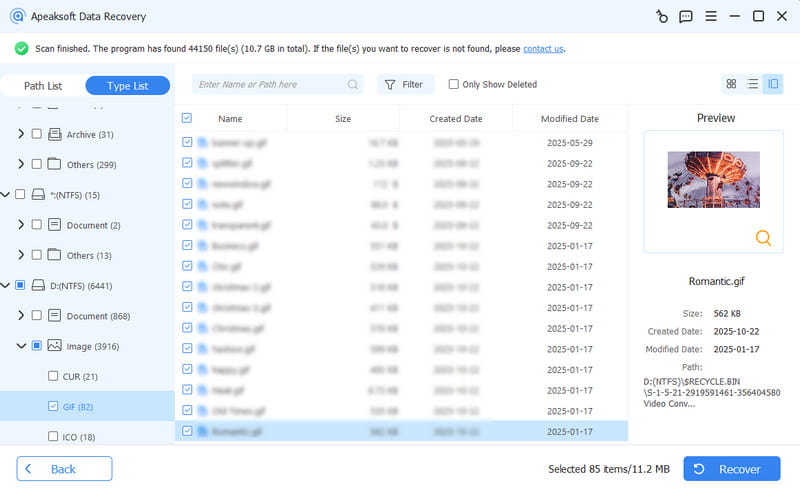
Step 3. Recover unallocated hard drive
Select the lost files you want to restore and click the Recover button. Set an output folder and confirm it.
Conclusion
This article helped you learn about an unallocated hard drive and how to fix this problem. Following our solutions, you can get the unallocated space useful again. More importantly, we shared methods to get back lost data from the unallocated space. Apeaksoft Data Recovery is an ideal option for non-tech-savvy users.
Related Articles




