What should I do if the Screen Recorder fails to record?

You may encounter various errors when you record videos or audio using the screen recorder program on your computer. Check the possible scenarios and solutions to fix it as below.

1. Another Application Is Using the Sound Card.

If you receive an error message saying that recording cannot start because the sound card is currently occupied by another application, please locate and close any relevant programs, such as voice chat apps, audio tuning tools, or other recording software. If you can't identify the specific application, try restarting your computer and recording again.

2. The Sound card driver or graphics card driver is incompatible or outdated.

When the sound card driver or graphics card driver is outdated or not installed properly, you might fail to record the screen. You can uninstall the sound card driver or graphics card driver in use, and find and install the proper drivers from your sound/graphics card manufacturer. Or update graphics card driver by pressing Windows key + X, select Device Manager, find Display adapters, and expand it. Then, you can right-click your graphics card and select Update driver.
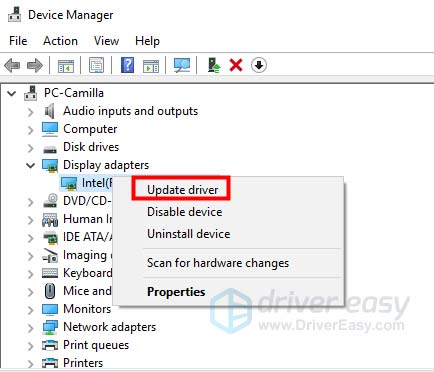
Update Uninstall Drivers

3. Sound card or graphics card has been modified.

If you get the message "Recording failed, for some changes in your graphics driver or sound card driver. Please restart the program and try recording again", just restart this recorder program to fix this problem.

4. Camera and Microphone access are disabled.

When you start the webcam recording or audio recording, you should allow access to your camera and microphone on your computer. If your computer is Windows 10 version 1903, you need to navigate to Settings > Privacy > Microphone, and find Allow apps to access your microphone to switch it on. For access to the camera, just find the Camera under Privacy, and enable it to allow apps to access your camera.
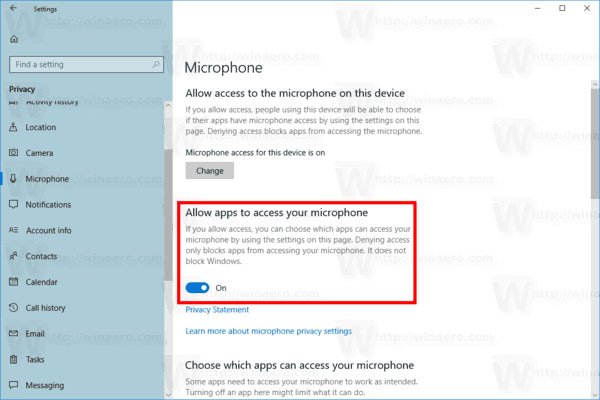
Enable Microphone Acccess Windows 10

5. You are in a Compatibility mode.

Make sure that you are running this program as an administrator, instead of in the compatibility mode.

You can right-click the Screen Recorder icon, select Properties, and head to the Compatibility tab. Then uncheck Run this program in compatibility mode for:, instead, check Run this program as an administrator.

Now you can reopen this video recording software to have an audio recording.

What should I do if Phone Recorder does not work in Screen Recorder?

When using Screen Recorder to record your phone screen, you may encounter an issue where your phone cannot be detected by the software. Try the following solutions to fix the problem:

1. Allow mirrorrender through Windows Defender Firewall.

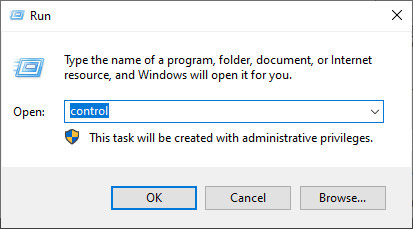
Step 1. Press Windows + R, type Control Panel, and open it.

Open Control Panel

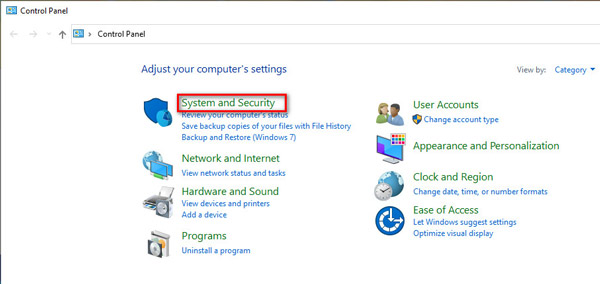
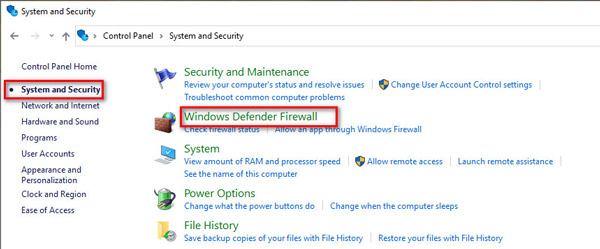
Step 2. Click System and Security.

Select System And Security

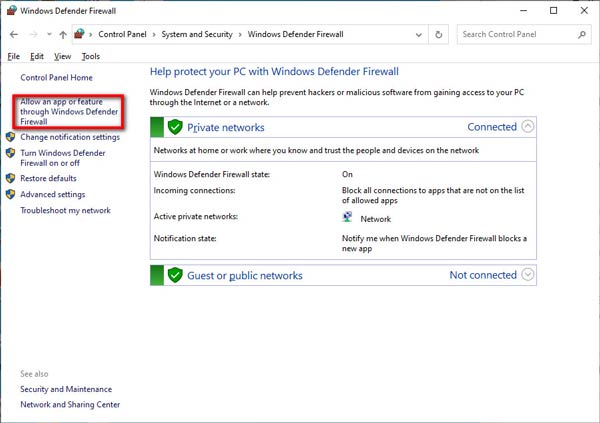
Step 3. Go to Windows Defender Firewall > Allow an app or feature through Windows Defender Firewall.

Click Allow An App

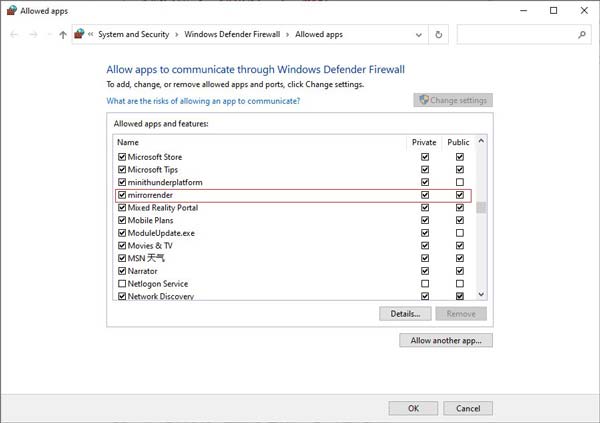
Step 4. Find mirrorrender in the list of allowed apps and features. Check both Private and Public network options to allow it through Windows Defender Firewall.

Alowed Apps

2. If the first way does not work, you can try to turn off Windows Defender Firewall.

Step 1. Still open the Control Panel and click System and Security.

Step 2. Navigate Windows Defender Firewall in the right pane.

Select Windows Defender Firewall

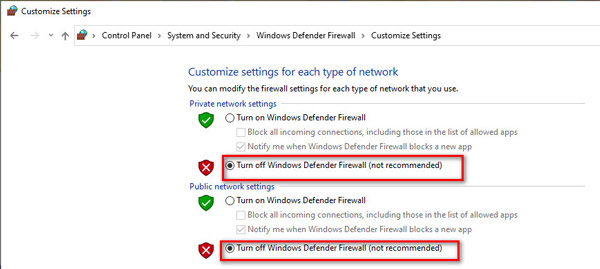
Step 3. Click Turn Windows Defender Firewall on or off from the left sidebar, and select the checkbox of Turn off Windows Defender Firewall (not recommended) under the section of Private network settings and Public network settings.

Turn OFF Windows Defender Firewall

3. Other ways.

1. Turn off or uninstall McAfee. Check whether you have installed McAfee, a famous free antivirus program, on your computer. The interception mechanism and Windows Defender Firewall mechanism of McAfee is very strong, which makes devices cannot be searched, or devices become offline after projecting the screen, especially IOS devices. Thus, it is necessary to turn off or uninstall McAfee if you want to use Apeaksoft Screen Recorder stably.

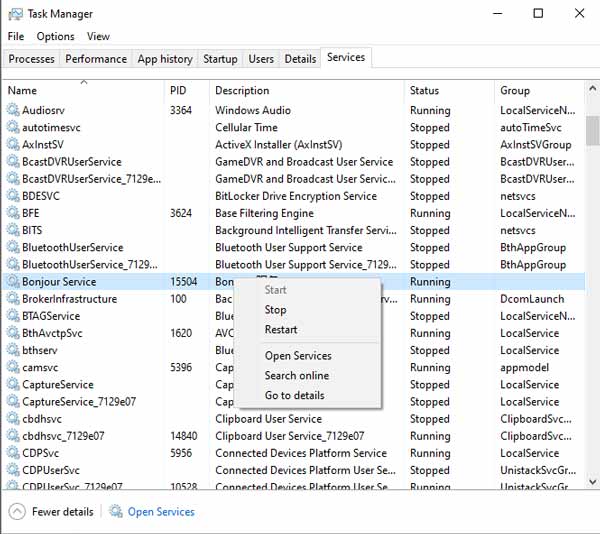
2. Run Bonjour Service. Make sure that you have installed iTunes on your computer, and then press Ctrl + Alt + Delete or just right-click the Taskbar with the mouse to open Task Manager. Later, check whether there is Bonjour Service or not in Services: if there is and Bonjour Service runs, please right click and choose Restart; if Bonjour Service does not run, please right click and choose Start.

Check Bonjour Service

3. Turn off the Visitor Mode of your router. If your router turns on Visitor Mode, one connects the visitor network but one connects the host network, then the connection between your iPhone and computer will not work. Thus, if Visitor Mode is turned on, log in to the router's background and turn it off. (Generally, the login address and password can be found on the label on the back of the router.)

What should I do if the Task Schedule recording fails?

To fix this problem, you can right-click the Screen Recorder icon and select Run as administrator to start it. Then get the Task Schedule settings. After that, exit the software, and the task schedule will work.

Why can't my sound card be detected?

Your problem is probably caused by something wrong with the speaker. If your speaker is not inserted properly, some specific sound cards cannot be detected. You can reconnect it by unplugging the audio jack and re-plugging it into the computer.

What are Screen Capture Modes in our software?

Apeaksoft Screen Recorder provides different Screen Capture Modes to balance recording quality and compatibility. We recommend choosing the Auto mode, which will enable the program to automatically choose the most suitable capture mode based on your computer's performance.

If you encounter problems under the Auto mode, you can manually switch to another Screen Capture Mode in Preferences.

There are 3 Screen Capture Modes available:

1. Mode 1 (Common): It is the default mode of our program to capture screens, and this mode guarantees compatibility and screen recording quality.

2. Mode 2 (Windows 10 1903 and later) WinRT: Choosing this mode will increase the recording quality, but your computer system must be Windows 10 1903 and later. It is worth noting that when you use this mode to record screens, there will be a yellow border around the recording window (updating to Windows 11 can hide this border).

3. Mode 3 (Common) DXGI: Choosing this mode will let the recording quality become relatively lower. We suggest you consider this mode when those modes above cannot be used normally.

When your computer performance cannot support the three Screen Capture Modes above running normally, our program will use the GDI mode automatically to ensure the fluency of recording. In that case, the recording quality may be the lowest.

How to cast Android phone audio to a computer?

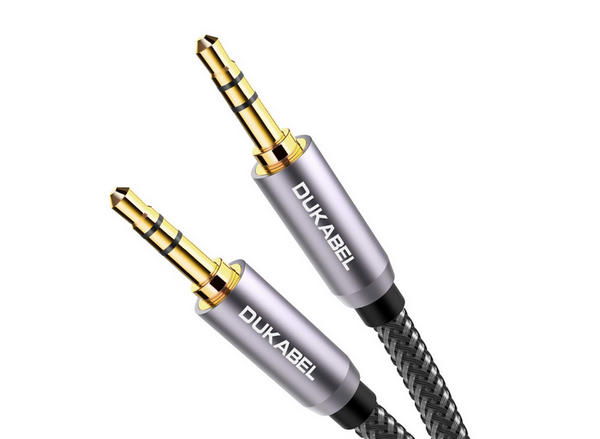
Step 1. You need an aux cable to transmit the audio to your computer.

Aux Cable

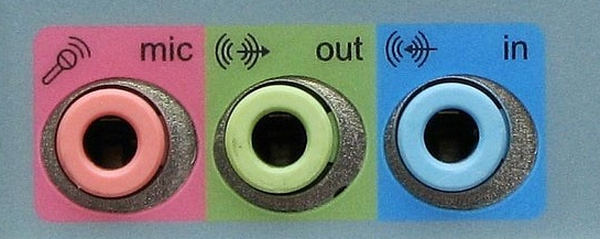
Step 2. If you are a desktop computer user, find the blue jack (line-in) in the back of your computer and plug the aux cable in. Then plug the other end into your Android phone.

Blue Jack Computer

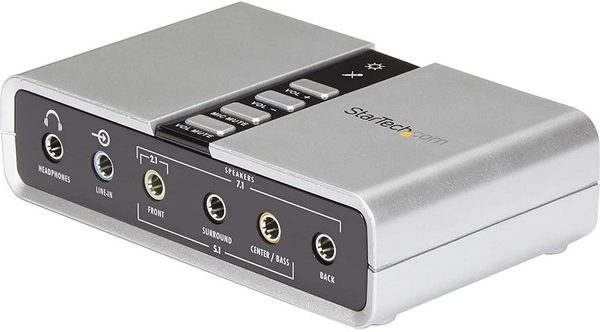
If you use the laptop to record phone audio, you need to prepare an external sound card. Plug it into the USB port. Then plug the aux cable into the sound card and the other into the Android phone.

External Sound Card

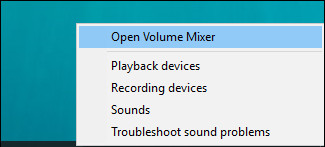
Step 3. Right-click the Sound icon in the bottom-right corner and select Open Volume Mixer.

Open Volume Mixer

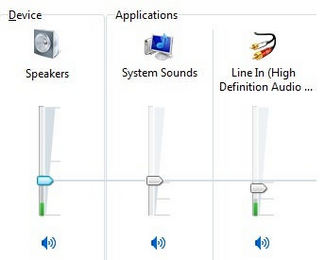
Step 4. Click System Sounds and navigate to Recording.

System Sounds

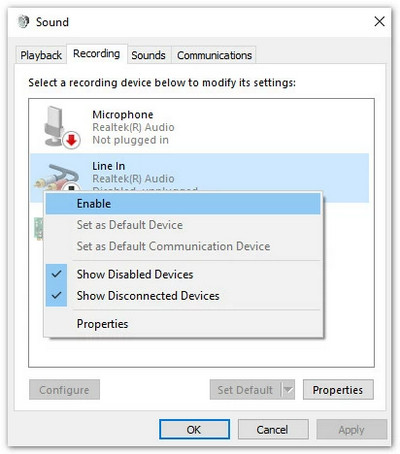
In the Line In, right-click it and select Enable.

Enable Line In

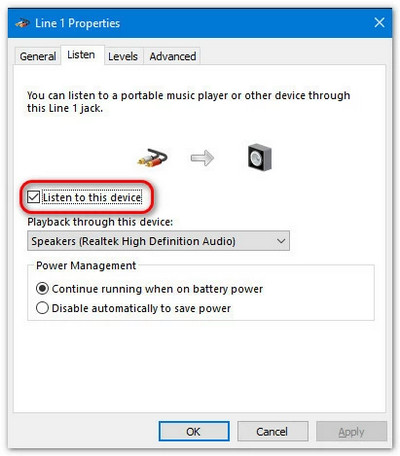
Step 5. Right-click Line In again and select Properties. Navigate to Listen in the top menu and check the box before Listen to this device. Then click OK.

Listen To Device

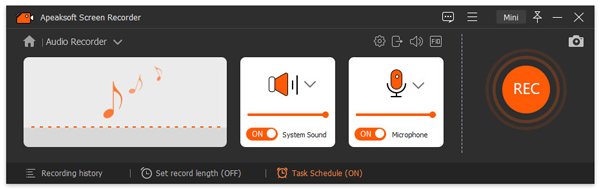
Step 6. The settings for your computer are done. When you record video/audio using Apeaksoft Screen Recorder, remember to turn on the Microphone. Then you can record the sound from your Android device.

Audio Recorder Interface

Can't Find Answers? Send Us an Email!