Take a Minecraft Screenshot on Windows/Mac/iPhone/Android/PS/Xbox/Switch

Maybe you want to share the point of building something great in Minecraft with your friends. Or, perhaps you just want to memorize some beautiful scene. Whatever the purpose, screenshots are there to save you the hassle.
Luckily, it is easy to learn how to take screenshots in Minecraft, but the process varies across devices. Whether you are new to screenshots or simply want to learn how to screenshot in Minecraft on a new device, here you'll find instructions on how to take a screenshot in Minecraft on all major devices.
PAGE CONTENT:
Part 1: How to Take a Screenshot in Minecraft on Windows/Mac
Method 1: Take a Screenshot in Minecraft Java Edition
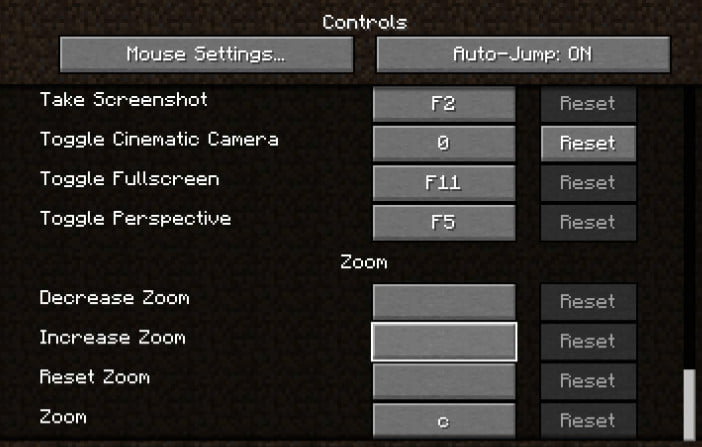
Minecraft Java Edition provides a built-in way to take screenshots on both Windows and Mac. Just press the F2 key to take a screenshot in Minecraft. The screenshot will be saved to ".minecraftscreenshots" on your computer.
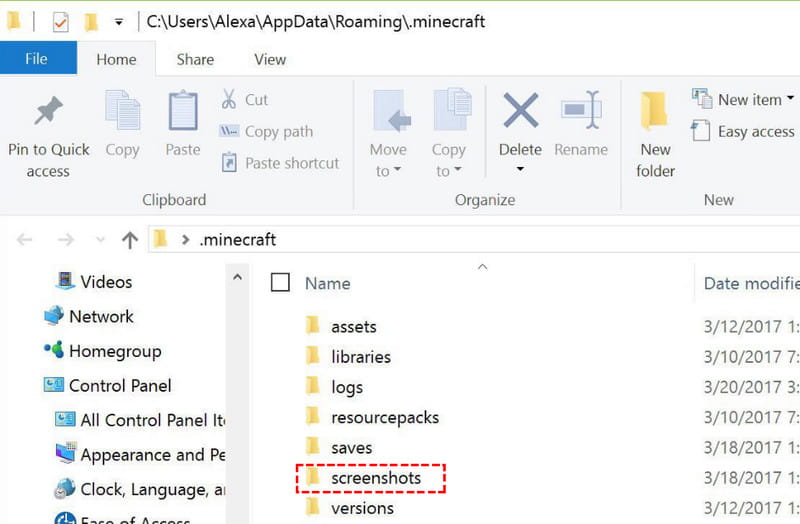
To find your screenshots, open the Minecraft game folder and navigate to .minecraft > screenshots. You can also use the following paths:
- Windows: %appdata%.minecraftscreenshots
- Mac: ~/Library/Application Support/minecraft/screenshots
Method 2: Take a Screenshot in Minecraft on Windows
For Windows 10/11 users, you can use any Windows built-in screen capture tools to capture Minecraft gameplay.
1. Use Windows + Alt + PrtScn
You can press Windows + Alt + PrtScn to create a screenshot of your Minecraft game. The screenshot will be saved as a PNG file in the Videos > Captures folder.
2. Use Xbox Game Bar
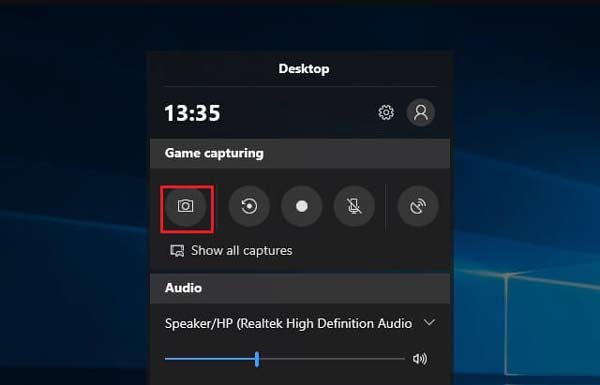
Press Windows + G keys at the same time to open the game Settings window. Then, click the camera button under Game Capturing to capture a screenshot in Minecraft. You can find the screenshot in the Videos > Captures folder on your computer.
3. Use Snipping Tool
Press Windows + Shift + S to open Snipping Tool. Then, select the area of the Minecraft gameplay screen you want to capture. The screenshot will be copied to your clipboard. There will be a prompt in the bottom right corner after the screenshot.
Method 3: Take a Screenshot in Minecraft on Mac
Mac users can also use built-in keyboard shortcuts to take screenshots of Minecraft gameplay.
| Capture Area | Operation | Saving Path |
| Capture the Entire Screen | Press Shift + Command + 3 at the same time | The screenshot will be saved to your desktop by default. |
| Capture a Specific Area | Press Shift + Command + 4, then drag the crosshair to select the area you want to capture | The screenshot will also be saved to your desktop by default |
Method 4: Screenshot Minecraft More Flexibly with Apeaksoft Screen Recorder
Suppose you prefer to use a screenshot app that provides more advanced options. Apeaksoft Screen Recorder is your best option to take screenshots of Minecraft on Mac or Windows.

Downloaded by over 1,000,000 users
- Take snapshots of Minecraft with high quality.
- Save the Minecraft screenshots in PNG, JPG, etc.
- Edit the Minecraft screenshot in real-time, adding arrows, texts, callouts, blur, and more.
- Record Minecraft gameplays with audio as well.
Secure Download
Secure Download

Step 1. Launch this screen capture tool on your computer, and then choose the Screen Capture feature in the main interface.
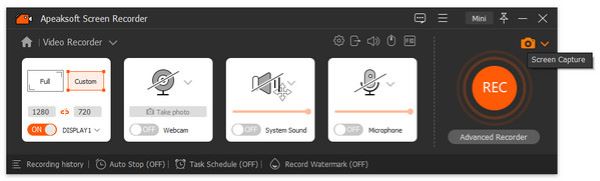
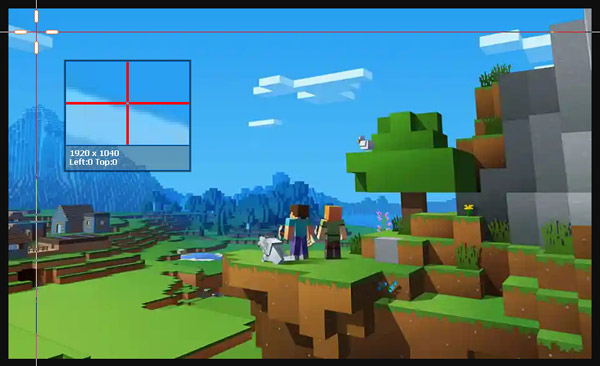
Step 2. When the mouse cursor changes into a crosshair, place the crosshair at the upper left corner of the area you want to capture. Then, click your mouse and drag a box to cover the area you want to screenshot.
Step 3. When you release the mouse button, the program will capture a screenshot of the highlighted area. Here you will see a lot of editing tools to edit your screenshot. You can draw the border, lines, or shapes, add callouts, and more.
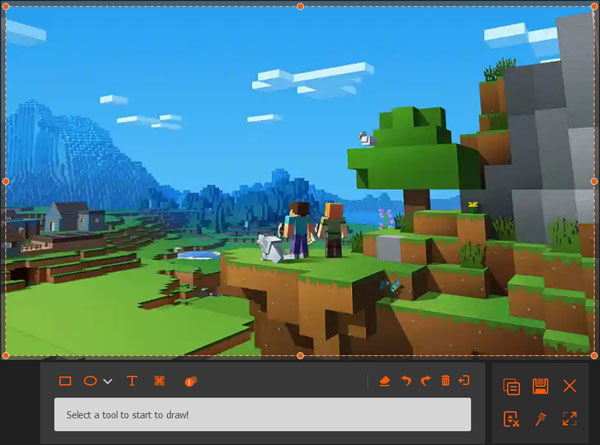
Step 4. Finally, click the disk button and then select the path to save the image you create.
Part 2: How to Take a Screenshot of Minecraft on iPhone/Android
If you are playing Minecraft on your smartphone, you can also use the built-in features to take a Minecraft screenshot.
Screenshot Minecraft on iPhone
- For iPhones without a Home button, press the Side button and Volume Up button at the same time, then quickly release both buttons.
- For iPhones with a Home button, press the Side (or Top) button and the Home button at the same time, then quickly release both buttons.
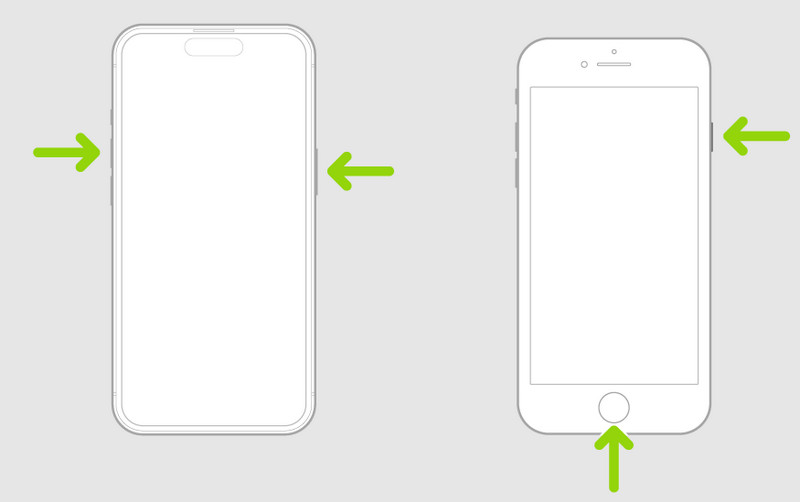
The screenshot will be saved in the Photos > Screenshots.
Screenshot Minecraft on Android
If you are using an Android phone, you can press the Power and Volume Down buttons at the same time to make a screenshot of Minecraft.
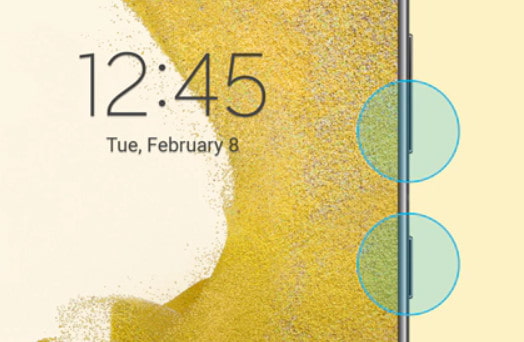
The screenshot will be saved in your Gallery or Photos app, depending on your device.
Part 3: How to Screenshot Minecraft on PS/Xbox/Switch
Take a Screenshot in Minecraft on PS4/PS5
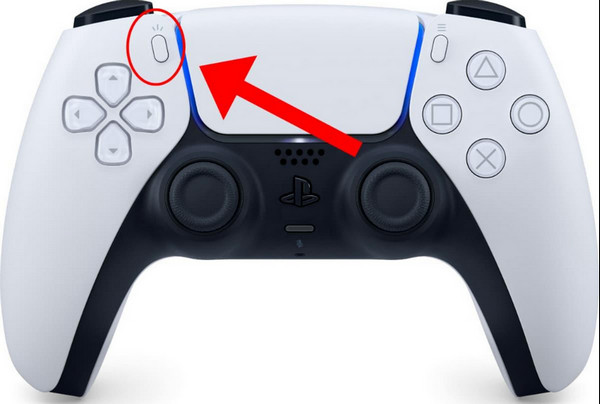
On PS5, you can press the Create button on the DualSense controller to open the Create menu. Then select Take Screenshot to capture your Minecraft gameplay.
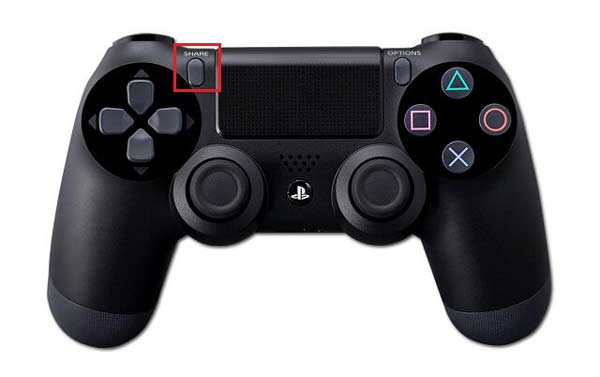
On PS4, you can hold down the SHARE button on the controller to get a screenshot. Or you can choose to tap the SHARE button to open a new menu where you can take a screenshot, record a video, and share your screencasts.
Capture a Screenshot of Minecraft on Xbox
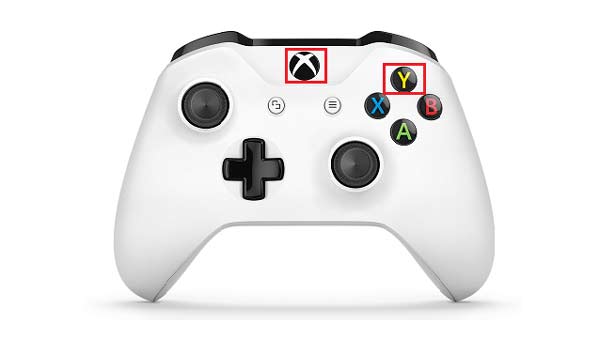
You need to double-tap the Xbox button on your controller. Then, press Y to capture a screenshot in Minecraft or X to record a video clip.
Take a Screenshot in Minecraft on Nintendo Switch
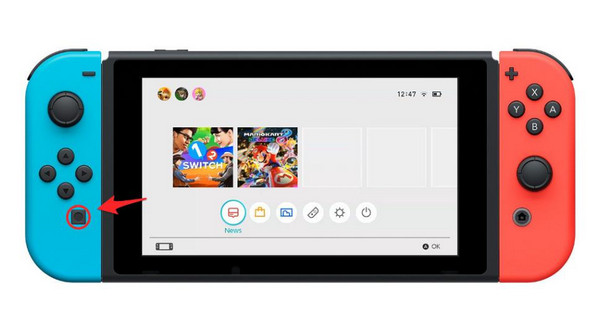
Press the Capture button on the Joy-Con or Pro Controller to take a screenshot of your Minecraft gameplay. The screenshot will be saved to the Album on your Nintendo Switch.
Part 4: FAQs About Taking a Screenshot in Minecraft
Is there any way to screenshot in Minecraft on PS3 or Xbox 360?
Unfortunately, there is no built-in screenshot creation function for PS3 and Xbox 360.
Can I take a screenshot in Minecraft on PS3?
Unfortunately, there is no built-in screenshot tool. You can use a third-party application like Apeaksoft Screen Recorder, which can take a screenshot of Minecraft on PlayStation 3.
How to find Minecraft screenshots on the computer?
On Windows, screenshots are saved in the .minecraftscreenshots inside the AppDataRoaming folder. This folder can be obtained by typing %appdata%.minecraftscreenshots into the File Explorer address bar.
For the Windows 11 version of Bedrock Edition, the default screenshot save folder is C:Users\VideosCaptures.
On macOS, screenshots are stored in ~/Library/Application Support/minecraft/screenshots.
Conclusion
In general, this tutorial covers how to take screenshots in Minecraft on almost all popular devices. Now, you're a screenshot pro ready to capture images of Minecraft on any device. To memorize the good times in Minecraft, you can even record Minecraft on Windows PC, Mac, iPhone, or Android.
 Apeaksoft Screen Recorder
 Record any video and audio on phone and computer screen.
Secure Download
Secure Download
Related Articles