


How to Transfer Your Videos from an iPad to a Computer

Video files are large and take up space. While Apple has expanded the storage of the iPad, it is not enough for storing video files. If you have lots of videos on your Apple tablet, it will become slower and slower. One of the best solutions is transferring videos from an iPad to a computer. This guide shares multiple proven ways to complete the job with Photos, a USB cable, iCloud, and more.
PAGE CONTENT:
Part 1: How to Transfer Videos from iPad to PC via a Cable
Since iPadOS is a closed operating system, you cannot access iPad files simply by connecting it to your PC. However, media files are an exception. In other words, you can transfer videos from an iPad to a computer with a USB cable.
Step 1. Plug your iPad into your PC with a compatible cable.
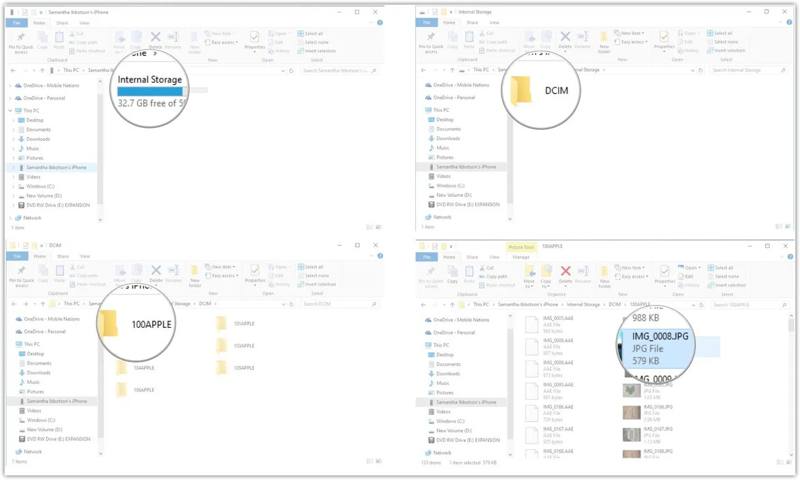
Step 2. Open a Windows Explorer by pressing the Windows + E shortcut.
Step 3. Click and expand the This PC option.
Step 4. Next, click your iPad name.
Step 5. Navigate to Internal Storage, and then DCIM.
Step 6. Now, go to the folders to find the videos you want to transfer.
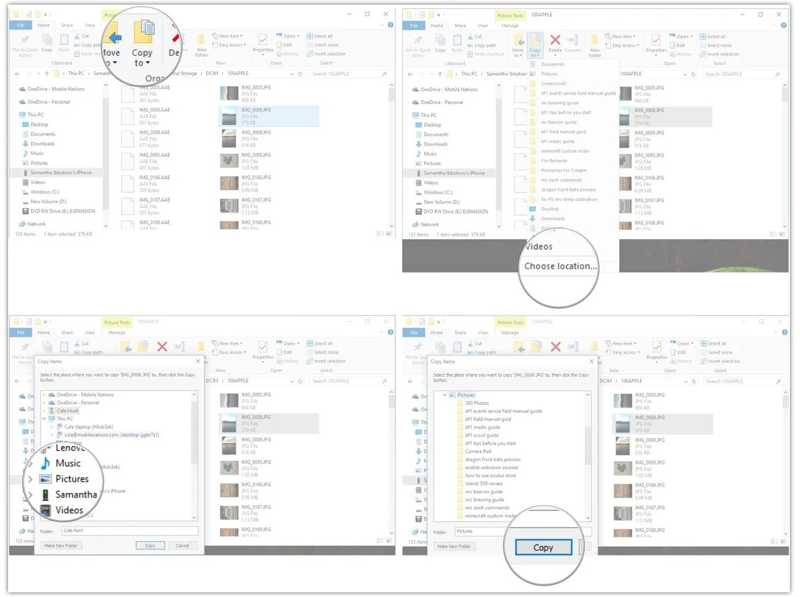
Step 7. Then, select the videos, copy them, go to the destination, and paste them.
Part 2: How to Copy Videos from iPad to PC Using Photos
On Windows 11/10, the built-in Photos app allows you to copy videos from an iPad to a computer. You just need to connect your device to your PC with a cable and follow our steps to import the desired videos.
Step 1. Connect your iPad to your PC with a USB cable.
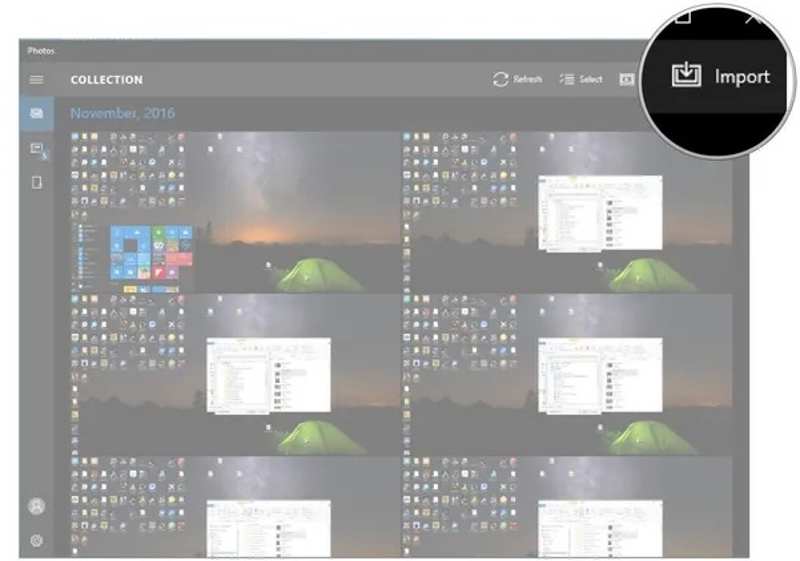
Step 2. Open the Photos app from the Start menu on Windows 11/10.
Step 3. Click the Import button at the top right side.
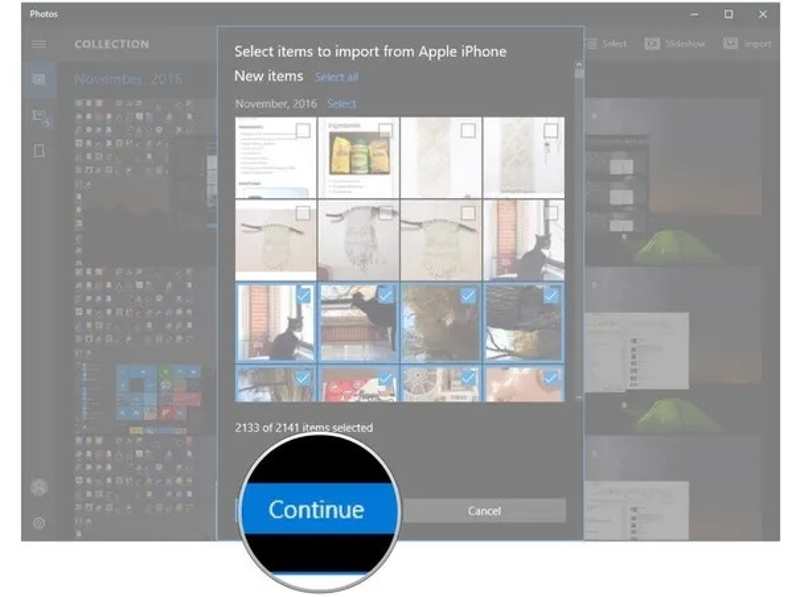
Step 4. Click the desired videos and hit Continue.
Step 5. Now, you can check if the iPad videos have been transferred successfully.
Part 3: How to Move Videos from iPad to PC with iCloud
If you don't have a USB cable, cloud storage enables you to move videos from your iPad to your computer wirelessly. iCloud, for instance, is the official cloud storage for iPad users. Google Photos, OneDrive, and Dropbox are available.
Step 1. Open the Settings app on your iPad.
Step 2. Connect to a Wi-Fi network.
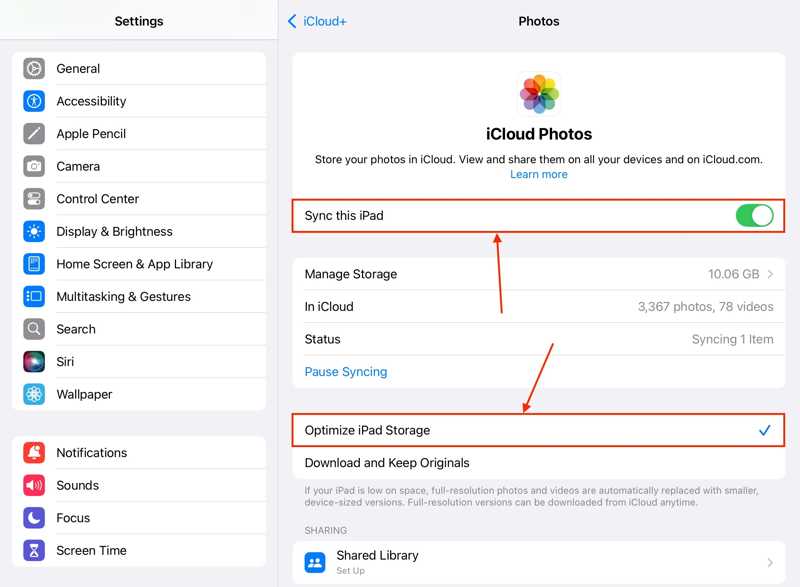
Step 3. Tap on your profile and choose iCloud.
Step 4. Choose Photos under the Saved to iCloud section.
Step 5. Toggle on Sync this iPad.
Step 6. Turn to your PC, open a browser, and go to www.icloud.com.
Step 7. Log in with your Apple ID and password.
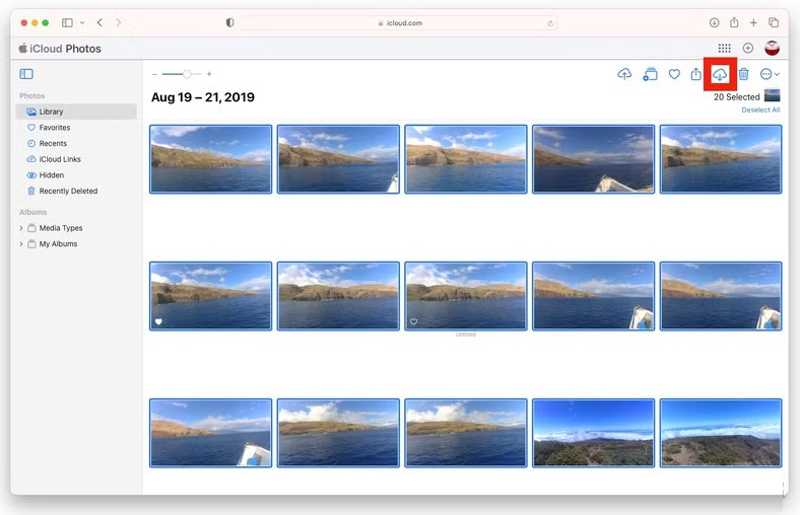
Step 8. Choose Photos, go to Library, and find the desired videos.
Step 9. Highlight the videos, click the Download button, and set an output folder.
Part 4: How to Put Videos from iPad to PC by Email
If you just wish to put a video from an iPad to a computer, email is a good option. Gmail, for instance, allows you to send an email up to 25MB. Furthermore, you can download the iPad video to any platform later.
Step 1. Run the Photos app on your home screen.
Step 2. Go to the Library or Albums and find the desired video.
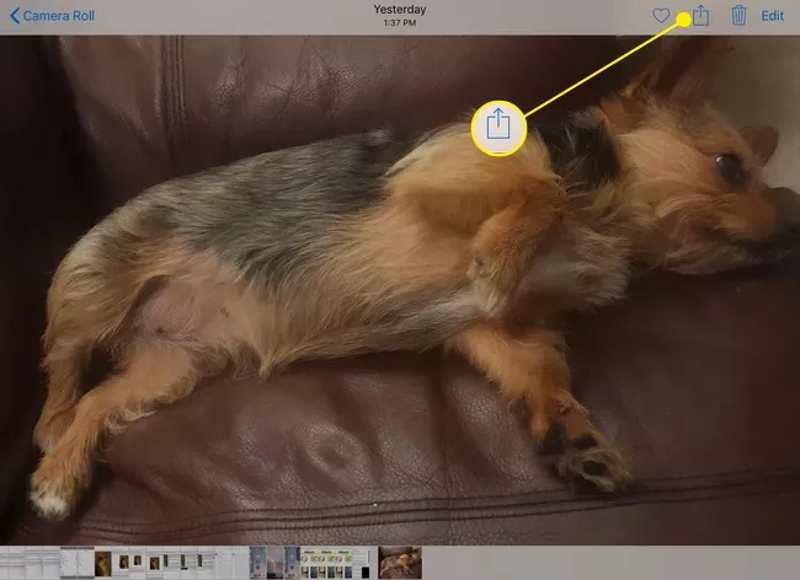
Step 3. Tap the Share button and choose Mail from the toolbox.
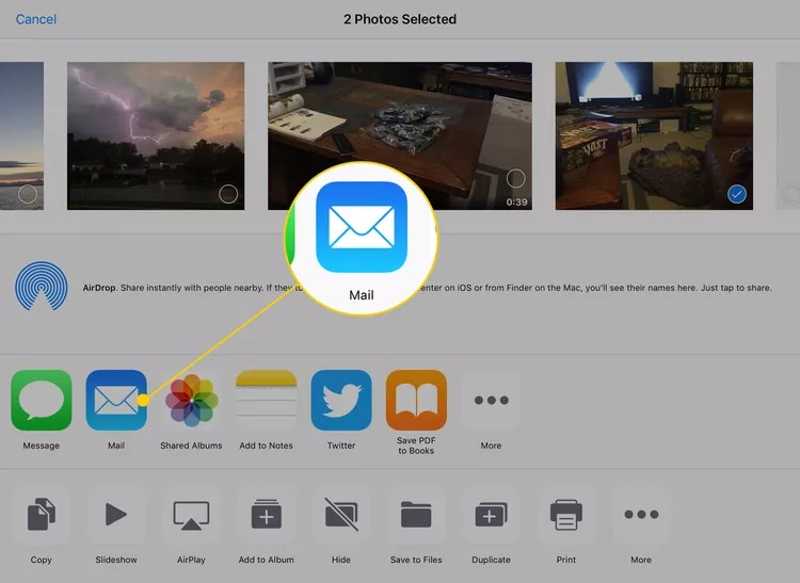
Step 4. Input your email address in the To field, add a subject, and tap Send.
Step 5. Now, access your email on your PC, read the new email, and download the video attachment.
Further Reading
Part 5: How to Take Videos from iPad to Computer Quickly
If the methods above are unavailable, you should try Apeaksoft iPhone Transfer. It is able to take videos from an iPad to a computer without an internet connection. More importantly, it keeps your video quality during the process.

Downloaded by over 1,000,000 users
- Move videos between iPad and PC quickly.
- Transcode video files according to the target device.
- Protect video quality with AI.
- Preview iPad videos when transferring.
- Support the latest editions of iPadOS.
Secure Download
Secure Download

How to Take Videos from iPad to PC Quickly
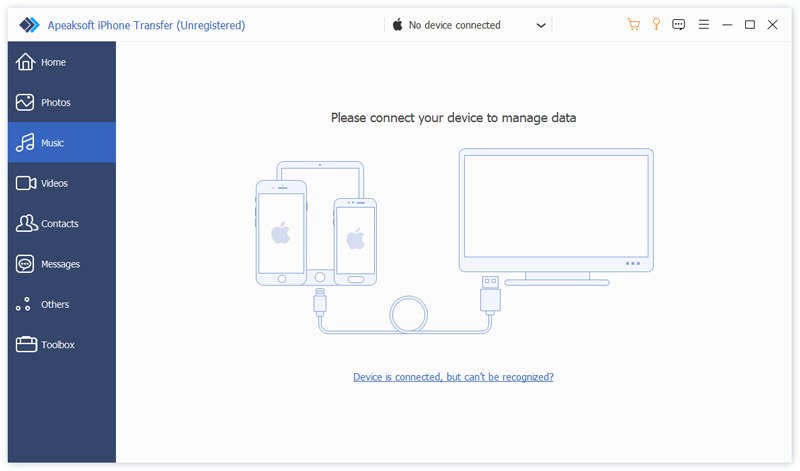
Step 1. Connect to your iPad
Launch the iPad video transferring software after you install it on your PC. There is another version for Mac. Hook up your iPad to your PC with a Lightning cable. If prompted, trust this PC.
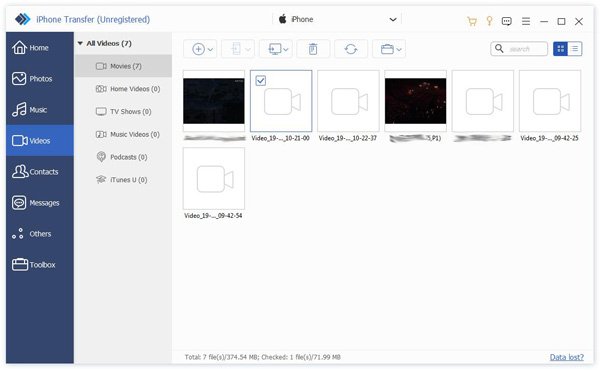
Step 2. Preview iPad videos
Once your iPad is detected, go to the Videos tab. Now, you can view all photos and videos on your device.
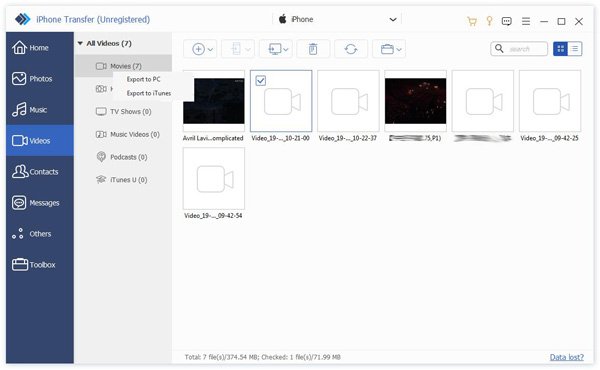
Step 3. Export iPad videos
Select the videos you want to transfer, click the PC button on the top menu bar, and choose Export to PC. Set a location and confirm it.
Conclusion
This guide shared five methods to copy videos from an iPad to a computer with or without a USB cable. The Photos app lets you import iPad videos to a computer directly. The File Explorer can access and copy iPad videos. iCloud Photos is a wireless way to complete the job. For a single video clip, email is another option. Apeaksoft iPhone Transfer is a quick way for beginners.
 Apeaksoft iPhone Transfer
 Transfer iOS data among iOS devices, computer and iTunes.
Secure Download
Secure Download
Related Articles




