


Transfer Photos from iPhone to Computer: The Complete 2026 Guide

Taking photos with your iPhone is very easy. With amazing cameras on newer models like the iPhone 17 series, we take more pictures than ever before. However, high-quality images and 4K videos use a lot of storage space. Soon, your phone memory gets full. To save space and keep your memories safe, you must learn how to transfer photos from iPhone to computer.
Moving your pictures to a Mac or a Windows PC does not have to be hard, but it is not that easy to keep the best quality and increase the transfer speed. This post will show you exactly how to send photos from an iPhone to a computer using cables, wireless tools, and cloud services. We will also share important tips to speed up your transfer.
PAGE CONTENT:
- Part 1: The Fastest Way to Transfer Photos from iPhone to Computer
- Part 2: How to Sync Photos iPhone to Computer Using iCloud
- Part 3: How to Send Photos iPhone to Computer Wirelessly (Local Transfer)
- Part 4: Crucial Tips to Boost Your Photo Transfer Speed
- Part 5: Summary of the Photo Transfer Methods
- Part 6: FAQs of Transferring Photos from iPhone to Computer
Part 1: The Fastest Way to Transfer Photos from iPhone to Computer
When transferring photos or videos from your iPhone 18 Pro/17/16 to your Windows or Mac computer, the most important factors are speed and quality. Sometimes, a poor network connection will stop the transfer. However, Apeaksoft iPhone Transfer is the ultimate solution for file transferring. It doesn't require internet during transfer and can greatly boost the transfer speed. You can transfer photos, live photos, and videos without any effort.

Downloaded by over 1,000,000 users
- Connect your iPhone to your computer to start transferring quickly.
- Preview your photos, live photos, and videos before transferring.
- Increase the transfer speed with high-end technology.
- Let you transfer selected photos or one-click transfer all.
Secure Download
Secure Download
Step 1. Connect Your iPhone to Computer
Download, install, and launch Apeaksoft iPhone Transfer on your Windows or Mac computer. Connect your iPhone to your computer. Then, you will see that the program has recognized your iPhone.
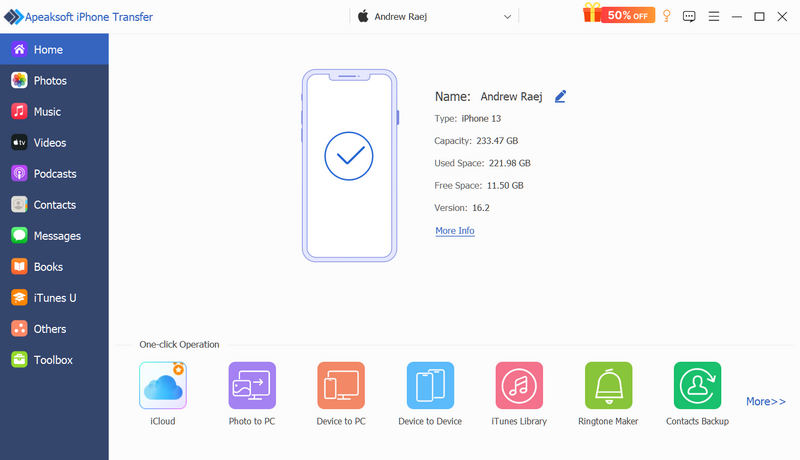
Step 2. Browse Your Photos
Click the Photos tab on the left side. Then, Apeaksoft iPhone Transfer will quickly detect all photos on your iPhone.
Then, you can view all photos on your iPhone. You can navigate through the photo albums and then select your desired photos. You can also toggle Check All to select an entire photo album.
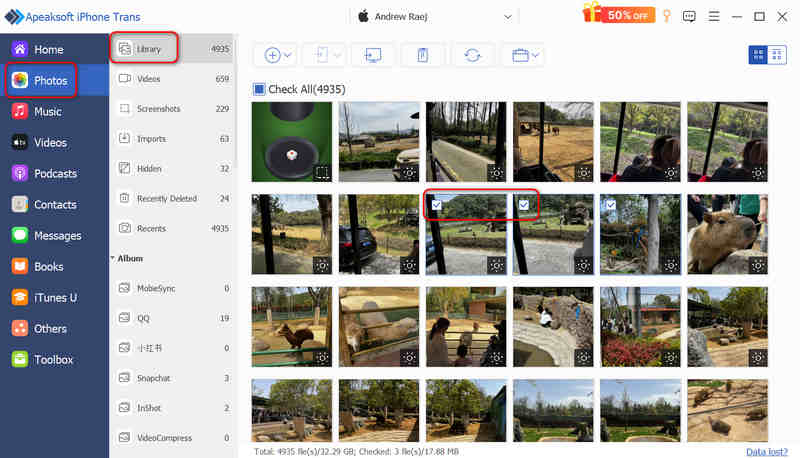
Step 3. Transfer Photos from iPhone to PC
Finally, you just need to click the Export to PC button to easily send photos from your iPhone to Windows or Mac computer.

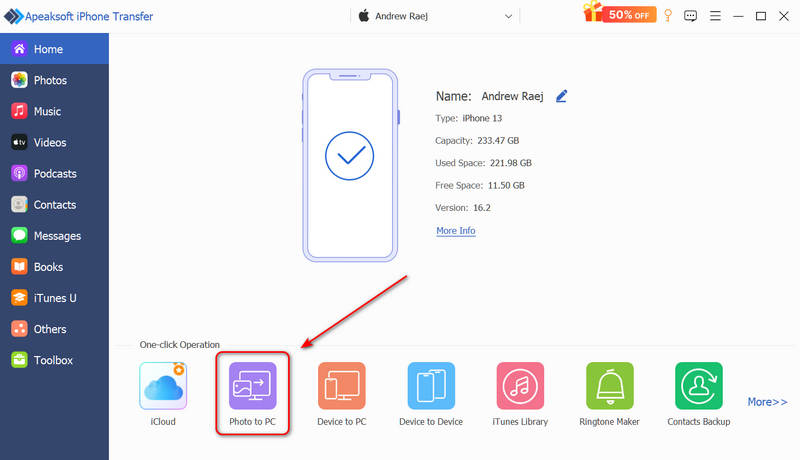
If you need to transfer all photos and all photo albums from your iPhone or iPad to your computer, you can also go to the Home screen and click the Photo to PC button. It can easily transfer all photos or transfer only new photos (the photos you've transferred with this program are old photos) to your computer.
Part 2: How to Sync Photos iPhone to Computer Using iCloud
If you hate cables and prefer everything to happen automatically, cloud storage is the perfect answer. Apple provides iCloud, which helps you learn how to sync photos on your iPhone to your computer without doing manual work every day, even on a Windows computer. However, you should know that syncing photos is different from transferring photos. It will also sync your deletion operations.
Step 1. Turn on iCloud Photos on your iPhone
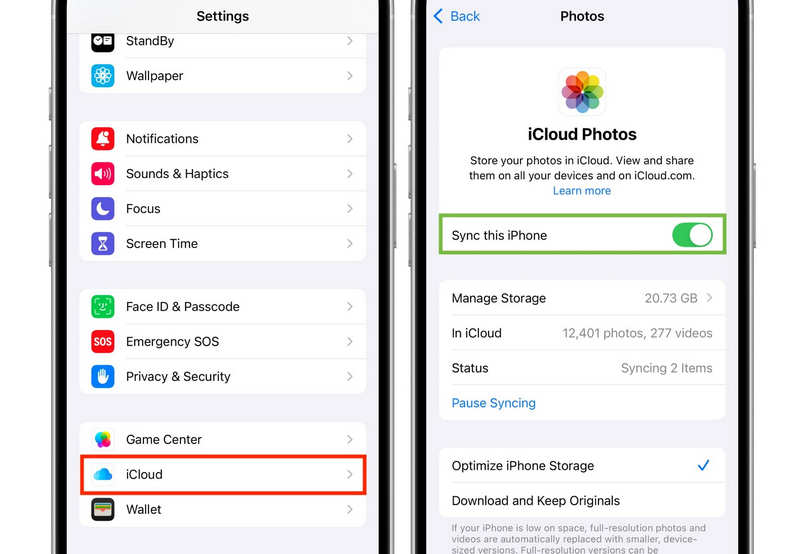
Go to your iPhone Settings, tap your name at the top, select iCloud, and then tap Photos. Turn on Sync this iPhone. Now, every photo you take will directly sync to your iCloud when you connect to Wi-Fi.
Step 2. Access photos on your computer
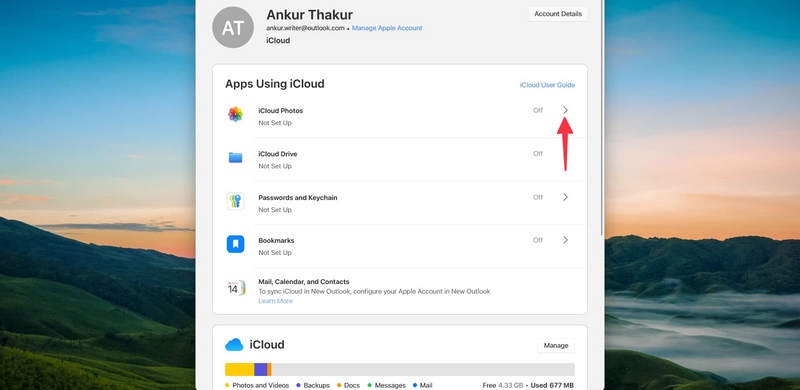
To download photos from iPhone to computer using iCloud, follow these steps based on your device system:
On a Mac: Log in with the same Apple ID. Open the Mac Photos App, turn on iCloud Photos in preferences, and your images will show up automatically.
On a Windows PC: Download the official iCloud for Windows app from the Microsoft Store. Open the app, sign in, and turn on iCloud Photos. Your cloud images will sync to a special folder inside your Windows File Explorer.
Further Reading
Part 3: How to Send Photos iPhone to Computer Wirelessly (Local Transfer)
Sometimes you only need to move 5 or 10 pictures quickly, and you do not want to set up iCloud or look for a cable. Here is how to send photos from an iPhone to a computer fast using local wireless tools.
AirDrop (For Mac Users Only)
AirDrop is the easiest wireless option for Apple owners. Open the Photos app on your iPhone, select the images, tap the Share button, and choose AirDrop. Select your Mac computer from the list. The pictures will appear in your Mac's Downloads folder instantly.

LocalSend (For Windows and Mac Users)
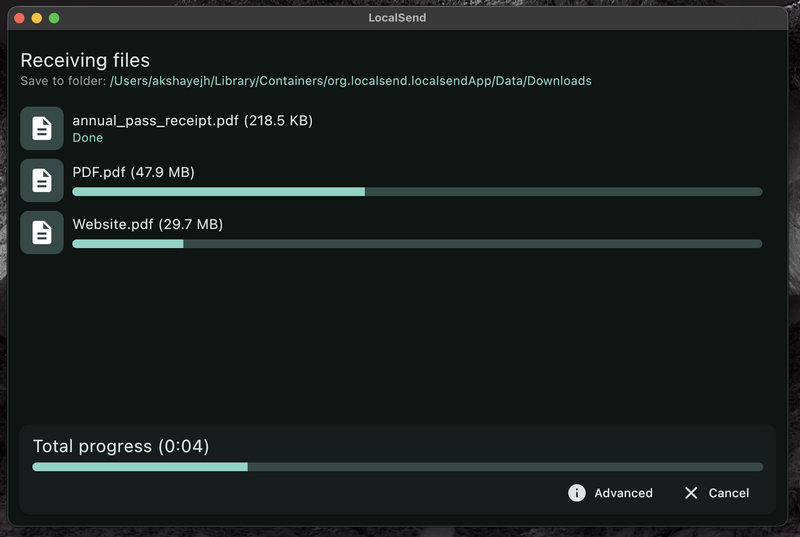
If you use a Windows PC, AirDrop does not work. Instead, you can use a free, open-source tool called LocalSend, to send your photos from iPhone to PC or Mac. Download the LocalSend app on both your iPhone and your PC. Make sure both devices are on the same home Wi-Fi network. Open the app on your phone, choose your photos, and send them to your PC. It is fast, private, and does not require internet data.
Part 4: Crucial Tips to Boost Your Photo Transfer Speed
Many users complain that when they try to transfer photos from their iPhone to computer, it takes a very long time or the connection drops. This is especially true, for the camera settings on an iPhone will make the taken photos high quality, but in very large sizes. Luckily, here are some simple tips to speed up the photo transfer process:
Tip 1: Check Your USB Cable and iPshone Model
Did you know that not all USB cables are the same? If you have a standard iPhone 15, 16, or 17, your USB-C port is limited to slow USB 2.0 speeds (up to 60MB/s).
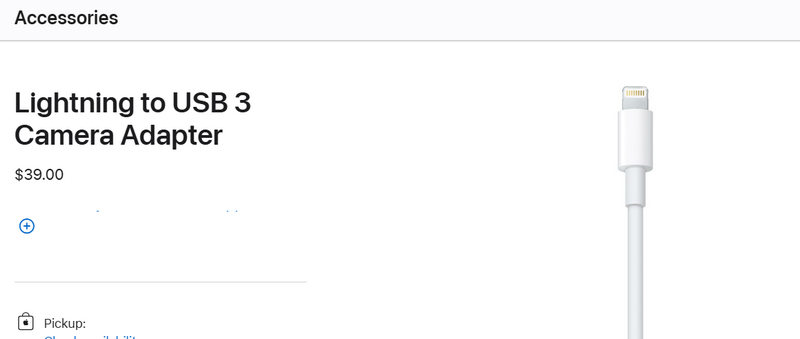
If you have a Pro model (like the iPhone 17 Pro), your phone can handle super-fast USB 3.0 speeds (up to 1250MB/s). However, the default USB cable in the Apple box is only a USB 2.0 cable! That means you still need to buy a separate, high-speed USB 3.0 or USB 4 cable from an official Apple Store or buy a reliable one with MFI.
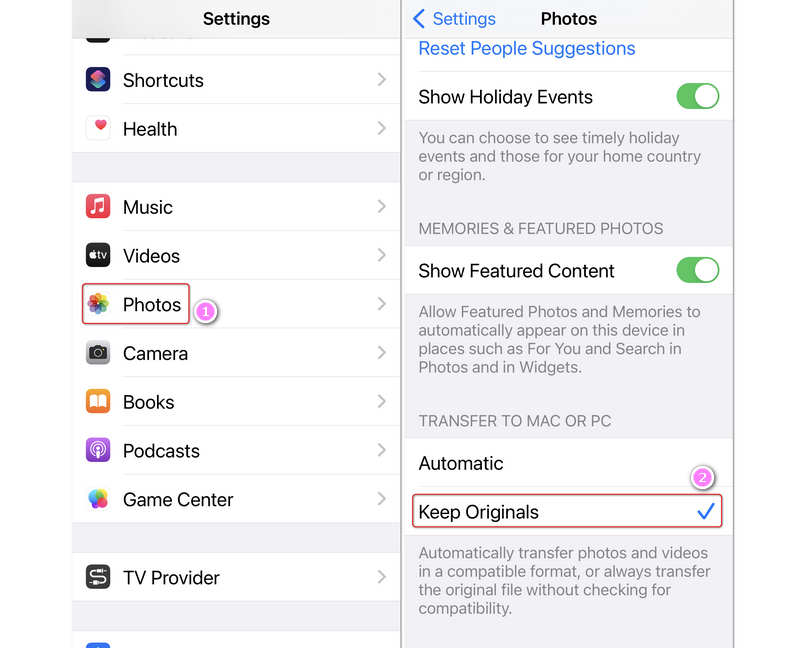
Tip 2: Change the Transfer Format Settings
By default, iPhones save images in HEIC format. When you move them to a PC, the phone spends time converting them to JPG. This makes the transfer slow.
To fix this, go to iPhone Settings > Photos. Scroll to the bottom and under Transfer to Mac or PC, change it from Automatic to Keep Originals.
This can make transferring photos from iPhone to computer faster, for the HEIC/HEIF format has a higher compression rate compared with JPG and PNG formats while still keeping high image quality.
Part 5: Summary of the Photo Transfer Methods
| Method | Best For | Pros | Cons |
| Apeaksoft iPhone Transfer | High-speed bulk transfer; transfer large photos and 4K videos | One-click full transfer; allows previewing photos/albums before copying; super fast; no data loss | Requires a computer software installation |
| iCloud Sync | Daily automatic backup | No manual work; works anywhere | Requires internet; limited free storage space (5GB) |
| AirDrop / LocalSend | Quick wireless sharing of a few files | Completely wireless; very convenient local transfer | Devices must be close to each other |
Part 6: FAQs of Transferring Photos from iPhone to Computer
How do I extract all photos from my iPhone?
1. Connect your iPhone to your computer.
2. Launch Apeaksoft iPhone Transfer.
3. Click the Photo to PC button to export all photos from your iPhone to your computer.
Why can't I copy iPhone photos to PC?
The causes may vary. Maybe your iPhone is locked or not trusted to your connected computer, the USB cable is broken or charging-only, or maybe you have a large batch of images so the conversion process will take a long time.
How to transfer 1000 photos from iPhone to laptop?
To transfer such a large number of photos from iPhone to computer, a stable and fast conversion tool is needed, like Apeaksoft iPhone Transfer. It is a lightweight and stable desktop program that lets you preview and enjoy a fast and stable transfer process.
How to transfer photos from iPhone to PC without a cord?
You can use iCloud to sync photos from iPhone to computer: on Windows, you should download iCloud for Windows manually. You can also use LocalSend to send photos wirelessly.
How do I copy my entire iPhoto library to an external hard drive?
You can use Apeaksoft iPhone Transfer to easily copy photos without only one-click. Connect your iPhone and your external hard drive to your computer. Then, use the Photo to PC feature to one-click copy photos directly to your external hard drive.
Conclusion
In 2026, it is much more worth it to learn how to send photos from iPhone to computer with reliable methods, for photo sizes are larger and the cost of hard drive storage has risen significantly. Although there are quick transfer tools like AirDrop and LocalSend, and cloud sync like iCloud, the transfer and uploading speeds are too slow. You can try Apeaksoft iPhone Transfer. It is a very user-friendly tool that can quickly transfer all photos or select photos. Its stable process can also protect your hard drive security and photo quality, which is decent and promising for modern file transfer.
 Apeaksoft iPhone Transfer
 Transfer iOS data among iOS devices, computer and iTunes.
Secure Download
Secure Download
Related Articles




