


What Is FRP Bypass & How to Bypass FRP on Android After Factory Reset

How do you do FRP bypass or remove Google verification after a factory reset?
Recently, many users have reported that they have encountered the Google verification lock, so-called FRP lock, after they’d factory reset their Android phone, which prevents them from accessing their Android phones.
Why does FRP lock occur? How to bypass the FRP lock? Read more to learn how to bypass FRP and regain access to your device.
Disclaimer
Bypassing FRP on a lost/stolen device is strictly prohibited and may be against local laws. This post is for educational purposes only.
PAGE CONTENT:
Part 1: What Is a FRP
FRP, Factory Reset Protection, is an Android security feature that prevents unauthorized access after restoring factory settings. It was first introduced on Android 5.1 (Lollipop) and has been continuously strengthened with each latest Android release.
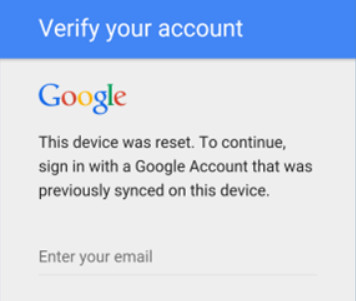
Once you have set up a Google account on the device, you need to provide the account credentials if you want to unlock the device after the device has been restored to factory settings. In other words, if your Android phone is lost or stolen, other people cannot use it. It is the reason you have to bypass FRP when your phone is FRP locked.
Although it helps protect your Android phone’s security, it is troublesome sometimes, especially in cases of forgotten Google credentials, second-hand devices, or forced factory resets caused by system failures. Therefore, you need to learn how to bypass the FRP lock. This article is here for your reference.
Part 2: How to Bypass FRP
Method 1: Official Way to Remove the FRP Lock
If you are the original owner of the Android phone and are locked out because you forgot your Google account credentials, you can try Google account recovery to complete the Google verification and unlock your device. It is an official and safe way to bypass the FRP lock.
Step 1. Open the Google Account Recovery website in any browser.
Step 2. Enter your Google email and click Next.
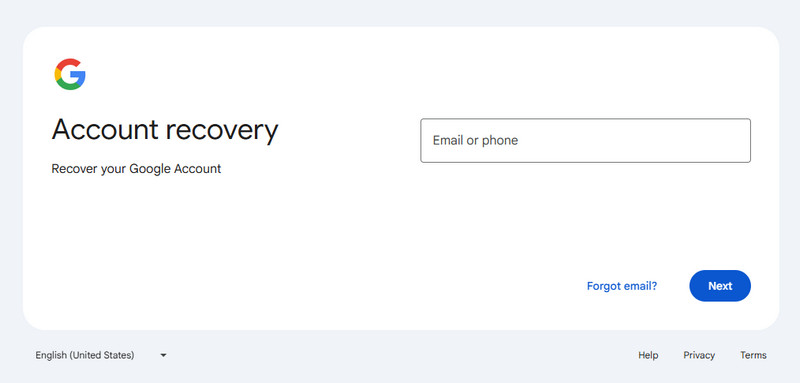
Step 3. Click Try another way, and there will be some alternative ways to verify your identification, such as the verification code, recovery email, etc. Choose the most convenient one for you.
Method 2: Alternative Way to Bypass FRP Without a Google Account
If you purchased a second-hand Android phone and don’t know any of the previous Google account details, you may find yourself stuck at the FRP lock screen after a factory reset. In this case, Google Account Recovery may not be an option. A professional FRP bypass tool can provide an alternative way to bypass FRP and regain full access to your device. In this part, we'll take Apeaksoft DroidAide Android Unlocker as an example and walk you through how it works step by step.

Downloaded by over 1,000,000 users
- Bypass the Google FRP lock without a Google account.
- Bypass the Google FRP lock with easy steps.
- Support most devices including Samsung, Huawei, Motorola, etc.
- Support nearly all the Android versions, including the latest Android 16.
- Intuitive interface and straightforward function buttons.
Secure Download
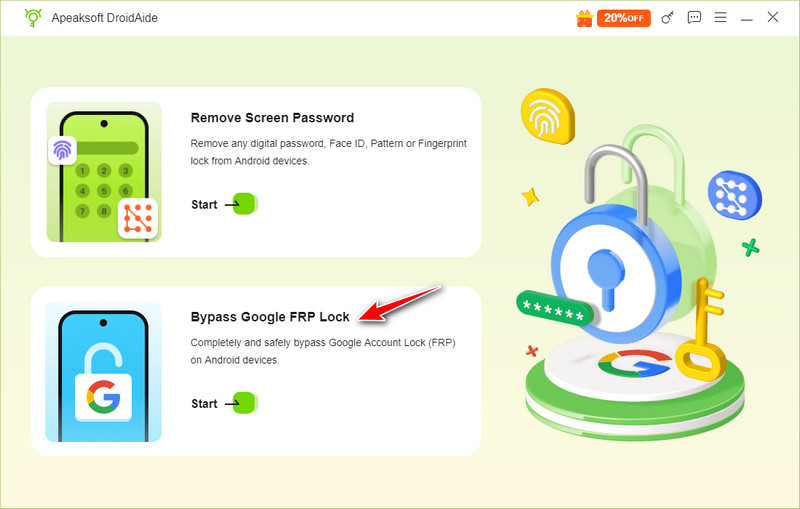
Step 1. Get a free download of Apeaksoft Android Unlocker from the link above, and then select the Bypass Google FRP Lock option on the main interface.
Step 2. Connect your device and choose your phone’s model. Sometimes it will automatically recognize your phone model. Check it and click Bypass Now.
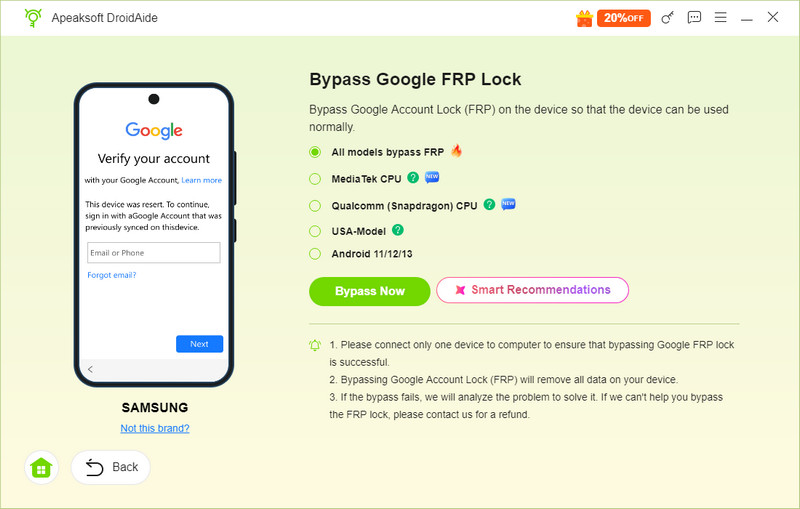
Step 3. Follow the instructions on the screen to turn on the USB debugging mode.
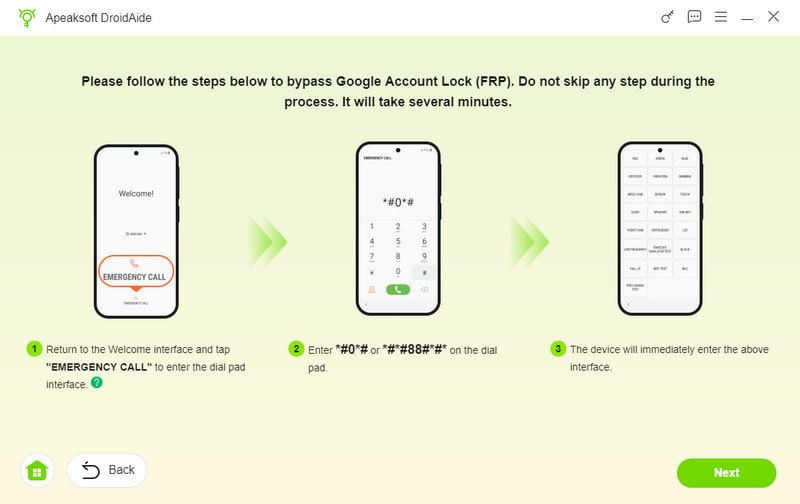
Step 4. Activate your device by following the on-screen instructions after the environment configuration. If ready, the FRP bypass process will start automatically.
Part 3: Legacy FRP Bypass Methods and Their Limitations on Android 16/15/14
You can easily find many FRP bypass tools and methods online, such as using the Google Keyboard, installing FRP bypass APKs, exploiting TalkBack features, etc. These methods were once effective on older Android versions and relied on system loopholes or permission vulnerabilities to bypass Google account verification.
However, as Android continuously updates its versions, these security loopholes have been patched through system updates. On the latest Android versions, most of these tricks no longer work.
This section will briefly explain how these common FRP bypass methods work and why they are no longer applicable to newer Android systems, helping you avoid wasting time on outdated or ineffective solutions.
| Method | Method Status | Main Limitation |
| Google Keyboard | Mostly outdated | Only works on some older Android versions |
| Emergency Dialer & Google Assistant | Mostly patched | Security loopholes have been fixed on newer devices |
| APK-Based Methods | Device-dependent | Compatibility varies by device, Android version, and security patch |
Bypass FRP via Google Keyboard
Google Keyboard is a virtual keyboard for iOS and Android devices. It allows you to perform web searches, query images, or even emojis without leaving the keyboard. You can use it to bypass the FRP Google Account Verification after a factory reset. Just learn more about the process below.
Step 1. Once you have reset your Android phone, you can choose a language and link to a Wi-Fi network. Enter the Google account login page, and you will see the keyboard on the screen. You need to click the @ symbol on your keyboard, then hold it down until the Settings window appears, then select the Google Keyboard Settings option.
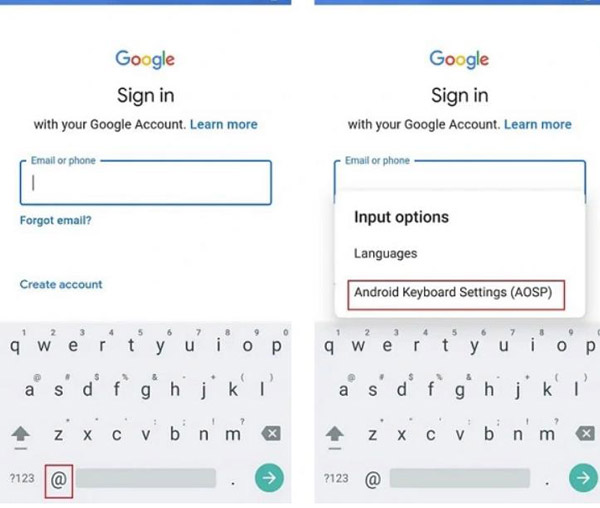
Step 2. Click on the three dots at the top-right corner and select the Help and Feedback option. You can select the Use Google Keyboard option in the help section. After that, click and hold any text on the page, and then click the Web Search option.
Step 3. Type the Settings option until the search bar appears and goes down to the menu to find the About phone option. Here, you need to find the Build number option and click it 7 times, which will enable the Developer options button.
Step 4. After that, you need to return to the menu and go to the Developer options window, click the OEM Unlocking button to unlock, and you need to click the back button twice to bypass FRP. You must restart the mobile device and connect to a Wi-Fi network.
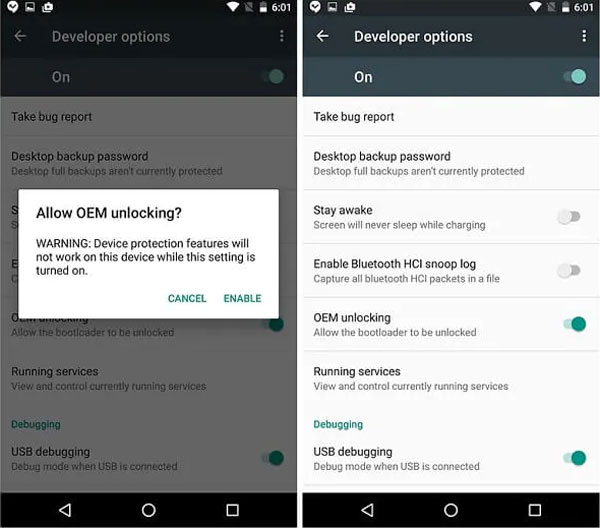
Step 5. Just add a new Google account or use another account once you have successfully bypassed FRP Google account verification. It is easy to bypass the Google Account Verification and connect the Google account to the device afterward.
Android 17/16/15 Compatibility: Starting from Android 13, Google has patched the Google Keyboard method as well as other techniques that exploit TalkBack or Accessibility features to access system settings. If your device is running an older Android version, these methods may still work, but they are no longer applicable on Android 13 and later.
Bypass FRP via Emergency Dialer & Google Assistant
On the Verify your account interface, you can still access Emergency Dialer for security reasons. You can also trigger Google Assistant in some older Android versions, either through the setup process or using voice commands such as Open Settings or Go to Chrome. It is possible to access hidden menus by entering specific USSD codes or special characters, which may allow the system to launch other components, such as contacts, call history, or even system apps. Then, users may be able to navigate outside the FRP verification flow and open system settings or a browser to add a new Google account.
Android 17/16/15 Compatibility: These loopholes have been gradually patched on Android 12/13. You can no longer take advantage of them for Android 16 FRP bypass.
Bypass FRP Based on APK Files
In some old Android versions, the permission boundaries between the Setup Wizard, system WebView or browser, and file manager or download components were not strictly enforced. As a result, certain APK files were able to exploit these loopholes to bypass the restriction that prevents installing any applications during FRP verification, such as FRP Bypass APK DM, Easy Flashing FRP 8.0 APK, etc.
Android 17/16/15 Compatibility: On newer Android versions (Android 12/13 +), it is forbidden to install any third-party APK in the FRP state. APK-based FRP bypass methods are no longer reliable on modern Android versions with recent security patches.
Part 4: How to Avoid FRP Bypass After Factory Reset
If you do not disable or bypass Factory Reset Protection before the factory reset, the Google account will be locked. Therefore, you will be trapped on the Verify your Account page, which means that you need to log in using the Google account that was synchronized on the former device.
If you don’t want this to happen, you can disable the FRP lock before performing a factory reset by removing the Google account from the device:
Step 1. Go to Settings > Accounts.
Step 2. Tap the corresponding Google account and choose Remove account.
Step 3. Click again to confirm your operation.
Step 4. Enter your Google account password to continue.
Tips: If you want to present or sell your Android phone, it is necessary to remove your Google account from the device in advance.
Bonus: How to Recover Android Data After FRP Bypass
Once you have bypassed FRP and accessed your Android phone, you should restore the lost data after factory resetting. Apeaksoft Android Data Recovery is an advanced data recovery tool to recover and export the deleted or lost data from Android phones.
Downloaded by over 1,000,000 users
- Recover the lost or deleted data after FRP bypass or factory reset.
- Preview, backup, and restore the important Android files efficiently.
- Compatible with most Android phones and all versions.
Secure Download
Secure Download

Part 5: FAQs about FRP Bypass
Is it possible to remove FRP Google Verification completely on Android?
Yes. But the available method depends on your device, Android version, and whether you still have access to the Google account previously used on the phone. You can use Google credentials, professional software, or other solutions to remove the Google Verification from your Android phone accordingly.
How to find the lost Google Account and password?
If you do not want to skip Google FRP, you can retrieve the Google account and password from the Google Account Recovery page. After that, you can click on the I don’t know my password option to recover/reset your Google account password.
Is it legal to bypass the FRP?
You are only allowed to bypass the FRP lock on your own Android phone or get explicit authorization. Bypassing the security protection on a lost, stolen, or unauthorized device may violate applicable laws or the device owner's rights.
Can I Bypass FRP Without a Google Account?
Yes. If you cannot recover your Google account, you may need a compatible FRP bypass solution.
Does FRP Bypass Work on Android 16, 15, or 14?
The availability of the FRP bypass methods varies depending on the device model, Android version, and security patch levels. Many old methods that rely on system vulnerabilities no longer work reliably on newer Android versions.
Conclusion
Above is all the content about Android FRP bypass or Google Verification after a factory reset. You can take the official method to reset your Google account password if you forget it. If you are using a second-hand phone running on the latest Android 16, you should choose Apeaksoft Android Unlocker to do FRP bypass. When you lose some important files during the Factory Reset Protection bypassing process, Apeaksoft Android Data Recovery is the best choice to get them back.
 Apeaksoft DroidAide
 Unlock your Android passwords and bypass the FRP lock easily.
Secure Download
Related Articles




