
How to Remove Screen Lock on Your Android Phone/Tablet

The lock screen is an essential security measure on Android devices for protecting data and privacy. However, every coin has two sides. So does the lock screen. When you need to access your device frequently, for example, constantly entering the password is very annoying. Before giving your device to a second hand, the screen lock is unnecessary. This guide shares multiple ways to remove the screen lock on an Android device.
PAGE CONTENT:
- Part 1: How to Remove Screen Lock on Android from Settings
- Part 2: How to Remove Screen Lock PIN on Android Remotely
- Part 3: How to Remove Password from Lock Screen on Samsung
- Part 4: How to Remove Screen Lock on Android with PC
- Part 5: How to Remove Screen Lock on Android in Recovery Mode
- Part 6: How to Remove Screen Lock on Phone Without a Password
Part 1: How to Remove Screen Lock on Android from Settings
The easiest way to remove the screen lock on an Android phone is the built-in settings app. It only requires your phone's lock screen password. Of course, your phone must be accessible currently.
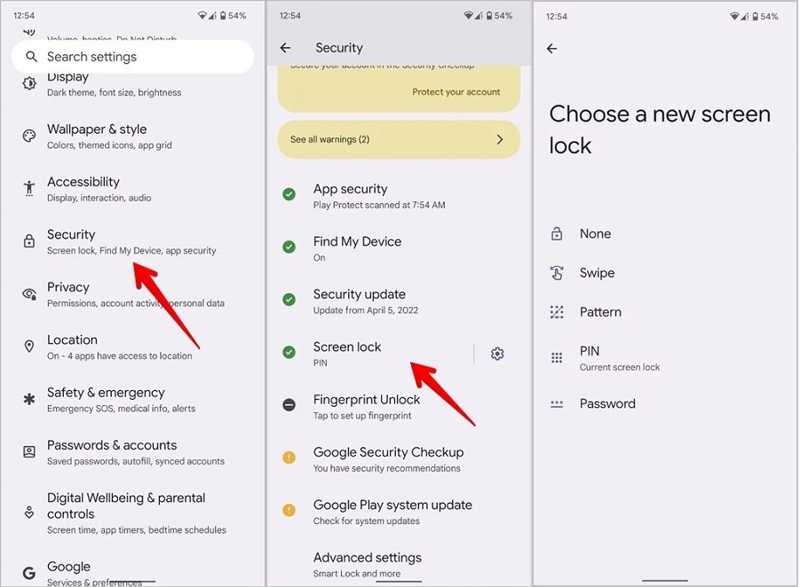
Step 1. Open the Settings app from your app tray or Quick Settings panel.
Step 2. Go to Security, then Screen Lock.
Step 3. Enter your phone password.
Step 4. Then, choose the None option.
Step 5. If prompted, tap Delete to turn off the screen lock completely.
Note: The process may be different, depending on the version of Android.
Part 2: How to Remove Screen Lock PIN on Android Remotely
Google has added the Remote Lock feature to the Find My Device portal. This feature enables you to remove the screen lock PIN on your Android device remotely. The precondition is that you have turned on Find My Device on your device.
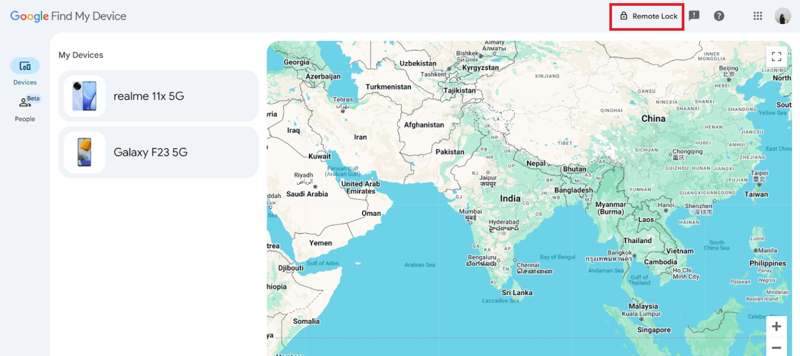
Step 1. Access www.google.com/android/find/ in a web browser.
Step 2. Log in with the Google account linked to your phone.
Step 3. Go to the Devices tab.
Step 4. Pick your phone from the list.
Step 5. Tap the Remote Lock option at the top right corner.
Step 6. Next, create a new PIN.
Step 7. Turn on your phone and unlock it with the new PIN.
Step 8. Then, turn off screen lock in the Settings app.
Part 3: How to Remove Password from Lock Screen on Samsung
If you are using a Samsung Galaxy phone, you can remove the password from the lock screen using Samsung Find My Mobile. The precondition is that you have added a Samsung account and turned on Find My Mobile on your device.
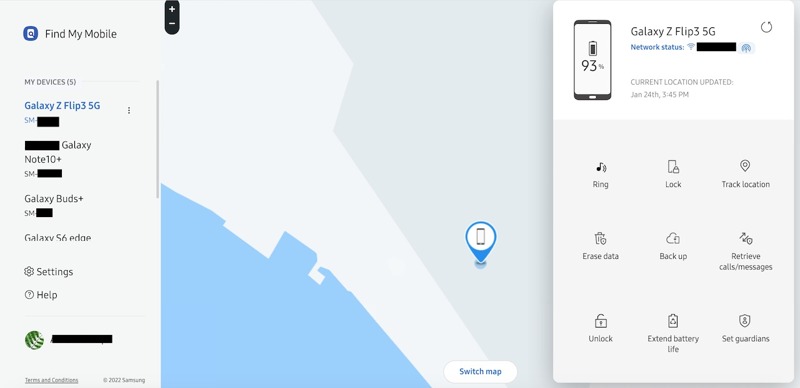
Step 1. Log in to https://findmymobile.samsung.cn/login with your Samsung account.
Step 2. Then, it will track your phone on the interactive map.
Step 3. Choose your phone under the My Devices heading.
Step 4. Click the Erase data option to remove all data and settings on your device, including the password for the lock screen.
Part 4: How to Remove Screen Lock on Android with PC
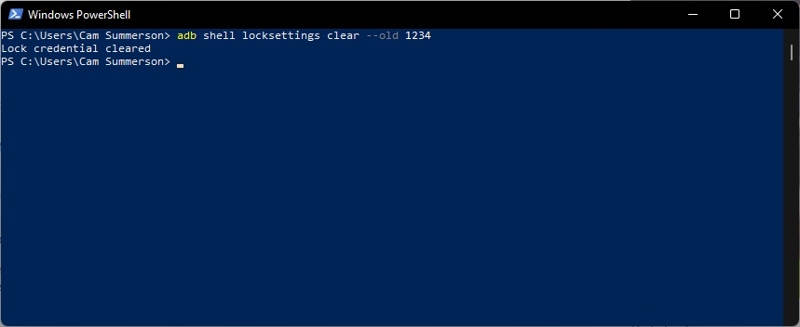
ADB, or the Android Debug Bridge, can remove the lock screen on a phone from a PC. It works through the command lines and requires technical skills. Therefore, we share the detailed steps below:
Step 1. Set up ADB on your PC.
Step 2. Connect your phone to your PC with a USB cable.
Step 3. Fire up the command prompt or PowerShell window.
Step 4. Type in the command: adb shell locksettings clear --old CREDENTIAL. Replace CREDENTIAL with your current login credentials.
Step 5. If you see Lock screen disabled set to true, it indicates that the command worked.
Note: If your phone has a secure lockscreen, use the command: adb -s SERIAL_NUMBER shell locksettings clear –old CREDENTIAL.
Part 5: How to Remove Screen Lock on Android in Recovery Mode
Another way to remove the screen lock on Android is Recovery Mode. It bypasses the operating system and enters the bootloader screen. Then, you can remove all data on your device, including screen locks.
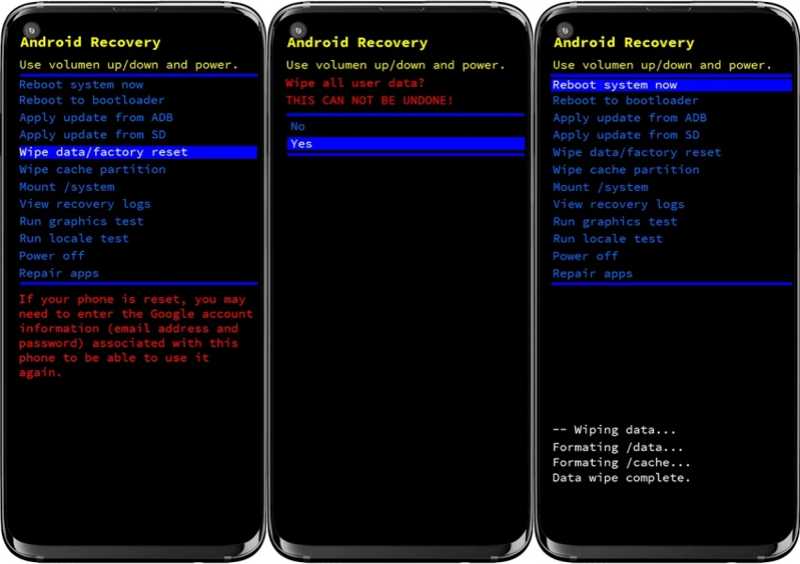
Step 1. For most Android devices, press and hold the Volume Down + Power buttons.
For Samsung devices, press and hold the Volume Up + Power buttons simultaneously.
Step 2. Release the buttons until the bootloader screen appears.
Step 3. Choose the Wipe data/factory reset option with the volume buttons.
Step 4. Press the Power button to confirm it.
Step 5. Select Yes when prompted, and press Power.
Step 6. Once the process is complete, select the Reboot system now option.
Step 7. Press the Power button to enter the standard mode and set up your device again.
Part 6: How to Remove Screen Lock on Phone Without a Password
If you forgot your phone password, Apeaksoft DroidAide Android Unlocker can help you remove the screen lock PIN on your Android phone. It is able to wipe all screen locks from your phone or tablet without any restrictions. Furthermore, the user-friendly design makes it easy to use.

Downloaded by over 1,000,000 users
- Remove screen lock password from Android devices.
- Don't require a password during the process.
- Available for disabled, frozen, and broken devices.
- Bypass Google FRP Lock without the linked Google account.
- Work for a wide range of Android brands and models.
Secure Download
How to Remove Screen Lock on Your Phone Without a Password
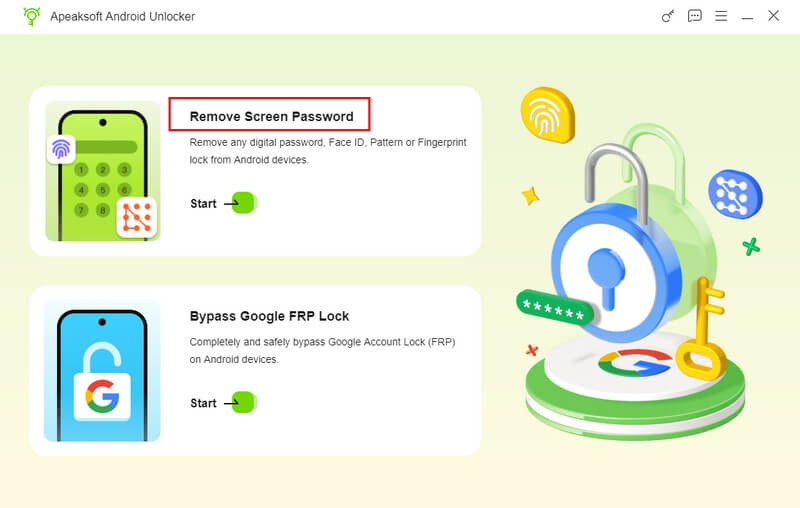
Step 1. Install Android Unlock tool
Launch the Android unlock software once you install it on your computer. Choose the Remove Screen Password mode to proceed. If your phone is locked by Google FRP, choose the Bypass Google FRP Lock mode instead.
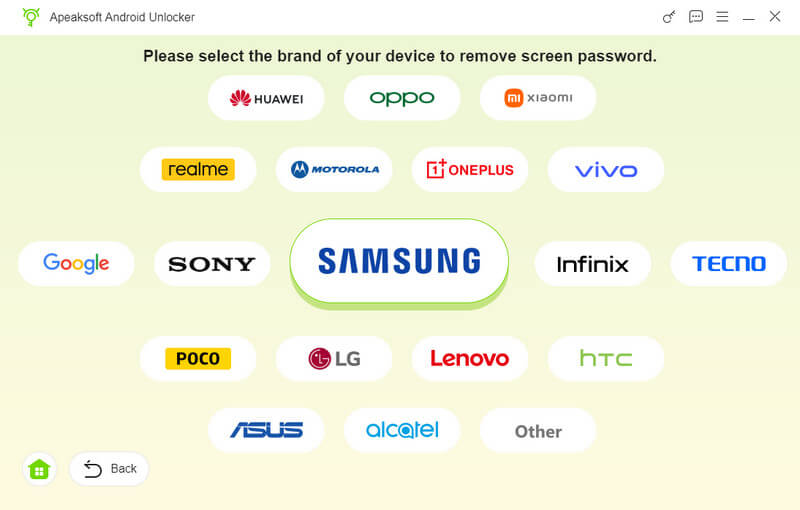
Step 2. Connect to your phone
Choose your phone brand on the window. Next, link your phone to your computer with a compatible USB cable. If prompted, tap Trust on your screen to trust this computer.
Step 3. Remove screen locks
Once your phone is recognized, click the Remove Now button to begin removing the screen lock PIN from your Android device immediately. When it is done, disconnect your phone and close the software.
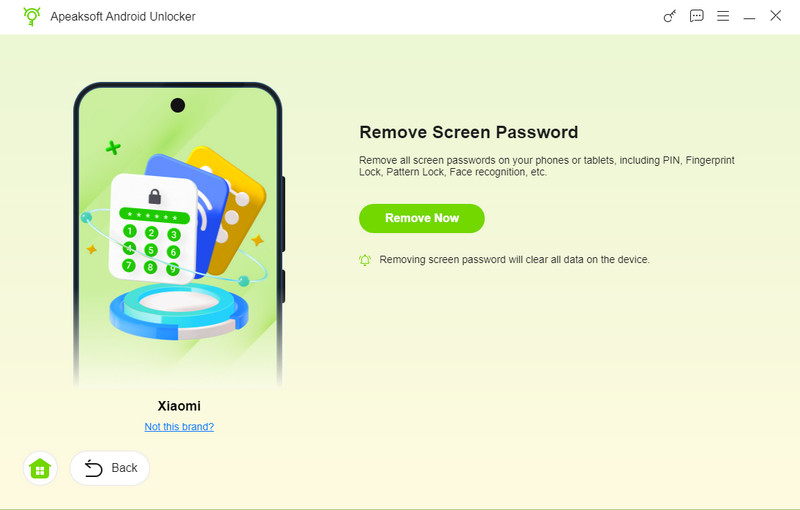
Note: The process may erase all your data. You’d better back up your phone first.
Conclusion
This guide shared six ways to remove screen lock on Android devices in various situations. The easiest way is to complete the job in your Settings app. Google Find My Device can remove current screen locks on your Android device. Samsung Find My Mobile is able to erase all data on your Galaxy devices, including the lock screen. Plus, you can try ADB and Recovery Mode. Apeaksoft DroidAide Android Unlocker is the one-stop solution to get rid of the Android lock screen quickly.
 Apeaksoft DroidAide
 Unlock your Android passwords and bypass the FRP lock easily.
Secure Download
Related Articles