

Apple ID Password Requirements: Rules, Change & Reset Guide

Your Apple ID connects you to almost everything in the Apple ecosystem. Whether you're backing up photos to iCloud, syncing data across devices, or using services like Apple Music and iMessage, your Apple ID keeps everything linked together.
Because this account stores so much of your personal data, keeping it secure is essential. One of the easiest ways to protect it is by creating a strong Apple ID password. So, what are the Apple ID password requirements? In this guide, we will introduce everything you need to know.
PAGE CONTENT:
Part 1: What Are the Password Requirements for Apple ID
Apple has specific Apple ID password requirements that users should follow to set a secure password. So, how to set a strong Apple ID password to protect your data better?
Detailed Requirements for Apple ID Password
To protect your account and personal data, Apple requires your Apple ID password to meet several security rules. Your Apple ID password must follow these requirements:
• It must have at least 8 characters in length.
• It must have at least one uppercase letter, one lowercase letter, and one number.
• It can't contain three or more consecutive identical characters, such as "aaa" or "333".
• It can't be a simple or commonly used combination, such as "123456" or "adcd1234".
Strong Apple ID Password Examples
A strong Apple ID Password should be long, unique, and difficult to guess. When setting your password, keep the following tips in mind:
• Avoid using keyboard patterns, such as "qwerty" or "asdfgh", because these common sequences are easy to guess. Instead, use random numbers, characters, and symbols.
• Avoid using easily guessable personal information, such as your name, your birthday, or phone number. This type of information can often be found on social media or other public sources, making your password easier to crack.
• Avoid reusing a password that you use with other websites. If one of those accounts is compromised, any other accounts that use the same password may also be at risk.
Here are some examples of strong Apple ID passwords:
• MyAppleID_26
• iLove@Travel
• BlueSky7River
Part 2: How to Change Your Apple ID Password
If you notice unusual activity or suspect that someone else has accessed your account, you should change your Apple ID password to protect your security. Make sure your new password meets the requirements for Apple ID before setting a new one.
On iPhone/iPad
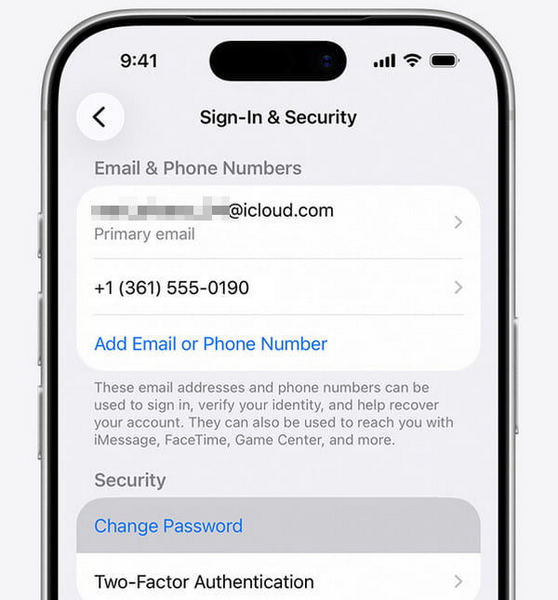
Step 1. Go to Settings, tap [your name], and select Sign-In & Security.
Step 2. Tap Change Password and enter your new passcode.
Step 3. Confirm the new password and tap Change.
On Mac
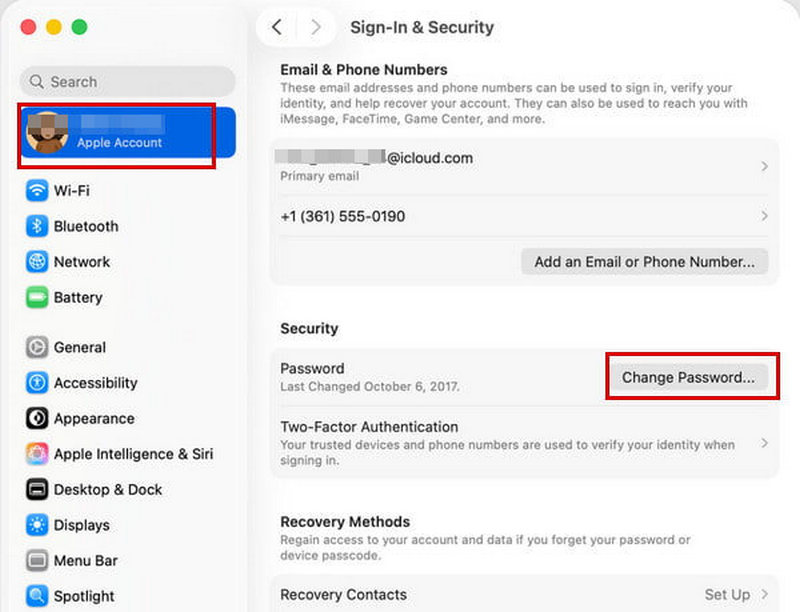
Step 1. Open Apple Menu, then select System Settings.
Step 2. Click [your name], then choose Sign-In & Security.
Step 3. Click Change Password. Enter the password used to unlock your Mac to verify your identity.
On the Web
Changing your Apple ID password on the web is also a convenient option that consumes a little time. Follow the steps below to change your Apple ID password without a trusted device.
Step 1. Go to account.apple.com and sign in to your Apple Account.
Step 2. Select Sign-In & Security and click Password, then follow the on-screen instructions to change your Apple ID password.
Part 3: How to Unlock Your Apple ID If You Forgot Password
What should you do if you accidentally forget your Apple ID password? Don't panic, Apeaksoft iFoneKit will help you overcome Apple device security locks effortlessly! It can unlock your Apple ID without a password, even if Find My is enabled on your device!
Wipe All Kinds of Locks on Your iPhone/iPad
- Reset your forgotten Apple ID password easily with a few clicks.
- Remove 4-digit/6-digit passcodes, Face ID, and Touch ID effortlessly.
- Bypass MDM/SIM/Screen Time restrictions to enjoy all the services.
- Support all iOS models and versions, including the latest iOS 26/27 Beta.
Secure Download
Secure Download

How to unlock your Apple ID without a passcode:
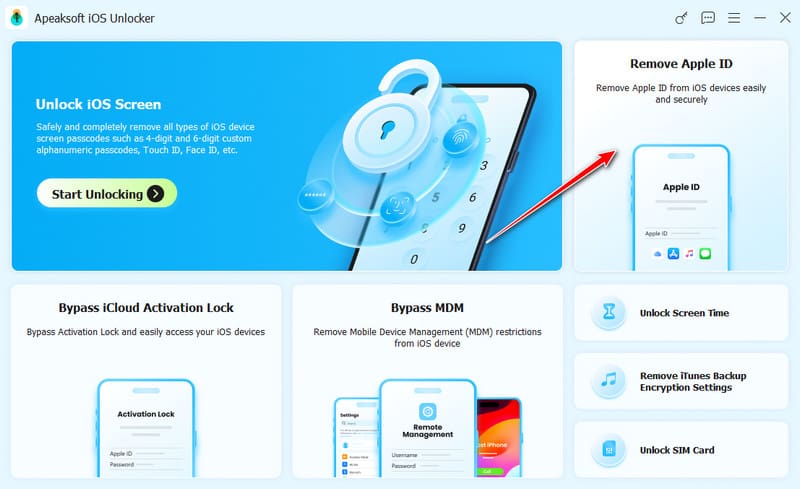
Step 1. Launch the software and select Remove Apple ID mode. Connect your iOS device to the computer using a USB cable, then tap Trust.
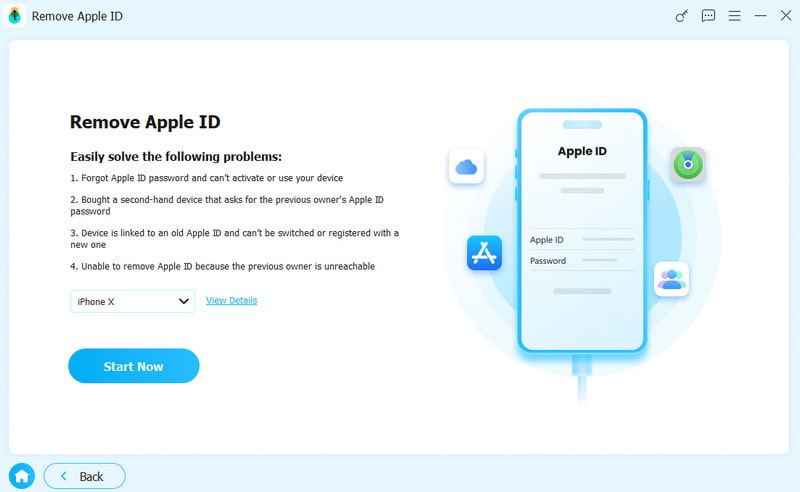
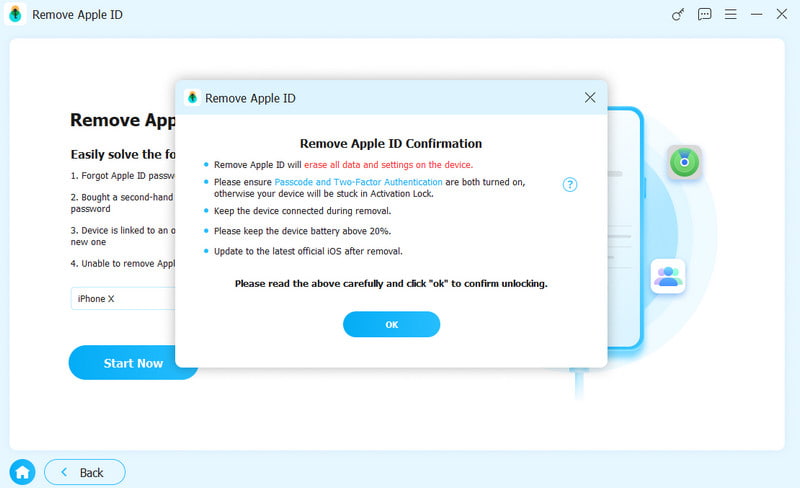
Step 2. Click the Start Now button to start resetting your Apple Account.
Step 3. If Find My is disabled, iFoneKit will start removing your Apple ID and iCloud account right away.
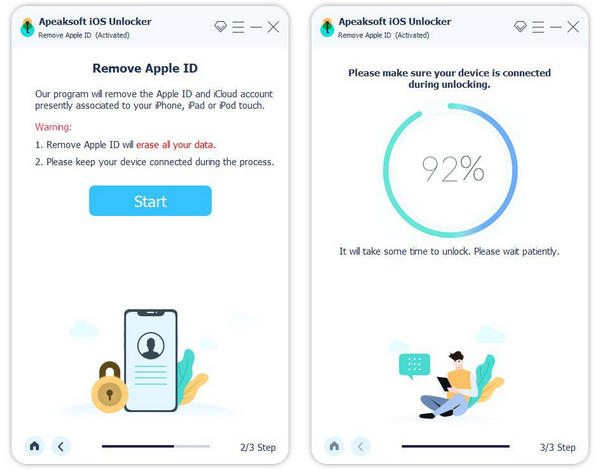
Step 4. If Find My is enabled, you need to follow the instructions on the software interface to reset your iOS device first. Confirm twice to start the process. Then, your Apple ID will be erased soon.
Part 4: How to Reset Apple ID Password with Email or Phone Number
If you've forgotten your Apple ID password, don't worry! Apple offers 3 quick and easy ways to reset it with your email address or phone number. Each method is designed to get you back into your account safely and securely.
Reset with a Trusted Device
The easiest and most secure way to reset your Apple ID password is to use another trusted device. A trusted device is one where you're already signed in to your Apple Account with two-factor authentication enabled. This allows Apple to verify your identity and confirm that the device belongs to you.
You can reset your forgotten Apple ID password with a trusted iPhone/iPad/Mac. The process is straightforward and follows the same steps outlined in Part 2 of this guide.
Use the Apple Support App
If you don't have a trusted device, you may still be able to reset your forgotten your Apple ID password using the Apple Support app. Follow the steps below to reset Apple ID password without a trusted device.
Step 1. Open the Apple Support app on your Apple device. If the app isn't installed, you can download it from the App Store.
Step 2. Navigate to Support Tools, then tap Reset Password.
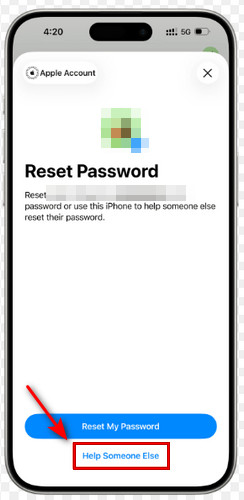
Step 3. Select Help Someone Else. Enter your Apple ID email address or phone number.
Step 4. Tap Continue, and follow the on-screen instructions to reset your Apple ID password.
Via the iforgot Website
You can also reset your Apple ID password via the iforgot website. For security reasons, it might take several days or longer before your account becomes accessible again after you start account recovery.
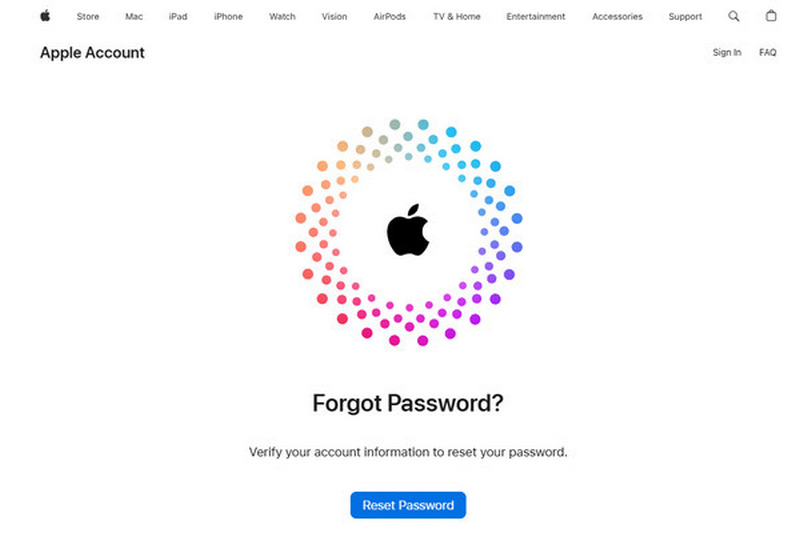
Step 1. Go to iforgot.apple.com and click Reset Password.
Step 2. Enter your email address or phone number you use with your Apple Account. Follow the on-screen instructions to begin Apple Account recovery.
Step 3. Turn off your devices that are signed in to the same Apple Account during recovery. Using your Apple Account on these devices before the reset is complete may automatically cancel the recovery.
Conclusion
Setting a strong Apple ID password is one of the simplest ways to keep your Apple Account and personal data safe. By following the Apple ID password requirements, you can make a powerful password to prevent others from accessing it. And if you ever run into problems, such as forgetting your Apple ID password, there are still several ways to unlock your iPhone quickly.
Related Articles




