


How to Reset Forgotten Apple ID Security Questions

It is well known that an Apple ID is crucial in Apple's ecosystem. To protect users' accounts, Apple introduced a few security measures, such as Two-factor Authentication, Two-step Verification, and more. The security questions and answers are an old security measure for Apple accounts. If you forgot Apple ID security questions and answers, you'd better change and reset them. This article shares the proven methods and concrete steps.
PAGE CONTENT:
Part 1: When You Need Apple ID Security Questions
Apple uses best-in-class security technologies to protect users' accounts. The security questions and answers are used to verify your ownership when you or someone else tries to reset, unlock, delete, or use your Apple ID and password.
Part 2: How to Change Apple ID Security Questions
When you forgot answers to security questions for your Apple ID, you can change them on either your iOS device or online. To keep your questions and answers, you'd better back up the new settings.
How to Change Forgotten Apple ID Security Questions on iPhone
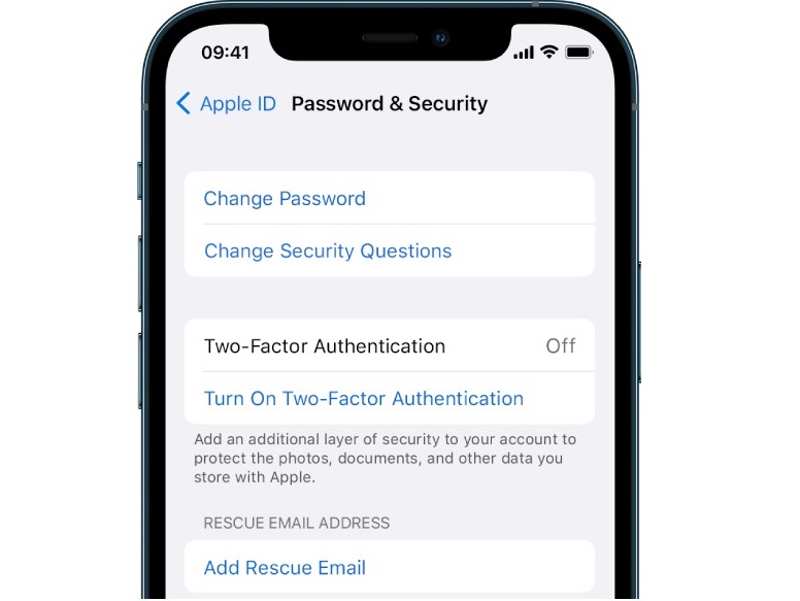
Step 1. Turn on your iPhone.
Step 2. Go to the Settings app and tap on your profile.
Step 3. Choose Sign-In & Security and tap Account Security, or Password & Security.
Step 4. Tap Change Security Questions.
Tips: If Two-factor Authentication is on, you don't need security questions and won't find the Change Security Questions button.
Step 5. Tap the Forgotten answers button.
Step 6. Choose Reset security questions on the pop-up.
Step 7. Try to answer the questions or tap Skip this question.
Step 8. If verification is successful, change the forgotten security questions and answers.
Note: If you cannot remember any answers, add a Rescue Email. Then, tap the Reset your security questions link on the Change-security-questions screen. Follow the instructions in the rescue email to reset them.
How to Change Forgotten Apple ID Security Questions Online
Step 1. Visit https://account.apple.com/ in your browser if you forgot your security questions for your Apple ID.
Step 2. Sign in with your Apple ID and password.
Step 3. Click the Change Questions button under the Security section.
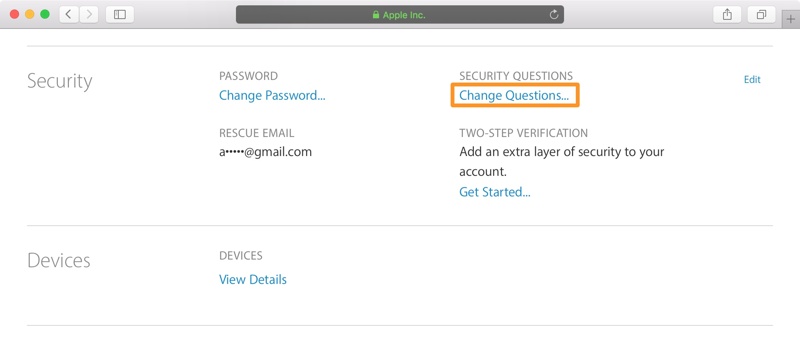
Step 4. Press the link of Reset your security questions on the dialog.
Step 5. Next, check the inbox of your rescue email and open the last email from Apple.
Step 6. Click the Reset Now button to redirect to the Apple Account webpage.
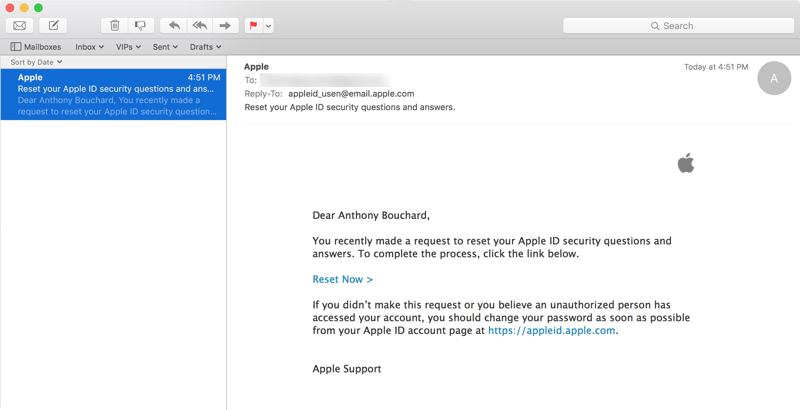
Step 7. Log in with your account again.
Step 8. Then, set new questions and answers for your Apple ID.
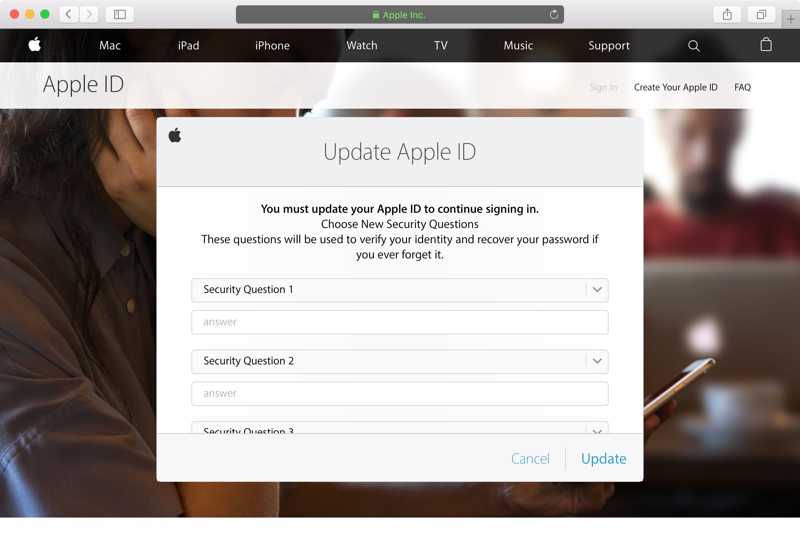
Step 9. Finally, click the Update button at the bottom to confirm the changes.
Part 3: How to Reset Forgotten Apple ID Security Questions
In addition, Apple allows users to reset forgotten Apple ID security questions and answers on iForgot directly. This way requires your Apple ID and password. You also need to provide the necessary information to verify your ownership.
Step 1. Go to iforgot.apple.com in a web browser.
Step 2. Click the Reset Password button.
Step 3. Enter your Apple ID, type the characters in the image, and hit Continue.
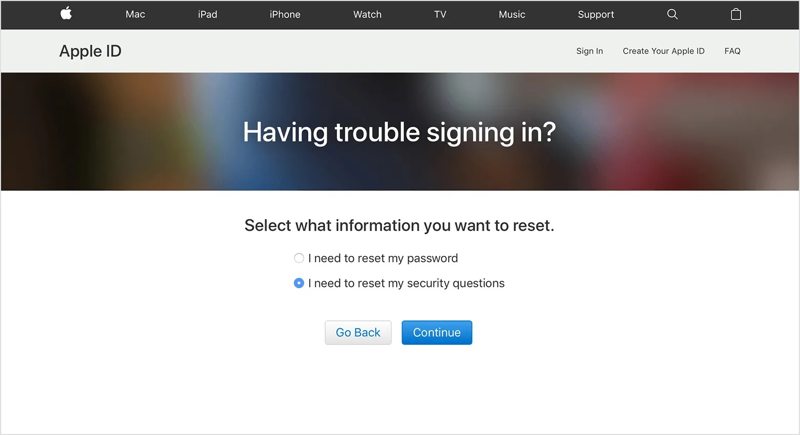
Step 4. Select I need to reset my security questions and click Continue.
Step 5. Enter your Apple ID password and hit Continue.
Step 6. Follow the onscreen prompts to verify your ownership.
Step 7. Next, select new security questions and leave your answers.
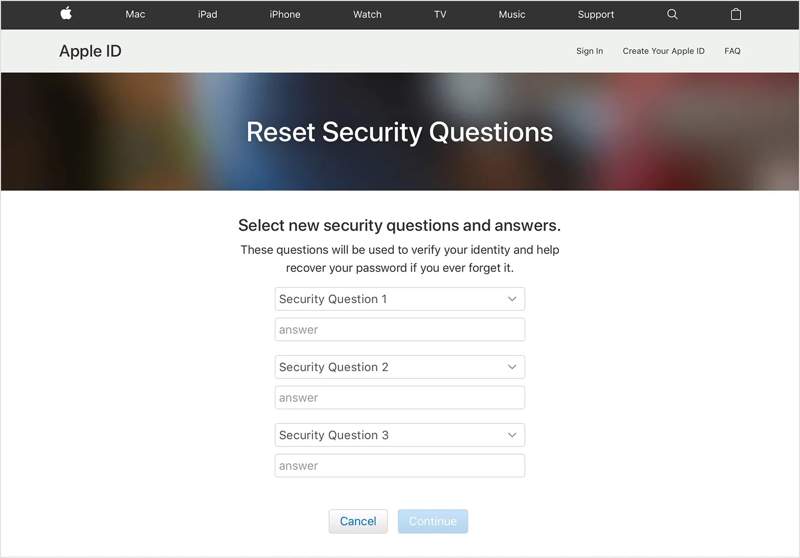
Step 8. Click Continue to confirm resetting the forgotten Apple ID security questions and password.
Further Reading
Part 4: What to Do If You Forgot Apple ID and Security Questions
What if you forgot both your Apple ID and security questions? The simple solution is erasing the account from your iOS device using Apeaksoft iFoneKit. Then, you can create a new Apple ID and set new security questions.

Downloaded by over 1,000,000 users
- Remove your old Apple account in three steps.
- Won't ask you to offer any passcode or password.
- Work for locked or hacked Apple ID accounts.
- Compatible with the latest models of iPhone and iPad and the latest iOS versions.
- Allow you to bypass MDM, Screen Time, and unwanted Apple ID.
Secure Download
Secure Download

How to Reset Forgotten Apple ID and Security Questions on Your iPhone
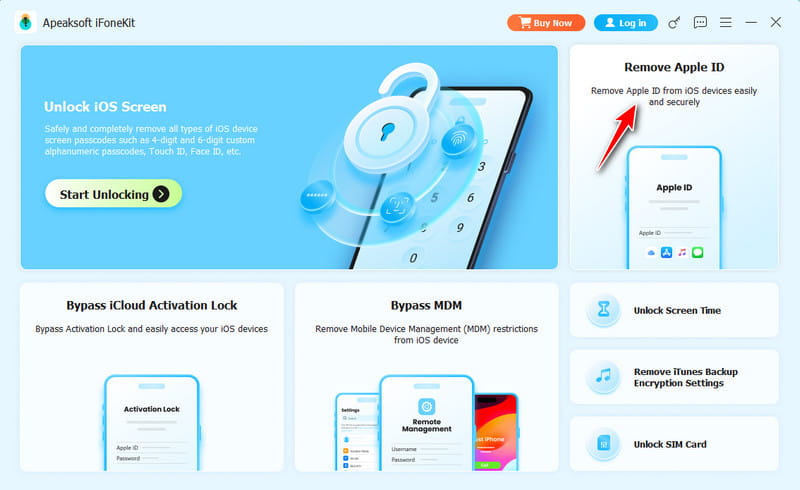
Step 1. Install iFoneKit
Launch the Apple ID removal software once you install it on your PC. There is another version for Mac. Choose the Remove Apple ID mode to continue.
Step 2. Detect your iPhone
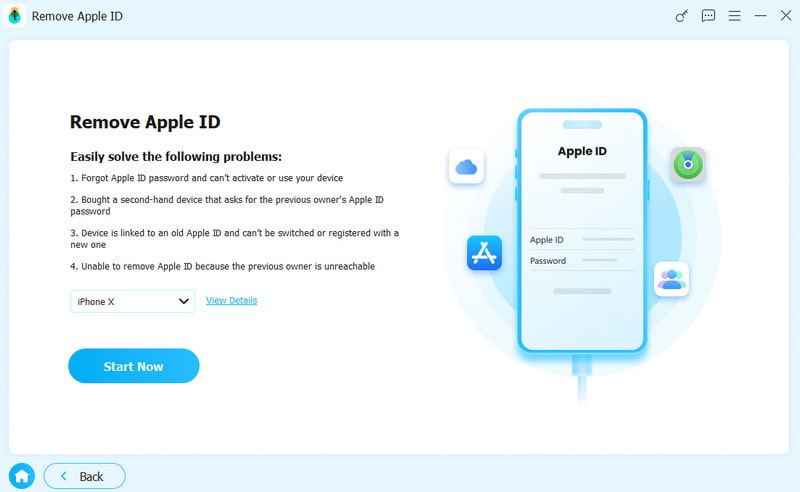
Connect your iPhone to your PC with a Lightning cable. If prompted, make sure to trust this PC. After the software detects your device, your iPhone model will be loaded.
Step 3. Remove Apple ID and security questions
Click the Start Now button to begin removing the old account if Find My iPhone is disabled. If not, reset all settings on your iPhone. Then, click OK and hit Confirm Again to initiate the process.
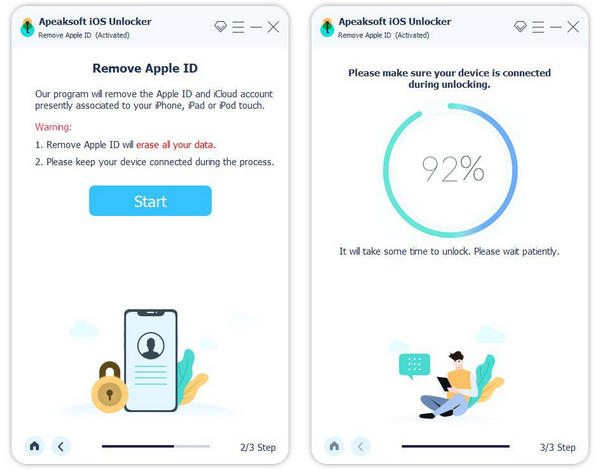
Note: When it is done, your iPhone will restart, and you can create a new Apple ID and new questions.
Conclusion
Now, you should understand what to do if you forgot the answers to security questions for your Apple ID. If you didn't set up Two-factor Authentication for your account, follow our guide to change and reset your security questions and answers to protect your Apple ID. Apeaksoft iFoneKit is an easy way to remove the old account and security questions from an iOS device.
 Apeaksoft iFoneKit
 Unlock all types of iOS passwords from iPhone, iPad and iPod.
Secure Download
Secure Download
Related Articles




