How to Get Your Apple ID Account Recovery Effectively

While an Apple ID account is crucial in Apple's ecosystem, it may be locked or disabled once Apple detects security issues. Moreover, users are locked out of their accounts if they forgot their passwords. The good news is that Apple has released the ways of Apple ID account recovery. This guide shares the proven methods to get your Apple ID account recovery with or without the trusted phone number.
PAGE CONTENT:
Part 1: What Is Apple ID Account Recovery
According to Apple, the account recovery process allows you to reset your password and regain access to your account. If you forgot your Apple Account password, make sure you have tried possible passwords before starting account recovery. For example, recover your account from a different device that has already signed in to.
Part 2: How to Recover Apple ID Password
As mentioned previously, you can recover your Apple ID account without a phone number on your trusted device if you have set up Two-factor Authentication for your account. We share the processes on iPhone, iPad, and Mac below.
Preconditions:
- 1.Your iPhone or Mac is accessible.
- 2.You have set up Two-factor Authentication for your account.
How to Recover an Apple ID Account on an iPhone
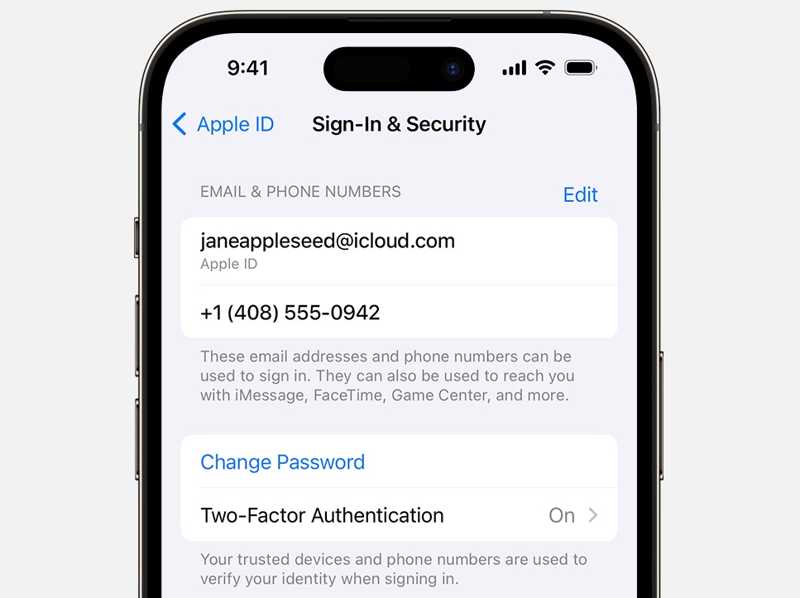
Step 1. Open the Settings app and tap on your profile.
Step 2. Go to Sign-In & Security.
Step 3. Tap the Change Passcode button.
Step 4. Enter your iPhone passcode when prompted.
Step 5. Then, type in a new password and verify it to recover your Apple ID password.
How to Get Apple ID Account Recovery on Mac
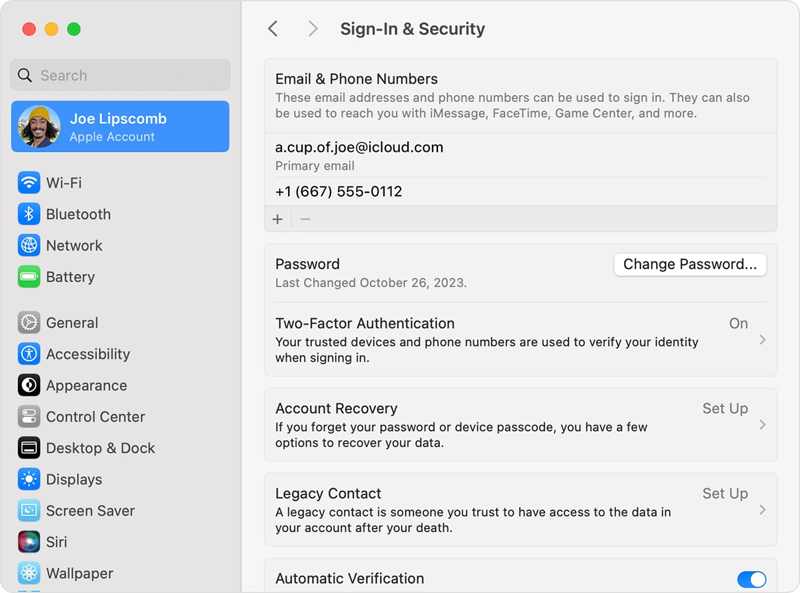
Step 1. Click the Apple menu and choose System Settings.
Step 2. Press your Apple Account on the sidebar.
Step 3. Click the Change Password button.
Step 4. When prompted, enter your Mac login password.
Step 5. Next, type in a new password and confirm it.
Part 3: How to Recover Apple ID Without Phone Number on iForgot
If you haven't set up Two-factor Authentication or the trusted devices are inaccessible, you have to perform a recovery on the Apple ID Account Recovery page. This way requires a stable internet connection.
Step 1. Go to www.iforgot.apple.com in a web browser.
Step 2. Click the Reset Password button.
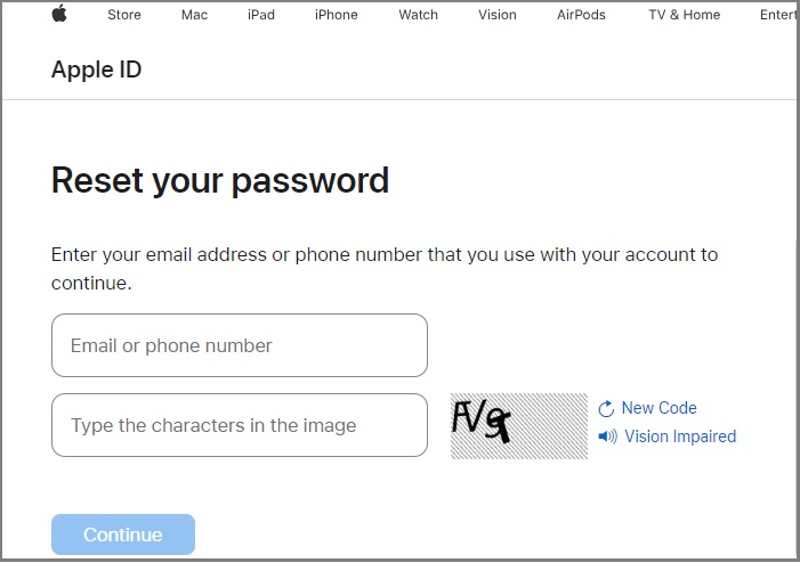
Step 3. Enter your Apple ID email or phone number.
Step 4. Type the characters in the image and click Continue.
Step 5. If you entered the email, you will be asked to input the associated phone number or vice versa.
Step 6. Click the Continue button to proceed.
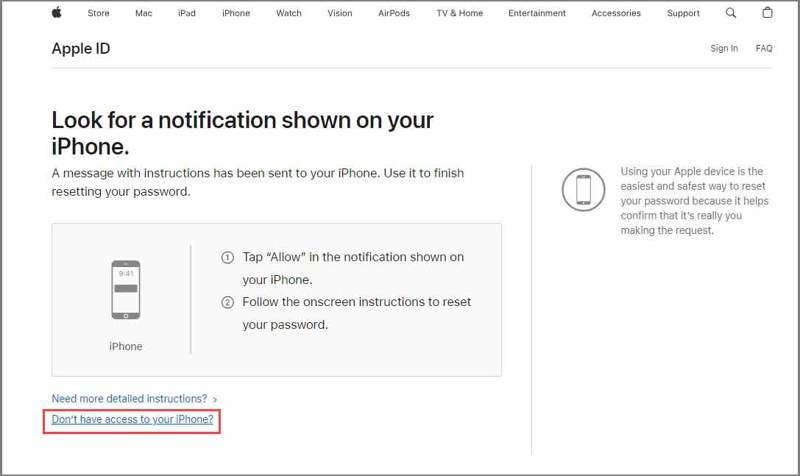
Step 7. Next, press the link of Don't have access to your iPhone.
Step 8. Then, press the link of Can't use any of these options.
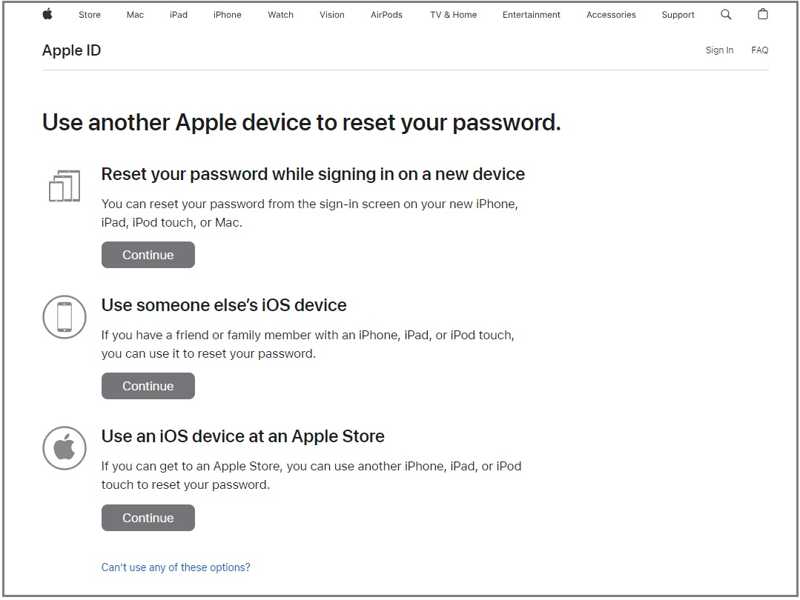
Step 9. Next, follow the onscreen instructions to leave an accessible email address.
Step 10. When you receive the verification email, click the link and recover your Apple ID password.
Note: It takes a few days to receive the verification email. During the process, don’t use your Apple devices. Otherwise, Apple ID account recovery will be canceled.
Part 4: How to Get Apple ID Account Recovery on iPhone/iPad/Mac
Another way to start Apple ID account recovery after forgetting your phone number is right on your Apple device. Once you start the process, don't use other Apple devices. Otherwise, the recovery process will be interrupted or delayed.
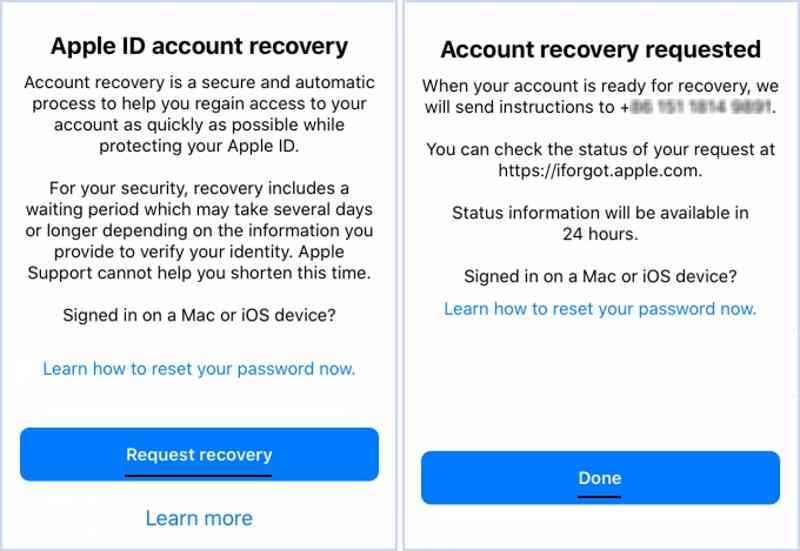
Step 1. Run the Settings or System Settings app on an Apple device.
Step 2. Try to sign in with your Apple ID account.
Step 3. If you forgot your password, you will get the option to start account recovery.
Step 4. Tap the Request Recovery button.
Step 5. Offer the required information following the instructions.
Step 6. Finally, tap the Done button to submit your request.
Note: During the process, you can check the status of your request at Apple’s iForgot website.
Further Reading
Part 5: Alternative Option to Recover Apple ID on iPhone
he success rate of Apple ID account recovery is different, depending on the information you can provide. According to our research, the success rate is high if you can receive a verification message through a trusted phone number. Otherwise, the success rate is low.
In fact, an alternative solution is to give up the old Apple account and create a new one if Apple ID account recovery fails. From this point, we recommend Apeaksoft iFoneKit iOS Unlocker. It is able to remove the old account from your iOS device without any restrictions. Moreover, the straightforward design makes it available to beginners.

Downloaded by over 1,000,000 users
- Remove the old Apple ID without a password.
- Easy to use and complete the process in three steps.
- Work on the locked and disabled Apple accounts.
- Support a wide range of iPhone and iPad models.
Secure Download
Secure Download

How to Recover Your Apple ID Password on Your iPhone
Step 1. Install Apple ID Unlocker
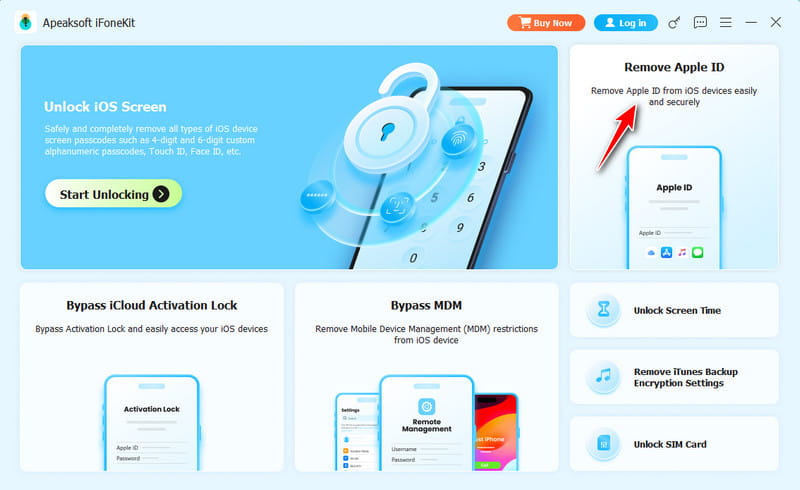
Start the Apple ID recovery software after you install it on your computer. It is available on Windows 11/10/8/7/XP/Vista and macOS 10.7 or above. Choose the Remove Apple ID mode to proceed.
Step 2. Load your iPhone
Connect your iPhone to your computer with a Lightning cable. Make sure to trust this computer, and the software will detect your device. Then, it will load your iPhone information.
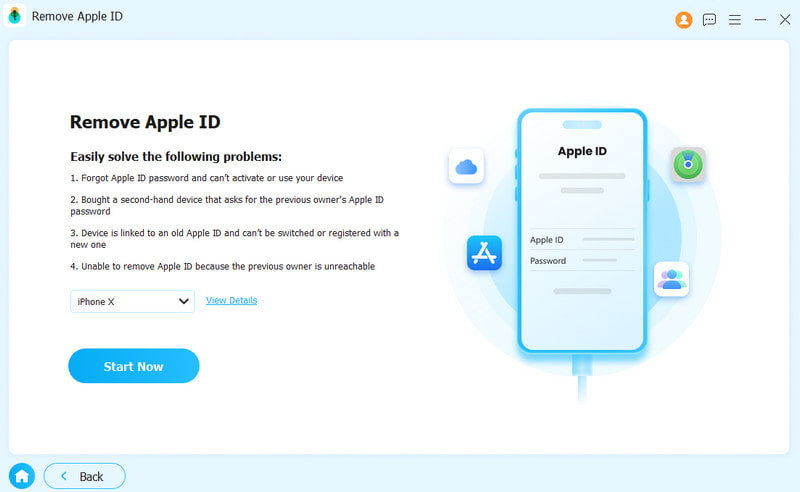
Step 3. Recover Apple ID password
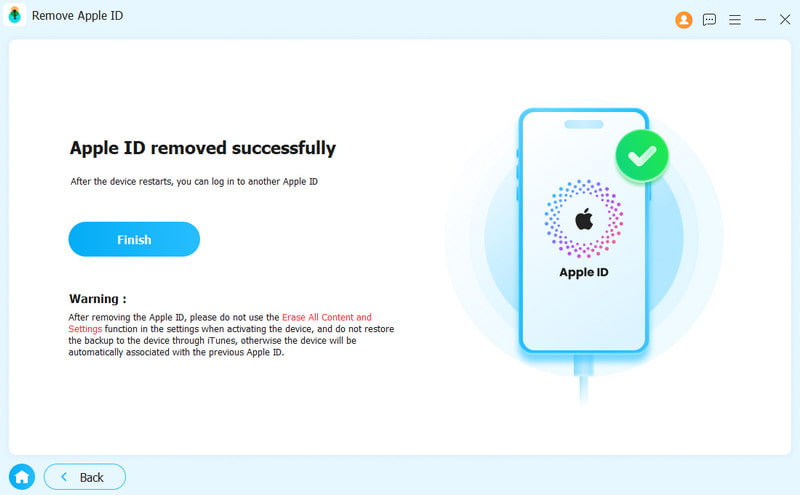
Click the Start Now button to begin removing your Apple ID from your device if Find My is disabled. If Find My is enabled, follow the onscreen instructions to reset all settings. Don't worry; it's not a factory reset and won't erase your iPhone. Then, click OK in the software and hit Confirm Again to start the process. When your device restarts, set up a new Apple ID account.
Conclusion
This guide shared the methods and processes of Apple ID account recovery without a trusted phone number. You can try recovering your account password on a trusted iPhone or Mac if 2FA is enabled. Moreover, you can perform the account recovery process on Apple's iForgot. Apeaksoft iFoneKit iOS Unlocker is the ultimate solution to recover your account and password without technical skills.
 Apeaksoft iFoneKit
 Unlock all types of iOS passwords from iPhone, iPad and iPod.
Secure Download
Secure Download
Related Articles