Why Screen Time Is Not Working and How to Fix This Issue

As a powerful parental feature, Screen Time is built into a wide variety of iPhone and iPad models. Many parents use Screen Time for their children to limit time on certain apps; however, some of them reported that the limits suddenly disappear. The good news is that this issue is usually related to software glitches. This article will explain how to fix Apple Screen Time not working on your or your child's iOS device.
PAGE CONTENT:
Part 1: Why Is Screen Time Not Working
Before walking through the solutions, let's discuss why Screen Time is not working on your child's iPhone or on your iOS device. According to our research, the main possible causes include:
- 1.Apple's Screen Time service is down.
- 2.The device gets stuck.
- 3.Screen Time is freezing.
- 4.Conflict or improper settings.
- 5.Outdated or beta software.
- 6.Software glitches.
Part 2: How to Fix Apple Screen Time Not Working
Solution 1: Check Apple Servers
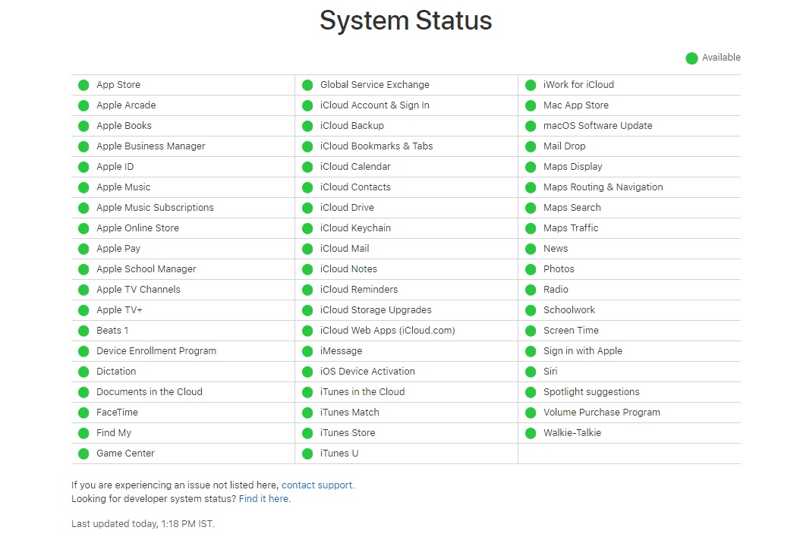
After enabling Screen Time, your iPhone needs to communicate with the Screen Time service on Apple's end to function correctly. If iPhone Screen Time is not working, the first thing to do is check Apple servers' status.
Go to https://www.apple.com/support/systemstatus/ in a web browser. Check the status of all servers. If any server related to Screen Time is down, wait for it to work again.
Solution 2: Restart iPhone
Why is Screen Time not working? A stuck touchscreen may be responsible. Restarting your device can fix this problem, while the solution is simple. It eliminates temporary and basic glitches.
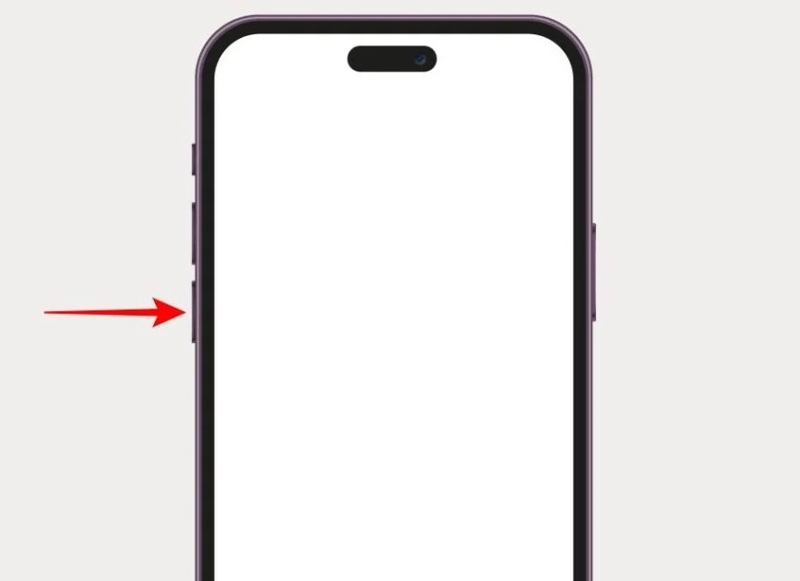
Step 1. For an iPhone with Face ID, press and hold either Volume button + Side buttons together. For an old iPhone, long-press the Side or Power button.
Step 2. Once the power-off screen appears, release the buttons or button.
Step 3. Move the slider to shut down your device.
Step 4. A few minutes later, press and hold the Side or Power button until you see the Apple logo.
Solution 3: Reset Screen Time
If the simple solutions didn't help, you need to disable and re-enable the Screen Time feature on your iPhone. This solution can fix iPhone or iPad Screen Time not working with your Screen Time passcode.
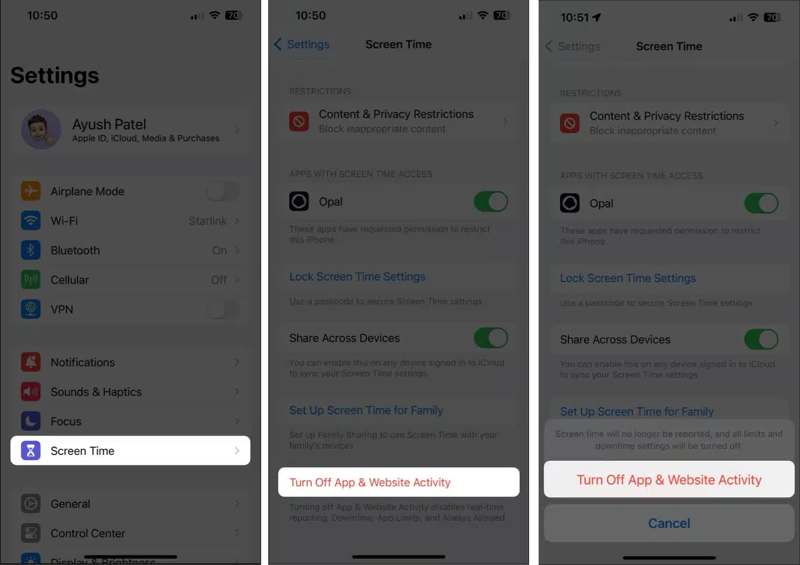
Step 1. Run the Settings app.
Step 2. Choose Screen Time.
Step 3. Tap Turn Off App & Website Activity.
Step 4. Enter your Screen Time passcode if prompted.
Step 5. Choose Turn Off App & Website Activity.
Step 6. Restart your iPhone.
Step 7. Next, go to Screen Time in Settings.
Step 8. Tap App & Website Activity and tap Turn On App & Website Activity.
Step 9. Then, set Screen Time according to your needs.
Solution 4: Check Date and Time
Improper settings, such as the wrong date and time, may lead to Screen Time not working. Thus, you must set your date and time settings correctly to ensure the Screen Time works properly on your device.
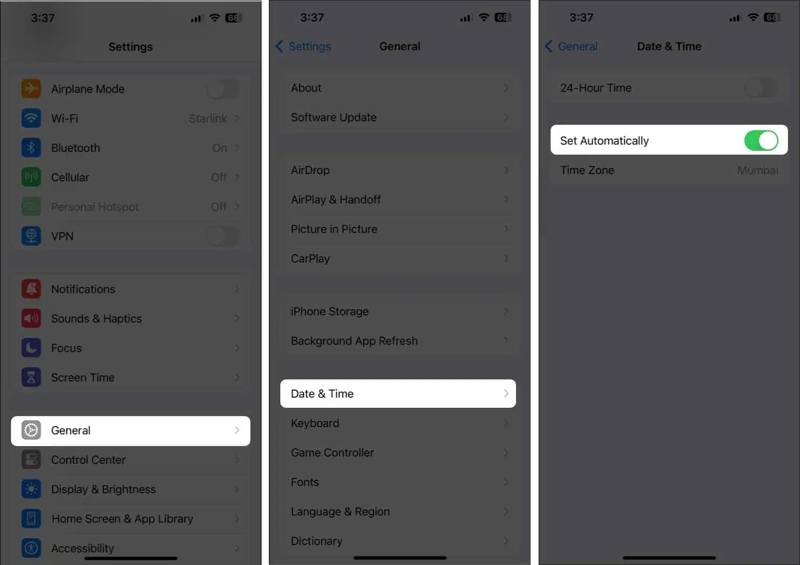
Step 1. Choose General in your Settings app.
Step 2. Pick Date & Time.
Step 3. Toggle on Set Automatically to correct date and time settings.
Solution 5: Disable Share Across Devices
If Screen Time is still not working on your iPhone, disable Share Across Devices. This option enables you to sync Screen Time settings across your Apple devices. It may cause conflicts and lead to the feature working abnormally.
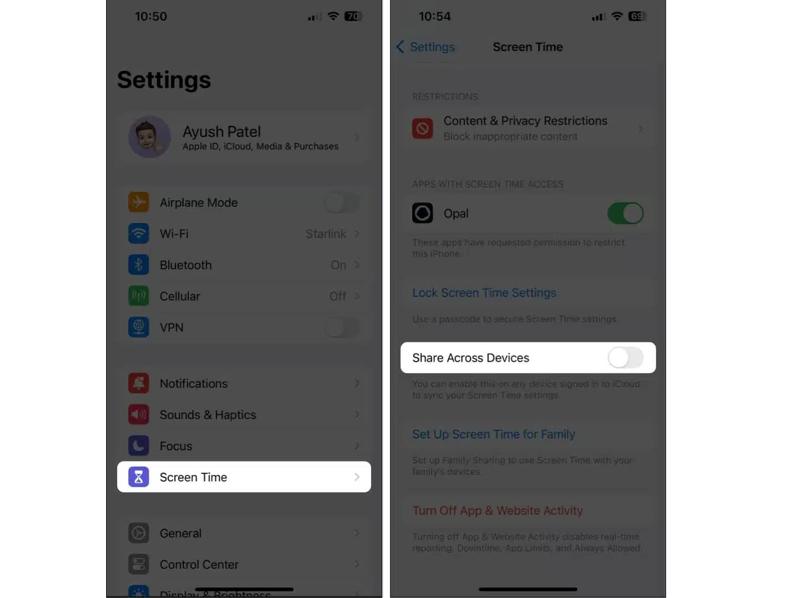
Step 1. Navigate to Settings and Screen Time.
Step 2. Scroll down and find Share Across Devices.
Step 3. Toggle off the option.
Further Reading
Part 3: One-stop Solution to Fix iPhone Screen Time Not Working
If you forgot your Screen Time passcode, you cannot reset it, and fix Screen Time not working. Thankfully, Apeaksoft iFoneKit iOS Unlocker can turn off Screen Time without a passcode. Then, you can set up the parental control feature on your or your child's device.

Downloaded by over 1,000,000 users
- Turn off Screen Time on your iPhone in three steps.
- Don't require iPhone passcode or Apple ID password.
- Protect your data during the process.
- Offer bonus features, like MDM bypassing and iTunes passcode removal.
- Support the latest models of iPhone and iPad.
Secure Download
Secure Download

How to Fix Screen Time Not Working on Your iPhone
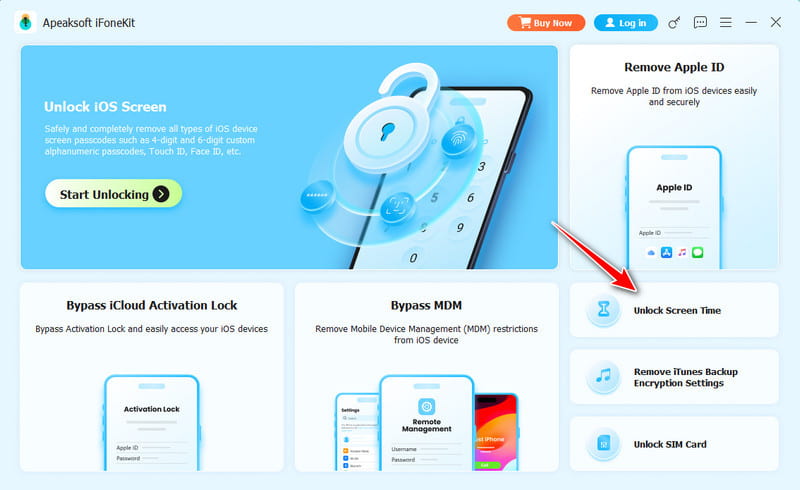
Step 1. Install Screen Time Unlocker
Run the Screen Time unlocking software after installing it on your computer. Choose the Unlock Screen Time mode to proceed.
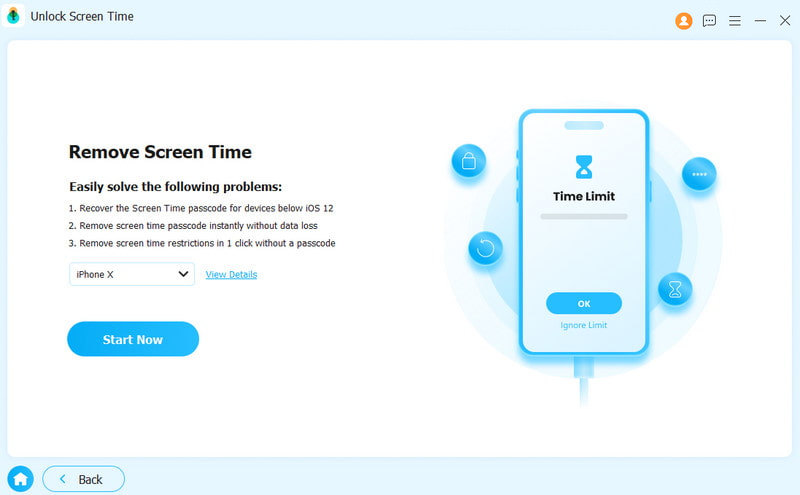
Step 2. Connect to your iPhone
Plug your iPhone into your computer with a Lightning cable. Choose how your Screen Time password is set, and click the Start Now button.
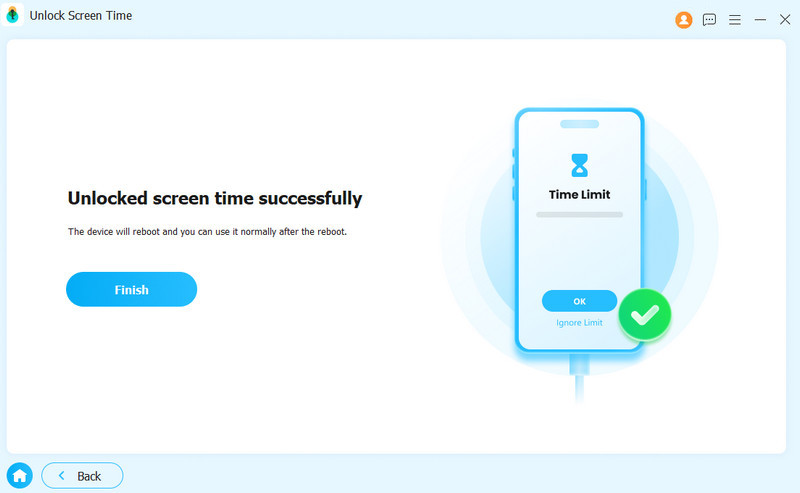
Step 3. Fix Screen Time not working
Follow the onscreen instructions to turn off Find My on your device. Then, the software will initiate turning off Screen Time on your device automatically.
Conclusion
This guide helped you to fix Apple Screen Time not working. You should learn why this error happens. More importantly, you can follow our solutions to get rid of the bug and control screen time consumption and app usage. Apeaksoft iFoneKit iOS Unlocker is the one-stop solution to fix this problem without technical skills or a password.
 Apeaksoft iFoneKit
 Unlock all types of iOS passwords from iPhone, iPad and iPod.
Secure Download
Secure Download
Related Articles