Why Does my iPhone Say SOS Only at the Top and How to Fix

SOS is a basic emergency function on our phones, ensuring we can get rescued even if we are in someplace with no signal or do not have enough time to call our family and friends. However, if you see SOS only on the iPhone but you are not in an emergency, and it has impacted the normal usage of your iPhone, this article will show you how to fix it.
PAGE CONTENT:
Part 1: What Does SOS Only Mean on iPhone
Why does my iPhone say SOS? When SOS mode or SOS only appears at the top of your iPhone’s screen indicates that the device cannot connect to normal mobile networks or make normal calls to family or friends. But let's make it clear that, according to Apple, "if you see SOS or SOS only in the status bar, your device can still make emergency calls."
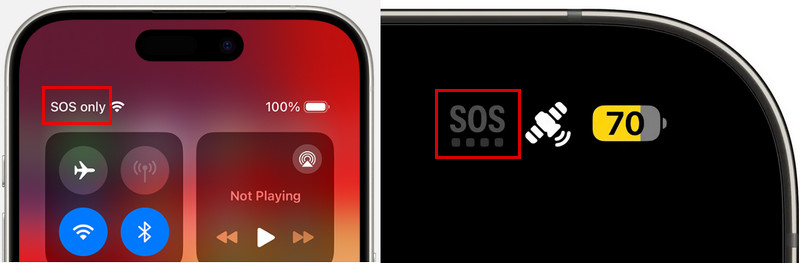
Why is your iPhone stuck on SOS Only? The most common reason is that your iPhone cannot connect to your carrier's cellular network. This can happen because of weak coverage, Airplane Mode, SIM/eSIM problems, carrier outages, account issues, roaming settings, or network configuration problems. The following table lists the possible reasons why your iPhone shows SOS or SOS Only:
| Possible cause | What it means |
| Weak/no cellular coverage | The device is in an area with no network signal, usually with insufficient signal coverage, like in an elevator, suburb, or confined room. |
| Airplane Mode | Airplane Mode temporarily disables your iPhone’s cellular connection and may prevent it from reconnecting properly. |
| SIM/eSIM issue | You once removed the SIM card from your iPhone, and now the SIM card is incorrectly inserted or damaged. Problems with an eSIM or its activation can also prevent your iPhone from connecting to the cellular network. |
| Carrier outage | The device cannot connect to the carrier’s network, possibly due to account issues or carrier failure. If there’s a problem with the carrier, all users in that area might experience the same network issues, and users generally can do nothing about it. However, some users on Reddit reported that Airplane mode solves the problem. We will talk about this in detail later. |
| Account/plan issue | Your cellular service may be inactive, restricted, or affected by an issue with your carrier account or plan. |
| International roaming | When traveling abroad, your iPhone may be unable to connect to a supported local network due to the carrier’s restrictions. |
| iOS system issues | An iOS crash or software glitch may interfere with your iPhone’s cellular connection and cause SOS or SOS Only to appear. |
| Network configuration issues | Incorrect or corrupted network settings may interfere with your iPhone’s ability to connect to your carrier’s network. |
| Hardware problem | Cellular hardware may be damaged |
Part 2: How to Fix SOS Only on iPhone
According to the reasons we listed in Part 1, this part will show how to fix SOS on an iPhone. If your situation matches the reason, the SOS only issue on the iPhone should be fixed.
1. Are you in a place with no signal
If you are somewhere with no signal or the signal is particularly weak, like basements, elevators, mountains, or even your own room that is confined and away from the router in your home, your iPhone will display SOS or SOS Only because it cannot connect to your carrier's network.
Step 1. Check Cellular Coverage
You can try holding your iPhone up and finding a position with a relatively stronger signal. But the final solution is to leave that place and go to the place covered with sufficient signal.
Step 2. Turn Airplane Mode On and Off
If you have moved to an area with better coverage but your iPhone still shows SOS Only, try refreshing the cellular connection. Turn on Airplane Mode, wait for at least 15 seconds, and then turn it off
Step 3. Restart Your iPhone
If SOS Only still appears, restart your iPhone to refresh the system and cellular connection. Then check whether the issue is fixed.
2. Does your SIM card or eSIM have problems
A well-working SIM card is the basis of a stable cellular network. Therefore, if your SIM card does not work properly on your iPhone, it may cause your iPhone to say SOS in the top right corner. The straight way is to unplug your SIM card, insert it again into your iPhone, and make sure this SIM card is connected to your iPhone properly. If reinserting doesn't work, the problem may occur in the SIM card itself. Call your carrier, and they will tell you whether you need to buy a new SIM card or if your phone number is blocked and give you useful suggestions about SOS only on your iPhone.
If you use an eSIM, go to Settings > Cellular and make sure your cellular line is enabled. You can also contact your carrier to check whether your eSIM is activated properly.
3. What can we do about the carrier issue
Your carrier may be the reason why your iPhone shows SOS or SOS Only. A network outage, account issue, or incorrect carrier settings can prevent your iPhone from connecting to the cellular network.
Step 1. Check for a Carrier Outage
In February 2024, many AT&T users reported that their iPhones showed SOS on the top. It turned out that AT&T had something wrong, and this issue impacted thousands of users. Their iPhones were out of service for four to five hours. Although there's little we can do while waiting for the carrier to fix the issue, some users do report that turning on Airplane mode for several minutes and turning it off would solve the problem.
Step 2. Check Your Cellular Account and Plan
You can contact your carrier to confirm that your account is in a normal state and ensure that the SIM card/electronic SIM card has been correctly activated. Some account issues such as service suspension, unpaid bills or package restrictions may also cause the Only for SOS prompt.
Step 3. Check for a Carrier Settings Update
Updating carrier settings can help improve the connection with your network provider to a certain extent. Open Settings > General > About on your iPhone. If there are any updates on the carrier settings, your iPhone will prompt you to install them.
Step 4. Contact Your Carrier
If SOS Only remains after trying all the steps above, contact your carrier for further assistance.
4. Are You Traveling Internationally
If your iPhone shows SOS or SOS Only while traveling abroad, it may not connect to a supported local network. Go to Settings > Cellular > Cellular Data Options and turn on Data Roaming. If the issue continues, check whether your carrier supports international roaming for your plan.
5. Does Your iPhone Have System Issues
Sometimes, iOS glitches or software issues may affect your iPhone's cellular connection and result in the SOS Only issue.
Step 1. Restart your iPhone
Restart your iPhone to refresh the system.
Step 2. Reset network settings
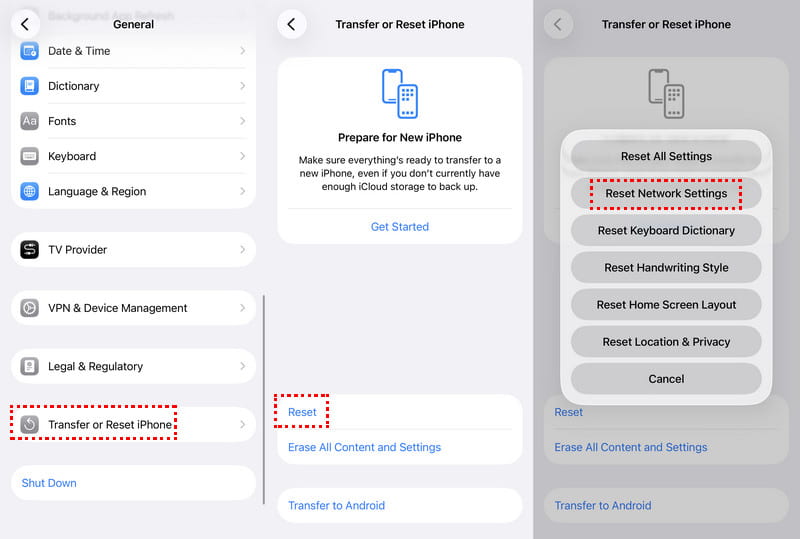
Go to Settings > General > Transfer or Reset iPhone > Reset > Reset Network Settings to reset the network configuration.
Step 3. Using professional iOS system repair tools
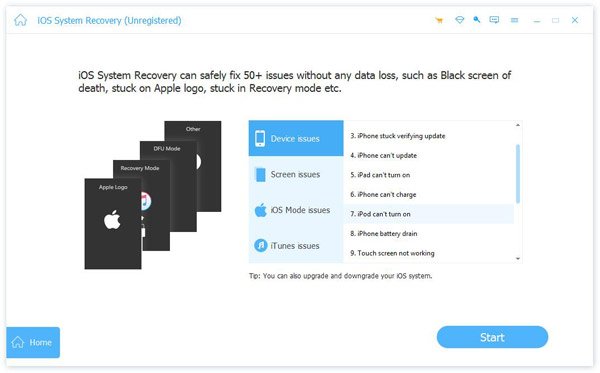
If SOS Only is caused by an iOS system issue and the previous methods don't work, you can try Apeaksoft iOS System Recovery. It can fix various iOS and iPadOS system issues while keeping your data safe. This is a professional program to fix iOS and iPadOS system issues, which supports fixing over 50+ issues: SOS only, iPhone stuck on the Apple logo, boot loop, etc. It fixes your iPhone issues and keeps your data safe at the same time. Besides, Apeaksoft iOS System Recovery keeps updating to support the latest iOS and iPadOS system versions.

Downloaded by over 1,000,000 users
- One-stop solution to fix SOS Only on iPhone.
- Support 50+ issues: SOS only, black screen, recovery mode, etc.
- Easy to use and no technique skills needed.
- Support the latest iOS and iPadOS version.
Secure Download
Secure Download
Let's see if SOS only appears on your iPhone, how to fix it with Apeaksoft iOS System Recovery.
Step 1. Free Download and install this tool on your computer bu clicking the button above. Connect your iPhone and choose iOS System Recovery from the interface.
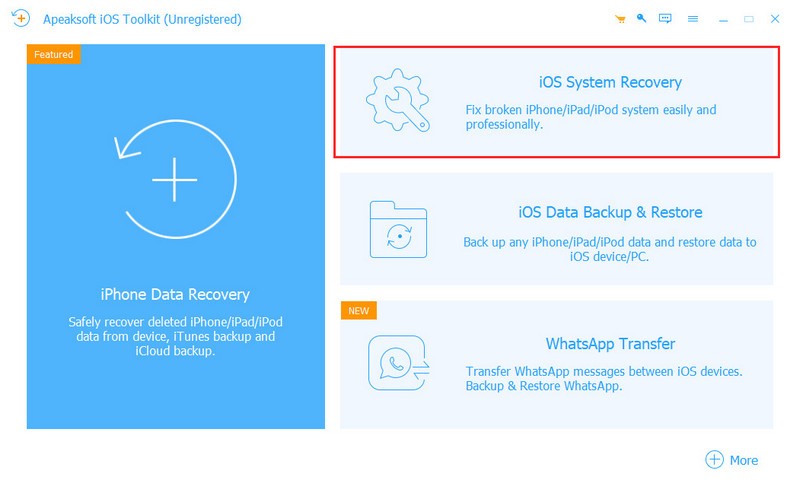
Step 2. Choose System Repair and click the Start button.
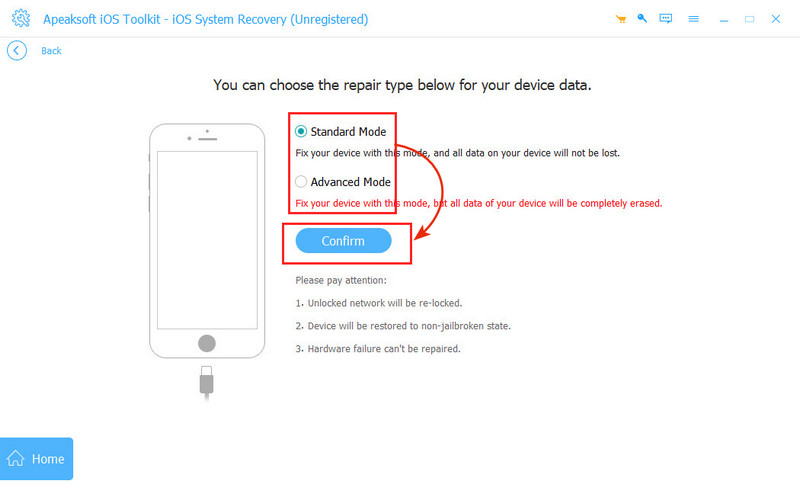
Step 3. Choose a repair mode and click the Confirm button. Note that the Advanced Mode will erase your device data.
Tips: This iOS system recovery program can also help you fix iPhone Attempting Data Recovery, iPhone keeps restarting, iPhone screen flashing, etc.
Bonus: What to Do If Your iPhone Shows SOS Only During an Emergency
If your iPhone shows SOS Only during an emergency, don't panic. Although your iPhone cannot connect to your normal cellular network, it can still make emergency calls. You can still use the Emergency SOS service when you get lost somewhere with no signal or we’re in danger, such as being kidnapped, and there’s no time to dial a number manually.
It will call the local emergency number automatically. For example, it will call 911 in the US and 999 in the UK. Besides, when we activate the SOS emergency service, it will send a message with our current location to the emergency contact we preset, even if the iPhone GPS is turned off, but the condition is to ensure that your iPhone's GPS does not malfunction. It is the last resort to protect our safety.
How to Activate Emergency SOS
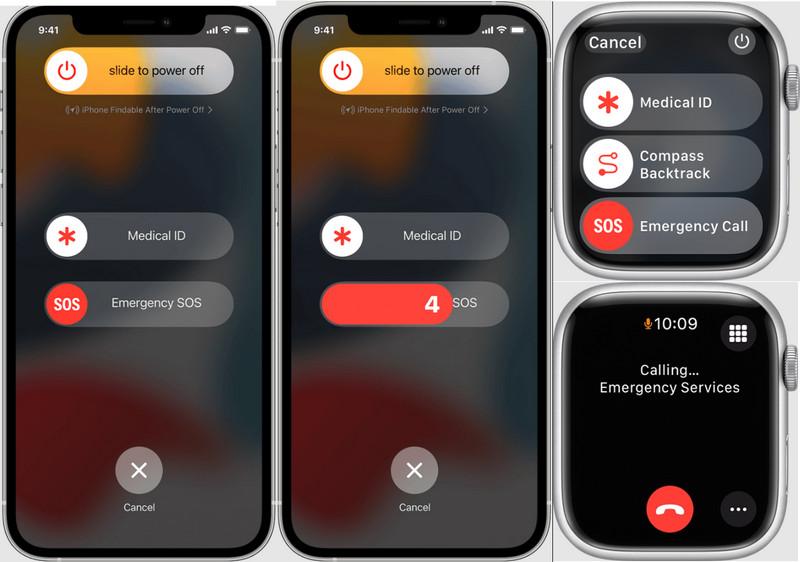
For iPhone 7 and earlier: Press the power button 5 times.
For iPhone 8 and later: Press and hold power and one of the volume buttons together.
For Apple Watch: Press and hold the side button.
For Apple Watch Ultra: Press and hold the side button or the Action button.
After you do the above operation, you can see the emergency slider. Slide it, the SOS emergency call will be made, and the location message will be sent. If you can't slide it, don't release the button(s); hold them still and wait for the countdown to end. The service will also be activated.
How to Set Emergency Contacts
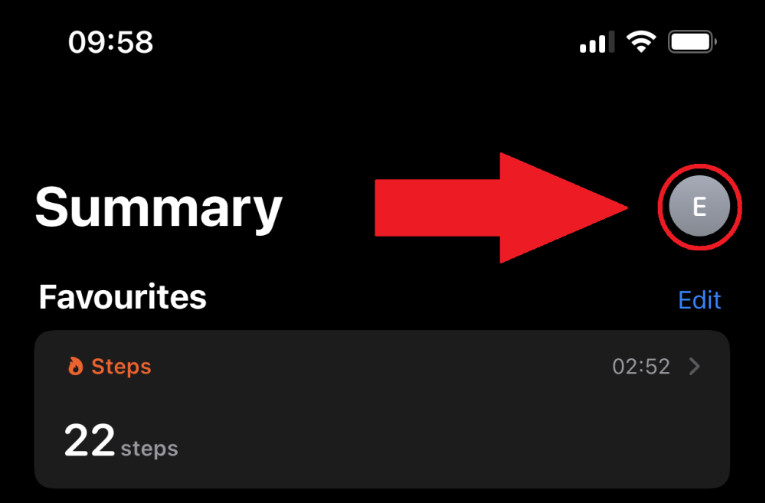
Step 1. Open the Health app and tap your profile image on the top.
Step 2. Tap Medical ID.
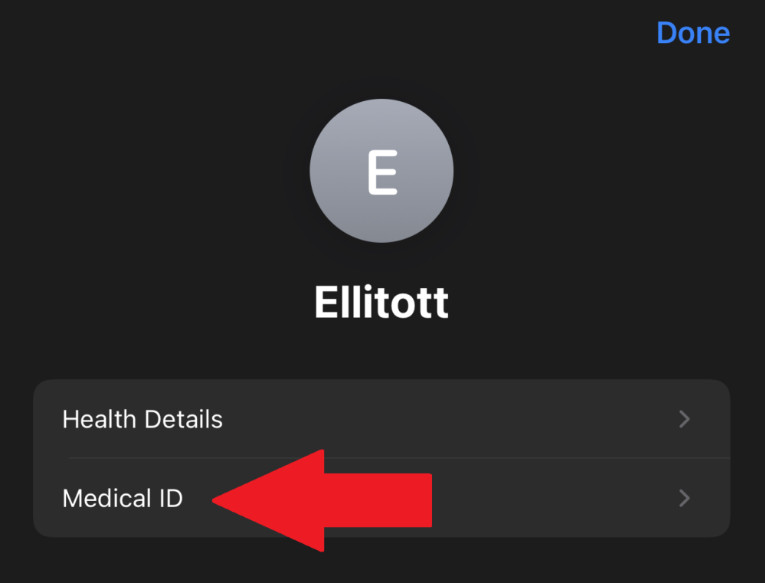
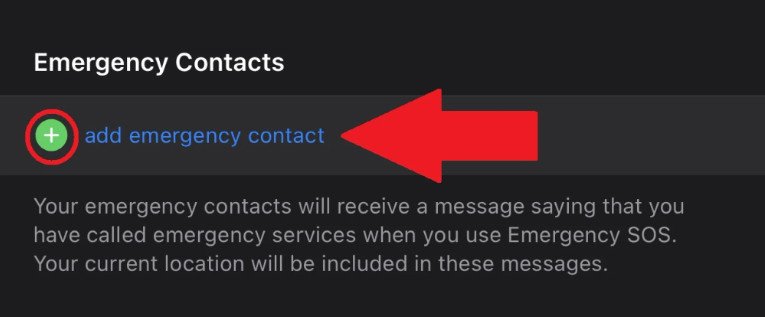
Step 3. Tap Get Started or Edit to add an emergency call by tapping the green add button.
Conclusion
If your iPhone SOS mode is forced to be activated automatically and you can see SOS only at the top of your iPhone, this means you can only make an emergency call and can't access the network. This article introduces several reasons and lists the corresponding solutions for your reference.
 Apeaksoft iOS System Recovery
 Fix virious iOS system issues on iPhone, iPad, and iPod.
Secure Download
Secure Download
Related Articles