

How to Effectively Recover Deleted Videos from GoPro

As one of the most popular action camera brands, GoPro is reputable. GoPro cameras produce smooth video, rugged durability, and creative versatility for action, travel, and daily memories. According to our research, some users complained that their videos were lost due to accidental deletion, problematic transmission, unintended format, video corruption, incomplete converting, and more. This guide shares multiple ways to recover deleted GoPro videos in various situations.
PAGE CONTENT:
Part 1: How to Recover Deleted Videos from the GoPro Recently Deleted Folder
GoPro is a compact and durable action camera. Besides, it comes with a few useful features. The Recently Deleted album or Trash folder, for example, is built in the Gallery on a part of GoPro models and the GoPro media library. It keeps deleted videos up to 60 days. That gives you a window to recover deleted videos on GoPro.
On GoPro
Step 1. Power on your GoPro and go to the gallery.
Step 2. Look for the album labeled Recently Deleted or similar.
Step 3. Open the album, select the lost video, and restore it.
On GoPro Media Library
Step 1. Log in to www.gopro.com
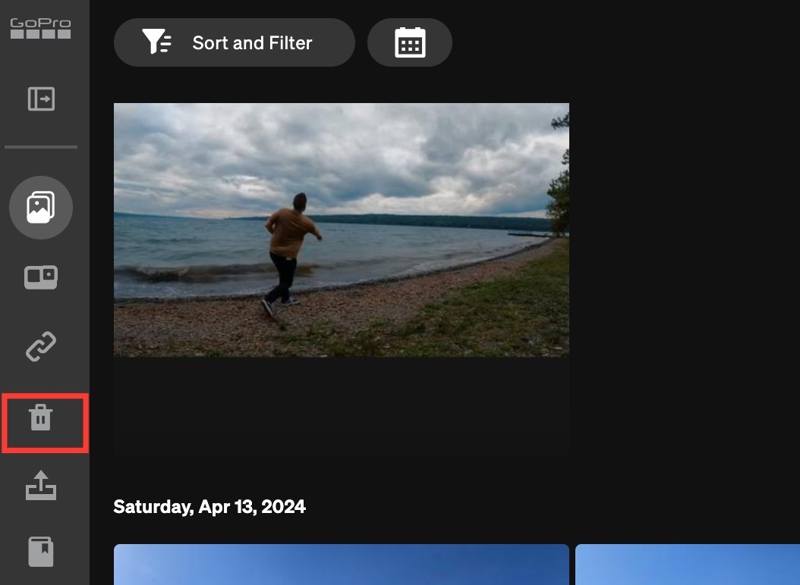
Step 2. Go to Media Library, and click the Trash folder on the sidebar.
Step 3. Select the video you want to restore.
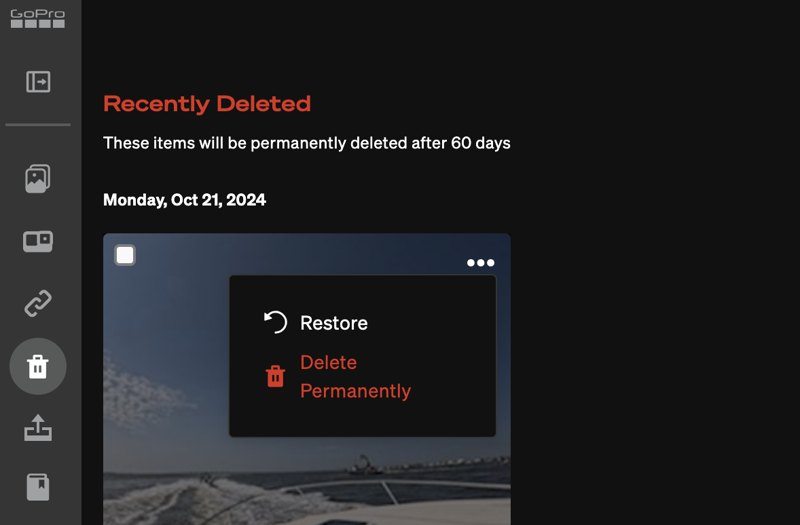
Step 4. Click the Menu button with a three-dot icon, and choose Restore.
Part 2: How to Recover Deleted GoPro Videos from Cloud Storage
Can you recover deleted GoPro videos in Quik? No. Quick is the video editor released by GoPro for retouching memories. Unfortunately, the app doesn’t come with a Trash or similar feature. However, you can configure auto-upload and auto-backup to send your videos to GoPro Cloud Storage. Then, you can recover and restore them at any time.
Requirements
- An active subscription.
- GoPro HERO5 or later.
- A stable Wi-Fi network.
- 3GB of free space on your camera’s SD card.
Configure Auto Upload
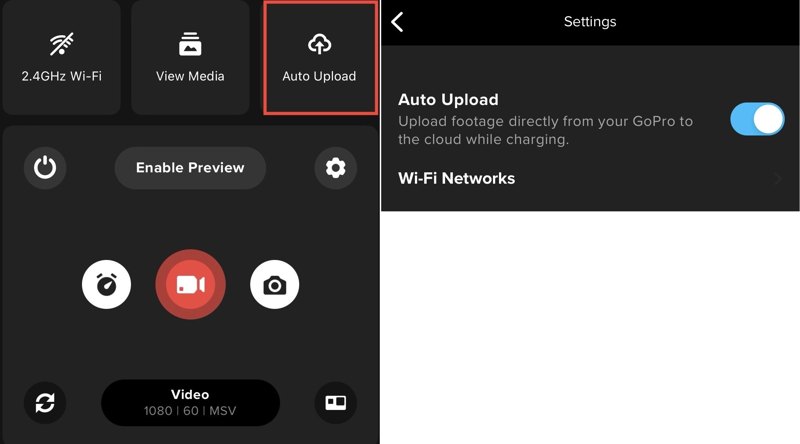
Step 1. Open the Quik app.
Step 2. Tap the Camera button.
Step 3. Choose Auto Upload.
Step 4. Next, toggle on Auto Upload to directly upload footage from GoPro to the cloud.
Enable Auto Backup
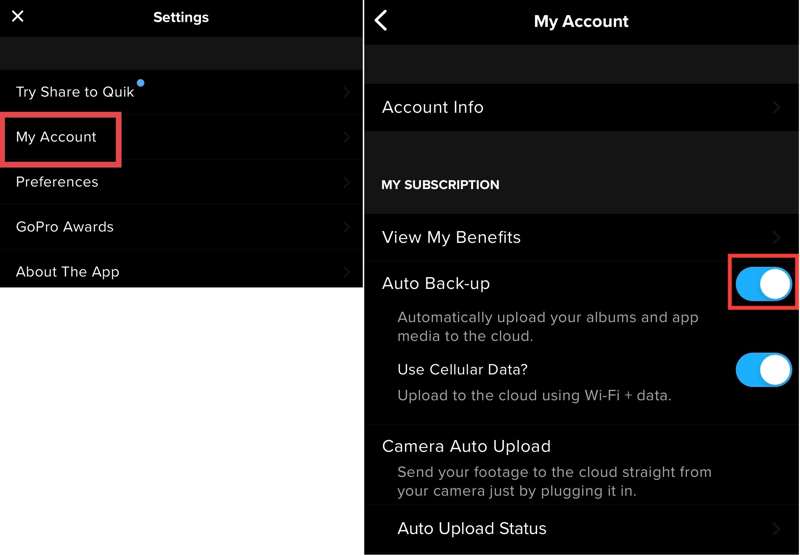
Step 1. Go to the Albums tab at the bottom of Quik.
Step 2. Tap on the profile and choose My Account.
Step 3. Toggle on Auto Back-up.
Recover Deleted Videos from GoPro
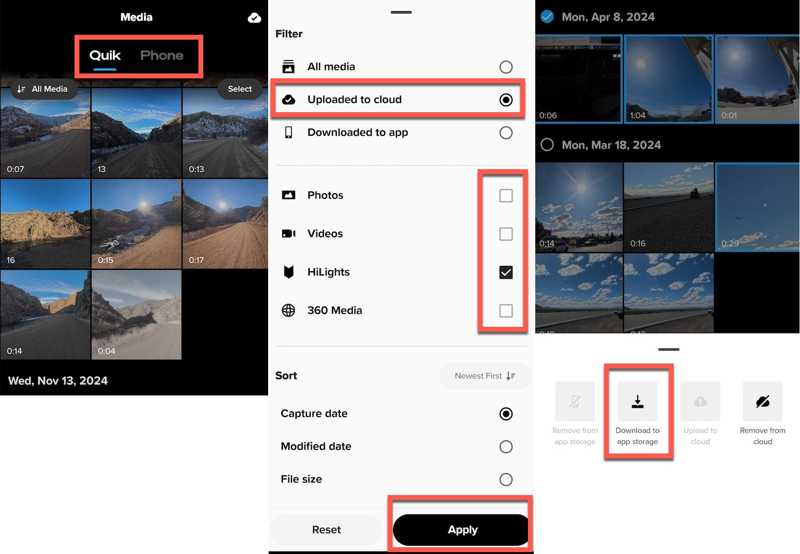
Step 1. Tap the Media button in Quik.
Step 2. Go to the Quik tab and tap All Media.
Step 3. Select Uploaded to cloud, check Videos, and tap Apply to view videos in cloud storage.
Step 4. Next, select the lost videos, tap More, and choose Download to app storage.
Part 3: How to Recover Deleted GoPro Videos Using PhotoRec
Without cloud storage, you will need a video recovery tool to recover deleted GoPro videos from the SD card. Once you find your lost videos, stop doing anything. Take out the memory card from your camera and insert it into your computer.
Step 1. Download the TestDisk, open the archive, and run photorec_win.exe.
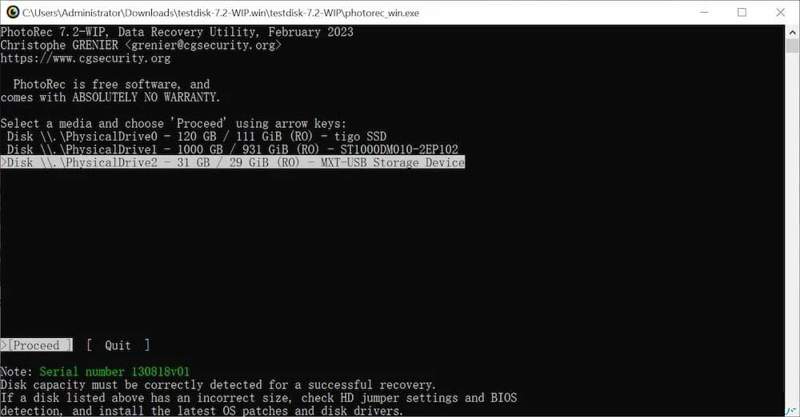
Step 2. Select the GoPro memory card with the Arrow keys on your keyboard and press the Enter key.
Step 3. Choose Proceed and hit Enter.
Step 4. Select the file system of the card and hit Enter.
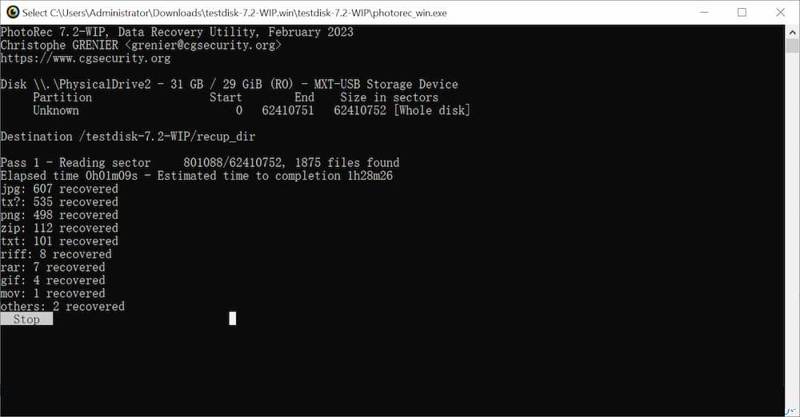
Step 5. Pick Whole and press Enter.
Step 6. Next, choose a location to save the recovered GoPro videos.
Part 4: How to Recover Permanently Deleted GoPro Videos
PhotoRec is able to find recently deleted videos on a GoPro memory card. If it is unavailable to you, Apeaksoft Data Recovery is an excellent option. It can scan your memory card and look for permanently deleted videos. Apeaksoft Data Recovery
An Ultimate Way to Recover Permanently Deleted GoPro Videos
- Recover deleted videos from a GoPro memory card quickly.
- Preview lost GoPro videos for selective recovery.
- Keep the original quality and format of videos.
- Available for a wide range of situations.
- Work on Windows 11 to XP, and macOS 10.7 or above.
Secure Download
Secure Download

How to Recover Deleted GoPro Videos
Step 1. Scan the memory card
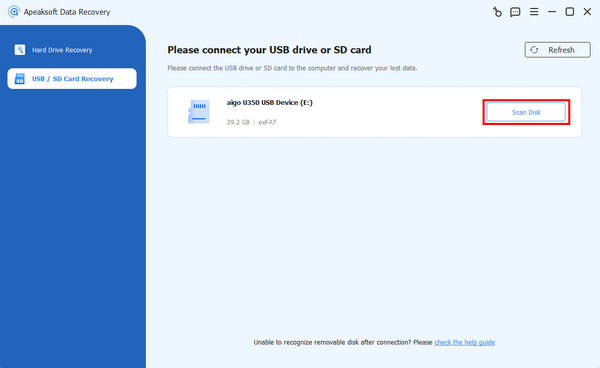
Start the GoPro video recovery software once you install it on your PC. There is another version for Mac. Insert the GoPro memory card into your PC. Go to the USB / SD Card Recovery tab in the software, select the card from the drop-down option, and click Scan Disk.
Step 2. Preview GoPro videos
Wait for the video scan to finish. Head to the Type List tab, and check Video to view all found GoPro videos. If there are too many videos, check Only Show Deleted to view deleted videos. The Filter option enables you to quickly locate a video by name or folder.
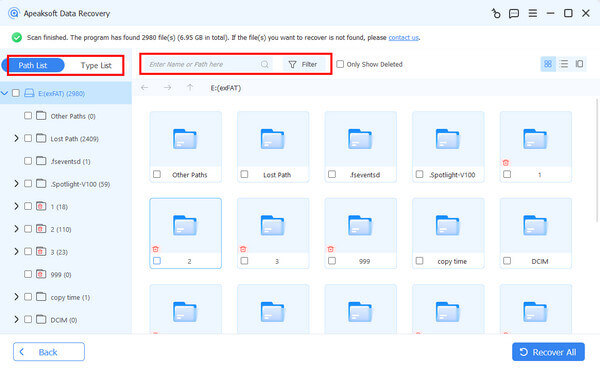
Step 3. Recover GoPro videos
Find and select the deleted GoPro videos you want to restore. Click the Recover button at the bottom right corner, set an output folder, and confirm GoPro video recovery. You’d better select a location on the internal hard drive as the output folder.
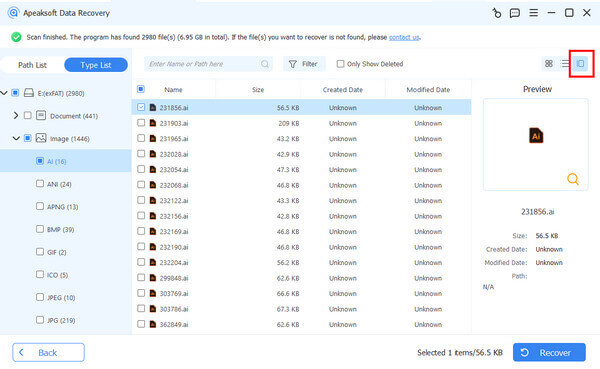
Further Reading
Conclusion
This guide shared four ways to help you recover deleted videos on Gopro. The built-in Recently Deleted album or Trash folder enables you to retrieve lost videos quickly. GoPro’s cloud storage can back up and restore your videos. PhotoRec is a free tool to find lost videos on a GoPro memory card. Apeaksoft Data Recovery is a fast option for beginners.
Related Articles




