

3+ Feasible Ways for A Successful SDHC Data Recovery

If you've lost precious photos, videos, or files from your SDHC card due to accidental deletion, formatting, or corruption, don't panic. SDHC data recovery is possible with the right tools and methods. This post introduces what SDHC data recovery means and how to retrieve your lost data efficiently using professional and practical solutions.
PAGE CONTENT:
Part 1: What Does SDHC Data Recovery Mean?
Before learning the method of SDHC data recovery, it should be clear what SDHC is. SDHC (Secure Digital High Capacity) cards are widely used in digital cameras, smartphones, and other devices for storing large files. However, data loss can occur for various reasons - accidental deletion, formatting, virus attacks, or improper ejection.

SDHC data recovery refers to the process of restoring lost or inaccessible data from such cards, whether the files were deleted, formatted, or the card itself became corrupted. With professional recovery tools, most of this lost data can still be retrieved safely.
Part 2: The Most Powerful SDHC Data Recovery Software
The most effective way to recover data from an SDHC card is by using Apeaksoft Data Recovery. This powerful tool is designed to restore various file types - from SDHC cards, USB drives, and hard disks with just a few clicks.
It offers an intuitive interface and supports both Windows and Mac, allowing you to perform quick and deep scans. Whether your data was lost due to formatting, corruption, or accidental deletion, Apeaksoft Data Recovery ensures a high success rate and maintains the integrity of recovered files.
Step 1. Download and install Apeaksoft Data Recovery from the official website. Once finished, launch it to proceed.
Secure Download
Secure Download
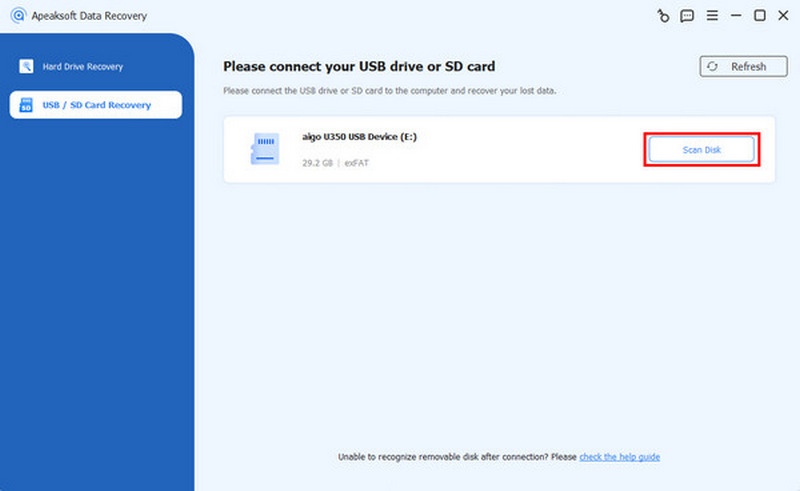
Step 2. Connect your SDHC card to the computer using the appropriate device. In the main interface of Apeaksoft Data Recovery, click USB / SD Card Recovery. Then, click Scan Disk to select your SDHC card.
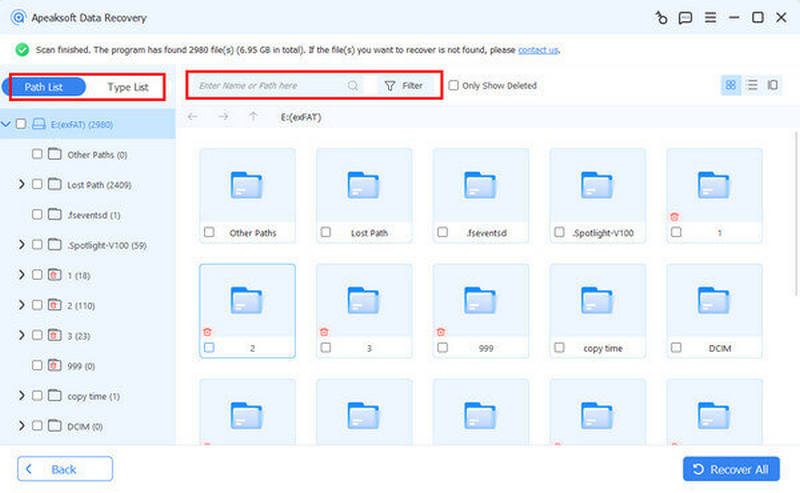
Step 3. After a short time of scanning, all data and folders from your SDHC card will be displayed. You can select the desired files and folders by clicking Filter. To see more detailed information, select specific data to check.
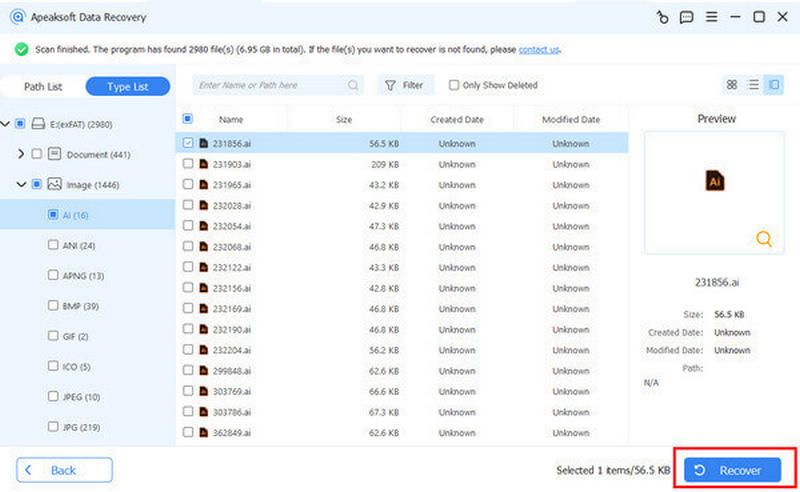
Step 4. Once you select all everything you want for SDHC data recovery, click Recover to start the process automatically. All you need to do is choose the destination folder to save the recovered data.
Part 3: How to Recover SDHC Data on Windows/Mac
No matter which system you're using, recovering SDHC data can be quick and efficient. Both Windows and Mac provide simple ways to retrieve deleted or lost files according to the specific methods provided. Below, the section will walk you through the detailed steps for SDHC data recovery on each platform and provide essential technical support tips to ensure a successful recovery process.
1. SDHC Data Recovery on Windows
If you're a Windows user, an SDHC data recovery can be easily performed with the default tool. Although it entails a little bit of coding skill, you will find it easy to do with a detailed guide and instructions. By following the steps below, the process of Windows file recovery will be beginner-friendly and compatible with most Windows versions, ensuring a smooth recovery experience even for non-technical users.
Step 1. Launch your Windows computer and connect your SDHC card to it using a proper device.
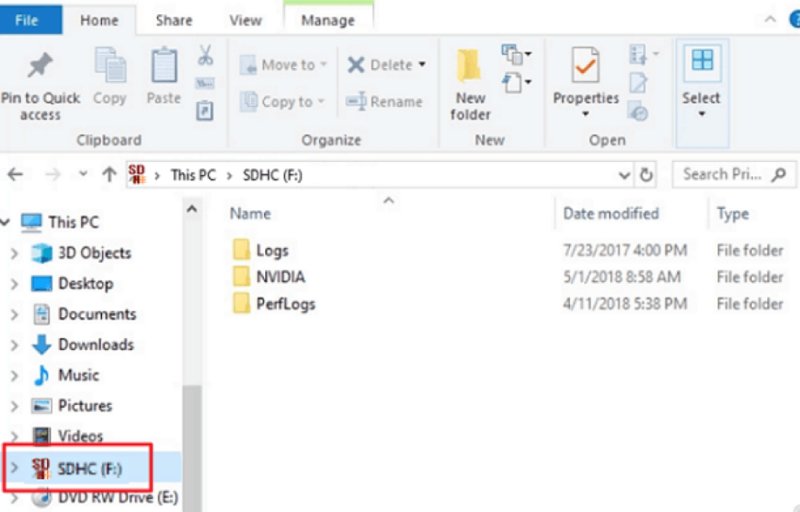
Step 2. Once connected, press Windows + F to open File Explorer. You can see your SDHC card on the left panel.
Step 3. Press Windows and R to summon Run dialog box and type cmd to open Command Prompt.

Step 4. In the Command Prompt, type chkdsk g:/r, replacing g with the drive letter of your SDHC card. And the process of SDHC data recovery on your Windows computer will start.

2. SDHC Data Recovery on Mac
Mac users can also recover deleted or lost SDHC card files without difficulty. With built-in Time Machine, you can scan the card, preview lost data, and possibly restore it in a few clicks. This method works well for photos, videos, and project files commonly used in creative workflows.
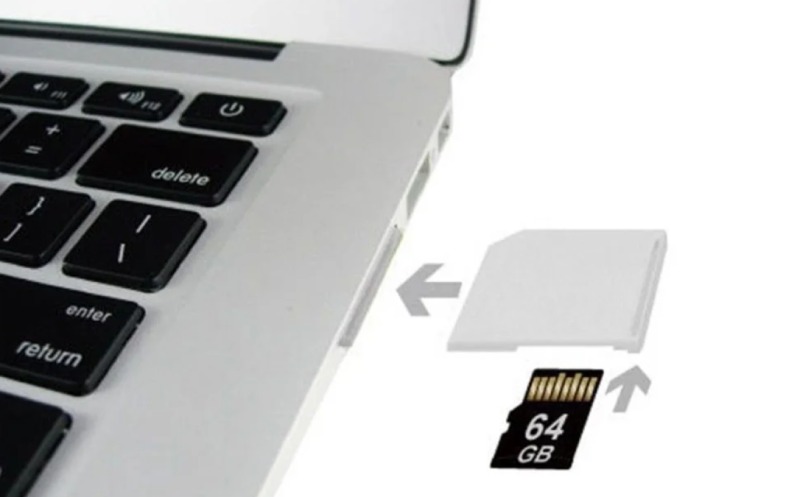
Step 1. Launch Mac and connect your SDHC card to it with a USB reader that suits your Mac.
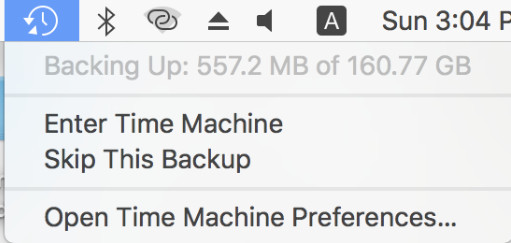
Step 2. Click Enter Time Machine from the Mac Menu to open Time Machine on your Mac, proceeding with data recovery on your Mac.
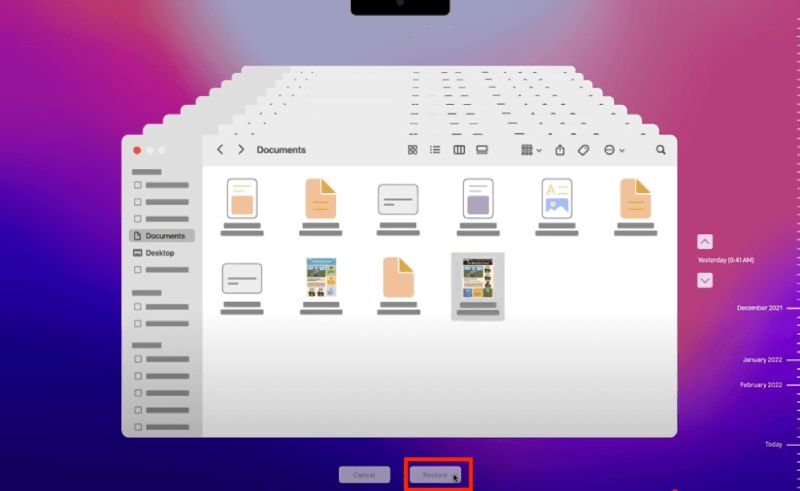
Step 3. Search and navigate to the file folder of your SDHC card. Once you find the missing data, click Recover to recover SDHC data.
3. Technical Supports for SDHC Data Recovery
In some cases, SDHC data recovery may fail due to physical damage or severe corruption. Provided that severe situations like that happen, it's best to seek help from professional services. They can use advanced hardware tools to restore inaccessible files, ensuring that even critical or fragmented data is safely retrieved from your SDHC card.
Conclusion
Losing data from an SDHC card can be frustrating, but recovering data from SDHC cards is entirely possible with the right approach. Whether your files were deleted, formatted, or became inaccessible, Apeaksoft Data Recovery can help restore them in just a few steps. To avoid accidental loss, always remember to back up your SDHC card regularly and handle it carefully to prevent future data loss.
Related Articles




