

How to Fix Enter Password to Unlock 30/30 Attempts Remaining

"I see a message saying enter password to unlock 30/30 attempts remaining on my phone screen. What does it mean, and how can I fix this problem?" When you cannot get into your phone, you may lose access to your data. This error typically appears on your screen when you repeatedly enter an incorrect password. This article shares effective solutions to regain access to your Android phone.
PAGE CONTENT:
Part 1: What Does Enter Password to Unlock 30/30 Attempts Remaining Mean?
The error message that says enter password to unlock 30/30 attempts remaining means that you have 30 attempts left to enter the correct password before your phone is locked. This message can appear on a locked Android phone or tablet.
Part 2: Why This Error Happens
Before we walk through the solutions, let’s discuss the reasons why you might see the message said Enter password to unlock 30/30 attempts remaining. One possibility is that you forgot your password. Another possibility is that someone else tries to access your device and enter the wrong passwords too many times.
Part 3: What to Do When You See the Error Message
As mentioned previously, when you see the message Enter password to unlock 30/30 attempts remaining, you are locked out of your phone. You can try the solutions below to get access to your device.
Solution 1: Unlock Your Phone via Google Account
Unlocking your phone with the associated Google account can be a straightforward solution. By default, you need to unlock your phone with a PIN, digit password, pattern, or biometric ID. When activating a phone, you need to add a Google account. When the unlock 30/30 attempts remaining error occurs, you can unlock your device with the account.
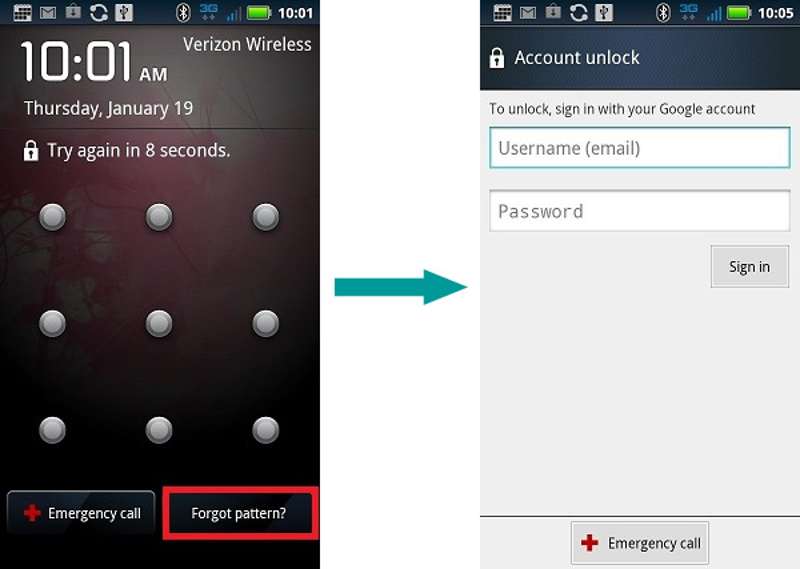
Step 1. Tap the Forgot pattern button at the bottom of your screen.
Step 2. Enter your Google account and password.
Step 3. Tap the Sign in button to unlock your phone.
Step 4. Now, you can turn off or set a new password.
Note: This method is unavailable to all Android models.
Solution 2: Turn off Secure Startup
On Android 8 and earlier, users have an option to set up a separate Secure Startup PIN. You must enter the PIN before the phone boots up as an additional layer of protection. However, the PIN for Secure Startup may lead to the error of LG enter password to unlock 30 30 attempts remaining.
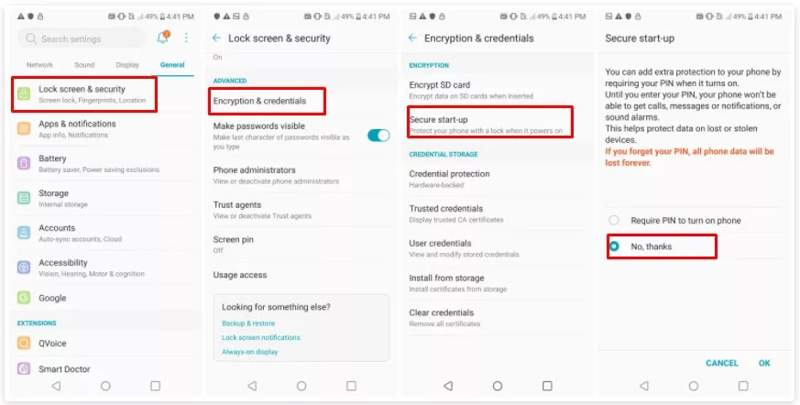
Step 1. Open the Settings app on your phone.
Step 2. Choose General and tap Lock screen & security.
Step 3. Go to Encryption & Credentials and pick Secure startup.
Step 4. Select No, thanks.
Solution 3: Factory Reset in Recovery Mode
When the error of entering the password to unlock 30 30 attempts remaining happens, you may be locked out of your phone. If you wish to access your device, a factory reset is available. It can remove all data and settings on your phone, including the screen lock.
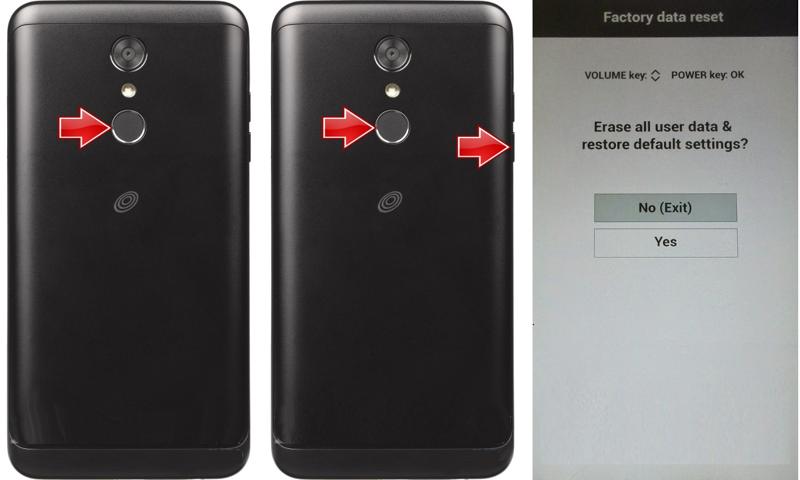
Step 1. Long-press the Power button until your phone shuts down.
Step 2. Next, press and hold the Power + Volume Down buttons together.
Tips: The button combination may vary, depending on your phone brand and model. You can access the manufacturer’s website or support to learn it.
Step 3. When you enter the Recovery Mode, release the buttons.
Step 4. Navigate to wipe data/factory reset with the volume buttons, and press the Power button to perform it.
Step 5. If prompted, select Yes with the volume buttons and perform it.
Step 6. When it is done, select Reboot system now to enter the normal system.
Solution 4: Erase Your Phone by Find My Device
Another solution to fix the error of entering the password to unlock 30 30 attempts remaining is Google’s Find My Device. It enables you to erase your phone using the associated Google account remotely. The prerequisite is that Find My Device is enabled on your phone. Plus, your phone must be online currently. And, it will factory reset your Android phone.
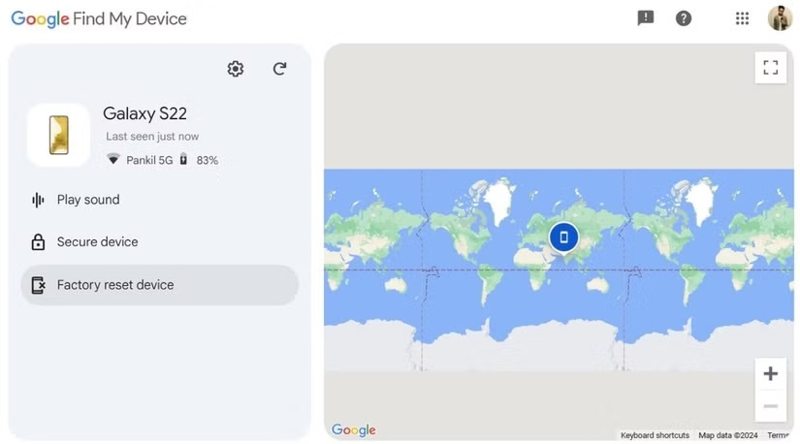
Step 1. Open the Find My Device app on another phone or go to Google Find Hub in a browser.
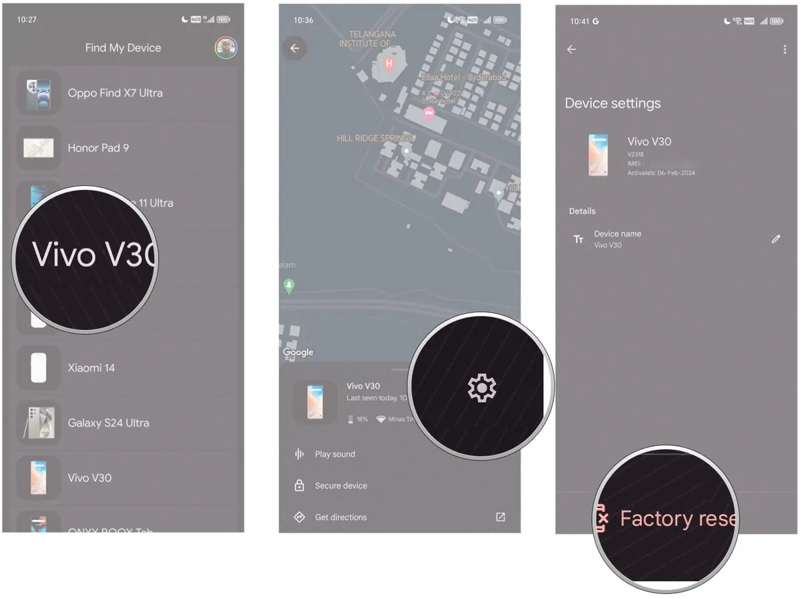
Step 2. Log in with the Google account associated with your phone.
Step 3. Select your phone from the list.
Step 4. Hit the Factory reset device button.
Step 5. If prompted, hit Reset to confirm the action.
Step 6. When it is complete, turn on your phone and access it directly.
Note: If you don’t want to lose your data, you must back up your phone before factory resetting your device.
Solution 5: Unlock Samsung Remotely
If you encounter the error of entering the password to unlock 30 30 attempts remaining on a Samsung phone, Samsung Find My Mobile allows you to unlock your device remotely and bypass the screen password.
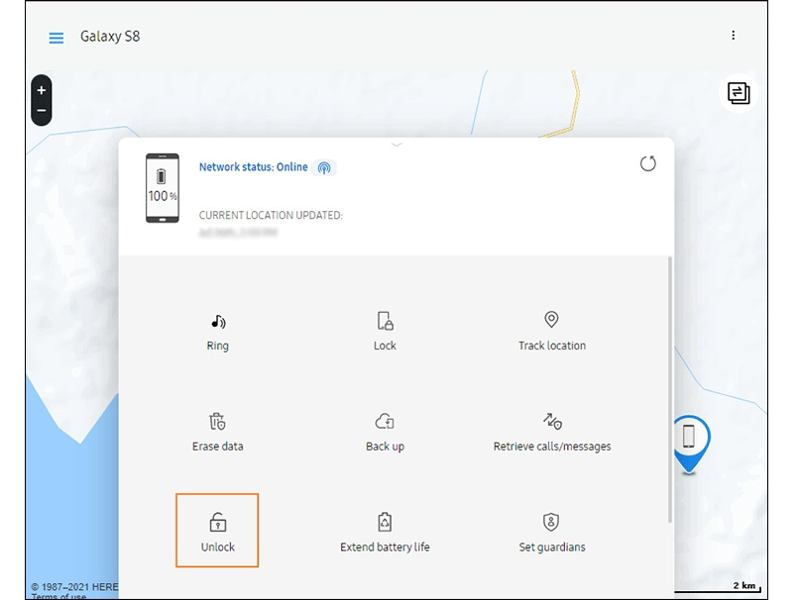
Step 1. Go to the SmartThings Find website in a web browser.
Step 2. Log in with your Samsung account.
Step 3. If you have multiple Samsung devices, choose the locked one.
Step 4. Click the Unlock option.
Step 5. If prompted, type in your Samsung account password.
Step 6. Click the Next button to move on.
Step 7. If you are presented with the unlock message, access your phone and set a new PIN.
Further Reading
Part 4: Ultimate Solution to Fix Enter Password to Unlock 30/30 Attempts Remaining
If the common solutions are unavailable, you will need a powerful unlocking tool for your Android device. Apeaksoft DroidAide, for example, is able to remove the screen password from an Android phone in various situations. The intuitive interface makes it a good option for beginners.
Ultimate Solution to Fix Enter Password to Unlock 30/30 Attempts Remaining
- Remove any screen password on Android devices.
- Work for digit passwords, patterns, Face IDs, and more.
- Safe and fast during the unlocking process.
- Bypass Google FRP lock quickly.
- Support a wide range of Android brands and models.
Secure Download
How to Fix Enter Password to Unlock 30/30 Attempts Remaining
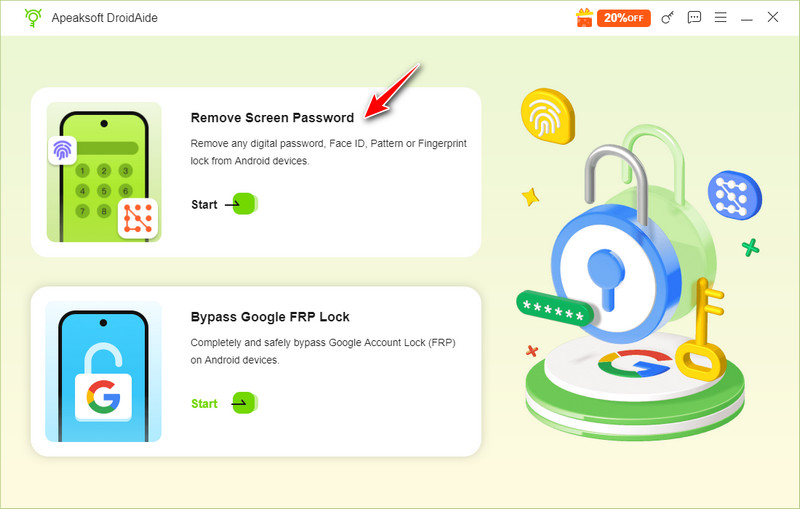
Step 1. Install DroidAide
Launch the ideal Android unlocking software after you install it on your computer. Choose the Remove Screen Password option on the home interface to proceed.
Step 2. Connect your phone
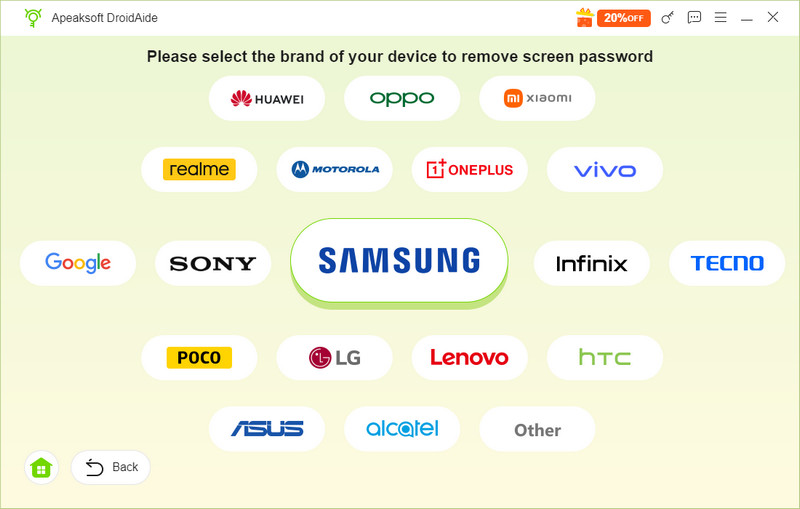
Next, choose your phone brand from the list. Connect your phone to your computer with a compatible USB cable. If you link the two devices for the first time, tap Trust on your phone screen to trust this computer. If the software doesn’t detect your phone, remove it and connect the device again.
Step 3. Unlock Android
Once you are ready, click the Remove Now button to begin unlocking your Android phone without any restrictions. Wait for the process to finish and disconnect your phone. Now, you can unlock it directly and set it up as a new device.
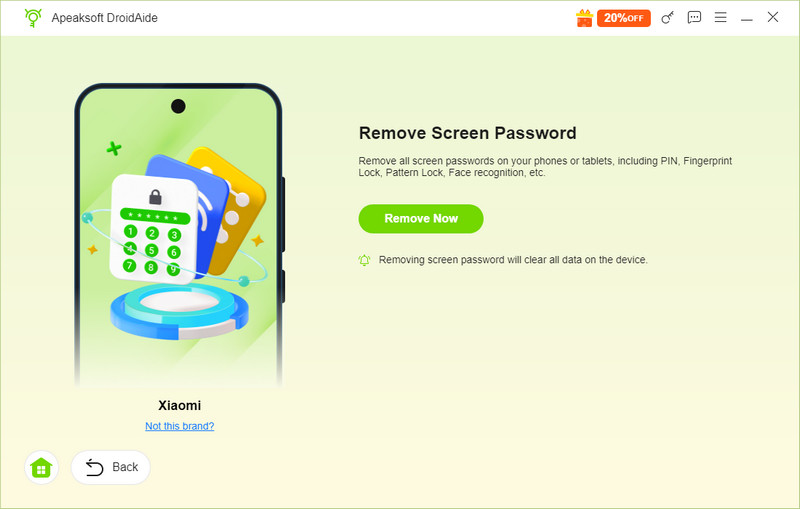
Note: The process will remove all data on your Android phone, including custom settings.
Conclusion
Following our article, you should understand how to enter the password to unlock 30/30 attempts remaining on your Android phone or tablet. You can learn the main causes. More importantly, you can resolve this problem on your own with our solutions one by one. Apeaksoft DroidAide is the ultimate solution to fix the error and regain access to your Android device without any restrictions. The user-friendly interface makes it simple to use.
Related Articles




