
2026 Updated Review on MediaTeck Universal Tools on Windows

MediaTek universal tool is an all-in-one software designed for technicians and average users to manage the deep software layers of MediaTek phones on Windows computers.
Normally, Android phones have strict security layers that stop you from changing the system files. However, suppose you lose your password, you need a way to bypass the forgotten password and FRP, and that is what Mediatek universal tools can do. Check what exactly it can do for you and what types of phone models it can support.
PAGE CONTENT:
Part 1: Key Features of MediaTek Universal Tools
Why do so many people look for a MediaTek universal tool free online? Because it packs many useful features into one single interface. Here is what a good MTK tool can do for you:
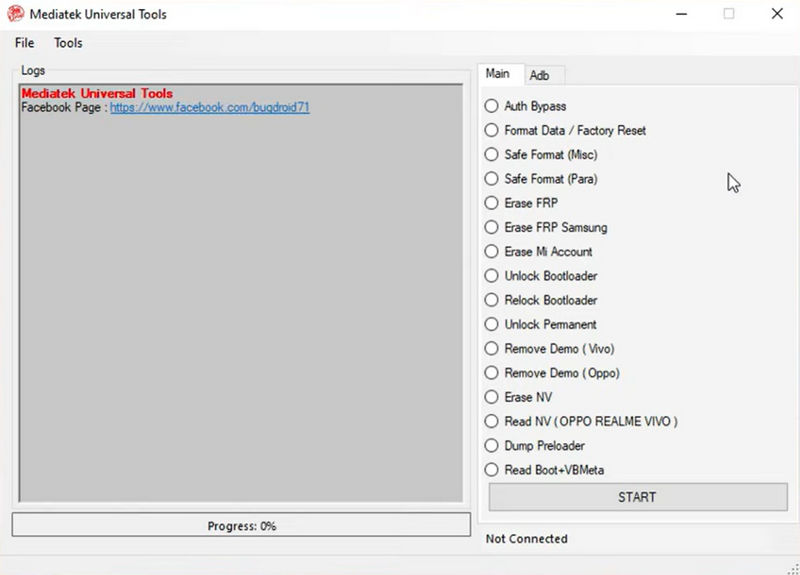
- Bypass Authentication: Modern MTK chips require a secure server connection before you can flash new software. This tool bypasses that check, letting you fix your phone offline.
- Factory Reset & Format Data: If you lock yourself out of your device, MediaTek Universal tools can wipe the user data partition to give you fresh access.
- FRP Lock Bypass: Factory Reset Protection (FRP) is a Google security feature. If you reset your phone but forget your Google login, this tool can easily handle the lock.
- Bootloader Unlock: Want to install custom software or root your phone? The tool can unlock your bootloader with one click.
- Fix Bootloops: If your phone keeps restarting and never shows the home screen, you can use MediaTek universal tool to repair the system.
Part 2: How to Get the MediaTek Universal Tool Download for PC
Unfortunately, there's no official website of MediaTek Universal Tools. If you want to use this software, you need to download it from third-party sources, which is not easy to get a clean and safe download link. Follow these clear steps to find a safe download and set it up.
Step 1. Find a Safe Link
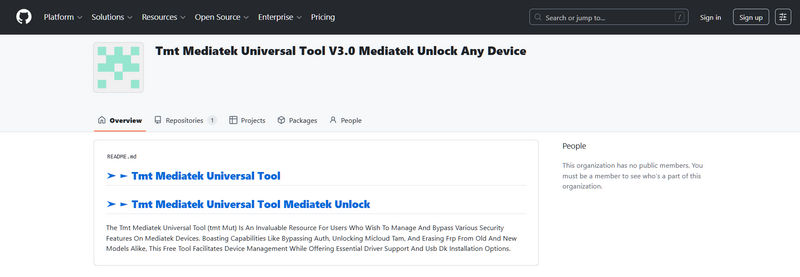
Look for a trusted website to get your MediaTek universal tool download. Many tech forums and phone repair blogs share these files. Because it is a community-made utility, you can easily get a MediaTek universal tools free download without paying any money. For security considerations, we highly recommend that you go to GitHub to find the source.
Step 2. Extract the File
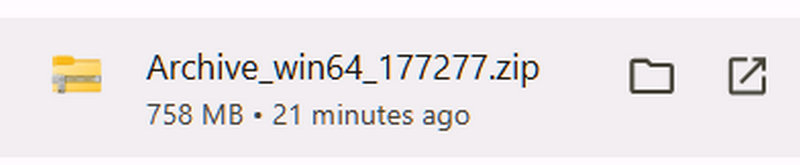
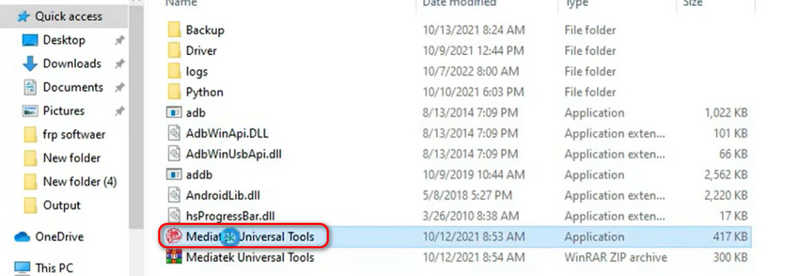
The download usually comes as a compressed folder (like a ZIP or RAR file). Use a free program like WinRAR or 7-Zip to open it. Inside, you will see the main application file, which is called the MediaTek universal tools exe.
Step 3. Install USB Drivers
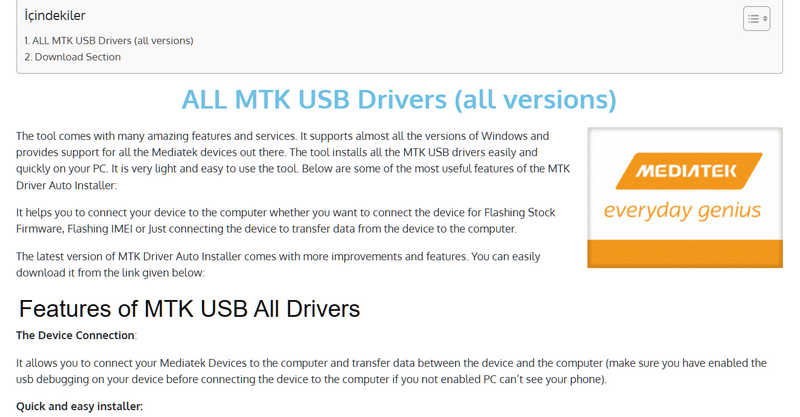
This is the most important part. Your computer cannot recognize an MTK chip without the proper drivers. Make sure to download and install the MediaTek USB VCOM Drivers and libusb-win32 on your PC before opening the tool.
Part 3: How to Use MediaTek Universal Tool: A Step-by-Step Guide
Using a service tool can feel scary if you have never done it before. Don't worry. Here is a simple guide on how to use MediaTek universal tool safely.
Step 1. Open the Software: Run as Admin.
Go to your extracted folder. Right-click on the mediatek universal tools exe file and select Run as administrator. The tool interface will open on your desktop.
Step 2. Choose the right option.
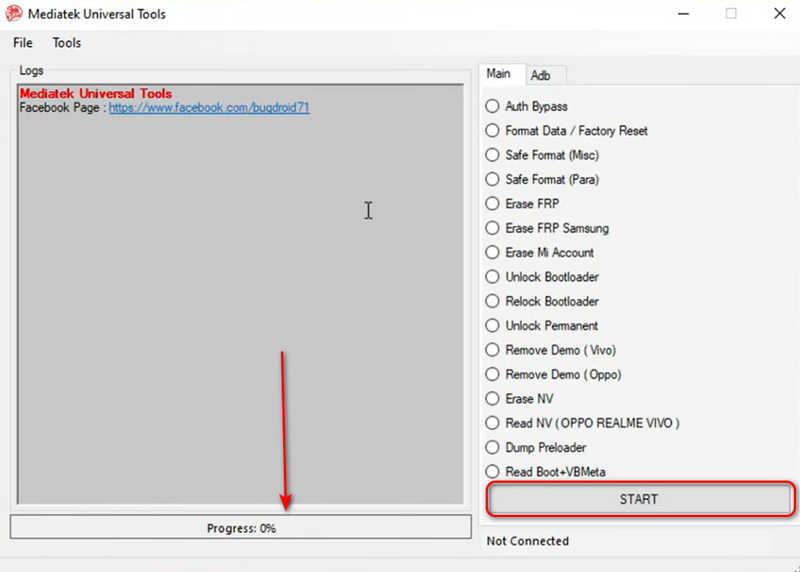
Look at the buttons on the screen. Click the action you want to perform. For example, if you are locked out by Google, click Erase FRP. If you want to wipe the phone, click Factory Reset.
Step 3. Turn Off Your Phone
Power down your MediaTek phone completely. Wait about 5 to 10 seconds to make sure it is fully turned off. Do not connect the USB cable yet.
Step 4. Connect with Boot Keys
Press and hold the Volume Up and Volume Down buttons at the same time. While holding them, plug the USB cable into your phone and PC. This forces the chip into BROM mode.
Step 5. Wait for Completion
Once your computer detects the phone, release the buttons. Click the START button on the main interface. The MediaTek Universal tool will show a progress bar and start working.
Before you click any download link, make sure your computer meets the requirements. This ensures the MediaTek Universal software runs smoothly without crashing.
| Requirement | Recommended Specification |
| Operating System | Windows 10 or Windows 11 (64-bit is best) |
| Processor | Intel Core i3 or higher (or AMD equivalent) |
| RAM | 4 GB or more |
| USB Ports | USB 2.0 or 3.0 ports (Direct motherboard ports are preferred over USB hubs) |
| Net Framework | Microsoft .NET Framework 4.5 or newer installed |
Part 4: Detailed Review of MediaTek Universal Tool
Although MediaTek Universal Tool can do many things for you, it has an obvious and great drawback: shady links and security risks. It is very difficult to find a reliable download link of this program. You may download scam software or a totally different one.
Supported Android Models
MediaTek universal tool's utility depends on the phone processor rather than the external smartphone brand. If the device runs an eligible MediaTek silicon architecture, the tool can recognize the phone and help you do what you want. But you can also check some common brands and models as follows:
- Xiaomi / Redmi (e.g., Redmi 6, 6A, and various MTK-based Note series)
- Oppo & Realme (e.g., older F-series, A-series)
- Vivo (Y-series and V-series MTK variants)
- Tecno & Infinix (Nearly all models, as these brands heavily rely on MTK chips)
- Samsung (Entry-level Galaxy A-series models utilizing Helio chipsets)
- Generic/White-label MTK tablets and smartphones.
MediaTek Universal tool is really not a safe and satisfactory utility to deal with FRP or screen lock. In this high-tech era, what you need is an Android all-in-one toolbox with official support and regular updates to deal with different phone brands and models.
Part 5: The Best Alternative to MediaTek Universal Tool
Apeaksoft DroidAide Android Unlocker is the best MediaTek Universal tool alternative to bypass FRP and screen lock on all Android versions, including Android 17. It is very easy to download and use with a clear interface and simple workflow. You can just follow the guide below to remove restrictions on your Android phone.
Step 1. Download Apeakasoft DroidAide Android Unlocker
Click the Free Download button below to download, install, and launch Apeakasoft DroidAide Android Unlocker on your computer. Connect your Android phone to your computer.
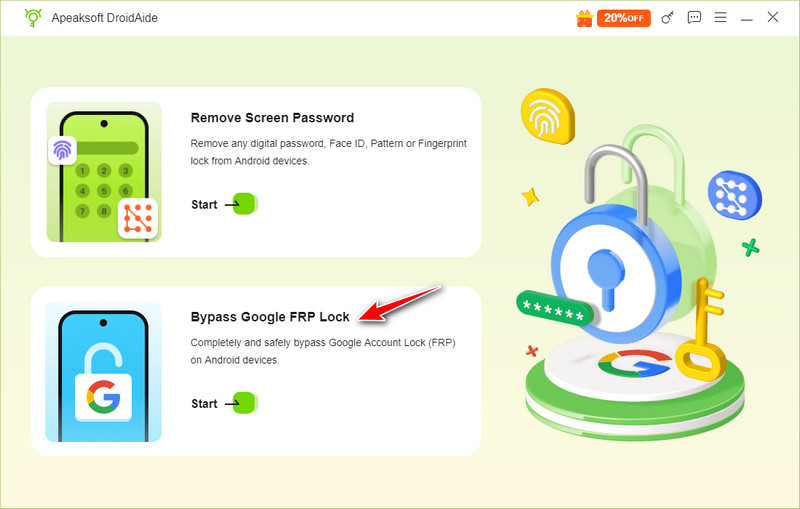
Step 2. Choose to Bypass FRP
If your Android phone is locked to Google FRP and you don't have the Google account password, select Bypass Google FRP Lock.
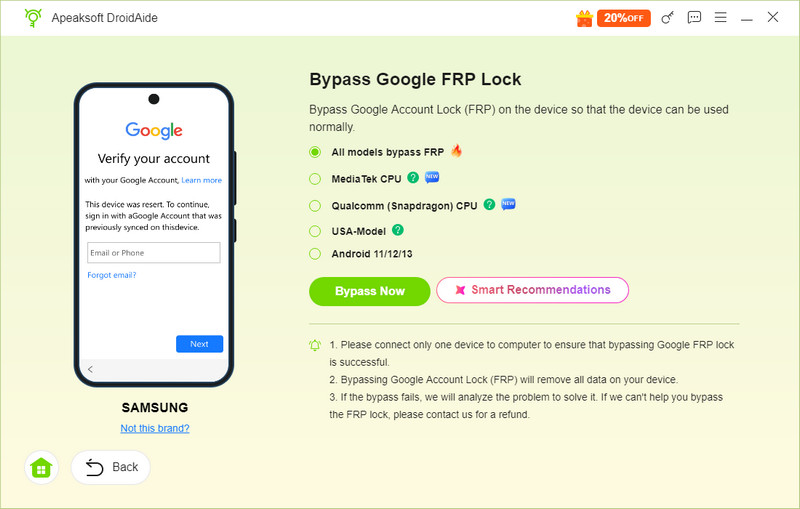
Then, you need to choose your phone brand or click Other when you cannot find your brand. Then, click the Bypass Now button to bypass Google FRP on your phone.
Step 3. Remove Screen Lock on Android
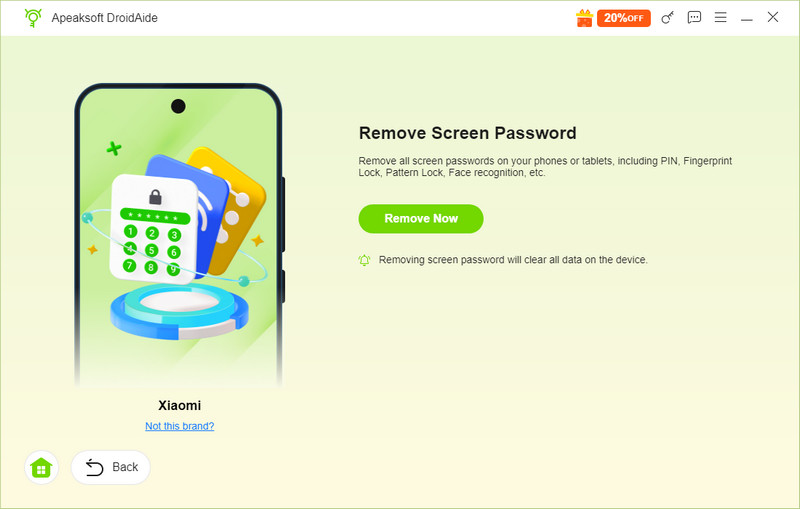
If you have forgotten your screen lock passcode and cannot get into your phone, select Remove Screen Password.
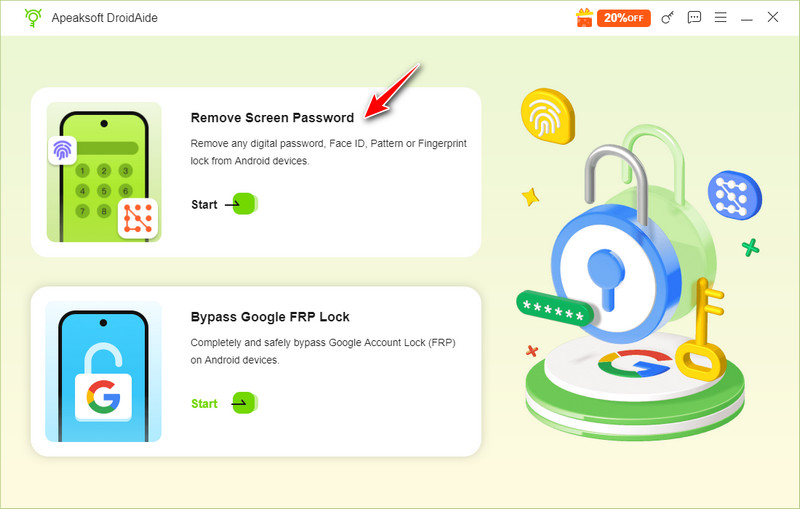
Still, choose a phone brand and then click the Remove Now button to easily remove the screen lock. After doing this, your phone will get factory reset and perhaps get locked by Google FRP. Therefore, you can use the Google FRP Bypass tool mentioned below to get full access to your Android phone.
Further Reading
Conclusion
MediaTek universal tools can help you bypass FRP and many other restrictions on your Android phone. However, even though it is a free program, it cannot deal with the latest Android OS. Moreover, this program is very difficult to download. Therefore, you can resort to a more reliable alternative - Apeaksoft DroidAide Android Unlocker. It can deal with almost all Android phone brands and the latest Android 17. You can easily download it, use it, and regain access to your Android device.
 Apeaksoft DroidAide
 Unlock your Android passwords and bypass the FRP lock easily.
Secure Download
Related Articles