


How to Get into Your iPad Without Knowing the Passcode

"I forgot my iPad passcode and don't have access to my data. Is there a way to get into an iPad without a passcode?"
Once you have an iPad, you can set a passcode to protect your data from unauthorized access. The downside is that you will be locked out after you forgot the lock screen passcode. The good news is you can regain access to your device even if forgot the passcode. This guide shares the proven methods and detailed steps.
PAGE CONTENT:
Part 1: How to Get into an iPad Without a Passcode by Erasing the iPad
Apple has added the Security Lockout feature to iPadOS 15.2 and above. It comes with the option to erase your device with the linked Apple Account password and get into an iPad without knowing the passcode.
On iPadOS 17 or later
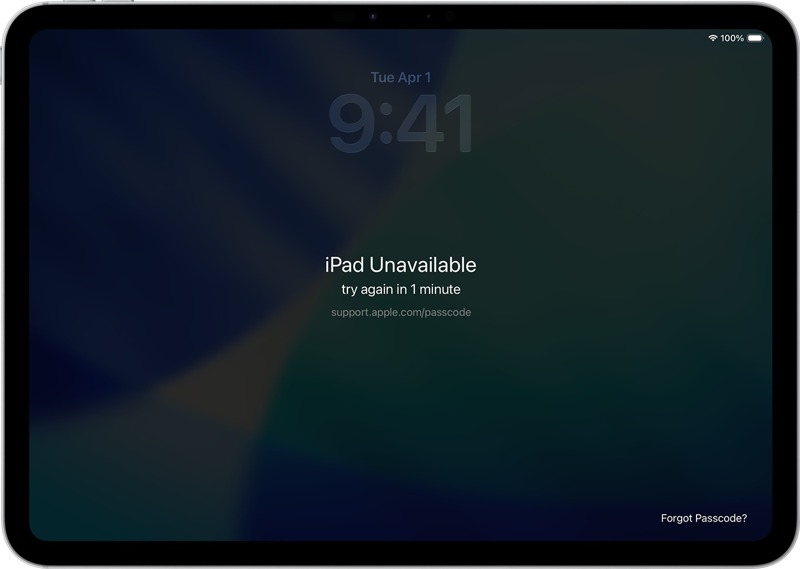
Step 1. Enter a wrong passcode repeatedly until the iPad Unavailable screen appears.
Step 2. Tap the Forgot Passcode button.
Step 3. Press Start iPad Reset to confirm it.
Step 4. Enter your Apple Account password to sign out of your account.
Step 5. Next, tap Erase iPad to get into the iPad without the passcode.
On iPadOS 15.2 or above
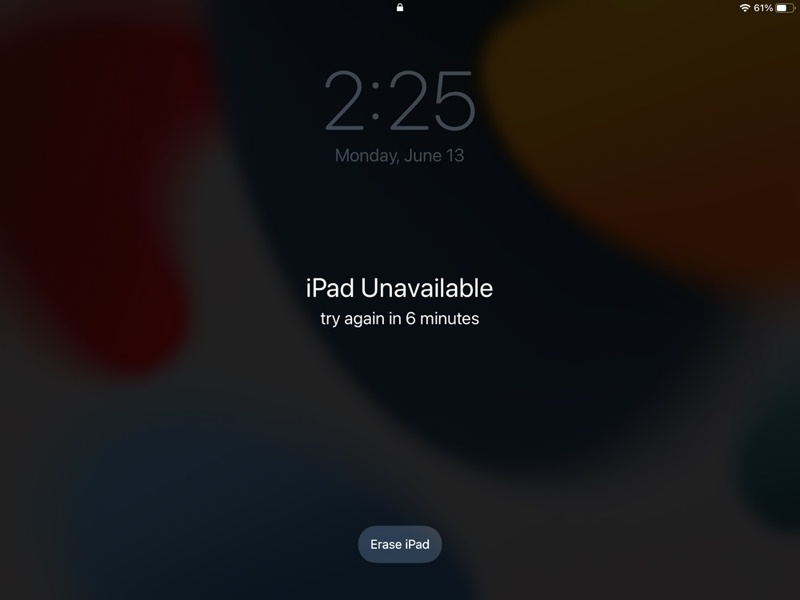
Step 1. Input a wrong passcode multiple times to trigger the iPad Unavailable screen.
Step 2. Tap the Erase iPad option.
Step 3. Read the notification and press Erase iPad.
Step 4. Type in the linked Apple Account password.
Step 5. Tap Erase iPad to reset your device.
Part 2: How to Get into iPad Without a Passcode via Find My
Without knowing the passcode, you can get into an iPad if Find My iPad has been turned on. You can access the Find My portal in a browser or the Find My app on a borrowed Apple device to complete the process.
On Find My Portal
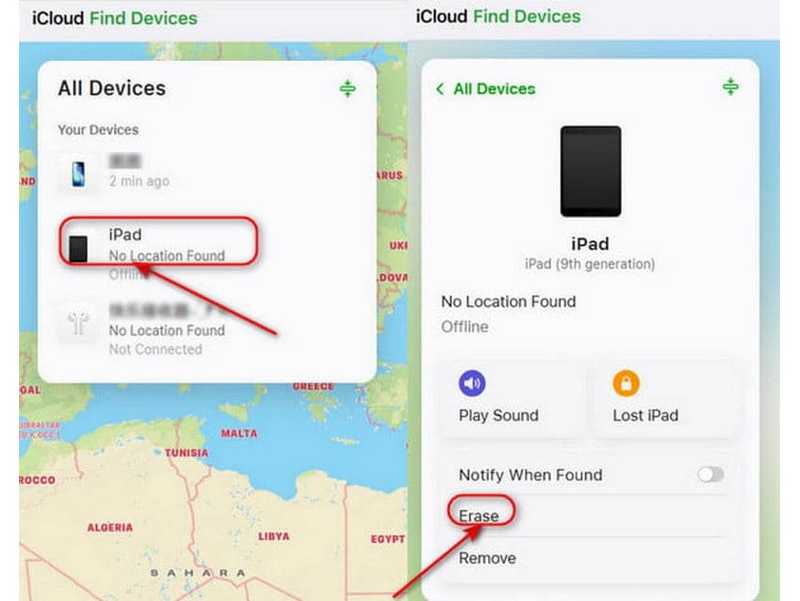
Step 1. Visit www.icloud.com/find in your browser.
Step 2. Log in with the linked Apple Account.
Step 3. Find and click your iPad from the All Devices list.
Step 4. Click the Erase or Erase This Device button after it is tracked on the map.
Step 5. Follow the onscreen instructions to erase your iPad remotely.
In Find My App
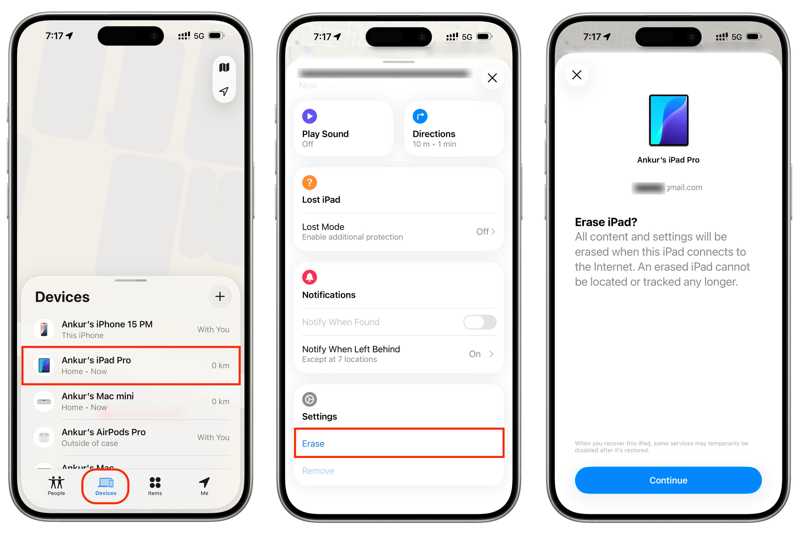
Step 1. Run the Find My app on a borrowed iOS device.
Step 2. Sign in with your Apple Account and password.
Step 3. Go to the Devices tab and choose your iPad.
Step 4. Expand the toolbar and tap Erase.
Step 5. Read the alert and tap Continue.
Step 6. Enter your trusted phone number and tap Erase.
Step 7. Input the linked Apple Account password again and hit Erase.
Step 8. When it is done, you can get into your iPad without the passcode.
Part 3: How to Get into iPad Without a Passcode with iTunes/Finder
If you haven't enabled Find My iPad on your device, iTunes is another option to remove the lock screen. It can erase all data on your device, including the lock screen passcode. Thus, you can access your iPad directly.
Step 1. Connect your iPad to a computer with a compatible cable.
Step 2. Open iTunes on Windows and macOS Mojave or earlier. On macOS Catalina or later, run Finder.
Step 3. Put your iPad in Recovery Mode:
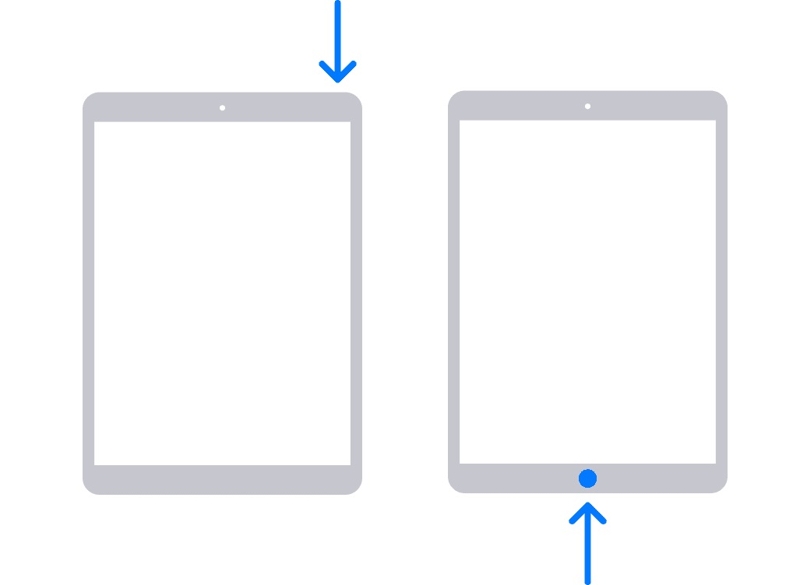
For an iPad without a Home button
Press and quickly release the Volume Up button.
Press and quickly release the Volume Down button.
Hold down the Side button until you see the Recovery Mode screen.
For an iPad with a Home button
Long‑press the Home + Sleep/Wake buttons together.
Release the buttons until your iPad enters Recovery Mode.
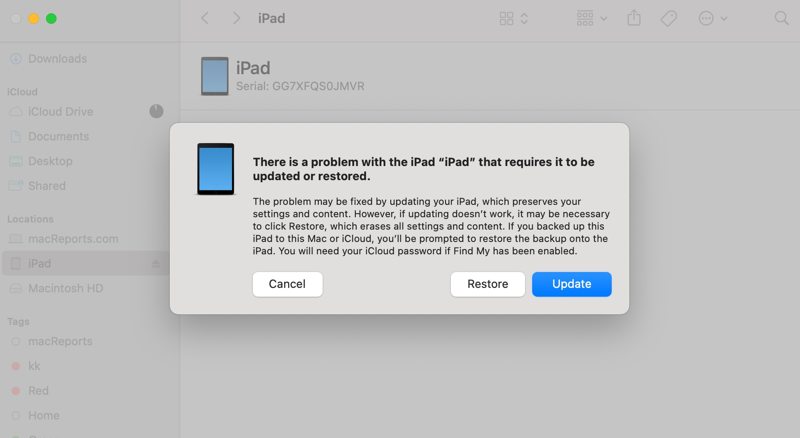
Step 4. Then, click the Restore button on the dialog.
Step 5. When your iPad restarts, you can get into the device without the passcode.
Part 4: How to Get into iPad Without a Passcode in One Click
If you forgot your passcode, Apeaksoft iFoneKit iOS Unlocker lets you get into an iPad without a passcode. It can remove all screen locks from an iPad without any restrictions. Furthermore, the concise design simplifies the process.

Downloaded by over 1,000,000 users
- Unlock an iPad without a passcode quickly.
- Easy to use and finish the process in three steps.
- Remove digit passcodes, Face IDs, and Touch IDs.
- Offer bonus features, like MDM bypassing.
- Compatible with the latest versions of iPadOS.
Secure Download
Secure Download

How to Get into Your iPad Without a Passcode
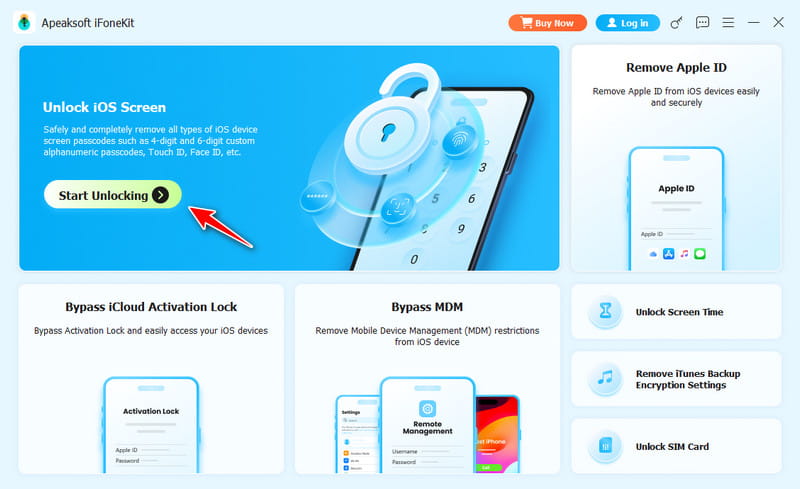
Step 1. Install iPad unlocker
Start the iPad unlock software once you install it on your computer. It is available on Windows 11/10/8/7/XP/Vista and Mac OS X 10.7 or above. Choose the Unlock iOS Screen mode to proceed.
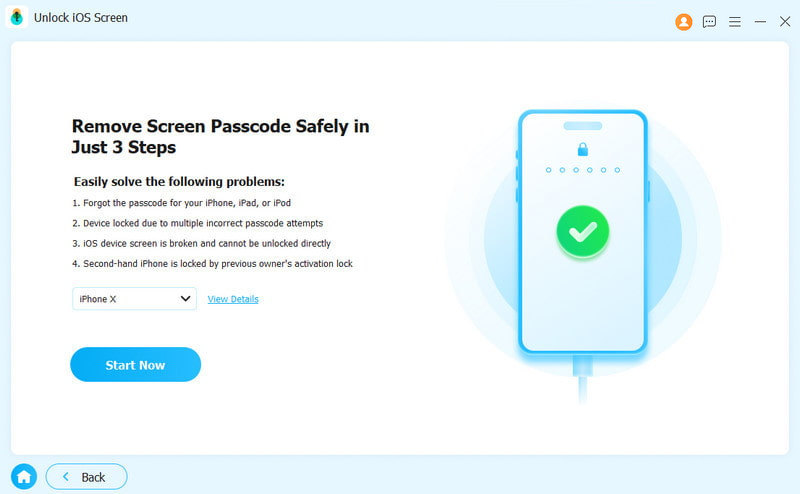
Step 2. Connect to your iPad
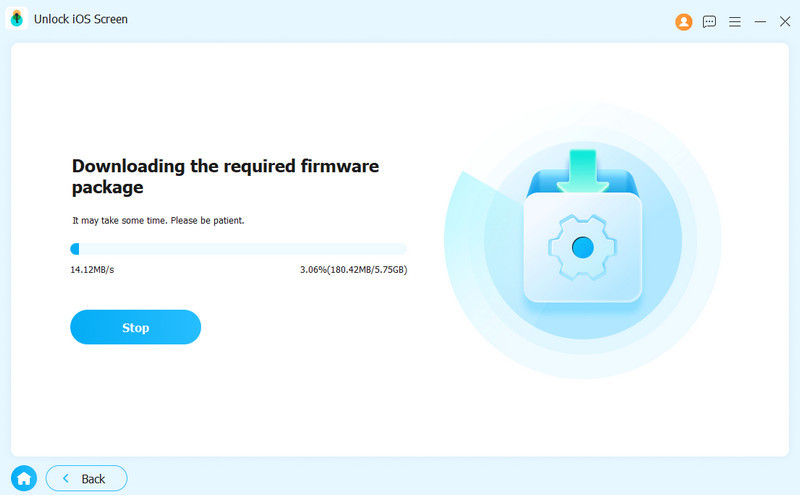
Link your iPad to your computer with a Lightning cable. Once you trust this computer, the software will detect your device immediately. After the software loads your device information, check it and click Start Now to download the firmware.
Step 3. Get into your iPad
Next, click the OK button on the confirmation dialog. Then, press the Confirm Again button to verify the firmware. After verification, the software will initiate unlocking your iPad.
Conclusion
This guide shares multiple ways to get into an iPad without a password. You can pick an appropriate way and follow our steps to remove the screen lock from your iPad. If the common ways are unavailable, try Apeaksoft iFoneKit iOS Unlocker. It is able to remove any screen locks without restrictions.
 Apeaksoft iFoneKit
 Unlock all types of iOS passwords from iPhone, iPad and iPod.
Secure Download
Secure Download
Related Articles




