

Remove Previous Owner Apple ID Without Password Safely

Can't use iCloud on your second-hand iPhone because it's still tied to the previous owner's Apple ID? Want to know how to remove Apple ID from previous owner? This guide covers the most effective methods to remove the Apple ID and use your device without restrictions.
PAGE CONTENT:
Part 1: How to Remove Apple ID from Previous Owner
If you can contact the previous owner, things can be easier to remove the previous owner Apple ID. Here are the most effective methods you can try together.
Note: If the device was purchased through a certified second-hand platform, try contacting the previous owner via the platform. For private transactions, be sure to protect your personal privacy and avoid sharing any sensitive device information.
Method 1: Remotely Remove Previous Owner Apple ID via iCloud
Best for: When the previous owner is available to assist (Fastest).
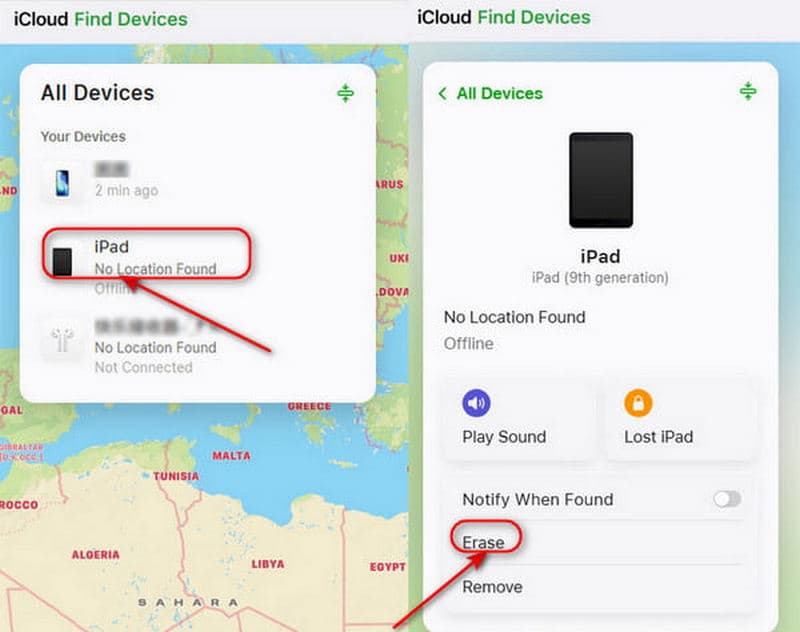
The previous owner can remove their Apple ID from the device remotely through iCloud.com.
Step 1. Go to iCloud.com and log in to their Apple Account.
Step 2. Click on Find Device. In the list of All Devices, select the device you want to remove.
Step 3. Select Erase This Device. Tap Erase to start removing the previous Apple ID.
Method 2: Remove iPhone from Apple ID Device List
Best for: When the previous owner cannot access a computer but can operate another Apple device.
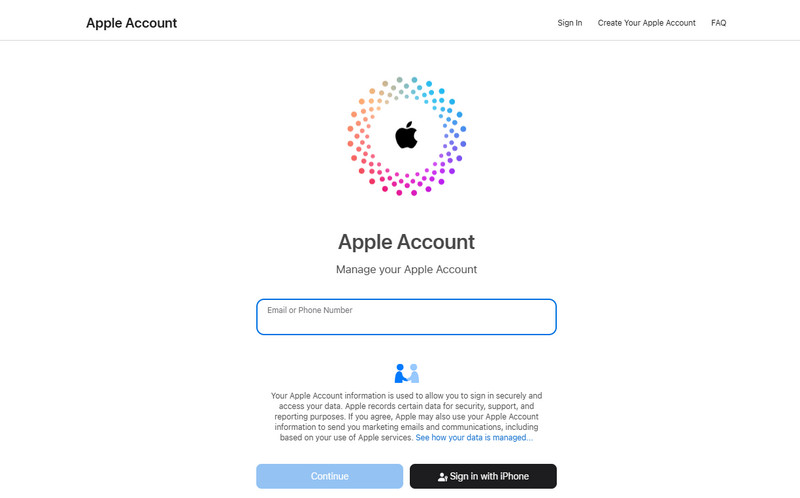
The previous owner can also log into their Apple Account to remove your device from account.
Step 1. Go to account.apple.com and sign in with the previous owner's Apple ID.
Step 2. Scroll down to select the Devices section and select your device.
Step 3. Click Remove from Account. Then the previous owner Apple ID won't be linked to your device.
Part 2: How to Remove Apple ID Without Previous Owner
If you can't contact the previous owner, is there any way to remove Apple ID without the help of previous owner? The answer is yes - check out the four methods below to get it done.
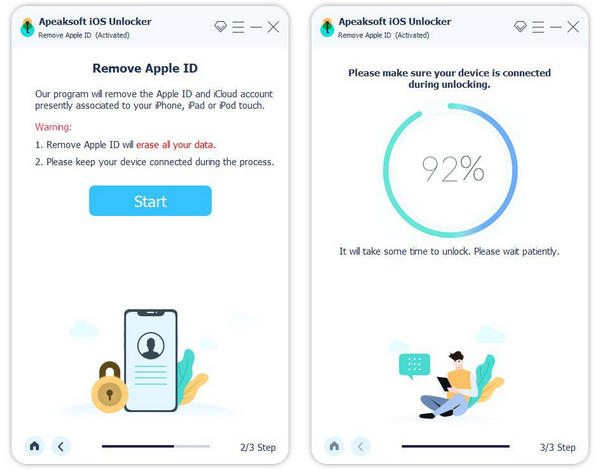
Method 1: Apeaksoft iFoneKit - Remove Apple ID Without Password
Best for: Users who want to remove Apple ID without the previous owner.
The quickest and easiest way is to use a professional third-party tool. Apeaksoft iFoneKit is a reliable option that can handle various types of iOS locks. It can remove Apple ID in different scenarios - whether you forgot the password or bought a second-hand iPhone that's locked to someone else's Apple Account. iFoneKit can bypass these restrictions easily and allow you to enjoy all Apple services.
Your Reliable iOS Unlock Solution
- Remove Apple ID on iPhone/iPad easily and safely without a password.
- Erase Face ID/Touch ID/4-digit/6-digit password within a few clicks.
- Get rid of MDM, iTunes backup encryption, and Screen Time locks.
- Compatible with all iOS models and versions (iOS 26/27, iPadOS 26/27).
Secure Download
Secure Download

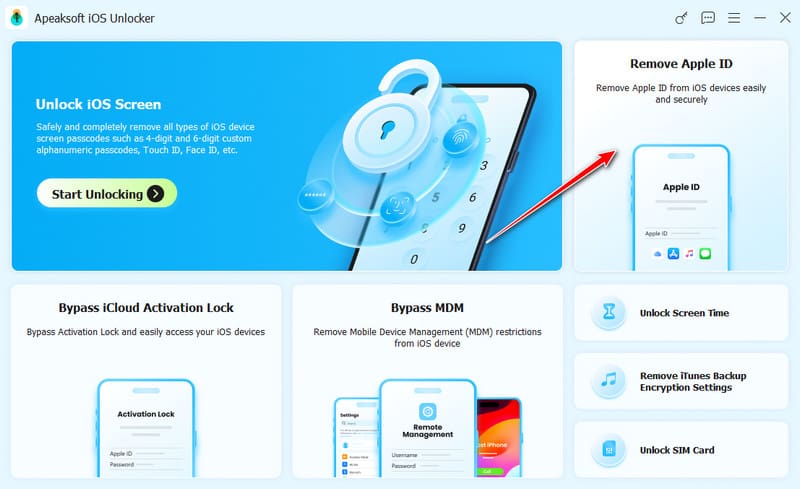
Step 1. Launch the software on your computer, and choose the Remove Apple ID mode in the interface. Connect your iOS device to the computer and tap Trust on your device to allow the connection.
Step 2. Click the Start Now button to begin the removal process.
If Find My is disabled, the software will start removing your Apple ID immediately.
If Find My is enabled, you need to follow the on-screen instructions to reset your iOS device first.
Note: The reset will delete all data on your device, so make sure to back up your important information in advance.
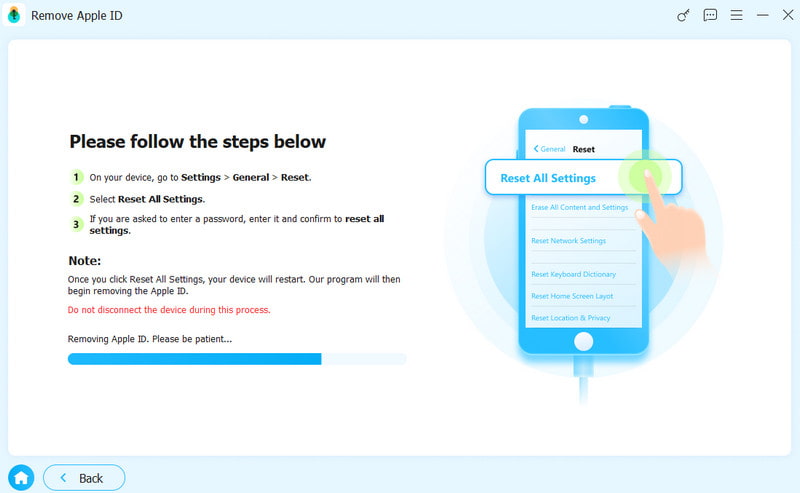
Step 3. Click the OK button to proceed, then click Confirm Again when prompted. The previous owner Apple ID will be removed soon.
Method 2: Contact Apple Support to Remove Apple ID
Best for: Users who have valid proof of purchase and prefer an official removal method.
If you purchased the iPhone through official channels, or you have valid proof of ownership, you can submit a request to Apple Support to remove the previous owner Apple ID.
Prepare your proof of purchase, such as a sales receipt or invoice from an Apple Store, authorized reseller, or carrier. You can contact Apple Support through their official website or visit an Apple Store. The verification process may take a few days. Once your request is approved, Apple will remove the Apple ID from your device.
Method 3: Restore Apple ID via iTunes/Finder
Best for: When the Apple ID password is known but the account cannot be removed from Settings normally due to system issues.
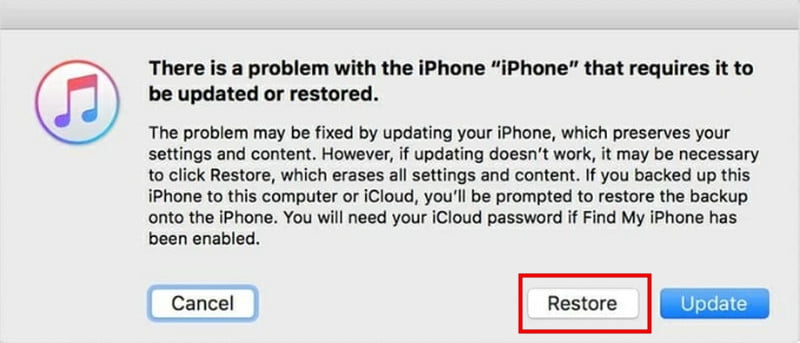
Another official way to remove Apple ID from previous owner is to use iTunes/Finder to restore your iPhone via iTunes/Finder. This method will delete all your data on your device, so be sure to back up your important information before restoring. Then you can restore your iPhone from a previous backup.
Step 1. Put your iPhone into Recovery Mode.
For iPhone 8 and later:
Press and release the Volume Up button quickly, then the Volume Down button. Press and hold the Power button until you see Recovery Mode appear.
For iPhone 7/7 Plus:
Keep pressing the Volume Down button and Side button together until Recovery Mode appears on the screen.
For iPhone 6S and earlier:
Press the Home and Side buttons together and hold them until Recovery Mode appears on your phone.
Step 2. Connect your iPhone to your computer using a USB cable and open iTunes/Finder.
Step 3. Select the Summary tab, then choose Restore iPhone to restore your Apple ID.
Method 4: Erase Previous Owner Apple ID via Settings
Best for: When the Apple ID password is available and the device is accessible.
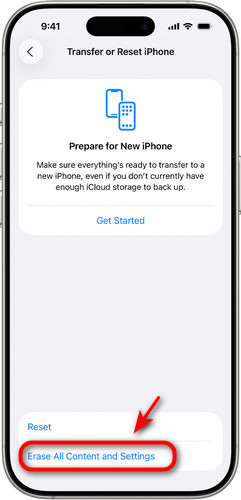
How to remove previous owner apple ID without any extra apps? You can factory reset your device to erase the precious owner Apple ID.
Step 1. Go to Settings and select General.
Step 2. Tap Transfer or Reset iPhone and choose Erase All Content and Settings.
Step 3. Next, tap Continue and follow the instructions to remove previous owner Apple ID.
Part 3: FAQs About Removing Previous Owner Apple ID
Is it possible to remove Apple ID without previous owner?
Yes! You can try using a professional unlocking tool like Apeaksoft iFoneKit, factory reset your device, or contact Apple Support if you have valid proof of purchase.
How to add a new Apple ID after removing the previous one?
Go to Settings, tap Sign in to your iPhone, then enter your Apple ID and password. After signing in, you'll be able to access full Apple services.
Can Apple remove the previous owner’s Apple ID for me?
Yes, Apple can help remove the previous owner's Apple ID, but only if you provide valid proof of ownership. You can contact Apple Support online or visit an Apple Store.
Conclusion
Now you know how to remove previous owner Apple ID without password! If you can reach the previous owner, that's the ideal scenario - you can resolve the issue effortlessly. If not, don't worry, you can still try alternative solutions, such as using Apeaksoft iFoneKit. So, which method worked best for you?
Related Articles




