


How to Unlock Your Apple Watch with Your iPhone or iPad

It is well known that Apple has constructed an ecosystem rather than simply releasing smartphones. The Apple Watch, for example, is a wearable device launched by Apple for working with iPhone and iPad. You have to set a PIN on your watch and input the PIN to unlock your device to protect your data. On the other hand, you can unlock the Apple Watch with an iPhone. This tutorial shares the detailed steps.
PAGE CONTENT:
Part 1: How to Unlock Apple Watch with iPhone
Without the PIN, you can unlock your Apple Watch with your iPhone. The Unlock with iPhone is built into the Watch app on iPhones. It enables you to access your watch without entering the PIN repeatedly.
Prerequisites:
- 1.Your Apple Watch runs watchOS 6 or later.
- 2.Your iPhone runs iOS 14.5 or later.
- 3.Both your devices must log in to the same Apple Account.
- 4.Bluetooth must be enabled on both devices.
- 5.Your Apple Watch should be paired with your iPhone currently.
How to Turn on Unlock with iPhone on iOS
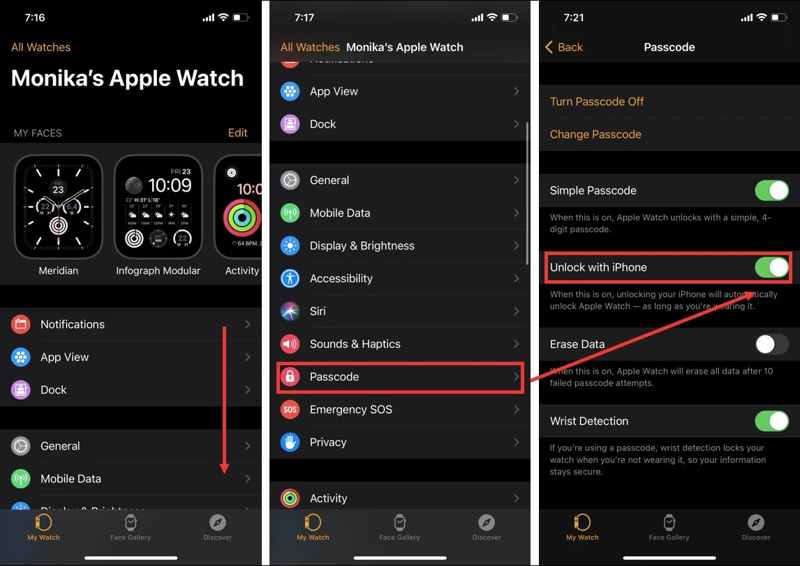
Step 1. Open the Watch app on your iPhone.
Step 2. Scroll down and go to the Passcode option.
Step 3. Toggle on Unlock with iPhone.
Step 4. Authenticate with your Apple Watch passcode.
How to Turn on Unlock with iPhone on Apple Watch
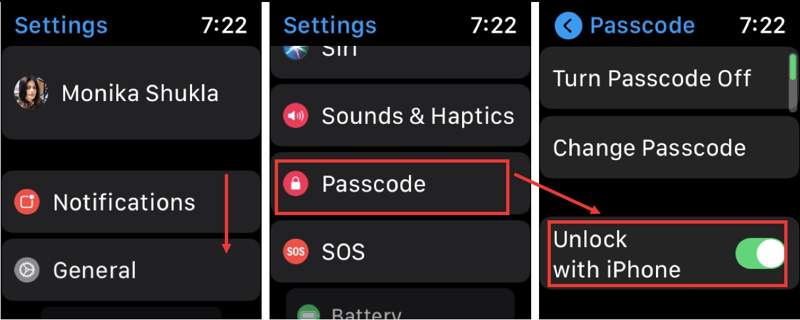
Step 1. Turn on your watch and run the Settings app.
Step 2. Scroll down and tap the Passcode option.
Step 3. Toggle on the Unlock with iPhone option.
After setting up, unlocking your iPhone will automatically unlock the Apple Watch as long as you are wearing it on your wrist.
Part 2: What to Do If Apple Watch Not Unlocking with iPhone
Apple Watch not unlocking with iPhone is a common problem. The causes are complicated, such as poor connection, frozen device, incorrect settings, and more. You can follow the solutions below to fix this problem.
Solution 1: Turn on Bluetooth
On iPhone
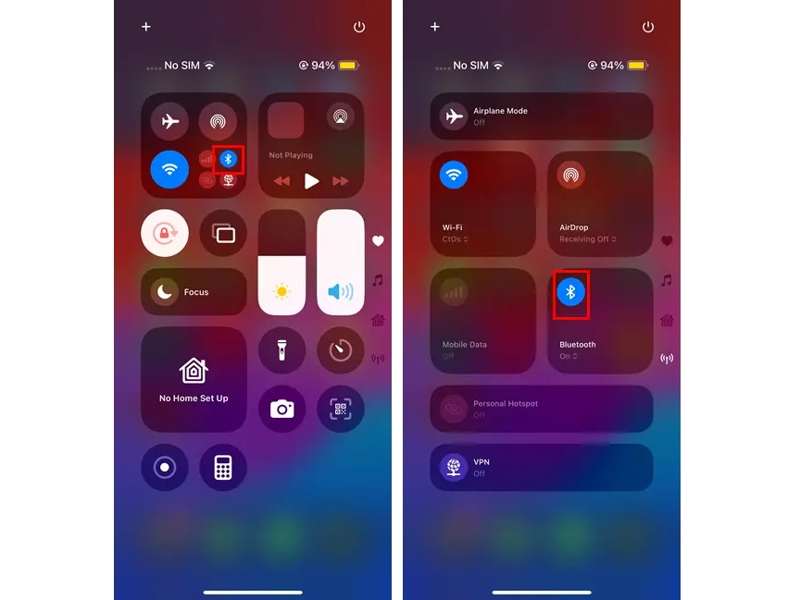
Step 1. Go to the Control Center on your iPhone.
Step 2. Tap the Bluetooth button.
Step 3. If Bluetooth is enabled, tap it to turn Bluetooth off. Then, tap it again to turn it back on.
On Apple Watch
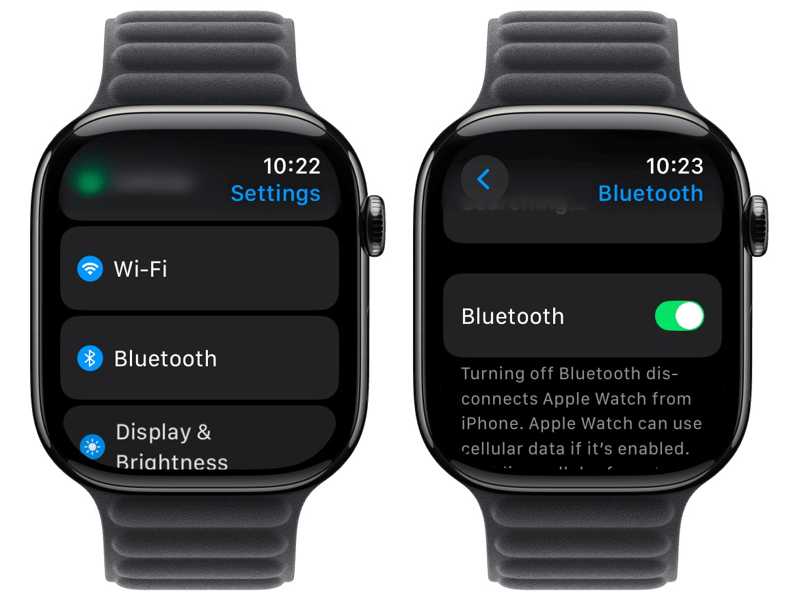
Step 1. Go to the Settings app on your watch.
Step 2. Choose the Bluetooth option.
Step 3. Toggle on Bluetooth.
Now, unlock the Apple Watch with the iPhone to check if the problem has disappeared.
Solution 2: Re‑enable Unlock with iPhone
On iPhone
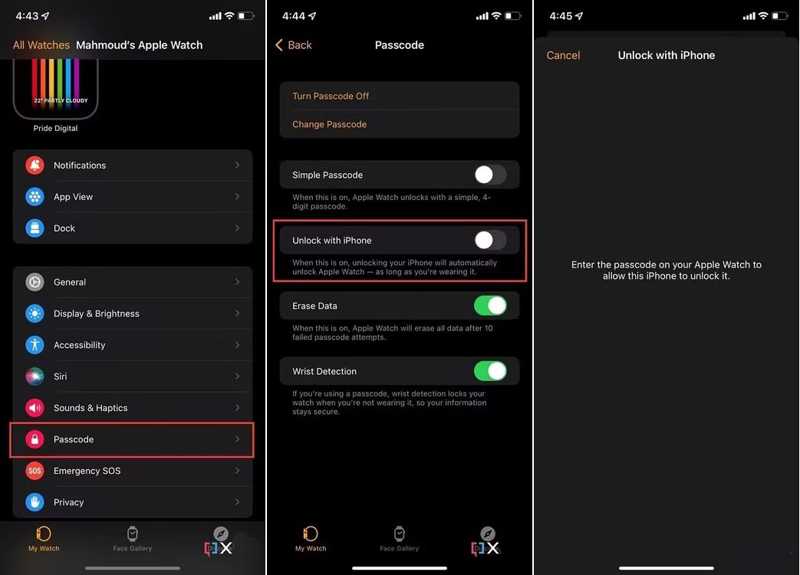
Step 1. Run the Watch app.
Step 2. Go to the My Watch tab.
Step 3. Tap the Passcode option and toggle off Unlock with iPhone.
Step 4. Enter your Apple Watch passcode when prompted.
Step 5. Repeat the steps above to turn on Unlock with iPhone again.
On Apple Watch
Step 1. Go to Settings and Passcode on your watch.
Step 2. Toggle off Unlock with iPhone.
Step 3. Then, turn the option back on.
Next, check if the error that the Apple Watch does not unlock with the iPhone has disappeared.
Solution 3: Disable Unlock with Apple Watch
Apple allows you to unlock your iPhone with your Apple Watch. If you set it on your iPhone, Apple Watch may be not unlocking with iPhone. The solution is simple: turn off Unlock with Apple Watch on your iPhone.
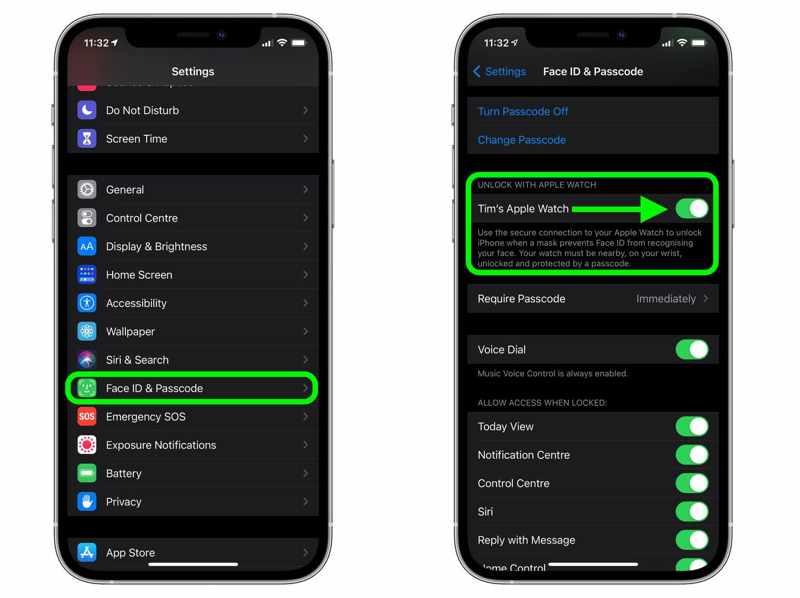
Step 1. Run the Settings app from your home screen.
Step 2. Scroll down and head to Face ID & Passcode.
Step 3. Enter your iPhone passcode.
Step 4. Make sure to turn off your Apple Watch under the UNLOCK WITH APPLE WATCH section.
Solution 4: Update Software
On iPhone
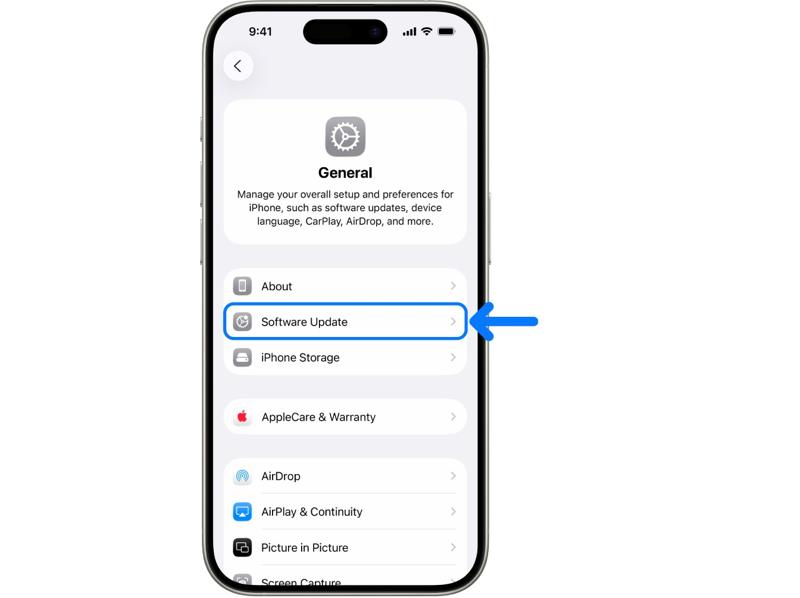
Step 1. Run your Settings app.
Step 2. Go to General and Software Update.
Step 3. If an update is available, tap the Download and Install button.
Step 4. Follow the onscreen instructions to update your iPhone.
On Apple Watch
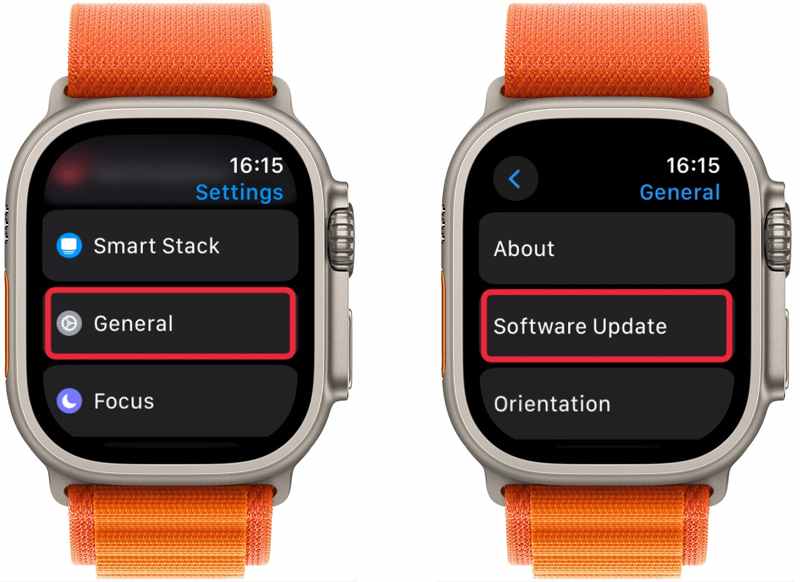
Step 1. Head to the Settings app.
Step 2. Navigate to General and Software Update.
Step 3. Tap Install if you see a new update is available.
Note: You can update watchOS in the Watch app on your iPhone.
Part 3: How to Unlock iPhone Without a Password
After setup, you can unlock your Apple Watch with your iPhone after unlocking your iPhone with your passcode, Face ID, or Touch ID. If you forgot your iPhone screen lock, you have to unlock your device with Apeaksoft iFoneKit iOS Unlocker. It is able to unlock your iPhone without a password.

Downloaded by over 1,000,000 users
- Unlock an iPhone or iPad without a password.
- Easy to use and complete the process in three steps.
- Work for frozen, disabled, and locked iOS devices.
- Offer bonus features, like Apple ID removal.
- Compatible with a wide array of iPhones and iPad models.Windows Download, Mac Download
Secure Download
Secure Download

How to Unlock Your iPhone Without a Password
Step 1. Install iOS unlocker
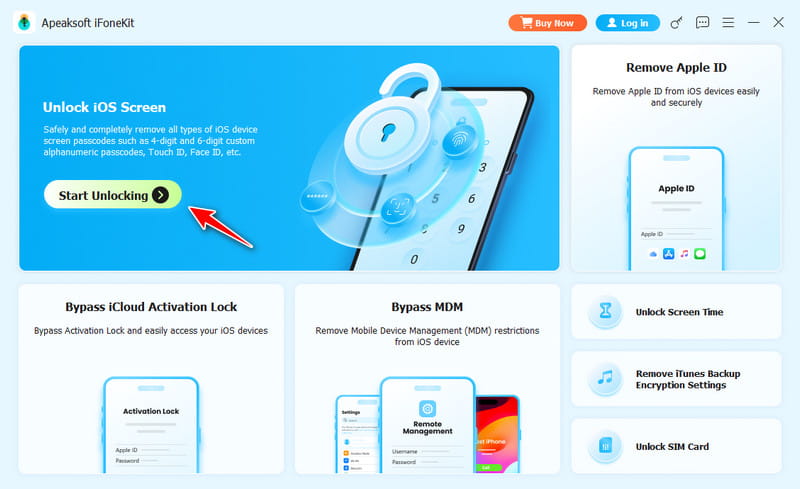
Start the iOS unlock software as long as you install it on your computer. It is available on Windows 11/10/8/7/XP/Vista and Mac OS X 10.7 or above. Choose the Unlock iOS Screen mode to move on.
Step 2. Connect to your iPhone
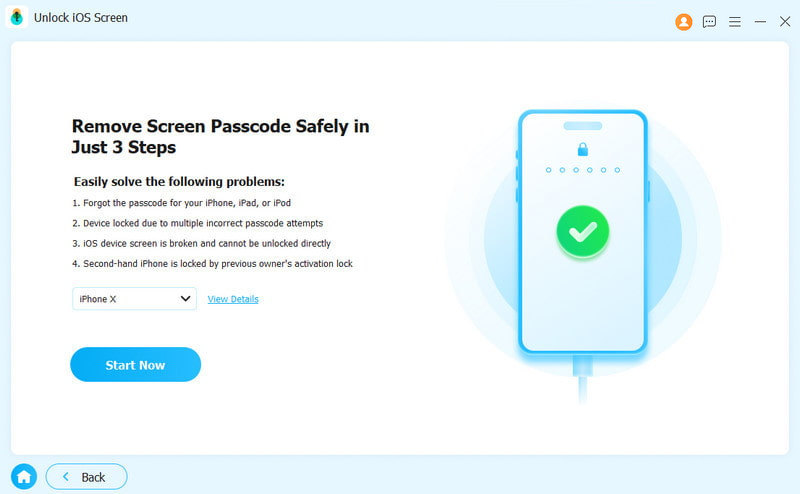
Plug your iPhone into your computer with a Lightning cable. Make sure to trust this computer. Once the software detects your device, your iPhone information will be loaded. Check them and click the Start Now button to begin downloading the firmware.
Step 3. Unlock your iPhone
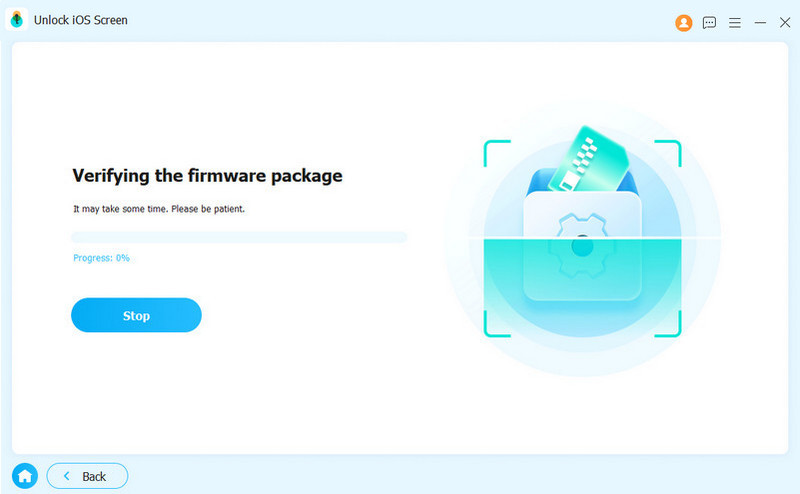
After the firmware is downloaded, click the OK button on the confirmation dialog. Then, press the Confirm Again button to verify the firmware. Once verification is successful, the software will automatically begin unlocking your iPhone. When it is done, you can set up Unlock with iPhone again.
Note: The process will erase your data. You’d better back up your iPhone first.
Further Reading
Conclusion
This guide demonstrated how to unlock the Apple Watch with an iPhone. You can set up the feature on your iPhone and Apple Watch following our detailed steps. If unlocking with an iPhone is not working, try the solutions above to fix this problem quickly. Apeaksoft iFoneKit iOS Unlocker is the one‑stop solution to unlock your iPhone without a password. Then, you can set the Unlock with iPhone again.
 Apeaksoft iFoneKit
 Unlock all types of iOS passwords from iPhone, iPad and iPod.
Secure Download
Secure Download
Related Articles




