


How to Unlock Your iPhone Without Passcode or Face ID

"How can I quickly unlock my iPhone if I have forgotten the passcode and don’t have access to Face ID?" Today, users can unlock their iOS devices by scanning their faces. Even if Face ID is unavailable, users can access their devices with the lock screen passcodes. What if they forgot their passcodes? Fortunately, there are ways to unlock an iPhone without a passcode or Face ID. This guide demonstrates the proven methods.
PAGE CONTENT:
- Part 1: [Official] Unlock iPhone Without Passcode via Forgot Passcode
- Part 2: Unlock iPhone Without Passcode via iTunes/Finder Recovery Mode
- Part 3: Unlock iPhone Without Passcode by Erasing iPhone Using Find My
- Part 4: Professional Way to Unlock iPhone Without Passcode or Face ID
- Part 5: Common iPhone Unlock Methods That Do Not Work [Explained]
Part 1: [Official] Unlock iPhone Without Passcode via Forgot Passcode
If you have updated your iPhone before it is locked or disabled, you can unlock it without a passcode using the option on the iPhone Unavailable screen. This free method requires your Apple ID password. Moreover, it will factory reset and erase all data on your device.
How to Unlock iPhone Without Passcode on iOS 17/18/26
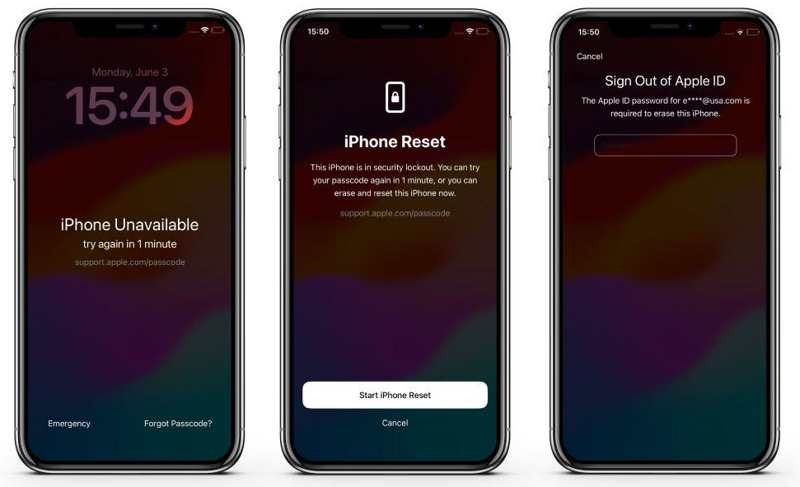
Step 1. Repeatedly enter a wrong passcode until your device is disabled. You can see the iPhone Unavailable or Security Lockout screen.
Step 2. Tap the Forgot Passcode at the bottom.
Step 3. Then, tap the Start iPhone Reset button.
Step 4. Input your Apple ID password.
Step 5. Once your password is verified, the process will initiate.
Step 6. When it finishes, you will be presented with the Hello screen.
Note: If you just changed your iPhone passcode within 72 hours, you can tap Forgot Passcode and choose Enter Previous Passcode to unlock your iPhone without a passcode or resetting.
Further Reading
How to Unlock iPhone Without Passcode on iOS 15.2-16
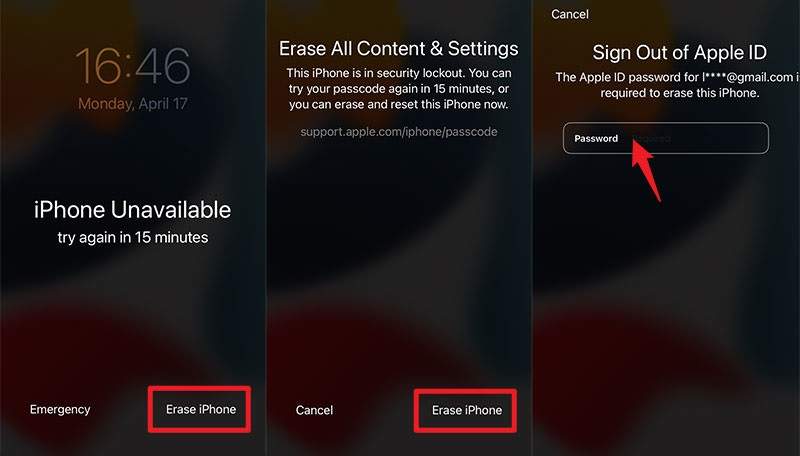
Step 1. Once your iPhone enters the iPhone Unavailable or Security Lockout screen, tap the Erase iPhone button at the bottom.
Step 2. Read the warning message and tap Erase iPhone to move on.
Step 3. Type in your Apple ID password and confirm it.
Step 4. When it is complete, you can set up your iPhone as a new device or restore a backup.
Part 2: Unlock iPhone Without Passcode via iTunes/Finder Recovery Mode
iTunes enables you to unlock your iPhone without a passcode or Face ID for free. You can put your device in Recovery Mode and restore it to remove all data, including screen locks. However, this process will erase all data and settings on your iPhone. Remember that you must enter your Apple ID password when setting up your device again if Find My iPhone is enabled.
Step 1. Open the latest version of iTunes on Windows and macOS Mojave or earlier. On macOS Catalina or later, run Finder.
Step 2. Plug one end of your USB cable into the computer and insert the other end into the locked iPhone.
Step 3. Put your iPhone in recovery mode:
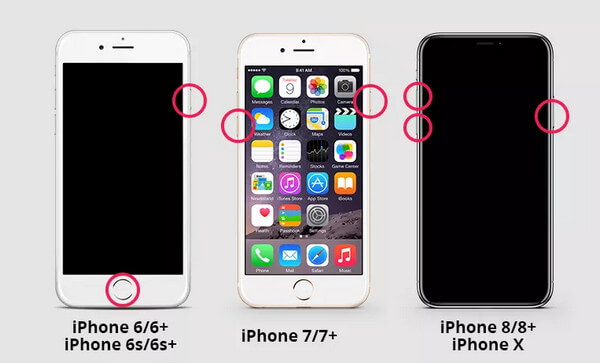
For iPhone 8 and later
Quickly press and release the Volume Up button.
Quickly press and release the Volume Down button.
Press and hold the Side button until the iPhone enters Recovery Mode.
For iPhone 7/7 Plus
Hold down the Volume Down + Side buttons together.
Release the buttons after you see the Recovery Mode screen.
For iPhone 6s and earlier
Long-press the Home + Sleep/Wake buttons simultaneously.
When the Recovery Mode screen appears, let the buttons go.
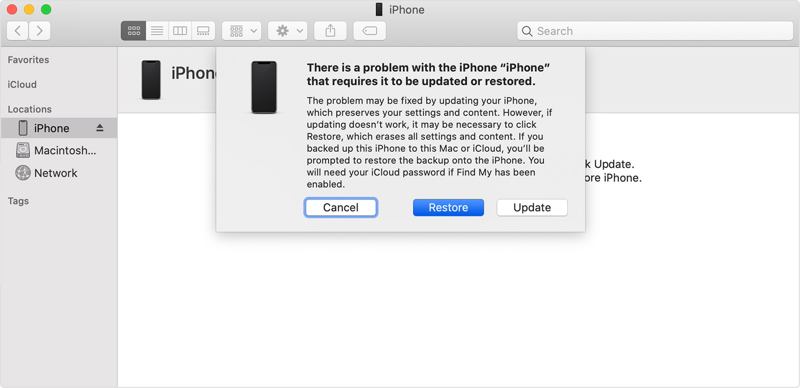
Step 4. Once iTunes or Finder detects your iPhone in Recovery Mode, a dialog will pop up.
Step 5. Click the Restore button to begin unlocking the iPhone without a passcode.
Step 6. Wait for the process to finish and access your device without any restrictions.
Part 3: Unlock iPhone Without Passcode by Erasing iPhone Using Find My
Find My is a feature to track iOS devices. It allows users to remotely erase a locked iPhone and remove the iPhone screen passcode for free. However, this process will delete all data and settings on your device. The prerequisite is that you have turned on Find My iPhone on your device before you are locked out. Moreover, this method requires your Apple ID password.
How to Unlock iPhone Without Face ID Using Another Apple Device
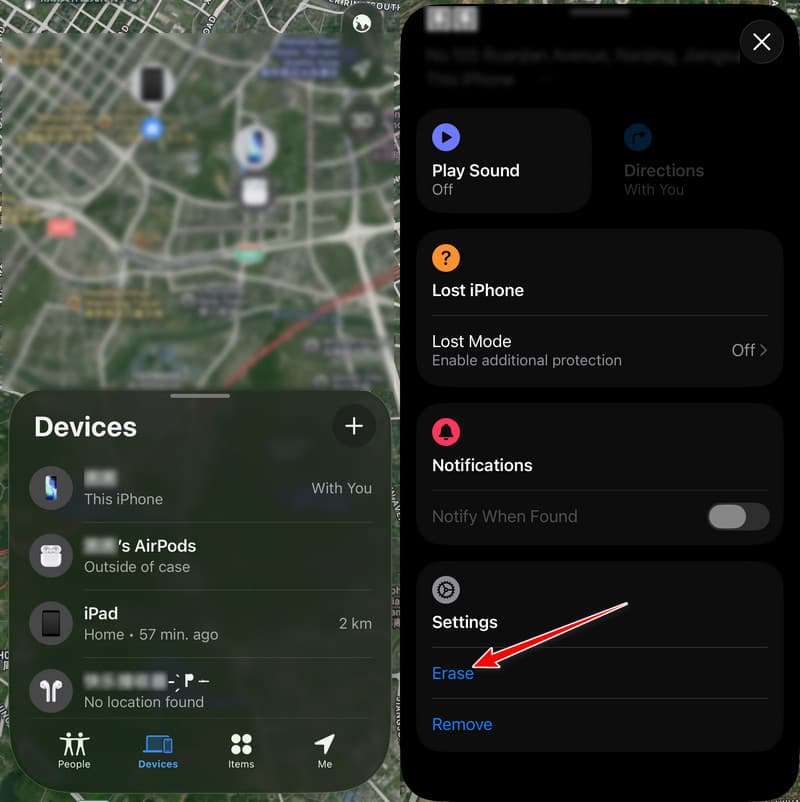
Step 1. Open the Find My app on another Apple device where you have signed in with the same Apple ID. You can download it from the App Store.
Step 2. Go to the Devices tab at the bottom.
Step 3. Select your iPhone from the list.
Tips: If you cannot find it, tap the + button next to Devices, choose Add AirTag, and enter your Apple ID and password to add your iPhone.
Step 4. Next, tap the toolbar at the bottom to expand it and choose Erase.
Step 5. Tap the Continue button on the next screen.
Step 6. Hit Erase, input your Apple ID password, and tap Erase again.
How to Unlock iPhone Without Passcode in iCloud.com
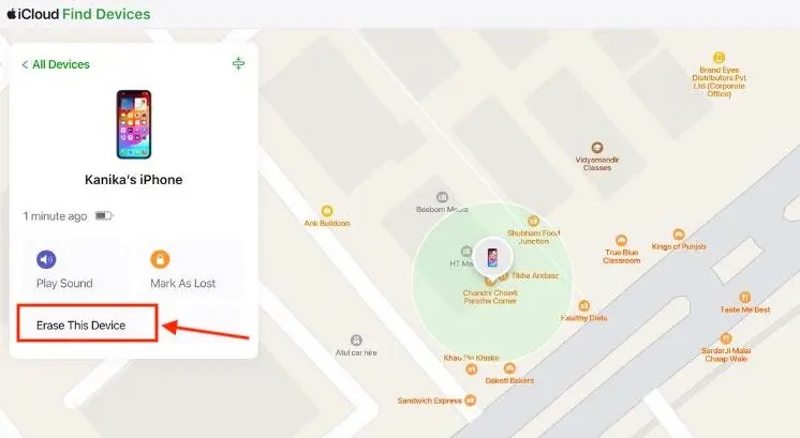
Step 1. Go to www.icloud.com/find/ in a browser and log in with your Apple ID and password.
Tips: Or log in to www.icloud.com and choose Find My.
Step 2. Choose the locked iPhone on the All Devices list.
Step 3. Click the Erase This Device button.
Step 4. Read the alert message, click the Continue button, and hit Erase to confirm unlocking your iPhone without a passcode.
Step 5. If your iPhone is online, you can access it directly after the process. If not, the process will begin once your device connects to a network.
Tips: After the erase process finishes, your iPhone will restart and enter the Hello screen. Here, you will see the Activation Lock screen if Find My iPhone was enabled. You need to verify your Apple Account to remove the iCloud Activation Lock.
Part 4: Professional Way to Unlock iPhone Without Passcode or Face ID
As you can see, the methods above require your Apple ID password to erase your iPhone or remove Activation Lock after resetting the device. Can you unlock an iPhone without a passcode or Apple ID? If you are looking for a simpler way to remove the screen lock, Apeaksoft iFoneKit iOS Unlocker, on the other hand, is the one-stop solution to access a locked or disabled device without any password.

Downloaded by over 1,000,000 users
- Unlock iPhones in various situations, such as when they are disabled.
- Offer bonus features, like Screen Time passcode removal, MDM bypass, Apple ID removal, SIM card unlock, etc.
- Complete the unlock process in 3 steps.
- Support the latest editions of iOS and iPadOS.
Secure Download
Secure Download

How to unlock an old iPhone without a passcode:
Step 1. Install iFoneKit
Launch the iOS unlocking software once you install it on your PC from the button above. Connect your locked iPhone to your PC with a Lightning cable. If prompted, tap Trust on your screen to trust this PC. Choose the Unlock iOS Screen mode on the home interface to move on.
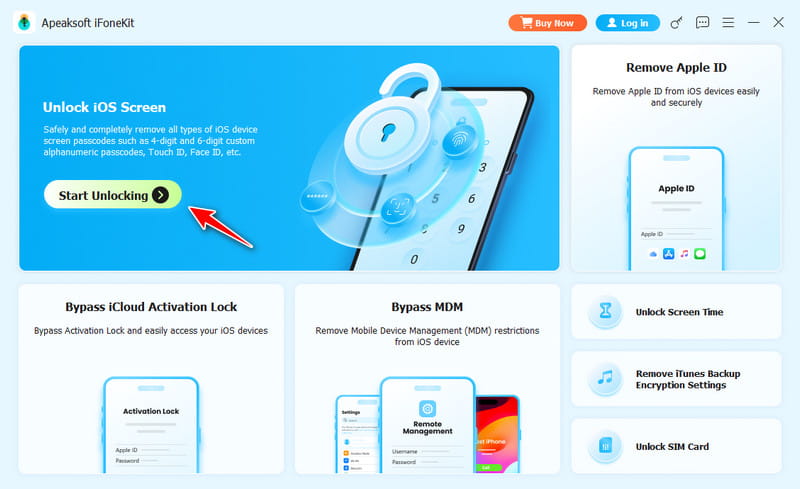
Step 2. Download the firmware
After your device is detected, click the Start Now button to begin downloading the firmware. When it is done, click the OK button on the confirmation dialog. Next, hit Confirm Again to verify the firmware.
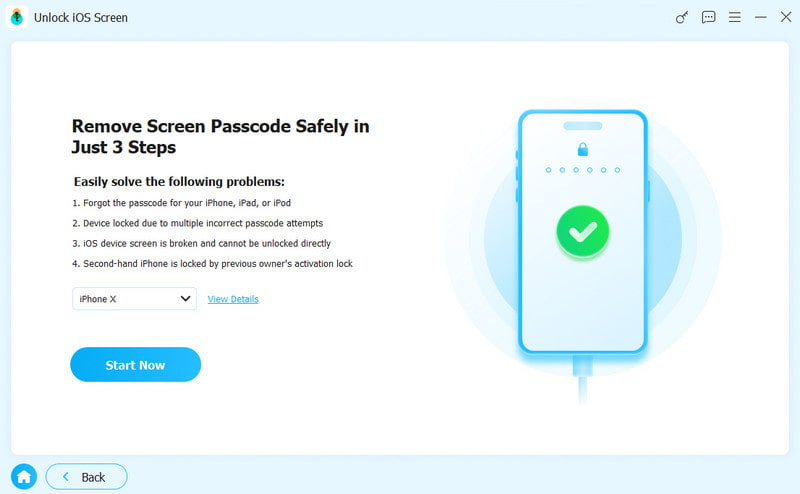
Step 3. Unlock your iPhone
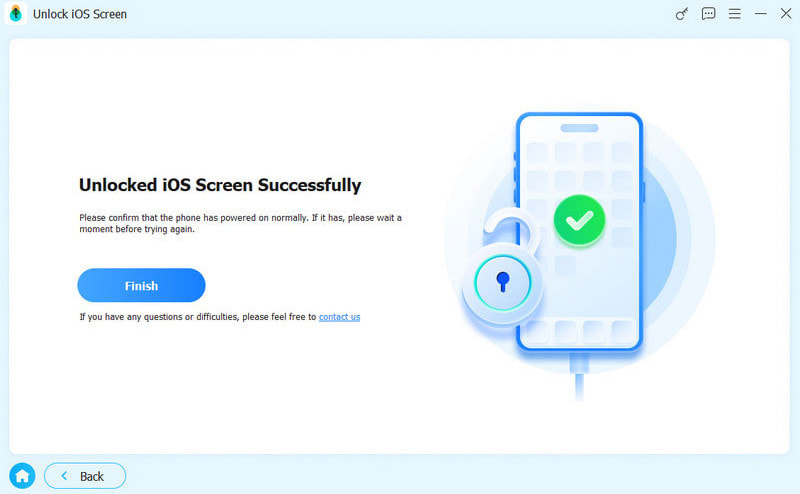
Once the software verifies the firmware, the unlock process will automatically initiate. A few minutes later, you will see the success window. Disconnect your device and close the software.
Note: The process will erase all data on your iPhone. To avoid data loss,you’d better back up your device first.
Part 5: Common iPhone Unlock Methods That Do Not Work [Explained]
Unlock iPhone Without Passcode or Face ID via Siri
Many online tutorials claim that you can unlock iPhone without a passcode using Siri. However, these methods are based on very old iOS security loopholes that existed in early iOS versions and have long been patched by Apple. On the latest iOS 26, the Siri method no longer works to bypass the Lock Screen.
Unlock iPhone Without Passcode with Calculator Trick
There are also many online videos claiming that you can unlock an iPhone without a passcode using the Calculator app. However, most of these tricks are misleading and rely on video editing or hidden steps. The Calculator method cannot unlock iPhone without passcode on modern iOS versions, including iOS 26.
Unlock iPhone Without Passcode or Face ID Using Voice Control
Many online tutorials claim that Voice Control can unlock an iPhone without a passcode or Face ID. However, Voice Control is only an accessibility feature for hands-free control and can only work for an already unlocked iPhone with voice commands.
Unlock an iPhone Without Passcode Without Resetting
According to Apple Official, you need to factory reset your iPhone if you forget the passcode, and this process will erase all data and settings. Currently, there is no official method to unlock an iPhone without a passcode without resetting it.
Unlock iPhone Without Losing Data
If you forgot your iPhone passcode, most methods will require you to reset or erase your device, which removes all data and settings. However, on iOS 17 and later, if you changed your passcode within the last 72 hours, you may be able to use your previous passcode through the Forgot Passcode option to unlock your iPhone without losing data.
Conclusion
This guide shared multiple ways to unlock an iPhone without Face ID or a passcode. The Security Lockout feature is available to unlock your device for free. iTunes/Finder enables you to restore a locked iOS device without restrictions. Moreover, Find My works for unlocking an iPhone remotely after resetting it. If you forgot your Apple ID password, Apeaksoft iFoneKit iOS Unlocker can regain access to your device without any restrictions.
 Apeaksoft iFoneKit
 Unlock all types of iOS passwords from iPhone, iPad and iPod.
Secure Download
Secure Download
Related Articles




