How to Fix Apple ID Not Found on Your iPhone or iPad

While it is a rare problem, some iPhone users reported that they encounter the error saying cannot find this person. This error may happen when you log in to or verify your Apple ID account on your iPhone or iPad. When this error happens, you cannot use some important features on your device, like downloading apps in the App Store. This article walks through the solutions to get rid of the error that the Apple ID is lost.
PAGE CONTENT:
Part 1: Why Is My Apple ID Not Found
The reasons why my Apple ID is not found are complicated. When using your Apple ID, your device needs to communicate with Apple servers. If the process is interrupted, you will encounter the error that the Apple ID is not found. The possible causes might include Apple servers being down, Apple ID verification failing, a poor internet connection, Apple ID email being inaccessible, and more.
Part 2: How to Fix Apple ID Not Found
Solution 1: Check Apple Server Status
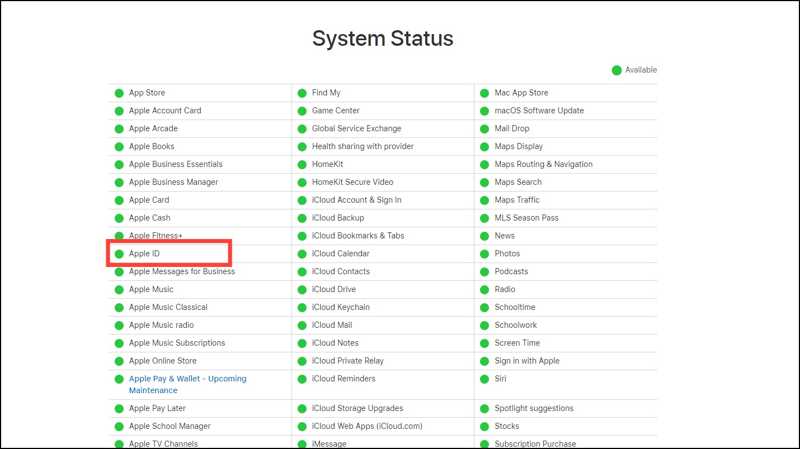
When the Apple ID is not found, the first thing you need to do is check the status of the Apple ID servers. Go to https://www.apple.com/support/systemstatus/ in a web browser. Click and expand the whole list. Ensure the Apple ID server is available. If the server or its relative is not available, try again when it becomes available.
Solution 2: Check Your Internet Connection
Your iOS device requires a stable network to communicate with Apple Servers. If your iPhone or iPad connects to a poor internet connection, you may encounter the error that your Apple ID is lost.
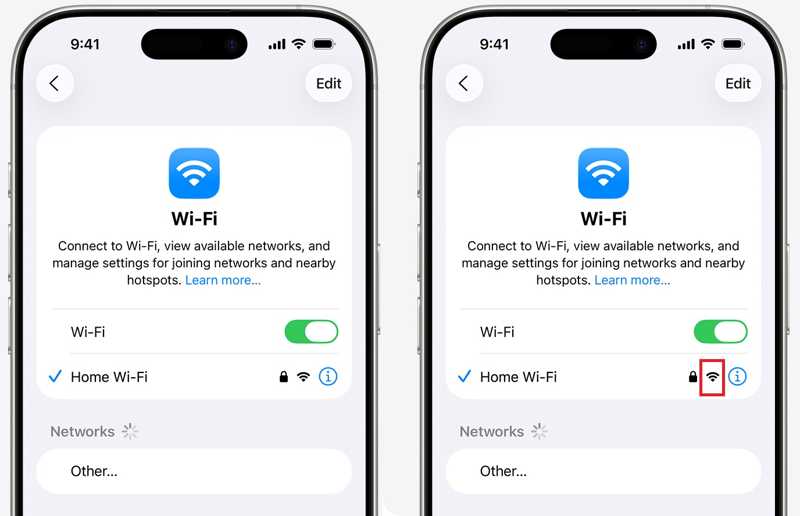
Step 1. Go to the Settings app.
Step 2. Tap Wi-Fi and check the signal of your current Wi-Fi network.
Step 3. If it is poor, switch to a better one.
Solution 3: Reset Apple ID Email
The Apple ID Not Found error may occur if your primary email is inaccessible. In fact, you'd better keep all your information associated with your Apple account up to date. When you stop using the email or phone number, reset it immediately.
Step 1. Run the Settings app.
Step 2. Tap on your profile.
Step 3. Navigate to Sign-In & Security.
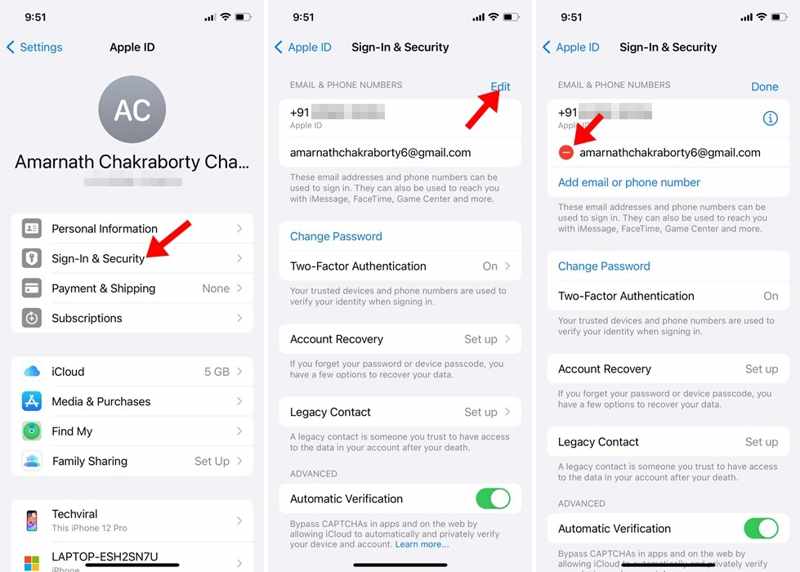
Step 4. Tap the Edit button.
Step 5. Press the Delete button next to the inaccessible email, and hit Delete.
Step 6. Next, tap the Add email or phone number button.
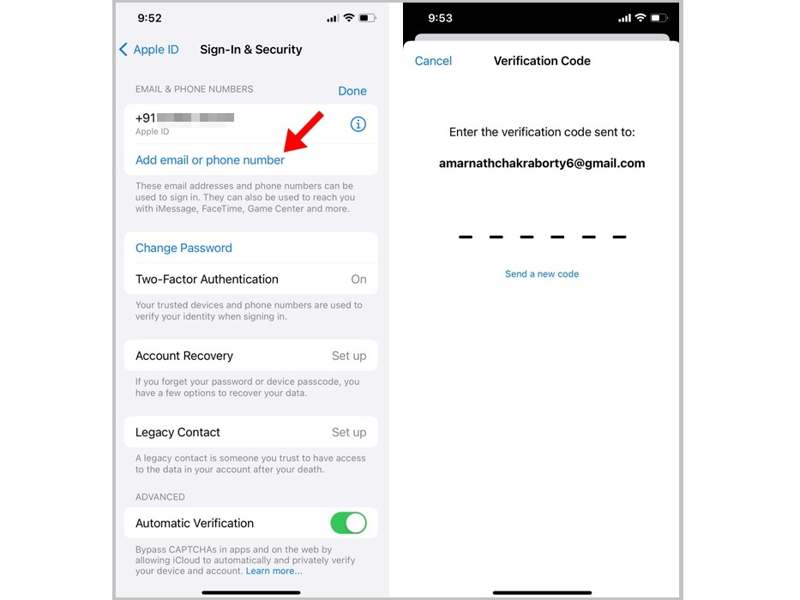
Step 7. Enter your current email address.
Step 8. When you receive the verification code, enter the 6-digit code.
Solution 4: Re-sign in to Apple ID in App Storen Apple ID in App Store
If you encounter the Apple ID Lost error when downloading apps on your iPhone, it means that the account linked to your App Store is outdated. You'd better sign out of the account and sign in to it again.
Step 1. Run your App Store app.
Step 2. Tap on your profile picture.
Step 3. Scroll down and tap the Sign Out button.
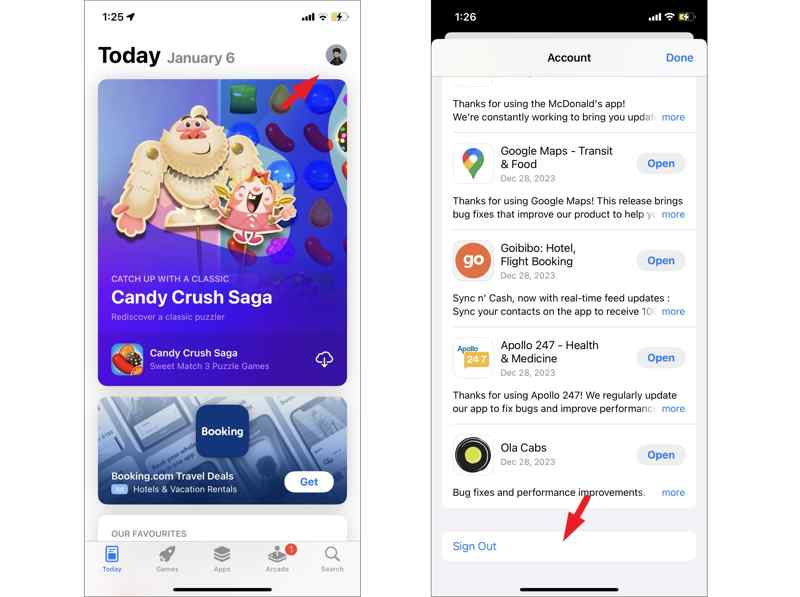
Step 4. Next, restart your iPhone.
Step 5. Go to App Store and tap the Account button.
Step 6. Tap the Sign In With Apple ID button.
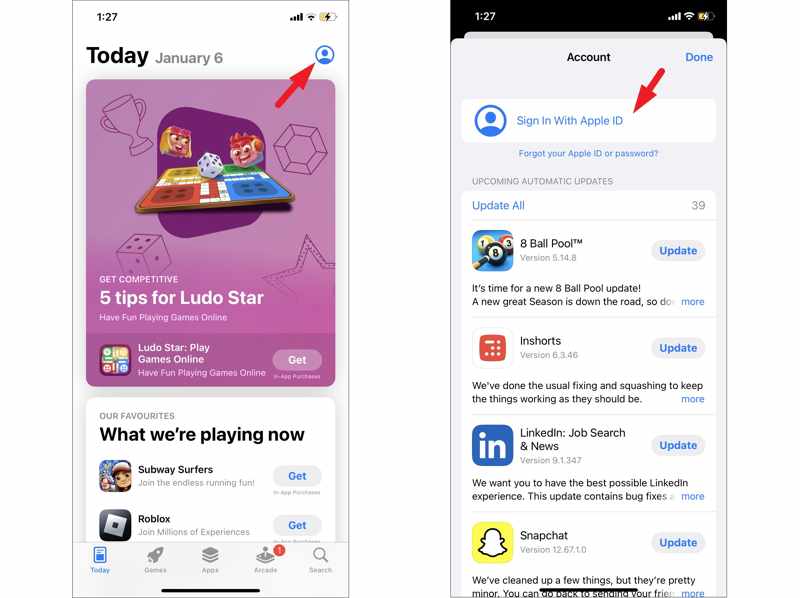
Step 7. Enter your Apple ID and password.
Solution 5: Correct Date and Time
The wrong date and time may lead to Apple ID Not Found. The good news is that you can fix this problem quickly. In fact, you don't need to set the date and time manually. iOS is able to correct the date and time automatically.
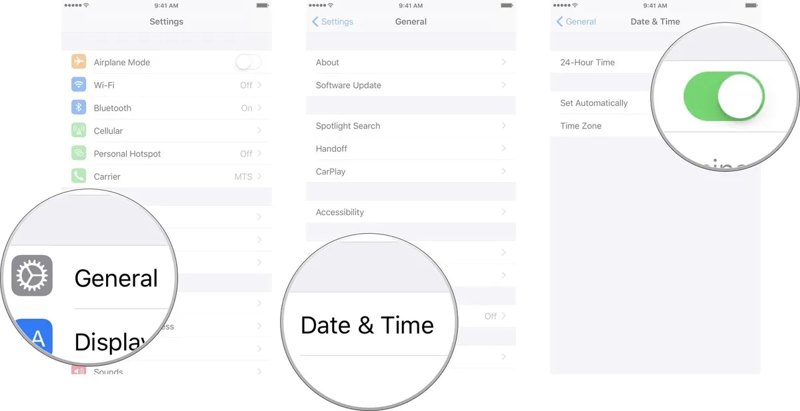
Step 1. Open your Settings app.
Step 2. Go to General and Date & Time.
Step 3. Toggle on the Set Automatically option.
Part 3: Ultimate Solution to Fix Apple ID Not Found on Your iPhone
If the common solutions are unavailable, you can try Apeaksoft iFoneKit iOS Unlocker. It is able to remove the lost Apple ID from your iPhone or iPad without any restrictions. Moreover, the intuitive design makes it a good option for beginners.

Downloaded by over 1,000,000 users
- Remove the outdated Apple ID from your iPhone in three steps.
- Don't require iPhone passcode or Apple ID password.
- Handle a locked or disabled Apple account.
- Compatible with a wide variety of iPhone and iPad models.
Secure Download
Secure Download

How to Fix Apple ID Not Found on Your iPhone
Step 1. Install iOS Unlocker
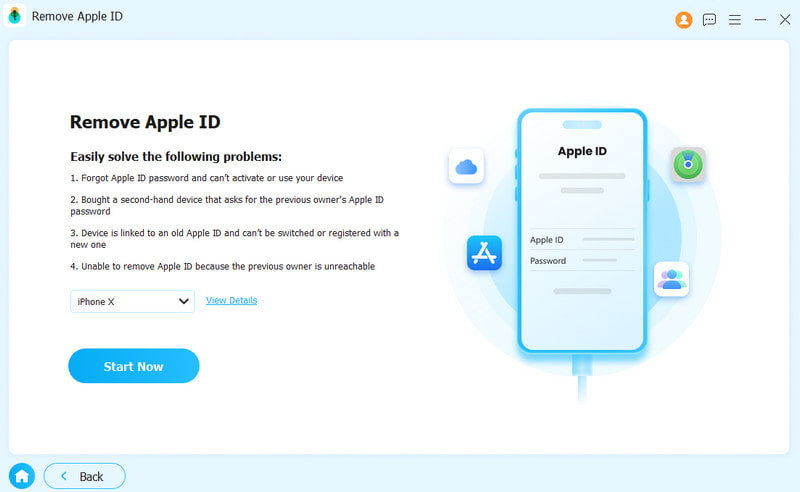
Start the Apple ID removal software once you install it on your computer. It works on Windows 11/10/8/7/XP/Vista and macOS 10.7 or above. Choose the Remove Apple ID mode.
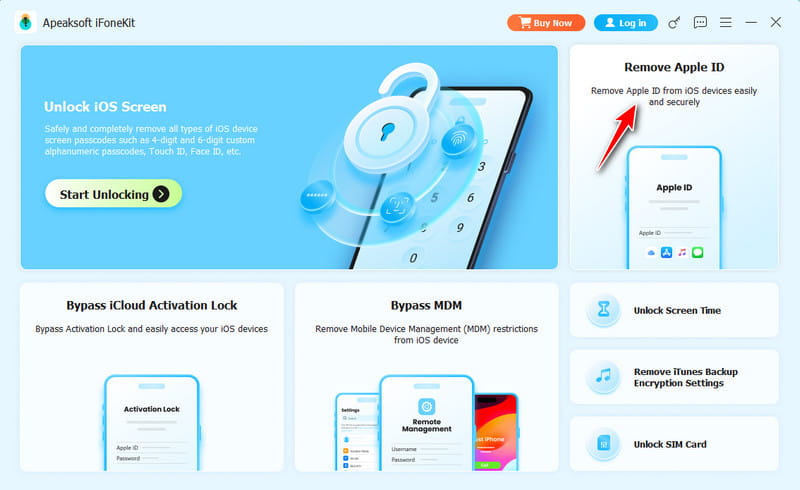
Step 2. Connect to your device
Plug your iPhone into your computer with a Lightning cable. The software will recognize your device immediately and load your device information.
Step 3. Remove Apple ID
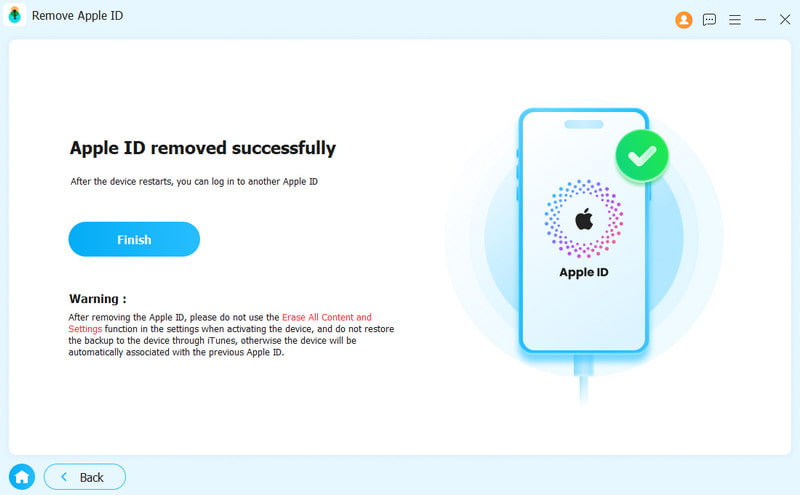
Click the Start Now button to begin removing the Apple ID if Find My is disabled. If Find My is enabled, reset all settings on your device. This process is not a factory reset, so you can keep all the data. Click the OK button, and hit Confirm Again to initiate the process.
Further Reading
Conclusion
This article helped you to get rid of the error of Apple ID Not Found. You should learn the possible causes. More importantly, you can follow our solutions to fix this error and use your Apple account properly. Apeaksoft iFoneKit iOS Unlocker is a one-stop solution to remove the lost Apple ID from your iOS device with a password.
 Apeaksoft iFoneKit
 Unlock all types of iOS passwords from iPhone, iPad and iPod.
Secure Download
Secure Download
Related Articles