

4 Proven Workable Ways for Flash Drive Repair Safely

How to repair a flash drive? This question may come up. When a flash drive stops responding or fails to open files, it can interrupt your workflow and even cause data loss. But don't worry. This guide outlines several practical ways to perform flash drive repair safely, from hands-on fixes and scanning tools to reformatting and professional technical support.
PAGE CONTENT:
Part 1: Flash Drive Repair for Physical Damage
Physical damage is one of the most common reasons a flash drive stops functioning. This issue can be ascribed to many accidental factors, such as a broken connector, water exposure, internal circuit issues, and so on. When it comes to repairing flash drives with physical damage, many users can be perplexed.

Firstly, check if you can insert the flash drive into your computer smoothly. If not, clean both the USB port and the Flash Drive with a cotton swab.
Then, after inserting the flash drive into the computer, wiggle it carefully to see if the connection is stable, as a loose connection may contribute to the error of reading the data within.
Finally, when all these quick checks don't work, professional support should be considered for physical damage.
Part 2: How to Scan and Repair a Flash Drive
When your flash drive encounters logical errors or becomes unreadable, scanning and repairing it through built-in system tools is often the most direct fix. Both Windows and macOS offer utilities that can automatically detect and repair corrupted sectors or file system errors, restoring your flash drive's regular operation without an SD card recovery software.
For Windows - Scan and Repair a Flash Drive via File Explorer
Step 1. Insert your flash drive into your Windows computer and make sure the connection is stable.
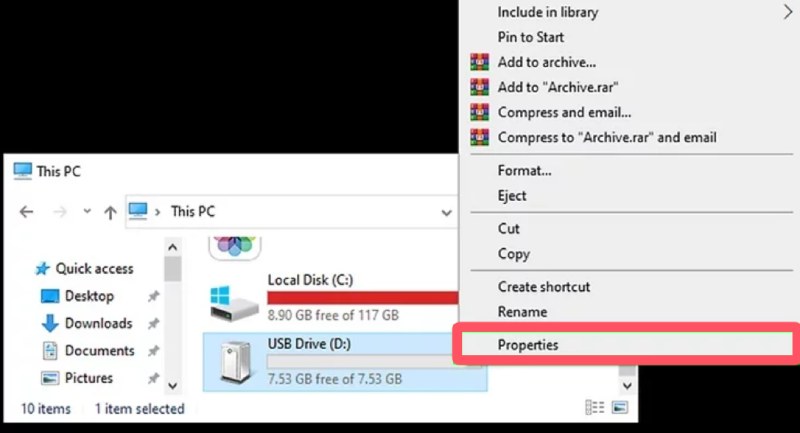
Step 2. Press Win + E to open File Explorer and find the flash drive. Right-click it and click Properties.
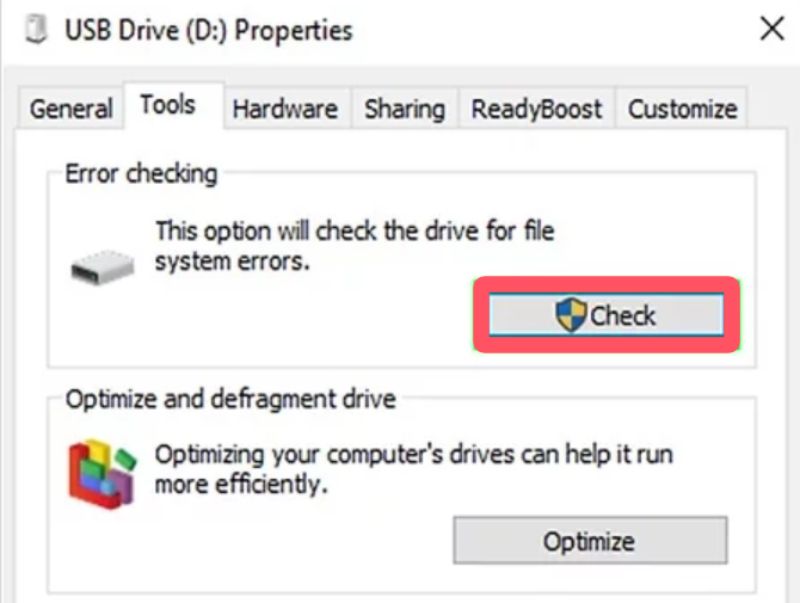
Step 3. Under the Tools tab, click Check to summon a new window for Error Checking. In the pop-up window, click Scan and repair drive to repair the flash drive automatically.
For Mac - Scan and Repair a Flash Drive via First Aid
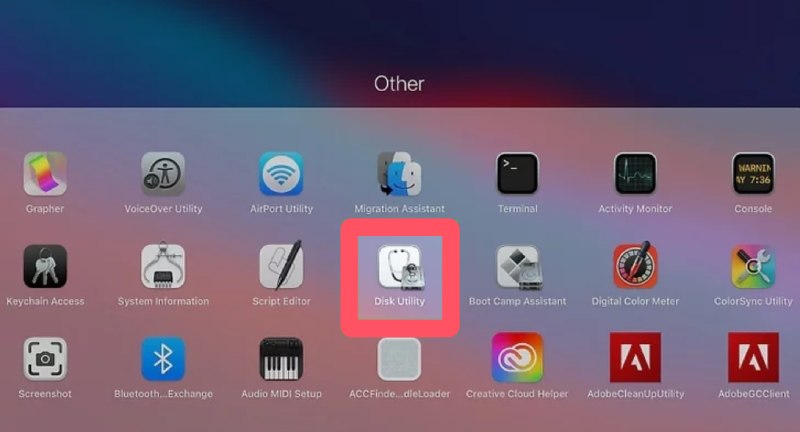
Step 1. Insert your flash drive into your Mac and launch Disk Utility by typing Disk Utility in the Launchpad.
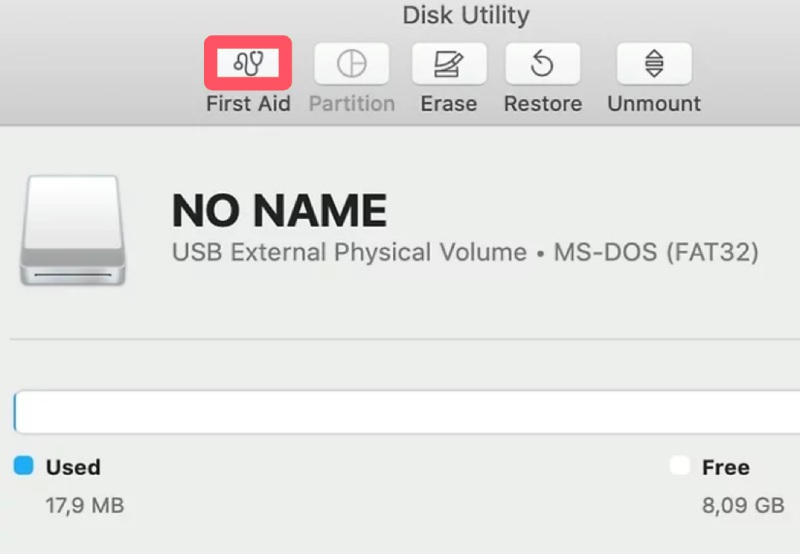
Step 2. Click to select your flash drive under the External tab. In the right corner of the top, click First Aid and then Run to confirm the start of flash drive repair on your Mac.
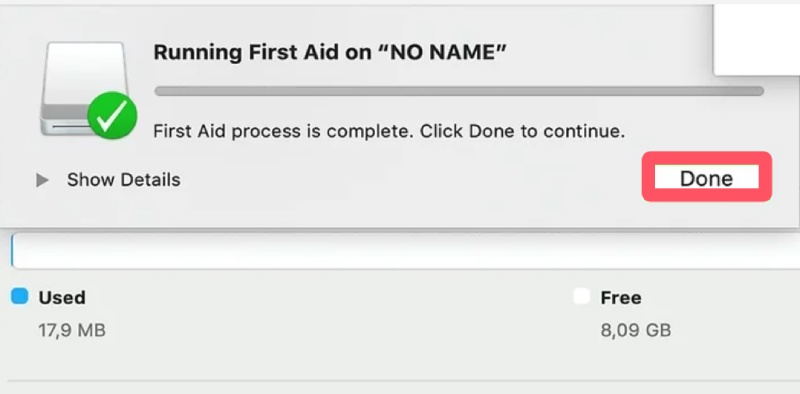
Step 3. After a short time of repairing, a pop-up window will show up. Click Done to finish the process, and your flash drive should now be restored.
Part 3: Reformatting for Flash Drive Repair
If system scanning fails to repair your flash drive, reformatting is often the next effective solution. Although it erases all stored data, reformatting helps remove deep-seated corruption and reconfigures the drive's file system. This section explains how to reformat a flash drive properly and safely to restore its functionality for reuse.
To Reformat for Flash Drive Repair on Windows
Step 1. After inserting your flash drive into the Windows computer, press Win and E to summon File Explorer on your device. You can also right-click Windows to open it.

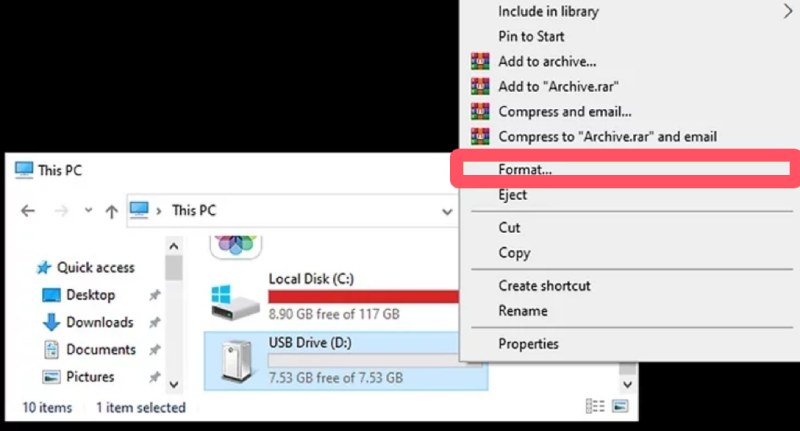
Step 2. In the window of File Explorer, find your flash drive and right-click it. Click Format... to proceed.
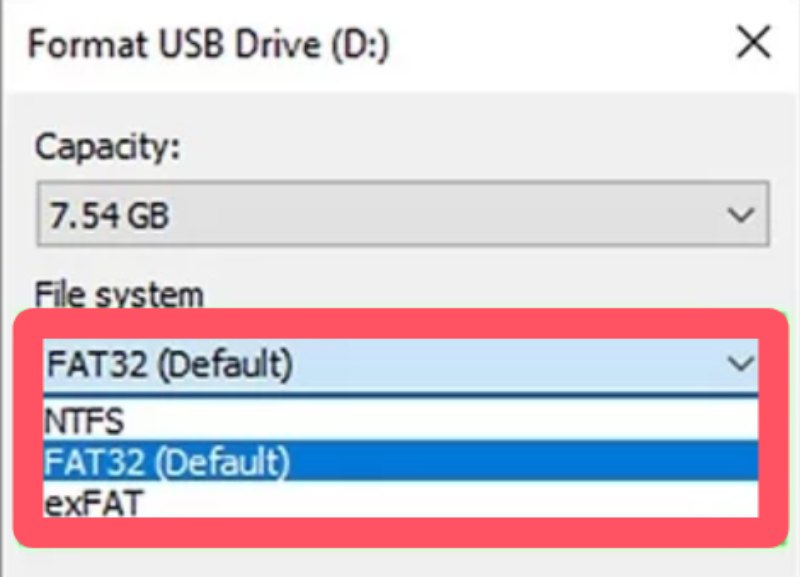
Step 3. In the Format USB Drive window, click FAT32 (Default) under the File system tab. Then, click Start.
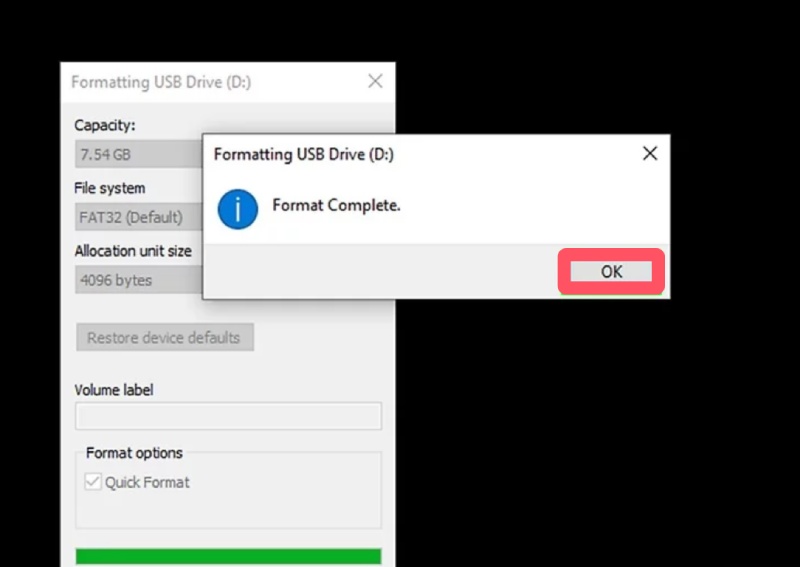
Step 4. After a short time of formatting, your flash drive will be repaired with all data wiped. Click OK and finish Windows file recovery.
To Reformat for Flash Drive Repair on Mac
Step 1. Open Disk Utility through Launchpad on your Mac. Find your flash drive in Disk Utility and click to select it.
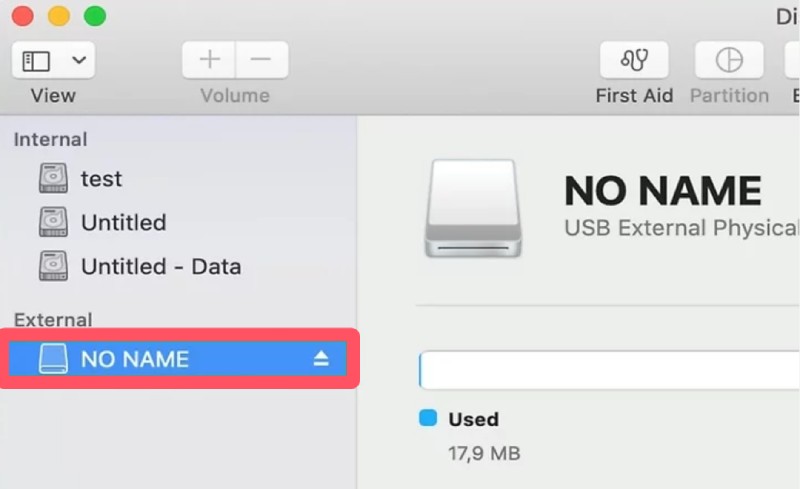
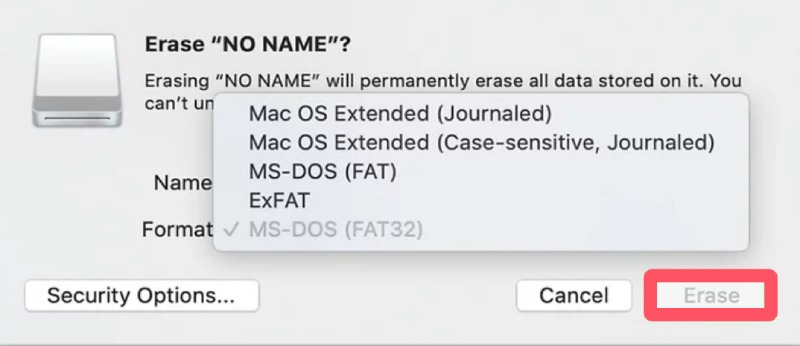
Step 2. Click Erase at the top of the window. Type to rename the flash drive and select a desired format under the Format tab.
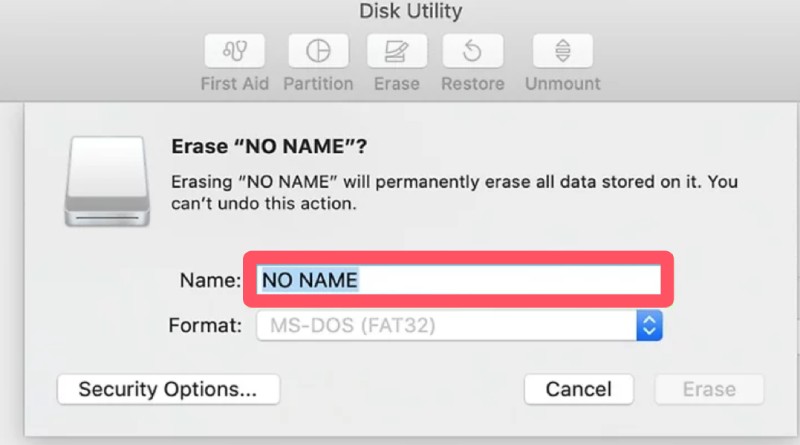
Step 3. Finally, click Erase to confirm the action to erase everything for flash drive repair.
Part 4: Repair Flash Drive in a Secure Way
To repair your flash drive safely without erasing data within, you need a professional tool to help you with the process. With Apeaksoft Data Recovery, even a beginner without related knowledge can finish the process successfully. If you wonder how to repair your flash drive with one click using this tool, you can follow the steps below:
Step 1. Download the installation package of Apeaksoft Data Recovery from the official website. Once finished, install and launch it to proceed.
Secure Download
Secure Download
Step 2. Insert your flash drive into the computer. In the main interface, click USB / SD Card Recovery. Then, click Scan Disk to select your CF card to read the content within.
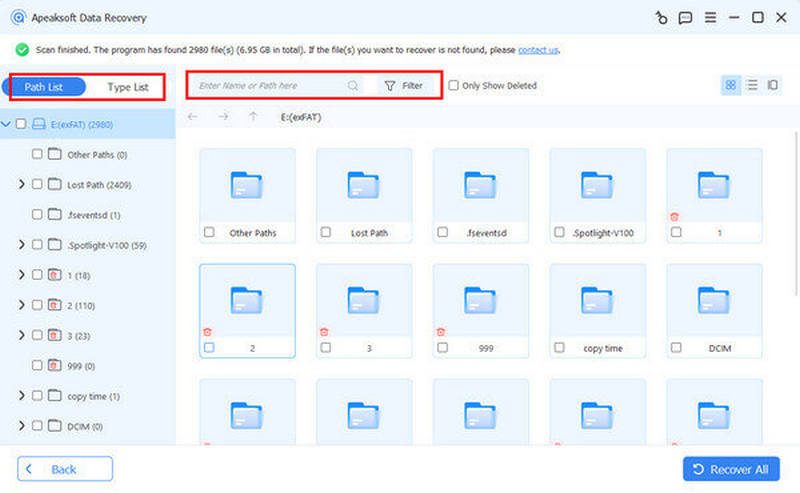
Step 3. After a short time of deep scanning, everything in your flash drive will be listed. You can select the desired data you want to recover by clicking Filter. To see more detailed information, select specific data to check.
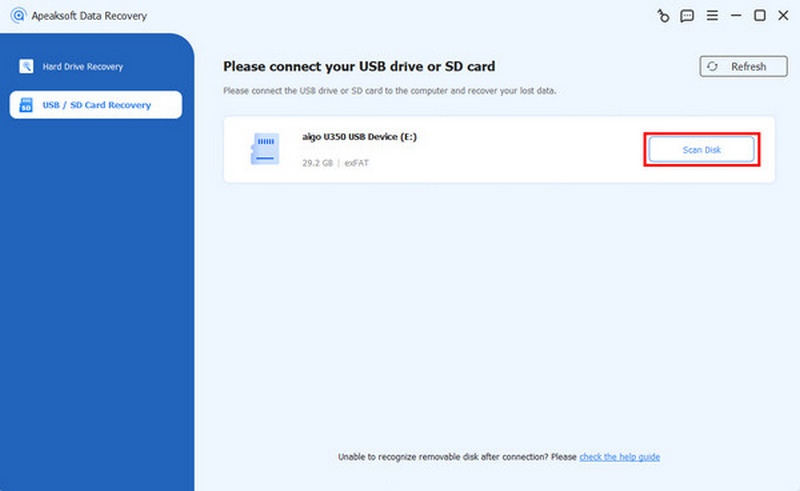
Step 4. Once you select everything you want for flash drive repair, click Recover to start the process automatically. All you need to do is choose the destination folder to save the recovered data.

Part 5: Repair Flash Drive with Technical Support
Sometimes, a flash drive may suffer from complex issues beyond what home troubleshooting can handle. In such cases, seeking technical support from data recovery specialists or manufacturer repair centers is the best approach. Here, you'll learn when to consider professional help and what to expect during the repair process.
Conclusion
Flash drive repair can seem daunting if you haven't encountered one before. However, with the proper methods, most issues can be fixed without data loss. From basic scanning and reformatting to seeking professional help, each approach addresses a different level of damage. Regular backups and safe ejection habits can also prevent future problems. Keep these solutions in mind to maintain your flash drive's reliability and longevity.
Related Articles
If you encounter the unallocated hard drive error, don’t panic! Here are three solutions to fix it and recover your data.
This tutorial demonstrates how to recover data from a formatted hard drive with or without backups on a Windows and Mac.
You can learn five effective methods to recover lost photos from an SD card, including corrupted, crashed, or damaged SD cards.
Whether you emptied your Recycle Bin, you can recover files from Recycle Bin on Windows and Mac following our concrete guide.



